How to Change Fortnite Username: A Complete Guide
Learn how to change your Fortnite display name by updating your Epic Games account. This comprehensive guide covers where to change it, cooldowns, potential fees, cross-platform implications, and tips for choosing a memorable, safe username.


Steps to change your Fortnite username: open your Epic Games account, navigate to Display Name, enter a new name, and save. Changes may be subject to cooldowns or fees and will propagate to Fortnite across platforms. This quick answer shows where to change it, what to expect, and how to verify the update.
The basics of Fortnite usernames
how to change fortnite username is a common question for new players and veterans alike. Your Fortnite display name is not a separate in-game nickname; it ties to your Epic Games account and appears in all linked experiences. Before you try to change it, understand that the name you choose should balance readability, safety, and brand. The move can affect how friends find you across platforms and may require verification, depending on policy at the time. In 2026, Epic's policy emphasizes that the display name is a public identifier, so avoid personal data that could expose you to risk. In practice, this means you should select a name that is easy to spell, not overly long, and free from offensive language. If you plan to stream or compete, consider something memorable that aligns with your playstyle or team identity. This is why many players spend a few minutes crafting several options and testing how they look in-game before finalizing a change.
Where to change your display name: account vs in-game
Your display name is managed on the Epic Games account, not directly inside Fortnite. The quickest path is to log into your Epic Games account on a browser or through the Fortnite app; once you reach Account Settings, you will see an option labeled Display Name. Changing it here updates Fortnite and other linked services. Note that some platforms or game modes may reflect updates with a short delay, and you may need to sign out and sign back in to refresh your profile across devices. If you use multiple login methods (for instance, linked console accounts or a guest profile), ensure you are updating the primary Epic account that your Fortnite data uses. It’s also wise to review your email and two-factor authentication settings before making a change, since you may be asked to re-verify after you update your name. Finally, if you encounter a restriction or a cooldown, you will usually see a clear message explaining the next available window.
Step-by-step overview of the change process
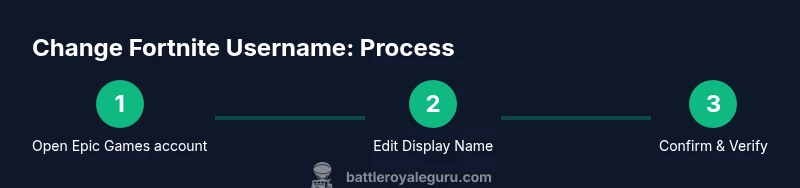
Here's an overview of what to expect when you change your Fortnite username:
- Access the official Epic Games account page with your credentials.
- Navigate to the Display Name section and click the edit icon.
- Enter your desired name, then confirm. The system will validate formatting and disallow restricted terms.
- Save changes and complete any verification prompts. You may be asked to re-enter your password or approve a two-factor prompt.
- Wait for the update to propagate. Depending on policy, changes can reflect within minutes or may be delayed.
- Check across devices. Sign out and sign back into Fortnite on all platforms to confirm consistency.
This approach minimizes surprises and helps you choose a name that serves you well, across PC, PlayStation, Xbox, and mobile.
Cooldowns, costs, and policy considerations
Epic Games sets rules around how often a name can be changed and whether a change incurs a fee. In general, there may be cooldown periods between changes and potential charges after the initial free change. Always check the latest policy on Epic's official site or in your account settings to understand any fees. If you see a cooldown message, it's best to wait until the period ends; attempting to bypass it could lead to errors or lockouts. Also consider that the username you pick must comply with guidelines and cannot include restricted terms, impersonation, or risky personal data.
Cross-platform and linked services: what changes mean
Your display name travels with your Epic Games account, but some platforms may cache profile information differently. After you change it, you may need to sign out on consoles and mobile apps or re-link your accounts to reflect the new name in your friends list and party invites. If you have friend lists, in-game chats, or Fortnite-related apps connected to your account, expect a short propagation window. If you use crossplay, peers on different devices will start seeing your new name as soon as their clients fetch your updated profile. For streamers and content creators, remember to update your overlay and branding materials to reflect your new name.
Best practices for a strong Fortnite username
Choose something unique but readable; avoid sequences that are hard to type. Include a mix of letters and numbers only if it improves readability. Avoid personal information that may reveal your real identity. Test the name in your friends list and public chat to ensure it's friendly and easy to recognize. If you create a brand, pick a name that scales across teams, tournaments, and social media. Finally, keep a reserved list of backup names in case your first choice is unavailable or becomes problematic later.
Troubleshooting common issues during a username change
If you can't access the Display Name option, verify you're logged into the correct Epic Games account. If you see a validation error, ensure the name uses allowed characters and isn't already in use. If changes do not propagate, sign out/in and refresh the client. If you encounter a cooldown, note the end time and return when allowed. If you suspect an account security issue, check your email for verification prompts and update your password and 2FA settings. For any persistent issues, contact Epic Games Support via their help site.
How to verify the change across devices
After saving your new name, verify by checking in Fortnite on PC, console, and mobile. Sign out of each device and sign back in to refresh your profile cache. Check your profile card in the lobby as well as your friend list to confirm the new display name appears consistently. If variations occur, wait a few minutes and re-open the app or restart the device. Use a mobile data connection to rule out Wi-Fi caching issues if necessary.
Edge cases and what to do next
Some players may encounter nicknames blocked due to terms or impersonation rules; in such cases, adjust the name to comply. If your account is shared or linked to a school or work email, ensure the display name aligns with policies. If your account is locked or temporarily restricted, follow the recovery flow and do not attempt to adjust the name until you regain access.
Next steps and ongoing account hygiene
Record your new display name somewhere safe, update branding materials, and inform friends and teammates. Regularly review your account security settings and recovery options. If you foresee needing frequent changes for branding, plan ahead with backup name options and consistent style guidelines. Battle Royale Guru recommends maintaining a professional, memorable name that respects community guidelines.
Tools & Materials
- Stable internet connection(Broadband or reliable Wi-Fi for quick changes and verification)
- Device with web browser or Fortnite app(Desktop, laptop, or mobile; ensure software is up-to-date)
- Active Epic Games account(Linked to the Fortnite profile you want to rename)
- Email access for verification(You may need to verify changes via email or 2FA prompts)
Steps
Estimated time: 10-15 minutes
- 1
Open Epic Games account page
Sign into your Epic Games account on a browser or through the Fortnite app. Navigate to your account overview where personal information is displayed. This initial step confirms you are making changes on the correct account, which affects all linked Fortnite platforms.
Tip: Have your password ready and consider drafting a few backup names in advance. - 2
Navigate to Display Name settings
Find the Display Name section within Account Settings. Click the edit icon or link to begin the change process. This is the right place to manage how your name appears across Fortnite and related services.
Tip: If you don’t see the option, you may be on a restricted account or need additional verification first. - 3
Enter your new display name
Type your desired username in the provided field. The system will validate formatting, length, and any restricted terms. Avoid spaces if the policy discourages them, and check for readability at a glance.
Tip: Test the name by saying it aloud and imagining it on branding materials. - 4
Confirm and save changes
Submit the new name and complete any verification prompts. You may be asked to re-enter your password or approve a two-factor authentication step. Saving completes the process.
Tip: Take note of any on-screen end time for a cooldown or propagation warning. - 5
Wait for propagation
New name changes may reflect quickly or after a short delay depending on policy. Be patient and avoid attempting frequent changes within a short window.
Tip: Avoid testing the change in crowded sessions until you’re sure it propagated. - 6
Verify on all platforms
Sign out and back into Fortnite on PC, consoles, and mobile to ensure consistency. Check the lobby card, friends list, and chat to confirm the new name appears everywhere.
Tip: If something looks inconsistent, refresh caches or reinstall the client on problematic devices.
Questions & Answers
Can I change my Fortnite username for free?
Epic Games policies may allow a display name change with or without a fee depending on the account and time since the last change. Always check the current terms in your account settings or the official Epic Games Help Center for the most up-to-date information.
You can often change your name in your account settings, but fees or cooldowns apply depending on current Epic policies.
How often can I change my Fortnite username?
There is usually a cooldown between name changes, and repeated changes in a short period may not be allowed. Review the on-screen messages in Account Settings to see when you can next change your display name.
There’s typically a cooldown after a change, so you can’t change it again immediately.
Will changing my display name affect my progress or rewards?
Changing your display name updates your public identifier but does not delete progress, earned items, or purchases. It will reflect across Fortnite and linked Epic services once propagated.
Your account data stays intact; just the visible name changes.
Will friends be notified of the change?
Friends aren’t automatically notified, but they will see your new display name in chats, invites, and friend lists once the change propagates to their clients.
Your friends will see the new name once their apps refresh your profile.
What if I forget my Epic Games account password after changing my name?
If you forget your password, use the standard recovery flow on the Epic Games site to regain access, then re-verify any changes. Always ensure your recovery options are up to date.
If you can’t access your account, start with the password recovery process on Epic Games.
Can I change my username on all platforms at once?
Yes, updates apply to your Epic Games account and should reflect across all linked platforms after propagation. Some devices may show updates sooner than others due to caching.
Name changes propagate across platforms, but some devices may cache old data briefly.
Watch Video
Key Points
- Know that your Fortnite username is tied to your Epic Games account and changes propagate across platforms.
- Check for cooldowns or potential fees in Epic Games account policies before changing.
- Verify the update on all devices to ensure consistency across PC, console, and mobile.
- Choose a memorable, safe display name that fits long-term branding.