Fortnite on External Hard Drive: A Practical Guide
Can you put fortnite on an external hard drive? Learn how to move Fortnite, optimize storage, and troubleshoot performance with a practical, beginner-friendly guide from Battle Royale Guru.


You can install Fortnite on an external hard drive by moving the game's installation folder there and pointing the launcher to it. Your PC or console must support external storage and have enough space. This guide shows how to migrate, optimize, and avoid performance hiccups.
Why players consider external storage for Fortnite
If you’re running low on internal storage or want to organize your gaming library, external storage offers a straightforward solution for Fortnite. The question many players ask is can you put fortnite on an external hard drive, and the answer is often yes, depending on your platform and drive performance. In practice, moving Fortnite’s installation folder or reinstalling to an external drive can free up space on your system drive, reduce clutter, and simplify backups. According to Battle Royale Guru, a lot of players favor external storage to keep the main drive focused on system tasks and other big titles, while the Fortnite files live on a separate volume for easier management. When choosing a drive, the speed and connection type matter: an SSD connected over USB 3.0/3.1 or USB-C tends to deliver better load times than a slower HDD. On consoles, you’ll usually find settings to move or install games to external storage, but the exact steps vary by platform. Regardless of device, maintaining a healthy drive and a stable connection helps minimize stutters and long load screens. This setup is especially useful for players juggling multiple titles or who travel with a portable console.
What you need before you start
Before you begin the migration, assemble the essentials. You’ll need an external drive that’s large enough to host Fortnite and future updates, a computer or console to perform the move, and the appropriate cables. For best performance, choose an SSD or a high-quality HDD with a fast USB interface (USB 3.x or USB-C). Format the drive according to your platform’s requirements (exFAT is common for cross-platform use; some consoles prefer a dedicated format). Having a backup method is wise in case anything goes wrong, and you should be prepared to reformat or re-download if needed. Create a dedicated Fortnite folder on the drive and label it clearly so you can locate it later. Finally, ensure you have admin access on PC and the ability to modify storage settings on your console. With these preparations, you’ll minimize surprises during the transfer and keep your Fortnite experience smooth.
How to plan and prepare the move
Plan carefully to avoid re-downloading large files or losing progress. Decide whether you want to relocate the entire Fortnite installation or simply have the Epic Games Launcher install new files directly to the external drive. On PC, Open the Epic Games Launcher, go to Settings, and modify the installation path to the external drive; on consoles, look for Move or Install To options in the game's management screen. Create a clear folder name (for example Fortnite-External) to prevent path confusion, and verify there is ample free space for updates. If you already have Fortnite installed internally, you can usually move it with the launcher or perform a clean install on the external drive and then delete the internal copy to free space. Finally, back up any saved data if possible and plan a maintenance window so you aren’t interrupted by patches or restarts.
Troubleshooting and maintenance
Even with careful planning, issues can arise when using external storage. If Fortnite won’t launch, recheck the installation path, test the USB port, and ensure the drive remains connected throughout play. A common source of problems is format mismatch or insufficient free space; fix by reformatting to exFAT or the recommended format and cleaning up unused files. Performance can vary: if load times seem slower than expected, upgrade to a faster external drive or switch to USB-C where available. Keep your drive healthy with periodic checks, safe ejects, and regular backups. For consoles, some users report the need to re-mount the drive after a system update; in that case, re-run the install to the same path. If problems persist, try restoring the internal install and testing incremental migrations to isolate the issue. Always rely on official platform guides for the latest steps.
Next steps and optimization
Now that Fortnite is on external storage, you can optimize your setup for speed and reliability. Consider keeping only Fortnite on the external drive and moving other large games back to internal if needed to balance bandwidth. Regularly check for updates and maintain your drive with defragmentation for HDDs or TRIM awareness for SSDs (where supported). Establish a backup plan and keep a spare external drive ready for pure portability. If you switch devices, your practice of mounting the external Fortnite will help you transfer quickly and minimize downtime. Finally, revisit your settings to ensure you’re maximizing frame rate and load times, such as enabling high-performance mode on consoles where applicable.
Tools & Materials
- External hard drive (SSD recommended)(USB 3.0/3.1 or USB-C, label clearly)
- USB cable appropriate for device(Check whether USB-C to USB-C or USB-A exists on your setup)
- Computer or console with internet access(Needed to run migrations and download updates)
- Backup method (cloud or local)(For safety before moving files)
- Clean workspace and labeling materials(Keeps folders organized and reduces errors)
Steps
Estimated time: 45-75 minutes
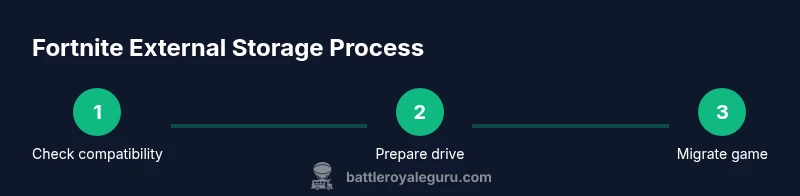
- 1
Check compatibility
Verify that your platform supports external storage for Fortnite and locate the current installation path. Confirm you have admin access on PC or the ability to modify storage on your console. This step prevents path errors that could break the migration.
Tip: Consult official platform docs if unsure; wrong path can cause launcher errors. - 2
Prepare the external drive
Connect the drive and format it if needed to a widely compatible format (exFAT is common for cross-platform use) or the format your platform requires. Create a dedicated Fortnite folder to keep things organized and easy to verify.
Tip: Back up existing data on the drive before formatting. - 3
Copy or move Fortnite files
If your launcher supports moving installations, choose the external drive as the destination. If not, perform a clean install to the external drive to ensure clean file paths and behavior.
Tip: Moving is faster than a full re-download but verify integrity after transfer. - 4
Set the launch path
Point the Epic Games Launcher (or console launcher) to the new installation directory on the external drive and ensure it’s recognized by the system. Restart the launcher if needed to refresh metadata.
Tip: Double-check the path in launcher settings after changes. - 5
Launch and verify
Start Fortnite to confirm it loads from the external drive and that updates install to the same location. If issues appear, check the drive connection and path again.
Tip: If you see errors, verify the drive isn’t disconnected during play. - 6
Test updates and performance
Apply the latest patch and test a few matches to gauge load times compared to internal drive. Adjust settings or consider a faster drive if performance lags.
Tip: If load times are worse, consider using a faster drive or move back to internal temporarily. - 7
Maintain data integrity
Safely eject the external drive when disconnecting from a PC and keep regular backups. Maintain drive health with periodic scans and avoid abrupt disconnections during transfers.
Tip: Always eject safely to prevent data corruption.
Questions & Answers
Can I run Fortnite directly from an external drive on PC?
Yes, you can install or move Fortnite to an external drive and run it from there. Performance depends on drive speed and USB connection.
You can run Fortnite from an external drive, but speed matters.
Will moving Fortnite free space on my main drive?
Moving the installation can free space on the internal drive, but you may need to manage updates and re-migrate if space changes.
Yes, it frees space, but watch for updates.
Are consoles supported to install Fortnite on external drives?
Most current consoles support external storage for games; check your system’s settings to move or install to the external drive.
Consoles often support external drives via settings.
Will external storage affect crossplay or latency?
Performance differences are usually minor if you use a fast external drive and stable connection; latency should be similar when hardware is adequate.
Performance stays similar with a good drive.
What should I do if Fortnite won’t install on external drive?
Verify drive format, sufficient free space, and correct path; confirm platform support and restart the launcher if needed.
Check drive format and path, then restart.
Watch Video
Key Points
- Move Fortnite to external storage to free internal space.
- Choose a fast drive and reliable connection for best performance.
- Follow launcher prompts to relocate or install to the external drive.
- Back up data before migration and test after moving.
- Monitor updates to ensure they install to the correct path.