Fortnite Voice Chat Guide: Can You Talk to Other Players?
Learn how fortnite can you talk to other players with voice chat, text chat, and party features. This step-by-step guide covers enabling chat on all platforms, privacy controls, etiquette, and troubleshooting for smooth teamwork.


Yes, fortnite can you talk to other players. The game supports voice chat, quick chat messages, and coordinated squads for teamwork. To talk with teammates, enable voice chat in settings, join a party or squad, and customize push-to-talk and privacy options. Use in-game mute controls when needed, and follow etiquette to keep the lobby friendly.
Why Communication Matters in Fortnite
If you are wondering fortnite can you talk to other players, the answer is yes. Clear, timely dialogue helps coordinate rotations, ambushes, and revives. In chaotic moments—like storm closing in or a last-circle push—well-timed calls and concise instructions can mean the difference between victory and defeat. The Battle Royale Guru team has observed that teams that talk regularly tend to perform more consistently in both casual matches and coordinated scrims. Communication isn’t a replacement for skill, but it aligns strategy, callouts, and role assignments, turning individual inputs into cohesive team action. For new players, starting with simple voice cues and a few trusted teammates builds a strong foundation for success.
In addition to voice chat, Fortnite’s in-game text chat and quick chat options provide flexible ways to communicate when voice is impractical. This multi-channel approach helps players share enemy locations, loot sightings, and rotation plans without clutter. As you grow more comfortable, you’ll learn to blend spoken dialogue with quick messages and pings for rapid coordination.
Types of Communication Available
Fortnite offers several communication modalities tailored to different situations. Voice chat lets teammates converse in real time, while text chat supports quick messages when you can’t speak or when you’re in a noisy environment. Quick chat presets provide pre-written phrases for rapid coordination, useful during intense moments when words matter more than wording. Pings and the radar-like location markers help direct attention without lengthy messages. Finally, party chat enables synchronized discussions with your squad outside of the main matchmaking flow. Understanding when to use each channel helps you maintain clear, efficient communication during fights and rotations.
The key is to choose the right tool for the moment: plain voice for real-time coordination, quick chat for urgent but brief updates, and pings for nonverbal direction when audio isn’t ideal. Integrating these tools creates a robust communication system that supports teamwork and increases your odds of success.
How to Enable Voice Chat Across Platforms
Setting up voice chat is straightforward, but the exact steps depend on your platform. On PC, navigate to the Settings menu, select Audio, then turn on Voice Chat and configure Push-to-Talk if you prefer a hardware-style toggle. Console players on PlayStation and Xbox should locate Voice Chat under the Audio or Privacy sections and enable it there. If you’re on Nintendo Switch or mobile, ensure the app has microphone permissions and that Fortnite is allowed to access the mic in system settings. In all cases, test your microphone before jumping into a match to confirm your teammates can hear you and that you can hear them clearly. If you’re playing with friends across platforms (crossplay), ensure each participant has the same chat option enabled to maintain smooth voice communication.
A practical tip is to experiment with Push-to-Talk settings. If background noise is an issue, set a short keybind and test in a private party first. On some platforms, you’ll also find a “Voice Chat” toggle per-party or per-match, which can help you manage when and with whom you talk.
Setting Up Parties and Squads for Seamless Talk
Voice chat shines when you play in a dedicated party or squad. Start by creating a party and inviting your teammates, or join an existing squad to synchronize voice and strategy from the lobby onward. Privacy options let you control who can invite you or join your party automatically, which is particularly helpful for public duos or squad lobbies. Once in a party, you can switch to squad voice chat for a more focused conversation, or keep the lobby chat open if you’re coordinating with multiple groups. If you have cross-platform teammates, ensure their voice chat settings align so you aren’t missing critical calls during a fight.
Effective party management also means establishing basic etiquette and roles. Assign a caller for rotations, a designated “shot caller” for fights, and a secondary communicator to relay loot or zone updates. This structure reduces overlap, minimizes talk-over, and ensures everyone has a voice.
Etiquette, Privacy, and Safety Tips
Maintaining a respectful, safe chat environment is essential. Be mindful of language, avoid sharing personal information, and report harassment or abuse through the built-in reporting tools. Use muting and blocking features when needed, and set expectations with your group about speaking in short, actionable phrases rather than long monologues. If you’re streaming or playing in public lobbies, consider toggling privacy options to control who can join your party or message you. For younger players, you may want stricter parental controls or supervised sessions to ensure a positive experience.
In crossplay scenarios, differences in language, time zones, and regional slang can create misunderstandings. Stay patient, repeat calls clearly, and use universal terms (like “enemy at 3 o’clock” or “rotate left”) to reduce confusion. Good communication isn’t just about talking; it’s also about listening and adapting to your teammates’ needs.
Troubleshooting Common Chat Issues
If voice chat isn’t working, start with a quick hardware check: ensure your headset is plugged in, the microphone is selected as the default input device, and the headset’s mute button isn’t engaged. Next, verify Fortnite’s in-game settings: Voice Chat should be enabled, and input/output devices should be correctly assigned. Check your platform’s permissions to confirm Fortnite has microphone access. If you’re in a busy environment, try a push-to-talk test in a private party to verify that your audio is transmitting and that you aren’t being suppressed by background noise filters. If all else fails, restarting the game or the console/PC can clear transient audio glitches.
For crossplay, confirm everyone’s settings align and that you aren’t blocked by any privacy restrictions. If someone can’t hear you but you can hear them, double-check their mute status and ensure you’re not in a party with separate voice chat controls.
Quick Start Checklist
- Enable Voice Chat in Settings and test with a friend in a private party.
- Create or join a dedicated squad and set party chat as the default communication channel during matches.
- Set Push-to-Talk if ambient noise is a problem; choose a comfortable keybind.
- Use in-game Quick Chat presets and Pings to convey fast information when you can’t talk.
- Regularly review privacy settings to prevent unwanted invites and maintain a positive chat environment.
Tools & Materials
- Headset with microphone(Crystal-clear audio, noise-canceling preferred)
- Compatible gaming device(PC, PlayStation, Xbox, Switch, or mobile device with Fortnite installed)
- Stable internet connection(Broadband or wired connection recommended)
- Microphone privacy permissions(Grant Fortnite microphone access on your device)
Steps
Estimated time: 15-25 minutes
- 1
Open Fortnite Settings
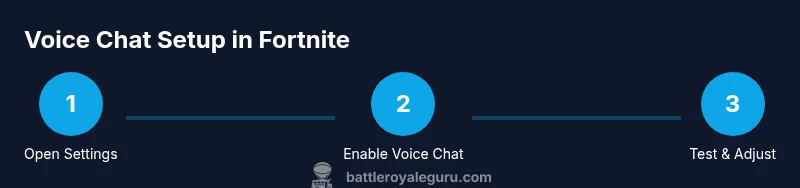
From the main lobby, open Settings and navigate to the Audio or Voice Chat section. This is where you’ll control whether you can speak, who hears you, and how your mic behaves in matches.
Tip: Take a minute to locate the Voice Chat toggle and map it to a convenient button if you’re using a controller. - 2
Enable Voice Chat
Turn on Voice Chat and select your input/output devices. Confirm your mic is the default input in your system settings if Fortnite doesn’t detect it automatically.
Tip: Test with a friend in a private lobby to ensure your voice is transmitted clearly. - 3
Configure Push-to-Talk
Choose Push-to-Talk so your voice transmits only when you press a key. This helps reduce background noise and prevents accidental transmissions.
Tip: Pick a comfortable keybind that won’t conflict with other game actions. - 4
Create or Join a Party
In the lobby, create a party or join an existing squad so you have a dedicated voice channel. This makes coordination easier during the match.
Tip: Set privacy to allow invited players only if you’re playing with friends. - 5
Use In-Game Chat & Pings
When voice isn’t possible, switch to Quick Chat presets and use ping signals to indicate enemy positions or loot nearby. These tools keep communication flowing.
Tip: Combine verbal calls with quick chats for redundancy. - 6
Test and Adjust
Run a short practice match to validate audio quality, adjust volume levels, and refine who’s leading calls. Iterate until your team can communicate without friction.
Tip: Note down the optimal volume settings for headset and game audio.
Questions & Answers
Can I talk to players on different platforms at the same time?
Yes. Fortnite supports voice chat across platforms in most cases, but you may need to adjust platform permissions to ensure mic access works for everyone. Crossplay chat can be effective when all players have voice chat enabled and are in the same party.
Yes. Most platforms support cross-platform voice chat, so your team can talk regardless of device.
How do I enable voice chat on PC?
Open the game’s Settings, go to Audio or Voice Chat, then enable Voice Chat and select your microphone as the input device. If needed, set Push-to-Talk and test with a friend in a private lobby.
On PC, enable Voice Chat in Settings and pick your mic as the input, then test with a friend.
What if I can’t hear others but they can hear me?
Check your headset connection, ensure your volume is up, and verify that you aren’t muted in-game or in your platform’s audio settings. Also confirm that your privacy settings allow voice chat with the current group.
If you can speak but can’t hear others, check connections and mute status, then test again.
How do I mute a player or mute audio from a whole lobby?
Right-click or long-press the player’s name to mute individual players, or use the lobby/team controls to mute all voice chat in the lobby. You can also set a temporary mute for the duration of a match.
You can mute players individually or mute all voice chat in the lobby when needed.
Is voice chat allowed during official tournaments or events?
Voice chat is generally allowed in standard matchmaking. For tournaments or events, follow the event-specific rules and use provided voice channels if required. Always respect the organizer’s communication guidelines.
Voice chat is typically allowed in events, but follow the organizer’s rules for communication.
Can I disable voice chat completely?
Yes. You can disable Voice Chat in Settings and rely on text chat and pings. You can also set privacy options to reduce invites or join requests.
You can turn off voice chat in Settings if you prefer not to use it.
Watch Video
Key Points
- Enable voice chat to coordinate with teammates
- Form a party/squad for focused communication
- Use Push-to-Talk to avoid noise and miscommunication
- Leverage Quick Chat and Pings when voice isn’t feasible
- Regularly review privacy and mute settings to stay safe