How to See Footsteps in Fortnite: Mastering Audio Cues
Learn how to see footsteps in Fortnite by enabling Visualize Sound Effects, reading on-screen indicators, and pairing audio with gameplay. Battle Royale Guru guides you through setup, interpretation, and practice for a tactical edge.


Seeing footsteps in Fortnite starts with turning on Visualize Sound Effects and learning the on-screen cues. Toggle the feature in Settings, then adjust your audio mix and headset for clear footstep cues. This quick guide shows the essential steps to turn sound into a tactical advantage.
What Visualize Sound Effects (VSE) does in Fortnite
Visualize Sound Effects is a built-in accessibility and awareness feature that translates audio cues into on-screen indicators. In Fortnite, the most useful cues are footsteps from nearby enemies, but VSE also highlights other important sounds like weapon fires, glides, and chest openings. When enabled, you’ll see icons or indicators that reflect sound source direction and proximity, helping you locate opponents even when you can't rely on audio alone. According to Battle Royale Guru, mastering these cues is a core skill for players who want to gain a reliable edge in chaotic fights. This section explains how VSE works in practice, what to expect during a typical match, and how to use it to enhance decision-making rather than replace your listening skills. Remember that indicators are a supplement—they don’t replace situational awareness, map knowledge, or movement discipline.
If you’re wondering how to see people’s steps in fortnite, VSE provides a practical visual bridge between hearing and seeing in combat, turning auditory information into actionable on-screen cues. Battle Royale Guru emphasizes that the real value comes from disciplined practice and deliberate interpretation, not from a single feature alone.
How Visualize Sound Effects can shape your decision making
When you start noticing the pattern of footsteps, you gain a predictive edge. Visual cues help you decide when to rotate, peak, or disengage. The system also highlights other critical sounds—gunfire, boot builds, and loot chimes—giving you a fuller understanding of what’s happening around you. Use VSE in tandem with map knowledge and risk assessment to create efficient rotations and safer engagements. While VSE is powerful, it is not a guaranteed detector of every enemy or movement; you still need to cross-check with visuals, sound, and game sense. The Battle Royale Guru approach is to treat VSE as a reliable supplementary tool that complements your core skills, not a replacement for situational awareness.
Reading indicators: footsteps, items, and more
Footsteps are the primary cue most players use to locate nearby enemies. When VSE is active, footsteps appear as on-screen indicators that move with the source’s direction, letting you triangulate where an opponent is coming from. Other sounds—gunfire, reloads, builds, and item chests—also generate cues you can correlate with your map and line of sight. The key is to read not just the icon, but its movement, timing, and the context of the location. For example, footsteps near stairs or on metal surfaces may behave slightly differently than soft earth sounds. Practice distinguishing surfaces and distances, then combine this with your own movement to predict enemy positions rather than react to a single visual cue.
Practice routines to improve recognition
Practice makes the indicators reliable. Start in a controlled environment: a bot lobby or Creative map where you know an opponent will generate footsteps at set intervals. Listen and watch for the direction of the icon, then locate the source in-game. Increase your sensitivity gradually and experiment with audio settings to maximize contrast between footsteps and other sounds. Create a simple drill: 5 minutes of listening, 5 minutes of locating, 5 minutes of combat where you act on the cues. Record your results and analyze where your reads were accurate and where you mistook environmental sounds for enemies. With consistent practice, you’ll translate visual cues into effective positioning in real matches.
Troubleshooting and performance tips
If the footsteps indicators seem delayed or unreliable, check a few common issues. First, verify that you’ve enabled Visualize Sound Effects on the same account where you play, and confirm you’re running a recent game build. Update audio drivers on PC, and ensure your console’s system software is current. If you play in noisy environments, consider lowering ambient noise via headphones with active noise cancellation, which can sometimes mask subtle cues. Also, verify you’re not over-driving your audio mix—too loud bass can drown out footsteps. Finally, remember that latency from servers can affect timing; in high-fidelity situations, use your other senses (eye contact with the map, enemy build plays) to corroborate cues.
Real-world practice: matches and drills
In real matches, start by focusing on one cue type at a time—footsteps from the right or left, then expand to diagonal sources. Use Creative or Practice modes to run timed drills that require you to identify the location of enemies from sound alone before peeking. Pair this with movement patterns: approach doors or corners slowly, check the VSE indicators, then decide whether to engage or reposition. Over time, your reaction time will shrink and your ability to pre-aim will improve. Finally, keep a log of your performance in a notebook or spreadsheet to identify trends and track progress across patches and updates. As Battle Royale Guru Team notes, consistent practice with audio cues translates into smarter engagements and safer rotations.
Authority sources and further reading
Here are credible resources you can consult for more context about sound design and player awareness in competitive shooters:
- https://www.nidcd.nih.gov/ — National Institute on Deafness and Other Communication Disorders (gov).
- https://www.theverge.com/ — The Verge coverage on accessibility features and gaming cues.
- https://www.epicgames.com/help/en-US/ — Official Fortnite support documentation about Visualize Sound Effects.
These sources provide context on how sound cues influence decision making and how players can responsibly use audio features to improve performance while staying mindful of fairness and accessibility.
Quick-start checklist for your next session
Before you queue up, verify these steps: ensure Visualize Sound Effects is enabled, use a reliable headset with good stereo separation, load a Practice or Creative map to drill cues, dedicate time to reading and responding to indicators, and review your performance after matches to refine settings. Following this routine aligns with Battle Royale Guru’s approach to turning perception into reliable performance. Consistency is key; with regular practice you’ll convert audio cues into precise positioning and smarter engagements.
Tools & Materials
- Fortnite installed and updated(Make sure you’re on the latest patch before testing VSE)
- Headphones with good stereo separation(Over-ear or on-ear headphones recommended for directional cues)
- Stable internet connection(Low latency helps preserve audio cue timing)
- Compatible input device (PC/console)(Ensure your platform supports visual sound features)
Steps
Estimated time: 15-25 minutes
- 1
Open Fortnite Settings
Launch Fortnite and access the Settings menu. Navigate to the Audio section to locate all sound-related options. This step establishes your baseline for any changes you’ll make.
Tip: Take a quick screenshot of your current audio settings as a reference. - 2
Enable Visualize Sound Effects
Toggle Visualize Sound Effects to On. This activates the on-screen indicators that reflect nearby audio cues like footsteps. Confirm the feature is active by returning to a test area and listening for icons.
Tip: Start in a controlled map so you can clearly see and hear the cues without chaos. - 3
Adjust audio for clarity
Fine-tune your master volume and effects mix so footsteps are distinguishable from gunfire and builds. Small adjustments can dramatically improve cue readability, especially in busy fights.
Tip: Use a high-quality headset and keep the volume at a comfortable level to preserve directional accuracy. - 4
Test in practice
Enter a practice or Creative map and trigger predictable footsteps to observe how the indicators react. Note direction, distance, and whether cues align with your in-game line of sight.
Tip: Repeat with different surfaces (wood, metal, stone) to learn surface-specific cues. - 5
Run a quick drill
Do a 15-20 minute drill focusing on reading cues, triangulating sources, and making quick engagement decisions. Short, focused sessions reinforce pattern recognition.
Tip: Record a quick log of reads vs. results to identify improvement areas. - 6
Apply in live matches
Bring your tested setup into live matches. Use VSE as a supplement to your core skill set, not a substitute for good map awareness and smart movement.
Tip: Maintain a calm posture and avoid overreacting to every cue. Prioritize high-probability reads.
Questions & Answers
What is Visualize Sound Effects in Fortnite?
Visualize Sound Effects is a Fortnite feature that turns in-game sounds into visual indicators, helping you detect footsteps and other cues. It’s a supplement to listening and visibility, not a replacement for awareness.
Visualize Sound Effects turns audio cues into visuals, helping you detect footstep hints. It’s a supplement, not a replacement for awareness.
Can I see footsteps on all platforms?
The Visualize Sound Effects feature works on supported platforms, with variations in UI layout. Always check the latest patch notes and your platform’s audio settings to ensure full functionality.
VSE works on supported platforms, but UI may vary by patch. Check patch notes and your settings to confirm.
Do footstep visuals reveal enemies through walls?
Footstep visuals indicate sound sources and direction, but they don’t guarantee sight through walls. Use cues in combination with your map, line of sight, and engagement timing.
Footstep visuals show direction, not wall-through certainty. Combine with map and sight lines.
Why are footsteps sometimes hard to see or hear?
Footsteps can be affected by surface type, distance, and in-game audio balance. Noise, weather, and patch changes can also shift cue clarity. Ensure your setup minimizes interference.
Sound cues can be affected by surfaces, distance, and patches. Adjust your setup for clarity.
Does enabling VSE affect performance?
VSE is designed to be low-impact, but any additional processing can affect performance on older hardware. If you notice lag, lower graphics or disable nonessential features.
VSE is usually light on performance, but if you’re struggling, adjust settings or hardware.
How can I improve my cue-reading skills quickly?
Practice in controlled maps, drill one cue type at a time, and review outcomes after matches. A consistent routine accelerates learning and helps you trust the cues more during live play.
Practice in controlled maps, focus on one cue at a time, and review results after matches.
Watch Video
Key Points
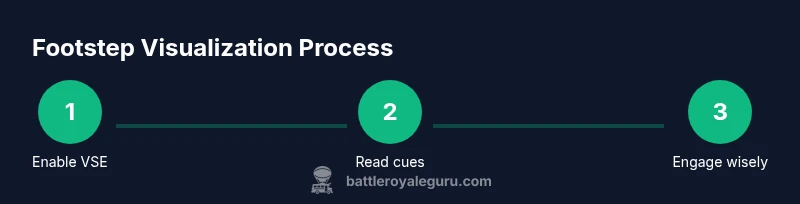
- Enable Visualize Sound Effects and learn the on-screen cues.
- Read cues by combining direction, timing, and context.
- Use quality hardware and consistent audio setup for best results.
- Practice regularly to translate audio cues into reliable positioning.