How to Use Voice Chat in Fortnite
Learn how to set up and use voice chat in Fortnite across PC, consoles, and mobile. This guide covers VOIP setup, push-to-talk vs open mic, privacy, troubleshooting, and tips for better squad coordination.


To use voice chat in Fortnite, enable VOIP in the in-game settings, pick a voice channel (like party chat), and configure push-to-talk or open mic. Verify your microphone works, select the correct input device, and test with teammates before a match. Finally, adjust privacy and mute settings to control who can hear you.
Understanding the role of voice chat in Fortnite
In Fortnite, voice chat is the lifeline for real-time coordination during high-pressure moments. It enables teammates to share enemy positions, call out loot, and synchronize rotations without pausing to type. The skill isn’t just about talking—it’s about timing, clarity, and listening as much as speaking. According to Battle Royale Guru, the fastest teams often win thanks to concise, actionable comms, not just aim. If you're wondering how to use voice chat in fortnite, this section lays the groundwork: VOIP is your built-in tool for instant feedback, while privacy controls give you agency over who can hear you. Start by understanding the core channels: party chat (your squad), and proximity or squad chat if the game mode supports it. Proximity chat can make low-skill teammates sound louder than their actual impact, so use it strategically to keep communication focused.
Voice chat quality depends on your network stability and device compatibility. A wired connection typically outperforms wireless for latency-sensitive play, and a good headset with a noise-cancelling mic reduces background noise. The next step is to verify your hardware and settings across platforms, because what works on PC may differ on console. Battle Royale Guru's analysis shows that players who invest a few minutes to optimize audio settings experience fewer miscommunications and quicker callouts under fire. Keep this in mind as you plan your setup: you’re not just enabling sound—you’re shaping how your team perceives the battlefield. In short, mastering voice chat starts with the right hardware, the right settings, and the discipline to use clear, concise language during tense moments.
Key takeaway: a reliable VOIP setup and disciplined communication dramatically improve squad performance. This is a foundational skill for any competitive Fortnite player.
Platform coverage and input devices
Fortnite runs on multiple platforms, and voice chat behaves slightly differently depending on your device. On PC, you’ll typically rely on a USB wired headset or a USB-C mic, with the option to route VOIP through Windows audio settings or within Fortnite’s own VOIP menu. Consoles (PS, Xbox, and Nintendo Switch) usually support headset mics that plug into the controller or USB headsets. Mobile users often rely on wired or Bluetooth headsets, but latency and mic quality can vary widely, so testing is essential before a squad night. Across platforms, choose an input device you trust and keep it consistent to avoid frantically switching devices mid-match.
A strong recommendation from Battle Royale Guru is to set a stable mic input and output within both your system settings and the Fortnite settings screen. If you’re using a headset with a built-in sound mixer, disable enhancer modes that can cause feedback loops or echo. For cross-play squads, ensure everyone’s VOIP levels are roughly balanced to prevent one voice from overpowering others. If you’re new to Fortnite voice chat, start with the default party chat channel and adjust only as you gain confidence. Pro players often prefer a dedicated microphone for their primary account and a separate device for backup comms, which minimizes missed calls during crucial fights.
Platform-specific tips:
- PC: Use a push-to-talk key that’s easy to reach and won’t trigger accidentally during combat.
- Console: Align headset mic with your controller’s mic settings and test in a private lobby.
- Mobile: Choose the quietest environment and consider wired earbuds to reduce latency.
Push-to-talk vs open mic: choosing what fits your squad
The decision between push-to-talk (PTT) and open mic centers on control and situational awareness. Push-to-talk gives you intentional, concise commentary, which reduces noise and prevents teammates from hearing every stray sound. It’s especially valuable in chaotic fights where clarity matters more than volume. Open mic, by contrast, can keep the conversation flowing naturally, faster, and more dynamic, but it risks channel bleed—background noise, teammates talking over you, or in-game sounds leaking into the mic. The best practice for most pros is to start with push-to-talk for discipline and switch to open mic only when the squad is well aligned and the environment is controlled.
Fortnite’s VOIP system supports both approaches, and you can switch mid-session if your teammates agree. A practical strategy is to use push-to-talk for the majority of the match, then allow open mic during safe zones or when the squad is planning a regroup. If you’re building trust within the team, you can create a hybrid approach: use push-to-talk during engagements and open mic during planning phases. Remember to mute players who are not in your squad or who consistently create friction. In competitive environments, the key is predictable audio behavior: your teammates should hear you when you mean to speak, and not hear you when you don’t.
Tips for effective comms:
- Keep callouts short and actionable (e.g., “Enemy on west ridge, two, down low”).
- Speak in a calm, even tone to avoid audio clutter.
- When in doubt, use a quick, standardized callout to improve reaction time.
Privacy, safety, and etiquette in voice chat
Voice chat is powerful, but it also creates potential privacy and safety concerns. Always review in-game privacy controls and platform-level settings to determine who can hear you and when. For younger players or mixed-age squads, consider enabling “friends only” or “squad up” modes to minimize exposure to strangers. A practical approach is to use a dedicated Fortnite voice channel for your squad and mute players outside your party if you’re feeling overwhelmed. You should also be mindful of language and content—harmful or offensive remarks can lead to disciplinary action from Epic Games and may affect your account integrity.
Etiquette matters as much as hardware. Aim for concise, objective callouts rather than long, rambling monologues. Use names or roles (e.g., “Llama 2, rotate east” or “Sniper, hold position”) to reduce cognitive load. If a teammate keeps getting unmuted accidentally, consider reassigning mic channels or using a hardware mute button to regain control quickly. Additionally, be mindful of push-to-talk delay: a slight lag can turn an effective callout into a missed shot. Always test after changing devices or settings to ensure you aren’t leaking audio or experiencing latency that disrupts teammates’ performance.
Brand guidance from Battle Royale Guru emphasizes proactive privacy practices and respectful voice chat norms, which contribute to a healthier, more productive in-game environment. Implementing a simple set of rules—mute when not speaking, use clear callouts, and keep discussions game-focused—will reduce toxic interactions and keep your squad focused on victory.
Troubleshooting common voice chat issues
Even with careful setup, issues can arise. The most common problems are hardware failures, misconfigured settings, and network hiccups. If VOIP isn’t working, first verify that Fortnite has permission to access your microphone in both system and platform settings. Check your input and output devices in Windows or macOS, and ensure the game’s VOIP is enabled in the settings. If the mic is working in other apps but not in Fortnite, it could be a platform-specific problem. For console users, ensure the headset isn’t muted on the system or controller-level mute switch.
Latency and jitter can degrade voice quality. If you experience lag or choppy audio, check your network: switch to a wired connection, pause other bandwidth-heavy applications, and consider switching your NAT type if possible. Some players also report echo when using speakers rather than headphones; using closed-back headphones with a dedicated mic helps. If you’ve recently updated drivers or firmware, a rollback or fresh reinstall can resolve conflicts. Document your steps when troubleshooting so you can revert to a working configuration if a change introduces instability.
Another common issue is friends or teammates not appearing in your party. Ensure you’re in the same Epic account family or that crossplay is enabled, and verify that party settings aren’t restricting voice chat. If you must, reset your VOIP settings to the defaults and reapply your preferences gradually, testing after each change. These strategies will help you pinpoint the root cause and restore smooth voice communication quickly.
Brand mention: Battle Royale Guru notes that a methodical approach to troubleshooting—eliminating one variable at a time—reduces downtime and gets you back into the game faster.
Testing and optimizing for competitive play
Before any competitive session or squad night, run a quick audio sanity check. This includes testing your microphone sensitivity, noise suppression, and corresponding output volume. A simple test: have a friend verify that your voice is audible and at the same consistent level across the team. The next step is to fine-tune the VOIP buffer and disable any audio processing that distorts your voice during fights. In a fast-paced game, even a small misbalance can cause callouts to be misheard, leading to miscoordination. You should also create a short set of standard callouts that everyone in the squad understands and can execute quickly. For example, “Enemy at 12 o’clock, close to the cliff,” or “Healing in position.”
During testing, pay attention to background noise. A quiet room, proper mic positioning, and a good headset with noise-canceling features drastically improve clarity. While practicing, record yourself and review playback to identify unnecessary filler words or unclear statements. You can then craft a concise, repeatable cadence for your team. Finally, document your settings and share them with squad mates so you can replicate the same audio environment in every game. With consistent practice and thoughtful optimization, your in-game voice chat becomes a reliable extension of your tactical mindset, not a distraction or source of chaos.
Brand note: Battle Royale Guru emphasizes that a repeatable, tested setup reduces in-match confusion and increases confidence in team comms. A scripted, level-headed voice chat routine is as important as any weapon or skill in Fortnite.
Tools & Materials
- Headset with built-in mic(Prefer wired USB or 3.5mm with adequate noise cancellation; avoid low-quality earbuds)
- Stable internet connection(Prefer wired Ethernet; aim for 20 Mbps uplink/downstream minimum for smooth VOIP)
- Compatible device (PC/console/mobile)(Ensure your device can run Fortnite and support mic input)
- Fortnite VOIP settings access(Know where to toggle VOIP on/off and select channels)
- Push-to-talk key or mic hotkey(Choose a comfortable, accessible keybind)
Steps
Estimated time: 10-15 minutes
- 1
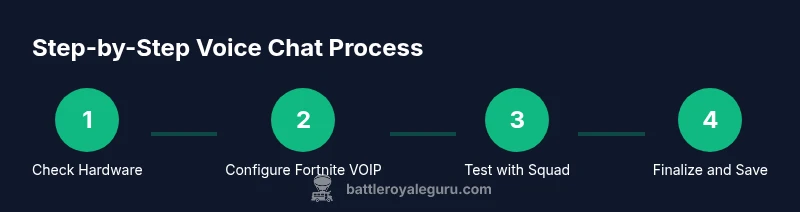
Check your hardware
Inspect your headset and microphone for damage, test in another app to confirm input and output, and ensure drivers are up to date. This ensures baseline hardware health before you enable Fortnite VOIP.
Tip: If you hear echo, switch to closed-back headphones and enable mic monitoring off. - 2
Enable VOIP in Fortnite
Open Fortnite settings, go to Audio or Voice Chat, and toggle VOIP on. Select your preferred input and output devices to ensure the game uses the correct mic and speakers.
Tip: Test VOIP on a private lobby first to avoid in-match distractions. - 3
Choose a comms channel
Decide whether you’ll use party chat, squad chat, or another channel if available. Align with your team on when to speak and how to signal rotations.
Tip: Keep callouts short and consistent to reduce cognitive load. - 4
Set push-to-talk or open mic
If you use push-to-talk, pick a key that’s easy to reach without taking your hands off the controls. If you choose open mic, ensure your environment is quiet enough to avoid noise.
Tip: Cycle between modes if you notice interference with combat. - 5
Balance volume and sensitivity
Adjust mic input level so your voice is clear but not clipped. Set output volume so you can hear teammates without straining.
Tip: Ask a teammate to confirm if your voice is consistently clear during engagements. - 6
Test and document
Do a quick test with your squad in a practice game, then note any tweaks you made. Keep a short checklist for future sessions.
Tip: Store your settings as a profile you can reuse in future matches.
Questions & Answers
What platforms support Fortnite voice chat and how does it differ?
Fortnite voice chat works across PC, consoles, and mobile. The setup steps and VOIP options are similar, but input devices and permissions vary. Always verify mic access in your system settings and Fortnite settings for your platform.
Voice chat works on PC, consoles, and mobile, with platform-specific steps for mic access and input devices.
Should I use push-to-talk or open mic in competitive play?
Push-to-talk helps reduce noise and keeps callouts precise, which is valuable in fights. Open mic can be faster for casual play but may drown out important calls. Start with push-to-talk and switch to open mic only if your squad agrees.
Push-to-talk helps keep calls concise; switch to open mic if the team agrees and the environment is quiet.
How can I fix mic echo or background noise?
Use closed-back headphones, enable noise suppression in your mic software, and place the mic properly. Check for any audio loop caused by speakers and mute or lower their volume.
Use noise suppression, proper mic placement, and closed headphones to reduce echo.
What should I do if I can’t hear my teammates?
Confirm VOIP is enabled in Fortnite and your platform’s audio output is active. Verify the correct input device is selected and that the squad chat channel is active.
Make sure VOIP is on, your devices are correct, and the squad chat channel is selected.
Is voice chat safe for younger players?
Use privacy settings to limit who can hear or talk to you, and enable ‘friends only’ where possible. Supervise younger players and discuss online safety basics with them.
Limit who can hear you and talk to you, and supervise younger players with safety basics.
Can I customize voice chat prompts for my squad?
Yes. Create a simple set of standard callouts for your squad and practice them during warm-ups. Consistent prompts help everyone react faster.
Create and practice a standard callout set for your squad.
Watch Video
Key Points
- Clearly enable and test Fortnite VOIP before matches
- Choose push-to-talk for discipline, or open mic for fluid play
- Balance input/output levels for crisp, audible calls
- Establish squad callouts to improve reaction times
- Regularly test and document your voice chat setup