Where Do Fortnite Clips Go: A Practical Guide for Players
Learn where Fortnite clips go, how to access and back up them, and best practices for organizing your gameplay moments across PC, consoles, and mobile. Battle Royale Guru guides you step-by-step with practical tips.


In this guide you will learn where Fortnite clips go and how to access, save, and share them across PC, consoles, and mobile. You’ll cover default save locations, platform-specific folders, and how to use in-game menus, capture cards, or cloud storage. By the end, you’ll confidently organize your clips for easy viewing and sharing.
Why Clip Management Matters
Clip management isn’t just about storage; it’s a practical skill that turns raw gameplay into a usable library of moments. According to Battle Royale Guru, organized clips help you review tactics, build montages, and share tips with teammates. Understanding where do Fortnite clips go is the first step toward a scalable workflow that survives platform changes or device upgrades. In this article we’ll outline how clip destinations differ by platform, and how a simple naming convention can dramatically speed up searching, editing, and archiving. With a consistent approach, you’ll reduce wasted time, preserve your best plays, and make it easier for friends and viewers to navigate your highlights. The goal is to transform spontaneous captures into a reliable archive that grows with your skill and your in-game achievements.
Where Fortnite Clips Are Stored by Platform
Fortnite relies on platform-native capture methods, so the destination for your clips varies by device. On PC, many players find clips in the standard Videos folder or in a subfolder created by the capture software. Console users—PlayStation, Xbox, and Nintendo Switch—store clips in the system gallery or a dedicated capture library, which is often managed through the console’s media apps rather than a traditional file browser. Mobile devices typically save clips within the device’s internal storage or the Fortnite app’s local gallery. The common thread is that each platform has its own default location, and your best long-term approach is to identify that destination and then apply a single, cross-platform workflow for naming and backups.
Accessing Clips on PC
On a Windows PC, you’ll usually locate Fortnite clips by checking the in-game settings to see where the game saves captures, then navigating to the corresponding folder via Explorer. If you use recording software such as ShadowPlay/GeForce Experience or OBS, those tools may place clips in a dedicated subfolder inside your Videos directory. The exact path can vary, so confirm the destination in the software settings and in Fortnite’s capture options. Once found, you can move clips into a centralized project folder, rename them consistently, and add metadata (date, match, map) to improve searchability. This approach keeps your library tidy despite frequent updates to Fortnite’s capture features.
Accessing Clips on PlayStation
PlayStation consoles typically store clips in the system’s media gallery. You’ll access them through the Media Gallery app or via the Capture Gallery on newer console firmware. Because PlayStation keeps clip storage separate from the file system used by a PC, it’s important to export or copy clips to a USB drive or cloud backup if you want cross-device access. In practice, enable automatic saving if your system offers it, then periodically copy clips to your PC or cloud storage for long-term archiving. A consistent export routine prevents loss when you switch games or reset console storage.
Accessing Clips on Xbox
Xbox devices place captured clips within the console’s capture library, accessible from the Guide or the Capture & Share menu. For cross-device workflows, connect an external drive or enable automatic cloud backup so your clips aren’t stranded on the console. If you’re using the Xbox app on PC, you can also sync clips to your computer through the cloud, though some clips may require manual transfer for larger libraries. Establish a regular export cadence to a single project folder on your PC or external drive, then apply a uniform naming convention for quick searching.
Accessing Clips on Nintendo Switch and Mobile
Nintendo Switch clips are saved to the system’s capture gallery, then optionally exported to a microSD card or cloud backup via associated apps. On iOS and Android, Fortnite clips may stay within the app’s storage or the device’s gallery, depending on the OS and Fortnite version. The key takeaway is to verify the destination in the app’s capture settings and set up periodic transfers to a centralized storage solution. This helps keep a cross-platform library intact and easy to browse.
Managing Clip Metadata and Naming
A strong clip library isn’t just about where files live—it’s about what you name them and how you tag them. Adopt a consistent naming scheme that includes the date, map, game mode, and a short descriptor (e.g., 2026-03-11_Solo_Weeping_Woods_First_Rush). Use folders by date or event, not just by platform, to simplify cross-platform searches. Metadata such as scene context, player names, or tournament tags can be stored in a separate spreadsheet or a simple JSON file accompanying the clips. This practice makes it much easier to locate specific moments when you’re ready to edit or share.
Backups and Cloud Storage Strategies
Backup is essential. Keep a local copy on an external drive and a secondary copy in a cloud storage service for redundancy. A practical approach is to mirror new clips weekly to the cloud while maintaining a longer-term archive on an external drive. Don’t rely on a single storage location, especially if you’re building a large archive. Regularly verify your backups by sampling a few files to ensure they’re intact and accessible across devices. This approach minimizes risk of data loss when hardware or apps change.
Authoritative Resources
For further guidance on digital file management and best practices, you can consult established resources that cover general content organization and data preservation. Useful references include: • https://www.archives.gov/education/lessons (National Archives, education and digital records) • https://www.archives.gov/records-mgmt (National Archives, records management) • https://spectrum.ieee.org (IEEE Spectrum, major publications with practical data practices). These sources provide foundational tips that translate well to Fortnite clip libraries, even though they aren’t Fortnite-specific.
Tools & Materials
- Fortnite-capable device(PC, PS, Xbox, Switch, or mobile device with Fortnite installed)
- Reliable storage media(External drive or internal storage with ample space for clips)
- Cloud storage account(Optional: Google Drive, OneDrive, Dropbox for off-device backups)
- File management tools(OS file explorer or a third-party file manager to move and rename clips)
- Basic video naming template(Predefined naming scheme to keep clips consistent)
Steps
Estimated time: 30-60 minutes
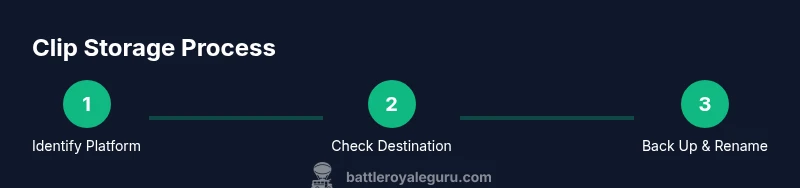
- 1
Identify platform and clip source
Determine whether you’re capturing on PC, PlayStation, Xbox, Switch, or mobile, as this sets the default save location and workflow.
Tip: Note the primary capture method you use (in-game capture vs. external software). - 2
Open settings and locate capture options
Launch Fortnite, navigate to Settings, and find the Capture or Saving area to confirm automatic saves and destination hints.
Tip: If there’s an option to auto-save, enable it for consistency. - 3
Identify the default save location
Check the destination shown in capture settings and cross-check with your OS/file explorer to locate where clips land.
Tip: If unsure, perform a short clip and observe where the file appears. - 4
Create a centralized project folder
On your computer or external drive, create a top-level folder like Fortnite-Clips with subfolders by date or event.
Tip: Use a consistent folder structure across platforms. - 5
Move and rename clips for consistency
Transfer clips into the centralized folder and apply a naming convention that includes date, map, and event.
Tip: Avoid spaces; use underscores or dashes for compatibility. - 6
Set up backups
Mirror the central clip folder to an external drive and, if possible, to a cloud service on a schedule.
Tip: Test a random file restore from each backup location. - 7
Add metadata for searchability
Create a simple metadata log (e.g., a spreadsheet or JSON) with fields like date, map, mode, and notable moments.
Tip: Keep this log in the same root folder as the clips. - 8
Test playback and sharing
Open a few clips from the central folder to ensure they’re readable, and try exporting a short clip for sharing.
Tip: Verify both local playback and export-to-share options.
Questions & Answers
Where do Fortnite clips go on different platforms?
Clips typically save to the platform’s default gallery or a designated folder. PC users often see clips in the Videos folder or a capture subfolder, while consoles store clips in the system gallery. Mobile clips are usually saved within the app or device gallery. Always check in-game capture settings to confirm the exact destination.
Fortnite clips go to platform-specific locations: PC usually in Videos, consoles in the system gallery, and mobile clips in the app or device gallery. Check the capture settings to confirm.
Can I customize the save location?
Yes. In-game capture settings often let you choose the destination, or you can move files afterward to a preferred folder. On consoles, you may need to export or copy clips to an external drive or cloud storage to standardize access.
You can customize save locations in-game or by exporting clips to a common folder or cloud service.
How can I back up Fortnite clips to the cloud?
Use a cloud storage service and set up automatic synchronization for the central clip folder. Regularly verify that backups are complete by restoring a sample file. Cloud backups protect against hardware failure and make clips accessible from multiple devices.
Back up clips to the cloud by syncing your clip folder and regularly checking restored files.
What if I can’t find a clip after capture?
Revisit in-game capture settings to confirm the destination, then search the default folders on your device. If you use external capture software, check its export path. Keeping a naming log helps you locate mislabeled files quickly.
If a clip is missing, check the capture settings, search the likely folders, and verify any external capture software paths.
Are there privacy considerations with clips?
Yes. Clips may contain personal data or identifiable in-game handles. Review platform privacy settings, and consider whether to share publicly. Keep backups in private folders if you don’t want content exposed.
Be mindful of privacy; store clips in private folders and review who can access your shared content.
Watch Video
Key Points
- Identify platform-specific clip destinations early
- Centralize clips into a single, well-organized folder
- Back up clips regularly to external drives and cloud storage
- Maintain a metadata log for fast retrieval