Why Fortnite Is Not Working: A Quick Troubleshooting Guide
A practical, step-by-step guide to fix Fortnite not working, with quick fixes, diagnostic flow, and prevention tips for players across PC, consoles, and mobile.


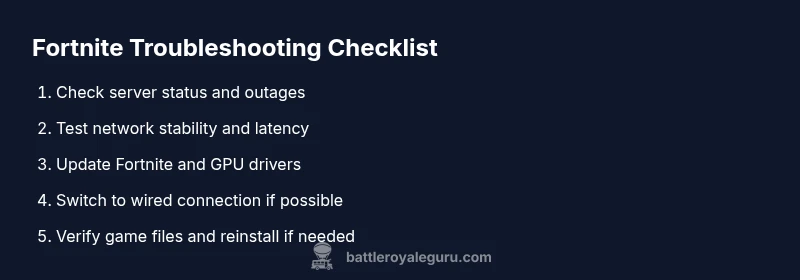
According to Battle Royale Guru, when Fortnite is not working the most common causes are connectivity problems or server outages. The quick fix is to check your internet connection, confirm server status, and restart the game. If issues persist, switch to a wired connection, update Fortnite and your drivers, and power-cycle your router. Follow these steps to restore play quickly.
Immediate checks you can try now
Before diving into deeper diagnostics, start with the simplest, most reliable fixes. First, confirm your internet connection is active by loading a web page or streaming a video on another device. If your connection looks solid, check Fortnite's server status on its official channels. Restart the Fortnite client and, if necessary, your device. If you’re on console, power-cycle the console by turning it off for 60 seconds. If you're on PC, close background apps that might be hogging bandwidth. Finally, ensure you’re running the latest game version and that your system meets the minimum requirements. These moves fix many quick-fix problems without needing advanced tools.
Common causes and how to identify them
Fortnite not working is rarely a single issue. Most players run into one of a few categories: connectivity problems (Wi‑Fi congestion, weak signal, or firewall blocking), server-side outages or maintenance, and client-side glitches (outdated game, corrupted cache, or conflicting background software). Local issues like DNS errors or router NAT settings can mimic outages. Use a process of elimination: test another device on the same network, try a different network, and compare results. If you can play on mobile data but not home Wi‑Fi, the problem is likely your network; if no devices work, it’s likely a broader outage or platform-level problem. Document symptoms (errors, timestamps, and steps tried) to speed up support if needed. Battle Royale Guru analysis shows server-related issues are a frequent cause of not-working reports, so give server status priority in your checks.
How to verify Fortnite server status and outages
Knowing whether the problem is on your end or on Fortnite's side saves time. Start at official sources: Fortnite’s in-game notices, the Epic Games status page, and the studio's social channels. If those show ongoing issues, wait for the fix rather than tinkering endlessly. When the status is unclear, cross-check with independent outage trackers but rely on official communications for final confirmation. If the status is green but you still have issues, it’s time to inspect your local network and device configuration. This distinction helps you avoid chasing phantom problems and accelerates resolution.
Network and connectivity fixes you can apply
If the server appears fine, the next likely culprit is your network. Start with the simplest: reboot your router and modem, then reconnect devices. If you’re on Wi‑Fi, try a wired Ethernet connection for a more stable link. Disable any VPNs or proxies, then test Fortnite again. Consider changing DNS to a fast resolver like 1.1.1.1 or 8.8.8.8, flush your DNS cache, and ensure your router’s NAT type is at least moderate. Temporarily disable firewalls or security software only to test, then re-enable them with exceptions for Fortnite. These steps resolve many connectivity flukes without advanced IT skills.
Device-specific and platform-specific steps
PC players should run Fortnite as administrator, verify game files, and update graphics drivers. Console players: ensure the console firmware is current, clear the cache, and re-link your account if needed. Mobile players: free up storage, close background apps, and ensure the app has necessary permissions. If you dual‑boot or use a streaming device, test on another platform to confirm the issue is platform-agnostic. The key is to test across devices to isolate the issue and identify if the problem is universal or platform-specific.
In-game settings and driver updates
Graphics settings can trigger crashes or stutters. Lower texture quality, disable motion smoothing, and cap FPS to a value your hardware can sustain. Ensure V-Sync is off if you’re observing tearing. Update GPU drivers from the manufacturer’s site, not just Windows Update, and reinstall the game if corruption is suspected. Disable overlays (Discord, GeForce Experience) that can conflict with Fortnite. After changes, launch in a clean session to verify improvements and return settings to a balanced level for competitive play.
Prevention and best practices to minimize future outages
To stay ahead of problems, adopt a small maintenance routine: check for updates weekly, reboot networking gear monthly, and monitor the Fortnite status page during planned maintenance windows. Keep backups of configuration files where possible and free up storage to prevent performance issues. Use a wired connection for critical play, limit background downloads, and enable automatic updates only when you’re not in a match. These habits dramatically reduce the chance of surprises that disrupt your game.
Steps
Estimated time: 25-40 minutes
- 1
Check basic connectivity
Test your device's internet by loading a web page and running a quick speed test. If other apps are working, your connection is likely fine. Note any high latency or packet loss as these indicate network issues.
Tip: Run tests on multiple devices to confirm the issue isn't device-specific. - 2
Check Fortnite server status
Open the official Fortnite status page and check for any active outages or maintenance notices. Follow the game's official social channels for real-time updates.
Tip: If maintenance is ongoing, delays are expected; plan to retry after the window closes. - 3
Restart the game and device
Close Fortnite completely, then relaunch. If that doesn’t help, power cycle your console or PC and restart networking gear.
Tip: A full reboot often clears temporary glitches. - 4
Test on a different network
If possible, connect to a different network or enable a mobile hotspot to see if the issue persists. This helps isolate whether the problem is home-network related.
Tip: Wired connections tend to be more stable than wireless. - 5
Update game and drivers
Ensure Fortnite is up to date, and update your GPU/CPU drivers. Check OS updates as well, since system updates can impact performance.
Tip: Install updates during downtime to avoid match interruptions. - 6
Adjust network settings
If NAT is strict or you’re behind a strict firewall, open ports or enable UPnP. Temporarily disable VPNs to test connectivity.
Tip: Document which settings you change for easy rollback. - 7
Clear cache and verify files
On PC, verify game files through the launcher. Clear caching on consoles and mobile apps if supported. Restart after cleanup.
Tip: Corrupted cache commonly causes launch failures. - 8
Reinstall if necessary
As a last resort, reinstall Fortnite and, if repeats occur, consider a clean OS reinstall or hardware check.
Tip: Back up save data and settings before reinstalling.
Diagnosis: Fortnite won't start, crashes during launch, or disconnects repeatedly
Possible Causes
- highUnstable or blocked internet connection
- highFortnite server downtime or maintenance
- mediumOutdated game client or drivers
- lowNAT type blocked / Firewall blocking traffic
Fixes
- easyTest connectivity with other apps and run a speed test to confirm reliability
- easyCheck official server status page and social channels for outages
- easyRestart Fortnite and device; install any available updates
- mediumSwitch to a wired connection, disable VPNs, adjust DNS and NAT settings
- hardUpdate game, graphics drivers, and perform a clean reinstall if necessary
Questions & Answers
Why isn't Fortnite loading on my PC?
Loading problems on PC are usually due to connectivity, outdated game files, or corrupted cache. Start by checking server status, updating Fortnite, and verifying game files. If the issue persists, test on another network to determine if the problem is local.
Fortnite not loading on PC is typically caused by connectivity, updates, or cache issues. Check server status, update the game, and verify files; if needed, test on another network.
How can I check Fortnite's server status quickly?
Use the official Fortnite status page and Epic Games social channels for outages. Cross-check with reputable trackers, but rely on official posts for final confirmation.
Check the official status page and Epic's social channels first to confirm outages.
What should I do if my NAT type is strict?
Open NAT by forwarding required ports, enabling UPnP, or contacting your ISP for assistance. Test after each change to confirm improvement.
Open NAT by forwarding ports and enabling UPnP; test after changes.
Will updating drivers fix Fortnite not working?
Updating GPU drivers frequently resolves crashes and performance issues. Also ensure your operating system and Fortnite are up to date.
Driver updates can fix crashes; also keep OS and Fortnite updated.
When should I contact support for Fortnite issues?
If issues persist after following troubleshooting steps for 24 hours, gather error codes, timestamps, and a record of what you tried, then contact support.
If problems persist after steps, reach out with details and logs.
Watch Video
Key Points
- Check internet and server status first.
- Isolate issue by testing other devices and networks.
- Update game, drivers, and OS regularly.
- Follow a structured diagnostic flow for reliability.
- The Battle Royale Guru team recommends documenting symptoms.