How to See When Your Fortnite Account Was Created
Discover practical, easy steps to determine when your Fortnite account was created. Learn where to look in Epic Games, platform accounts, and receipts, plus what to do if the date isn’t publicly visible.


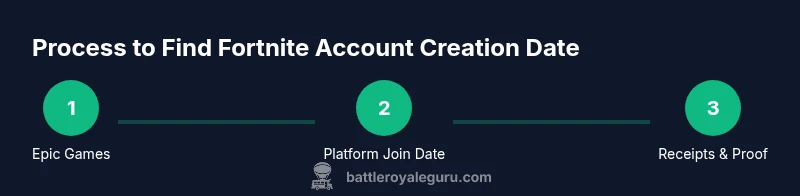
To see when your Fortnite account was created, start with your Epic Games account page and look for the registration or creation date. If it isn’t visible there, check linked platform accounts (PlayStation, Xbox, Switch, Steam) join dates or your earliest Epic Games purchase receipt via email. According to Battle Royale Guru, combining these sources often reveals the exact date or a close approximation.
Why knowing your account creation date matters
For Fortnite players, the exact moment your account was created can help in account recovery, ownership verification, and linking cross‑platform progress. If you ever need to prove you own an account during a security review or when contacting support, having a precise creation date is invaluable. The Battle Royale Guru team has found that many players misunderstand what “creation date” means; sometimes the date shown on receipts or platform join dates is mistaken for the Fortnite account creation date. A clear date can speed up authentication, prevent accidental account transfers, and help you reclaim access if your credentials are compromised. In practice, the creation date is often tied to the Epic Games account you use to log in, but there are edge cases where a console platform joined later and may not reflect the Fortnite timeline. Understanding where to look and what to expect saves you time and reduces frustration when dealing with Epic Games Support or platform customer service. Dates are typically shown in receipts and platform dashboards, sometimes in different formats or time zones. This foundation helps you determine the exact moment your Fortnite journey began, which supports security, ownership, and account history.
Quick checks: where to look first
If you’re starting fresh, there are a few fast places to check that often reveal the date or narrow the window. Start with your Epic Games account page; many users find a registration timestamp in the account overview or security section. If that fails, search your email for the first Epic Games welcome or purchase receipt—these often include the registration date or the first transaction timestamp. Don’t overlook platform dashboards: the PlayStation Network, Xbox Live, Nintendo Switch, and Steam accounts can show when the first linked Fortnite activity occurred. If you have multiple linked accounts, review the connected accounts page to see the chronological order of linking, which can imply the creation window. Finally, review any early order history in the Epic Games store; that earliest order can anchor the timeline and help verify ownership.
How to find the date on your Epic Games account
The primary place to check is the Epic Games account management page. Sign in at epicgames.com and navigate to your account settings. Look for a section labeled something like Account Creation, Registration Date, or General Details. If the exact date isn’t displayed, scan the history of logins, security alerts, or the first activity in your Activity or Notifications panels. In some cases, the date may only appear in the email you received when you first registered or made a purchase. If you still can’t locate the date, consider requesting a formal confirmation from Epic Games Support, providing the email address used for registration and any known purchase references. This process, while sometimes lengthy, creates an official record that supports ownership claims.
Checking platform join dates (PSN, Xbox, Nintendo, Steam)
Platform join dates can help triangulate the Fortnite account creation window, especially if Epic’s portal is vague. On PlayStation, Xbox, Nintendo, or Steam, locate your account’s creation or join date in the account or profile settings. Keep in mind these dates reflect platform activity, not necessarily the Fortnite logins, but they are valuable anchors. If you used multiple platforms, compare the earliest platform join date to narrow down the creation timeframe. When in doubt, note both the earliest platform join date and the first Fortnite-related transaction or activity you can verify.
What to do if the date isn’t visible
If none of the above sources show a clear creation date, you’ll need to contact Epic Games Support or platform customer service. Prepare your account email, listed username, and any proof of ownership (purchases, linked emails, screenshots). Explain your goal clearly: you need the account creation date for recovery or verification. Provide a plausible date window based on your earliest activity (e.g., first purchase, first login). Support may require identity verification before sharing sensitive details, but they can usually supply an official timestamp or an approximate window.
Tips for verifying ownership and securing your account
Keep your account under strong security practices so nobody else can alter or hide dates. Enable two-factor authentication, review connected email addresses, and regularly audit linked platforms. If you cannot access the primary email or recovery options, prepare alternate verification data (order numbers, original region, last login) to speed up support verification. Document all dates you locate, and store them in a secure note so you can reference them in future security checks or when contacting support, which reduces future delays.
Common pitfalls and troubleshooting
Avoid confusing the platform join date with the Fortnite account creation date; they are related but not always identical. Time zone differences can make dates appear shifted by hours, so convert times to your local zone if you’re comparing receipts. Some early accounts may show only a year or a partial date; in such cases, request a formal confirmation from Epic Games Support. If you recently merged accounts or migrated from a different region, the original creation date may be obscured; rely on receipts and first activity as your anchor points rather than assuming a single exact date.
Documenting and storing your findings
Create a simple, durable record of the date you determine. Save a screenshot of the Epic Games page that shows the date, plus any relevant receipts or platform join dates. Store these in a secure notes app or encrypted folder, with a short description of why the date matters. Regularly back up this information to prevent loss if you change devices or platforms. Regular documentation helps you avoid future misunderstandings during support requests and protects your account history.
Tools & Materials
- Internet-enabled device (PC, laptop, or mobile)(Needed to access Epic Games and platform accounts)
- Active Epic Games account credentials(Required to view account details)
- Access to email inbox used for Fortnite/EPIC registration(Used to locate first registration or purchase receipts)
- Platform account login(s) (PSN, Xbox Live, Switch, Steam)(Helpful if you have linked accounts; optional if not used)
- Notepad or password manager(For recording dates and securely storing proofs)
Steps
Estimated time: 20-40 minutes
- 1
Log in to your Epic Games account
Open a browser and go to the Epic Games account page. Sign in with the credentials you use for Fortnite. This initial access is essential to locate any official creation date records tied to your account.
Tip: If you use a password manager, fill in credentials automatically to avoid errors. - 2
Navigate to Account Settings
Once signed in, locate the Account or General tab in your settings. Look for any field labeled Creation Date, Registration Date, or similar. If the date is visible, note it and move on to cross-checking other sources.
Tip: Use the browser's search (Ctrl/Cmd+F) to find keywords quickly. - 3
Check early activity and receipts
If the creation date isn’t clearly shown, review the earliest activity in the account, such as the first purchase or first login. Search your email for the initial Epic Games welcome message or a purchase receipt that includes a timestamp.
Tip: Use email search terms like 'Epic Games' or 'Fortnite' to narrow results. - 4
Review linked platform accounts
Sign into any connected platform accounts (PSN, Xbox, Switch, Steam) and check their account creation or join dates. Cross-reference with Epic’s data to triangulate the Fortnite creation window.
Tip: Document any dates you find and compare against Epic’s records. - 5
Request official confirmation if needed
If you still cannot determine the date, contact Epic Games Support with your account email and any purchase references. Request a formal confirmation or timestamp of account creation, noting the date window you suspect.
Tip: Prepare ownership proofs to speed verification. - 6
Verify ownership and secure the account
Once you have the date, verify your ownership details with two-factor authentication and update security questions if available. This reduces risk if you need to share dates during future support interactions.
Tip: Enable 2FA across Epic and connected platforms. - 7
Document and back up your findings
Save screenshots of the date and relevant receipts, and store them securely. Create a backup copy in a password-protected note or encrypted drive.
Tip: Keep a short note explaining why you’re recording the date for future reference.
Questions & Answers
Can I see my Fortnite account creation date directly in-game?
No. Fortnite itself typically doesn’t display the account creation date. Use Epic Games and platform records to deduce or confirm the date.
Fortnite doesn’t show your creation date in-game; check Epic Games and platform records instead.
Where can I find my Epic Games account creation date?
The Epic Games account management page may show the creation date in the general or account sections. If it’s not there, look for the first purchase receipt or welcome email as a reference point.
Check the Epic Games account page for a creation date, or use your first Epic receipt as a clue.
Do platform join dates equal Fortnite account creation date?
Platform join dates can help estimate when you joined Fortnite, but they are not guaranteed to match the exact Fortnite account creation date.
Platform join dates aren’t guaranteed to match the Fortnite creation date, but they help anchor the timeline.
What if I can’t access my registered email?
If you can’t access the registered email, contact Epic Games Support or the platform’s support to verify ownership using alternative details.
If your email is inaccessible, contact support with other proof of ownership.
Will Epic Games disclose the exact creation date for security reasons?
Support may verify ownership before sharing sensitive dates. They may provide an official timestamp or confirm a date window after verification.
Expect ownership verification before any date disclosure; you’ll get an official timestamp or a date window.
How long does it take for Epic Support to respond about dates?
Response times vary; providing complete verification details and receipts can speed up the process.
Response times vary; thorough verification helps speed things up.
Watch Video
Key Points
- Identify multiple sources to triangulate the date.
- Epic Games or platform receipts are your strongest anchors.
- If date isn’t visible, contact support with proof of ownership.
- Securely document and back up the creation date for future use.