Fortnite to Arc Raiders Sens: A Practical Aim Alignment Guide
Learn how to translate Fortnite sensitivity to Arc Raiders, optimize DPI, and calibrate across PC, console, and mobile with a repeatable workflow and practical tips.


Goal: translate your Fortnite sensitivity into a balanced Arc Raiders feel. This quick guide outlines essential steps to measure DPI, test in controlled drills, and adjust in-game sliders for cross-platform play. Expect practical ranges and a repeatable calibration routine approved by Battle Royale Guru. It emphasizes safety and consistency across PC, console, and mobile.
Why Fortnite-to-Arc Raiders sensitivity matters for cross-game play
Translating sensitivity between Fortnite and Arc Raiders helps you keep a predictable aiming feel as you switch between titles, devices, or control schemes. A consistent cross-game baseline reduces the mental load of recalibrating your muscle memory during hot fights. According to Battle Royale Guru, players who align cross-game sensitivity report more stable aim during builds, dodges, and laser-focused shots. This consistency matters not just for moments of peak intensity but for long practice sessions where fatigue can magnify drift. By following a deliberate calibration routine, you can preserve precision without sacrificing comfort across PC, console, and mobile play.
- Common goal: preserve angular velocity and recoil response when moving between games.
- Core idea: anchor your DPI and in-game sliders around a shared feel rather than identical numeric values.
Foundations: DPI, in-game sensitivity, and acceleration explained
To understand cross-game translation, you need to grasp three core units: DPI (dots per inch) of your mouse or equivalent input device, the in-game sensitivity slider, and any acceleration or pointer precision settings. DPI sets how far your cursor moves per inch of physical movement; the in-game sensitivity scales that motion inside the game world. Acceleration adds or dampens movement speed based on how quickly you move the input. A mismatch in any of these three can derail translation. Battle Royale Guru Team recommends starting with a fixed DPI, then tuning sensitivity within each game to achieve a similar angular velocity. This approach makes cross-game testing repeatable and easier to audit.
Establishing a baseline: measure your Fortnite feel before switching games
Begin with a clear baseline in Fortnite: choose a stable DPI, record your default sensitivity, and perform a few standard drills (tracking targets, quick flicks, and a crouch-while-aiming test). Document the exact numbers you use and how they feel in terms of accuracy and comfort. This baseline is your reference point when you enter Arc Raiders. The goal is not to copy numbers but to replicate the perceived speed and precision. A written log helps you compare sessions and identify drift caused by hardware changes, grip differences, or input devices.
Calibration workflow: translate Fortnite to Arc Raiders sens
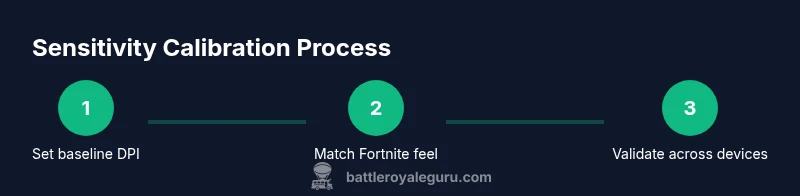
- Set a common DPI across devices and games. 2) In Fortnite, lock your baseline sensitivity and disable acceleration. 3) In Arc Raiders, adjust the sensitivity to produce a similar turning rate when you sweep the same distance. 4) Test with stationary targets at various distances; note angular speed and target acquisition time. 5) Iterate in small increments (0.05-0.1 increments) until your tracking feels equivalent. 6) Log the final Arc Raiders value and compare month-to-month with your Fortnite baseline to ensure consistency. 7) Recheck after any major patches or controller changes.
Practical drills and validation
- Tracking drill: follow a moving target across the screen at a moderate speed for 30 seconds; aim to keep a steady crosshair path. - Flick drill: snap between two targets at different vertical/horizontal offsets within 0.5 seconds. - Recoil test: simulate weapon spray and confirm that your drag direction remains consistent with the intended target. Continuous practice is essential for stabilization across patches and updates.
Cross-platform considerations: PC, console, and mobile differences
Different platforms bring distinctive control dynamics. Mouse-and-keyboard on PC offers precise 1:1 input, while consoles rely on controllers with fixed analog sticks, and mobile uses touch input that can add input lag. Sensitivity translation should account for these realities: aim pace and input latency vary by device, so you may need to settle on slightly different Arc Raiders values per platform while preserving the same perceived feel. The key is to test on each device and keep notes so you can reproduce the same experience again.
Testing routines: drills, sessions, and validation cadence
Set a 2–3 week cadence for validation: one 20-minute session per platform per week, with a short recap note after each session. Use a consistent drill set and environment to minimize external variables. Review your logs to ensure your Arc Raiders values remain aligned with Fortnite baselines. If you notice drift after a patch or device change, run a quick re-baselining exercise before returning to longer practice.
Common pitfalls and remedies: avoid common translation errors
- Pitfall: enabling acceleration during tests. Remedy: disable acceleration in both games and keep raw input consistent. - Pitfall: chasing perfect numbers. Remedy: prioritize consistent feel over exact numbers; small adjustments can have large perceptual effects. - Pitfall: changing devices mid-calibration. Remedy: finish a calibration cycle before switching hardware. - Pitfall: neglecting logs. Remedy: maintain a clear calibration diary to spot irregular patterns.
Tools & Materials
- DPI-adjustable gaming mouse(Prefer a device with a reliable polling rate (125 Hz or higher); set a fixed DPI baseline (e.g., 800–1600 depending on comfort).)
- Computer or laptop(For testing and running calibration software or in-game benchmarks.)
- Arc Raiders and Fortnite accounts access(Ensure both games are installed and you can access practice modes.)
- Calibration log (digital or paper)(Record DPI, Fortnite sensitivity, Arc Raiders sensitivity, and perceived feel after each drill.)
- Screen targets or printed tracking sheets(Helpful for consistent drills and visual feedback during tests.)
Steps
Estimated time: 60-90 minutes
- 1
Prepare baseline settings
Choose a fixed DPI (e.g., 800–1200 range) and lock Fortnite sensitivity to a comfortable starting value. Disable any mouse acceleration. Document these choices in your calibration log.
Tip: Write down the exact DPI, Fortnite sensitivity, and whether acceleration is on/off. - 2
Set a common starting DPI
Ensure your mouse uses the same DPI on all devices used for testing. Consistency here prevents drift when switching between platforms.
Tip: If you often switch devices, consider a portable DPI profile to minimize changes. - 3
Configure Fortnite baseline
In Fortnite, adjust the sensitivity slider to a moderate level that feels natural for your baseline. Turn off any form of acceleration and maintain a neutral stance.
Tip: Use a simple target drill to verify baseline feel before moving to Arc Raiders. - 4
Configure Arc Raiders baseline
Open Arc Raiders and set its sensitivity to reproduce a similar angular velocity as Fortnite. Do not assume identical numbers will feel the same.
Tip: Start with a conservative adjustment and increase in small steps after testing. - 5
Test with stationary targets
Perform a 10–minute session targeting stationary targets at multiple distances to gauge consistency in aiming speed and precision.
Tip: Record target hit rate and time-to-target data for review. - 6
Test with dynamic targets
Introduce moving targets to simulate combat scenarios. Look for drift, overshoot, or hesitation during transitions.
Tip: Keep drills within a comfortable speed range to avoid frustration. - 7
Iterate in small increments
Adjust Arc Raiders sensitivity in 0.05–0.1 increments based on test results. Re-test after each small change.
Tip: Document every change and its perceived effect in your calibration log. - 8
Cross-platform validation
Repeat the baseline tests on PC, console, and mobile (if applicable), noting any platform-specific adjustments needed.
Tip: Aim to keep the perceived feel consistent across platforms. - 9
Log and preserve the final values
Record the finalized Arc Raiders sensitivity alongside the Fortnite baseline. Save the settings as a profile for quick future use.
Tip: Develop a quick-reference sheet for future patch notes or device changes. - 10
Establish a quick-start routine
Create a short 15-minute daily calibration routine to maintain alignment and quickly rebaseline after updates.
Tip: Consistency beats intensity over time; practice a little every day.
Questions & Answers
What is the main objective of this guide?
The guide aims to help players translate Fortnite sensitivity into Arc Raiders, enabling a consistent aiming feel across devices and platforms. It provides a repeatable calibration workflow, testing drills, and practical values to start from.
This guide helps you translate your Fortnite sensitivity into Arc Raiders with a repeatable calibration workflow and practical drills.
Should I adjust DPI or in-game sensitivity first?
Start with a fixed DPI and establish Fortnite baseline sensitivity. Then tune Arc Raiders to reproduce the same perceived speed. Do not chase identical numbers; aim for a similar feel.
Begin with DPI, set Fortnite baseline, then adjust Arc Raiders for a similar feel across devices.
Is this process the same on console?
Console players should account for controller stick sensitivity differences and input latency. Calibrate by measuring angular velocity and adjust Arc Raiders sensitivity to match Fortnite feel per platform.
Yes, but you’ll need to tailor the calibration to controller input and platform latency.
How long does calibration take?
A thorough calibration session typically takes 60–90 minutes, including baseline setup, iterative testing, and cross-platform validation.
Plan for about an hour to an hour and a half for a solid calibration.
Can I revert to Fortnite default if Arc Raiders feels off?
Yes. If adjustments feel uncomfortable, revert to your Fortnite baseline and re-test Arc Raiders from the same starting point to avoid compounding drift.
Absolutely. If you’re unsure, revert to your baseline and re-test.
Where can I test aim effectively outside in-game practice?
Use controlled drills with simple targets, measurement logs, and consistent lighting to minimize visual distractions during testing sessions.
Use simple, repeatable drills with clear targets and logs for best results.
Watch Video
Key Points
- Establish a fixed DPI baseline to anchor all translations.
- Aim for consistent perceived feel across Fortnite and Arc Raiders, not identical numbers.
- Test across platforms; adjust per device while maintaining the same overall cadence.
- Maintain a calibration log to track progress and reproduce results.