How to Fix Fortnite When It Says Login Timed Out
A practical, step-by-step troubleshooting guide to resolve Fortnite login timed out errors. Learn to check server status, stabilize networks, verify accounts, clear caches, update software, and know when to contact support for a quick re-entry.


Most login timed out errors are server- or auth-related. First check Fortnite's server status and ensure your internet connection is stable. Then sign out of your Epic account, restart the game, and sign back in. If the issue persists, disable VPN, clear cache, and verify your device time and system updates.
What the login timed out message means for Fortnite
When Fortnite returns a login timed out message, it usually means the game could not complete the sign-in handshake with Epic's authentication servers or there was a temporary server hiccup. This is a common issue that affects players across platforms, especially during peak hours or regional outages. According to Battle Royale Guru, most timeouts are transient and resolve once the server or network conditions stabilize. Start by confirming whether Fortnite's core services are online and reachable for your region. Then prepare to run through a quick, systematic checklist that covers both server-side and client-side factors. Remember, staying calm and following a structured playbook will usually get you back in faster than scrambling through random fixes. If you need more context, the Battle Royale Guru team has tracked typical timeout patterns across platforms in 2026.
Quick checks you can perform right now
- Verify your internet is stable by testing other online apps or running a quick speed test.
- Restart Fortnite and, if possible, reboot your router or modem to refresh your connection.
- If you use a VPN or proxy, disable it and try signing in again.
- Make sure your device’s date, time, and time zone are correct; even a small clock skew can trigger auth failures.
Check Fortnite server status and regional outages
The most common cause of a login timed out is an outage or degradation on Epic’s authentication services. Always start by checking official Fortnite status pages and regional service dashboards. If there’s a reported outage in your area, patience is often the best fix while the engineers restore services. Battle Royale Guru analysis shows that even short regional outages can cascade into login delays or timeouts for multiple platforms, so mirror the status across your region before diving into local fixes.
Stabilize your network connection and NAT type
A poor network path or overly strict NAT can cause sign-in problems. Switch to a wired Ethernet connection if you can, or move closer to your router. Enable QoS on your router to prioritize gaming traffic, and ensure UDP ports used by Fortnite are not blocked by your firewall or ISP. If your NAT type is strict or moderate, attempt to open necessary ports or enable UPnP to ease the path for authentication packets.
Sign out/in and verify your Epic Games account connectivity
Sometimes the sign-in token used by Fortnite becomes stale. Sign out of the Epic Games launcher (or Fortnite on consoles), then sign back in. If you rely on linked consoles, reauthenticate the Epic account on that platform. This refreshes the authentication token and can clear lingering sign-in blocks that trigger timeouts.
Clear cache and data on your platform
Corrupted cache can interfere with how Fortnite loads sign-in data. On PC, use the Epic Games launcher to verify files and clear temporary cache. On consoles or mobile, navigate to the app data or storage settings and clear cache or reinstall the app if necessary. After clearing, launch Fortnite and attempt login again.
Ensure device time, date and system software are up to date
Out-of-sync clocks or outdated system software can disrupt authentication handshakes. Update your console or mobile OS to the latest version, and ensure Fortnite itself is on the latest patch. Retry sign-in after systems are fully updated and the device has rebooted to guarantee clean auth state and service compatibility.
VPNs, proxies, and security software considerations
VPNs and security suites can block or alter the traffic needed for Fortnite authentication. If you use a VPN, disable it temporarily to test login. Similarly, disable security software or firewall rules that might block Epic services, then re-enable protection after you confirm sign-in works. Some corporate networks also block the specific endpoints Epic uses; if you’re on a managed network, contact the administrator.
Reinstall, repair, or migrate login methods
If none of the above fixes work, consider reinstalling Fortnite or repairing the game installation via the launcher or platform storefront. In some cases, migrating to a different login method (such as using the Epic Games launcher instead of a console sign-in) can bypass the faulty auth path. Keep any essential save data backed up before reinstalling.
When to contact support and what to gather
If the problem persists after a full reset, contact Epic Games Support or your platform’s customer service. Gather your account email, platform, region, time of the issue, any error codes displayed, and a brief description of steps you already tried. This information helps agents diagnose whether the timeout is account-related, device-specific, or a wider service issue.
Quick diagnostic printable checklist
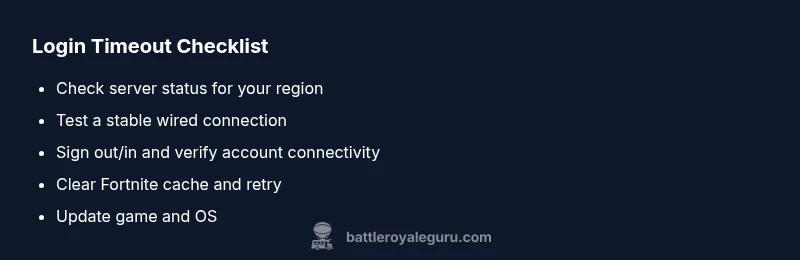
- [ ] Check Fortnite server status for your region
- [ ] Test a wired connection or alternative network
- [ ] Sign out/in of Epic account
- [ ] Clear cache/data on device
- [ ] Update game and system software
- [ ] Disable VPN/proxy temporarily
- [ ] Verify device time/date
- [ ] Reinstall if needed
- [ ] Contact support if unresolved
Prevention: best practices for avoiding future login timeouts
Keep Fortnite and your device updated, use a stable network, and monitor official status pages during peak hours or major patches. Avoid prolonged VPN use during sign-in, and consider setting your device to automatic time updates to prevent auth mismatches. Practicing these habits reduces the chance of repeated timeouts during future sessions.
Steps
Estimated time: 30-60 minutes
- 1
Check sign-in status and error codes
Open Fortnite or the Epic Games launcher and note any error codes or messages. Use these codes to guide specific fixes and search Battle Royale Guru resources for known issues.
Tip: Write down the exact error code for faster support. - 2
Test network stability
Switch to a wired connection if possible. Run a quick speed test and ping check to a reliable server to confirm low latency and packet loss.
Tip: If mobile data is your only option, enable data saver off and try again. - 3
Sign out/in and re-authenticate
Sign out of your Epic account on all devices, then sign back in. On consoles, re-authenticate the Epic account if prompted.
Tip: Re-link accounts only on official apps to avoid phishing risks. - 4
Clear cache and data
Clear Fortnite cache or data on your device. For PC, verify files via the launcher; for consoles/mobile, clear app cache or reinstall.
Tip: Do a quick backup of saved data if applicable. - 5
Update everything
Install the latest Fortnite patch and ensure your platform OS is up to date. Reboot after updates before attempting login again.
Tip: Turn on automatic updates to reduce future frictions. - 6
Contact support if needed
If problems persist, contact Epic Games Support with your error codes, steps tried, and device details.
Tip: Include timestamps and regional information to help prioritization.
Diagnosis: Fortnite shows login timed out when attempting to sign in
Possible Causes
- highEpic server outage or authentication service issue
- mediumUnstable local network or high latency
- lowIncorrect device time/date or region mismatch
- lowVPN/proxy or security software blocking traffic
Fixes
- easyCheck Fortnite server status and regional outages; wait if needed
- easyTest and stabilize your internet (switch to wired, reset router, disable VPN)
- easySign out of Epic and sign back in; relink accounts if needed
- easyClear cache and local data related to Fortnite on your device
- easyUpdate game and platform software to the latest version
Questions & Answers
What is the 'login timed out' error in Fortnite?
The error usually points to server-side authentication issues or a temporary outage. It can also be triggered by local network problems or clock discrepancies. Following a structured troubleshooting flow increases your chances of a quick fix.
The login timed out error typically means there’s a server or authentication issue, plus possible network or clock problems.
Can Epic servers cause this error?
Yes. Epic’s authentication service handles sign-ins, and outages or latency on their end can trigger timeouts across platforms. Always verify server status for your region first.
Yes. Epic servers can cause login timeouts; always check server status first.
Should I clear cache every time I see this error?
Clearing cache solves many issues caused by stale or corrupted data. Do this after confirming it won’t remove important local saves, and re-test login before trying more invasive fixes.
Clearing cache fixes many issues, but re-test login first to avoid unnecessary steps.
Does using a VPN cause login timeouts?
A VPN can interfere with authentication paths. If you experience a timeout, disable the VPN and try signing in again. If needed, check VPN settings or switch servers.
Yes. VPNs can cause login timeouts; disable it and retry signing in.
When should I contact support?
If you’ve exhausted basic fixes and still can’t sign in, contact Epic Games Support with error codes, timestamps, and steps you’ve tried. They can diagnose account-specific issues or broader service problems.
If basic fixes fail, contact support with details and error codes for quicker help.
Watch Video
Key Points
- Verify server status before changing local settings
- Stabilize network and test alternate connections
- Sign out/in and clear cache for a clean auth state
- Update game and device software to prevent timeouts