Why Fortnite Server Offline: Urgent Troubleshooting Guide 2026
Urgent, practical troubleshooting guide for Fortnite players facing server offline issues. Learn how to check status, diagnose causes, and fix connectivity quickly in 2026.


Fortnite server downtime is usually caused by Epic Games maintenance or regional outages. The quickest fix is to check the official status page and social channels, then restart your router and device. If the issue persists, switch regions, flush DNS, and retry. This guide provides a step-by-step approach to diagnose and fix the problem fast.
Understanding Fortnite Server Offline Issues
When Fortnite servers go offline, players often panic, but most outages follow predictable patterns. According to Battle Royale Guru, outages typically occur during maintenance windows, after a major update, or due to regional routing problems. The key is to confirm whether the issue is global or local to your connection. This section explains how outages affect matchmaking, in-game chat, and party systems, and why a rapid, structured response matters for getting back into the action. By staying calm and following a checklist, you can reduce downtime and minimize frustration. The Battle Royale Guru team found that most interruptions are announced in advance on official channels, which gives players a heads-up to plan around maintenance and avoid wasting time troubleshooting when services are down.
In practice, you should treat a suspected outage as a two-phase problem: confirm the outage, then follow a controlled remediation approach. This mindset helps you avoid chasing phantom network issues when the problem is on Epic Games’ side. Always cross-check with trusted sources before making drastic changes to your setup, and remember that outages can vary by region and platform.
As you read, keep in mind the goal: return to Fortnite with minimal risk of repeat outages. If you notice a recurring pattern in your region, you may be dealing with a data-center-specific problem or ISP routing hiccup that needs a tailored fix. The Battle Royale Guru guidance emphasizes patience and methodical steps over random tinkering.
Key takeaway from expert analysis: outtages cluster around peak hours and major updates, so plan accordingly and rely on official channels for status updates.
Common Causes Behind Fortnite Server Outages
Understanding the root causes helps you decide where to focus your troubleshooting effort. The first and most common reason is Epic Games performing maintenance or addressing a service issue. When a maintenance window is scheduled, servers may temporarily go offline or require players to update to a patch before reconnecting. The second frequent cause is regional outages or routing problems that impact specific geographies. In these cases, players in affected regions experience matchmaking delays, inability to join lobbies, or long loading screens even when others can play normally. A third factor is network-side constraints, such as home network congestion, ISP DNS problems, or misconfigured firewalls that block Fortnite ports. While these are not outages in Fortnite’s data center, they can mimic server issues on your end. Finally, in rare cases, game data corruption or account-related restrictions may temporarily affect connectivity or access to certain modes.
From a troubleshooting perspective, the most efficient approach is to verify status first and then isolate local network variables. Battle Royale Guru analysis shows outages tend to be publicly acknowledged by Epic Games and spread through official social channels, which makes it easier to distinguish between an upstream outage and a local problem. If you can confirm a regional outage, your best course is to wait for Epic’s update and avoid chasing unstable fixes.
To reduce confusion, maintain a simple log of what you tested and what happened. This helps you and any support team identify repeatable patterns and avoid duplicating steps. The broader lesson is to treat downtime as a systemic event rather than a single device problem, which saves time and preserves your troubleshooting bandwidth.
How to Check Fortnite Server Status and Your Local Connection
Begin with official signals before digging into the network. Start on Epic Games’ status page, then scan the Fortnite social channels for outage notices or maintenance announcements. If there is a reported outage, you’ll typically see a banner or post noting the scope and expected duration. Next, verify your own connection: check if other online services are working, confirm your network is online, and test latency to a general server (for example, how long it takes to ping a nearby site). If your connection seems stable but Fortnite still won’t connect, try a quick local reset: reboot your router, power cycle your console or PC, and rejoin the network after a short pause. A common pitfall is assuming a single device issue when the outage is acknowledged by Epic Games. Cross-check with a friend on a different network to confirm whether the problem is regional or personal. The goal is to build a precise picture of whether the fault is global or local.
For players who want a faster diagnostic, toggle Airplane Mode on mobile devices or disconnect and reconnect to your home network. If you can access other online services but not Fortnite, focus your efforts on Fortnite-specific ports and DNS configuration. In many cases, a simple DNS flush or a switch to a reliable public DNS can restore connectivity during outages or post-maintenance rollouts. Stay flexible and patient, as resilience comes from a clear, repeatable process rather than ad hoc fixes.
Step-by-Step Troubleshooting for Players (Hands-on Guide)
- Verify outage status first
- Look for official notices about outages or maintenance windows. If Epic Games confirms downtime, log your ticket-ready notes and wait for updates.
- Tip: Bookmark the official Fortnite status page for quick checks.
- Check your local network basics
- Confirm your device is connected to the internet and other services work.
- Reboot your router and console/PC to clear stale connections.
- Tip: Do not skip the router restart; some outages resolve after a simple cycle.
- Test different network configurations
- Switch to a different DNS (for example, a public DNS) and test connectivity again.
- If you’re on Wi-Fi, try a wired connection or move closer to the router to reduce interference.
- Tip: Note any changes you make so you can revert if needed.
- Adjust Fortnite-specific network settings
- Ensure ports required by Fortnite are not blocked by your firewall or router. Open only necessary ports as documented by Epic Games.
- If you use a VPN, disable it temporarily to verify if it’s causing routing issues.
- Tip: Record a before/after latency to gauge improvement.
- Reinstall or verify game files
- Use the game launcher’s verify/repair feature to fix corrupted files that sometimes accompany updates.
- Tip: Back up save data if applicable before reinstalling.
- Decide on next steps if the issue persists
- If the outage is confirmed by Epic Games, your best option is to wait and monitor official updates.
- If you suspect a local problem after status checks, contact your ISP or device manufacturer for guidance.
- Tip: Collect screenshots of error messages and timestamps for support.
Estimated total time: 30-45 minutes, depending on network conditions and outage duration.
When to Contact Support and What Information to Gather
If outages persist beyond official updates, reaching out to support is the right move. Before you contact, collect essential context: your platform (PC, console), your region, time and duration of the issue, any error codes or messages, and a brief description of steps you tried. When you contact help desks, share this concise log to speed up resolution. Include recent patch notes or updates you installed, since sometimes a bad patch can trigger repeated failures. If you have multiple devices, indicate which ones are affected to help isolate device-specific problems versus broader outages. Remember that downtime can be caused by Epic Games maintenance, so verify status and wait if necessary. Keeping a calm, organized report improves your chances of a quicker fix. The Battle Royale Guru team recommends documenting every step you take and maintaining a consistent traceback so support can reproduce the issue on their end and provide targeted guidance.
Preventing Future Outages and Staying Informed
Prevention is about proactive checks and staying informed. Set up official Fortnite channels in your preferred notification method so you receive real-time outage alerts and patch notes. Schedule routine network maintenance on your end, such as updating router firmware, testing DNS performance, and keeping your devices secured. Consider a small redundancy plan, like a secondary network (mobile hotspot or alternate ISP) for emergencies, so you aren’t stuck during extended downtime. Implement monitoring solutions or simple ping checks to detect sudden spikes in latency. Finally, adopt a structured troubleshooting routine so you can act fast and consistently during future outages. The Battle Royale Guru team emphasizes that consistent, calm, and documented steps help you recover faster and maintain access during maintenance windows.
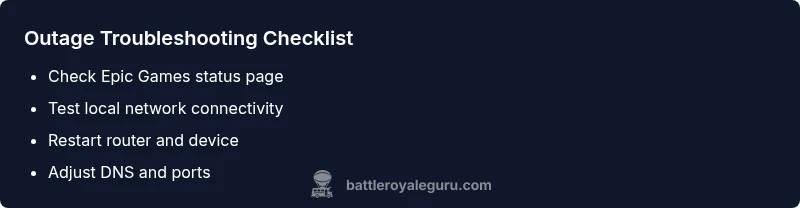
Steps
Estimated time: 30-45 minutes
- 1
Verify outage status
Begin by checking Epic Games’ official status page and Fortnite social channels for any outage notices or maintenance schedules. If there is a confirmed outage, log the time and duration and wait for a public update before trying fixes. This saves you time and avoids unnecessary changes to your setup.
Tip: Bookmark the status page for quick checks. - 2
Check your local connection
Test your internet connection on other apps or services to see if the issue is broader. If other sites load slowly or fail, troubleshoot your router and modem, ensuring all cables are snug and devices are reset.
Tip: Power cycle your router by unplugging it for 60 seconds before plugging back in. - 3
Restart devices and refresh network
Restart your console or PC and reconnect to your network. After the reboot, attempt to connect to Fortnite again to see if the outage was transient or related to a stuck connection.
Tip: Test on a wired connection if possible to reduce interference. - 4
Adjust DNS and firewall settings
Flush your DNS cache and consider switching to a public DNS (like 8.8.8.8 and 8.8.4.4). Check that Fortnite ports are not blocked by your firewall or router and disable VPNs temporarily to test connectivity.
Tip: Document changes so you can revert if needed. - 5
Verify game files and patch status
Use the launcher’s verify/repair feature to fix corrupted game files after an update. Ensure you’re on the latest patch and that the install was completed successfully.
Tip: Back up any save data if applicable before reinstalling. - 6
Decide on next steps
If the outage is confirmed by Epic Games, monitor updates and avoid further changes. If the issue persists locally, contact your ISP or device manufacturer for guidance and consult official support channels.
Tip: Keep a log of error messages and timestamps for support.
Diagnosis: Fortnite cannot connect, or shows server offline/downtime status
Possible Causes
- highEpic Games outage or maintenance
- highLocal network issues (ISP, router, DNS)
- mediumFortnite ports blocked by firewall
- lowRegional data center hiccup
Fixes
- easyCheck official Fortnite status page and Epic Games social channels for outage notices
- easyPower cycle router and device, then reconnect
- easyFlush DNS or switch to a reliable public DNS; ensure Fortnite ports are allowed
- mediumTest a different network (mobile hotspot or another ISP) to confirm regional vs local issue
Questions & Answers
What should I do first when Fortnite servers are offline?
First check the official Fortnite status page and Epic Games social channels for outage notices. If outages are confirmed, wait for updates before troubleshooting. If no outage is listed, proceed with network checks and device resets.
Check the official status page first, then follow your network checks. If there’s an outage, wait for updates before doing more.
How can I tell if the issue is local or Epic Games wide?
If only Fortnite is affected and other online services work, the problem may be local. If multiple games or services are down or Epic’s status shows outage, the issue is likely global. Use friends on different networks to confirm.
If your other apps work but Fortnite doesn't, it’s often local; otherwise, it’s likely a global outage.
What error codes indicate a server outage versus a connection problem?
Error messages indicating server maintenance or downtime usually come from Epic Games’ status banner. Local connection issues tend to show generic network errors or timeouts. Document any codes and cross-check with official status.
Server downtime usually shows an official banner; local issues show general network errors.
Is it safe to use a VPN during outages?
Using a VPN can sometimes cause routing problems that mimic outages. If you’re experiencing issues, disable VPN and test again to see if the VPN is the culprit.
Try turning off any VPN to see if it improves your connection.
When should I contact Epic Games or my ISP?
Contact Epic Games if you’ve confirmed an outage and still can’t connect after updates. Reach out to your ISP if you suspect local network problems persist after standard fixes.
If outages continue after status updates, contact Epic Games; if you suspect your network, reach out to your ISP.
Will downtime affect competitive play or tournaments?
Downtime can impact schedules, but official organizers typically provide updates and rescheduling. Stay aware of announcements and ensure you have fallback times in case of delays.
Outages can affect schedules; watch for official tournament updates and plan accordingly.
Watch Video
Key Points
- Check official outage status before troubleshooting
- Restart devices and reset network to clear stale connections
- Use reliable DNS and verify Fortnite ports are accessible
- Stay informed via official Fortnite channels during outages
- The Battle Royale Guru team recommends a calm, methodical approach