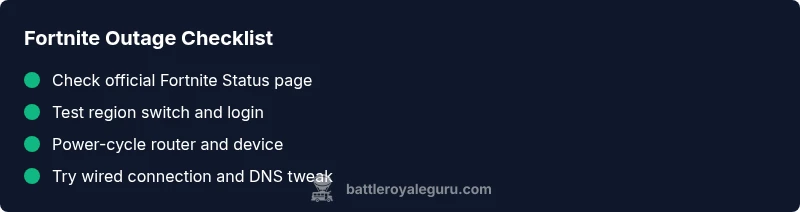
Fortnite Servers Down: Quick Troubleshooting Guide Today
Urgent guide to fix Fortnite server outages. Check status, diagnose network issues, and apply quick fixes to get back into matches fast. Battle Royale Guru delivers practical, step-by-step steps for gamers.


Most Fortnite outages stem from Epic Games server maintenance or regional issues. Start by checking the official Fortnite status page, then try basic fixes: restart the game, reboot your router, and, if possible, switch regions. If the outage is widespread, the fix is to wait until Epic resolves the problem.
Understanding Fortnite Server Outages
Outages happen when Fortnite's online services experience interruptions that prevent players from connecting, logging in, or joining matches. Most outages fall into two broad categories: maintenance windows scheduled by Epic Games and unexpected regional issues caused by traffic spikes, hardware problems, or upgrades in progress. When a maintenance window is announced, you may see a message in-game or on the status page explaining expected downtime. Regional issues can occur in a few countries or across a whole region, especially during peak hours when demand spikes. The Battle Royale Guru team notes that outages often align with major patches or seasonal events, so players may notice longer downtime around updates. In general, outages are not a personal fault; they’re a service-side problem. You can stay informed by following Epic's official channels and community forums to get the latest status updates and estimated repair times.
Actionable takeaway:
- Always verify status on official channels first.
- Differentiate between regional maintenance and global outages before chasing a fix.
Checking Official Status and Community Signals
To determine if Fortnite is truly down, start with official sources. The Fortnite Status page, the Epic Games Twitter account, and the in-game message center usually provide the most accurate information. If the status page shows maintenance or outage, that’s your primary signal to wait. You can also check community signals via the Fortnite subreddit, DownDetector, and gaming news outlets for corroborating reports from other players in your region. When you’re troubleshooting, collect your own data: your hardware model, platform, NAT type, and any error codes. This helps you decide whether the problem is on Epic's side or something local. If you see consistent reports across multiple regions, it's very likely a global outage; if only your connection shows problems, it could be local network issues. Always verify that your account is in good standing and that you’re not locked out for other reasons, such as verification steps or security prompts.
Practical steps:
- Bookmark the official status page and set alerts if possible.
- Cross-check multiple sources before acting on rumors.
Quick Fixes You Can Try Immediately
Certain fixes require no tools and can resolve many connectivity problems during an outage. First, refresh the official status page and if needed switch regions to see if another data center is operating. Restart Fortnite and reboot your router or modem to clear transient network glitches. If possible, connect via a wired Ethernet connection instead of Wi‑Fi to reduce packet loss. Disable any VPNs or firewall rules that could be interfering with game traffic, then flush the DNS cache and renew your IP address. Finally, ensure your game and platform software are up to date, as patches can affect connection stability. If you’re using a console, try a power cycle by turning off the console for 30 seconds before powering back on. These steps won’t fix a global outage, but they can help you reconnect quickly if the problem is on your end.
How to approach:
- Start with the simplest fix and escalate only if needed.
- Document any changes you make to track what works.
Distinguishing Local Issues from Global Outages
Not all connection problems indicate a Fortnite-wide outage. To differentiate, run simple network tests: ping test to Epic servers, traceroute to the game server, and check your NAT type. If diagnostics show high latency, jitter, or frequent timeouts only on your device, the issue is likely local. If multiple devices in your home report the same problem, or you’re unable to reach any Epic servers, the outage is more likely global. Consider switching to a backup internet path, such as mobile hotspot, to verify. Also verify that your DNS settings are not misconfigured; incorrect DNS can cause slow connections or timeouts even when the service is up. Remember that your ISP’s routing and peering agreements can shape your experience during peak times, so the same outage may feel different from your neighbor.
Quick checks:
- Run a speed test from a wired connection.
- Try a different DNS (e.g., Google 8.8.8.8) to see if performance improves.
Diagnostic Flow: Symptom to Solution
When you notice an issue, map it to a simple flow to troubleshoot efficiently. Symptom: “Cannot log in or join a match.” Diagnosis: check recent outages on the status page and cross-reference community signals. If the outage is confirmed, move to global-outage procedures; if not, run local-network checks like router resets and DNS tests. Solutions: apply the most relevant fixes first (restarting devices, switching regions, using a wired connection) and retest. If problems persist beyond the expected maintenance window, escalate to support. Keeping a short log of symptoms, error messages, and timestamps helps the investigation and speeds up escalation.
This flow keeps you moving from detection to resolution with minimal blind chasing.
Step-by-Step: Most Common Outage Scenario
- Verify outage status on official pages and social feeds. 2) If outage is regional or global, prepare for waiting; log the time and patch window. 3) Reboot game, console/PC, and router in that order. 4) Switch to a wired Ethernet connection if possible and test again. 5) Attempt a region switch to see if you can connect to a different data center. 6) If still failing, disable VPNs, verify DNS settings, and collect error codes for support.
By following this flow, you capture key data and apply fixes in a repeatable order.
Prevention Tips for Future Outages
- Keep firmware and game clients updated to minimize compatibility problems.
- Use a stable wired connection and a reliable router with QoS for gaming traffic.
- Maintain alternative play plans (other games or practice modes) for sustained downtime.
- Set up status alerts from Epic Games and reputable outlets to anticipate maintenance.
- Avoid last-minute changes to network settings during outages to prevent misconfigurations.
When to Seek Help: Contacting Support
If the outage remains unresolved beyond the announced maintenance window or your own tests indicate issues on Epic's side, contact Fortnite Support or Epic Games Customer Service. Gather your account name, platform, region, and any error codes before reaching out. If you suspect your ISP or local hardware is failing, contact your provider or a local technician with the data you collected. In urgent competitive scenarios, you may need to pause play and log a ticket so you’re ready for action when the service returns.
Steps
Estimated time: 25-35 minutes
- 1
Verify outage status
Open the Fortnite Status page and check social feeds to confirm if a regional or global outage is active. Note the reported duration and any official workarounds.
Tip: Document the time of status updates for reference. - 2
Switch regions and retry
If the issue seems region-specific, switch to another data center within the game’s options and attempt a login or queue again.
Tip: Region changes can temporarily improve connectivity during partial outages. - 3
Power-cycle devices
Power off your router, modem, and console/PC for 30 seconds, then power back on in the same sequence. Allow full reboot time before testing.
Tip: A clean reboot clears stale routing and cache data. - 4
Test a wired connection and DNS
Connect via Ethernet if possible and try changing DNS to a public resolver (e.g., 8.8.8.8). Test again in Fortnite.
Tip: Wired connections provide more stable latency for troubleshooting. - 5
Disable VPNs and firewall blocks
If you use a VPN, disable it temporarily to see if it’s affecting routing. Check firewall rules that might block game ports.
Tip: Some VPNs worsen latency or cause login problems. - 6
Escalate to support if unresolved
If the problem persists beyond the maintenance window, collect error codes, timestamps, and system details, and file a ticket with Fortnite Support.
Tip: Include your device specs and steps you already tried.
Diagnosis: Cannot log in or join a match during a suspected outage
Possible Causes
- highGlobal or regional outage reported by Epic Games
- mediumLocal network issues (router, NAT, ISP routing)
- lowDevice-specific or platform issues (firewall, DNS, outages on device)
Fixes
- easyCheck official status and community signals; if outage confirmed, wait or switch regions if advised
- easyPower-cycle router/modem and device, then retest
- easySwitch to wired Ethernet, disable VPNs, and flush DNS cache
- easyUpdate game client and platform software; apply patches
- mediumIf unresolved, gather logs and contact support with error codes
Questions & Answers
Is Fortnite down for everyone or just me?
Outages can be global or regional. Always verify with the Fortnite Status page and corroborating posts from Epic Games and trusted outlets before assuming it's a personal issue.
Outages can affect everyone or just a region. Check the status page to confirm.
How long do outages usually last?
Durations vary based on the underlying issue. The official status page provides estimates or windows. If maintenance is ongoing, plan to wait until Epic signals completion.
Durations depend on the cause; check the status page for estimates.
What should I do while Fortnite servers are down?
Use downtime to practice in other modes, review settings, or play other games. Keep notes on issues to speed up escalations later.
While down, you can practice elsewhere or review your setup.
Should I reset my network equipment during an outage?
Yes, a simple power cycle can resolve local issues. If the outage is global, it won’t fix server-side problems but can help with connectivity once service returns.
A reset helps locally; it won't fix a global outage but can speed up reconnection.
When should I contact Fortnite Support?
If the outage continues beyond the expected window, collect error codes and timestamps, then contact Fortnite Support. Provide device details to speed up assistance.
If it lasts too long, contact support with your details.
Watch Video
Key Points
- Check official status first before troubleshooting.
- Differentiate global outages from local issues quickly.
- Apply fixes in an escalating order and document results.
- Use wired connections and stable DNS during outages.
- Escalate with error details when needed.