Is Fortnite Running? Urgent Troubleshooting Guide
Is Fortnite running right now? Use this urgent, step-by-step guide to quickly diagnose outages, test your connection, and fix common issues so you can get back to Battle Royale action fast.


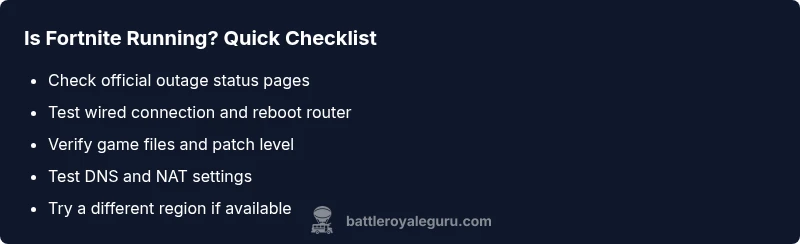
1) Check official server status and social updates to see if Fortnite is experiencing an outage. 2) Test your internet speed and latency with a wired connection, then reboot your router/modem. 3) Relaunch the game, verify files, and update to the latest client. If issues persist, switch to a different region or contact support.
Is Fortnite Running Right Now? Quick Reality Check
When you ask, is fortnite running, you’re usually facing a mix of server status and local-network hurdles. The Battle Royale Guru team emphasizes starting with the simplest explanation: is the outage on Epic's side, or is something on your end blocking gameplay? In practice, this block helps you rapidly separate a true server outage from a home-network hiccup, so you can act with confidence instead of guesswork.
First, confirm whether Fortnite is down for everyone or just you by checking official status pages and the game’s social channels. Then, test your own connection: can other online services load normally? If yes, the issue may be game-specific; if no, your network may be congested or misconfigured. This distinction is crucial for a fast recovery.
As you begin, keep in mind that server status can change quickly during patches or events. Stay flexible and document what you observe (time, error codes, device used) so you can report precise details if you need to contact support or post in forums for community guidance.
Quick Checks You Can Do Without Tools
Before diving into deeper diagnostics, run through these fast checks that don’t require extra gear. Start by visiting Epic Games or Fortnite status pages to see if there’s a known outage. If there’s no official outage, try using a different device on the same network to confirm it’s not a single-hardware issue. Reboot your router and console/PC, then relaunch Fortnite and see if the problem clears. Clear the game cache if applicable, and ensure the game is fully updated.
If you’re on a console, try a hard reboot (power off for 10 seconds) and reinsert power. For PC players, run a quick file verification to check for corrupted files. Finally, test another online game or service to gauge whether latency or packet loss is affecting multiple applications. These quick checks let you tighten the scope quickly.
Distinguish Server Issues from Local Network Problems
Not every problem is the server’s fault. Common server-side symptoms include widespread login failures, patch rollout errors, and “servers are busy” messages. Local-network issues show up as high ping, packet loss, or constant disconnections after you spawn. To differentiate, run a quick traceroute to the Fortnite servers and compare ping consistency across devices. If only one device experiences trouble, your problem is likely device-specific (drivers, firewall, or background apps). If multiple devices are affected, it’s more likely a network or server issue.
A practical rule: if your other online services work fine, focus on Fortnite-specific settings. If those fail too, you should examine your router, NAT type, and DNS configuration." ,
Steps
Estimated time: 30-60 minutes
- 1
Confirm outage status
Visit Epic Games' status page and Fortnite social channels to verify if there is a known outage affecting many players. Note the time and any incident IDs for reference. If an outage is confirmed, you’ll simply wait for the service to recover.
Tip: Record the outage time and update your friends so they’re not frustrated in solo queues. - 2
Test your network with a wired connection
If you usually play wireless, connect directly via Ethernet to reduce interference. Run speed tests to measure ping, download, and upload. If ping is high or unstable, troubleshoot your router settings or contact your ISP.
Tip: A stable wired connection often resolves many in-game freezes and disconnects. - 3
Verify Fortnite files and update client
On PC, use the launcher to verify game files; on consoles, ensure the game is fully updated and the patch completed. If files are corrupted, the repair process will be visible during verification.
Tip: Corrupted files can cause long loading times and failed launches. - 4
Check NAT type and firewall rules
A strict NAT or overly aggressive firewall can block Fortnite services. Temporarily adjust firewall settings or enable a less restrictive NAT. Remember to re-enable protections after testing.
Tip: Document any rule changes to revert if needed. - 5
Clear cache and reboot devices
Clearing app or system caches can remove stale data that blocks startup. Reboot your PC/console and router to refresh network sessions. Then reopen Fortnite to test.
Tip: Never skip a full reboot after major updates. - 6
Experiment with DNS and regional settings
Switch to a public DNS (like 1.1.1.1 or 8.8.8.8) and consider temporarily changing the server region to see if performance improves. Revert region when testing completes.
Tip: DNS changes can dramatically alter routing paths and latency.
Diagnosis: Fortnite won’t launch or connect; players report loading screens stuck or error messages like 'is fortnite running' or server timeouts.
Possible Causes
- highServer downtime or regional outage
- highWeak or unstable home network (Wi‑Fi interference, ISP issues)
- mediumOutdated game client or corrupted files
- lowFirewall/antivirus blocking traffic to Fortnite
- lowDNS or routing issues causing high latency
Fixes
- easyCheck official server status pages and social channels to confirm outages
- easyRestart router and switch to a wired connection for stability
- easyValidate game files and update the client to the latest patch
- easyTemporarily disable firewall/antivirus or add Fortnite to exceptions
- easySwitch to a different DNS (e.g., 1.1.1.1) and flush DNS cache
Questions & Answers
Is Fortnite down right now and how can I check?
Yes, outages happen. Check Epic Games' official status page and Fortnite social channels for real-time updates. If the outage is global, you’ll usually see a public notice and ETA.
Fortnite outages are usually posted on official status pages; check those first before troubleshooting.
How can I quickly test if my internet is the problem?
Run a speed test and ping test from the same device. Compare results with your ISP’s expected performance. If others are slow too, the issue is likely network-related.
Run a quick speed and ping test to confirm if your network is the bottleneck.
What causes long loading times even when the servers are up?
High latency, packet loss, or a misconfigured DNS can cause long loads. Check your connection quality and try a different DNS or region if available.
High latency or DNS issues often cause long loading times; switching DNS or region can help.
I updated the game; why can't I launch after the patch?
Patch issues can corrupt local files. Verify game files and ensure the patch completed successfully before retrying launch.
If a patch fails, verify files and re-download the patch to fix launch problems.
Do I need to contact support or is there a DIY fix?
Many issues resolve with basic steps (restart, verify files, reset network). If problems persist after all steps, contact Epic Games Support with your diagnostics.
Start with DIY steps; contact support if nothing else works and you have detailed diagnostics.
Can crossplay or region changes affect my connection?
Yes, crossplay can affect connectivity if regions mismatch; try switching regions or turning off crossplay temporarily to test.
Region mismatches or crossplay settings can affect your connection; test with these adjustments.
Watch Video
Key Points
- Verify server status first before troubleshooting.
- Use a wired connection to reduce latency.
- Validate game files and update client regularly.
- Adjust network settings carefully; document changes.
- If issues persist, contact official support with details.