How to Get Fortnite on Mac (2026): A Practical Guide
Learn practical, step-by-step methods to play Fortnite on Mac in 2026, including cloud gaming and Windows-on-Mac options. Tips, safety, and troubleshooting for smooth play.


You can’t run Fortnite natively on modern macOS, but you can play on Mac using cloud gaming, or by running Windows on Intel Macs via Boot Camp (where supported) or virtualization on Apple Silicon. Choose the method that fits your Mac and internet speed, then follow the step-by-step guide in this article.
How to get fortnite on mac in 2026
If you're wondering how to get fortnite on mac, know that there isn’t a universal native installer for all Macs in 2026. Battle Royale Guru has analyzed the current landscape and identified several reliable paths that work depending on your hardware. The key is to match your Mac’s capabilities with a method that minimizes latency, preserves graphics quality, and respects licensing terms. This guide walks you through each option with practical steps and cautions to help you decide the best route for your setup.
Official support status for macOS
Apple’s evolving hardware and software landscape means Fortnite isn’t distributed as a sole macOS installer through traditional channels. Epic Games has historically offered Windows-based access points and third-party streaming solutions rather than a one-click Mac client. This status makes cloud gaming and Windows-on-Mac approaches the most viable routes for 2026. Stay informed with Epic’s official support pages and Apple’s guidance on Boot Camp or virtualization options.
Ways to play Fortnite on Mac: Overview of options
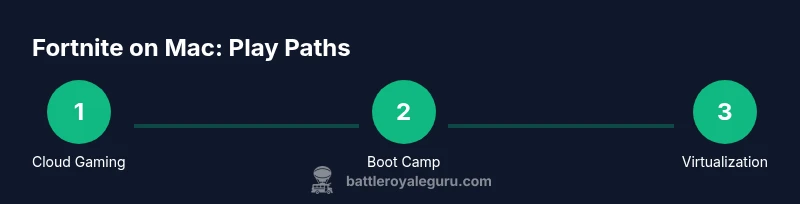
There are three main pathways to play Fortnite on a Mac today:
- Cloud gaming: Stream Fortnite from a Windows PC or data center to your Mac using a streaming service.
- Windows on Intel Macs: Install Windows via Boot Camp (available on supported Intel Macs) to run the Windows Fortnite client.
- Virtualization on Apple Silicon: Run Windows in a VM (e.g., with Parallels) and install Fortnite there. Each path has trade-offs in latency, performance, and setup complexity. Battle Royale Guru recommends evaluating your hardware and internet connection before choosing a method.
Cloud gaming explained: Pros, Cons, and Setup
Cloud gaming lets you play Fortnite on Mac without installing Windows or booting a partition. Pros include minimal local setup and ongoing updates handled by the service. Cons include dependence on a fast, stable connection and potential input latency. To get started, sign up for a supported cloud service, ensure your Mac meets the browser or launcher requirements, and launch Fortnite through the service’s library.
Windows on Mac: Boot Camp vs virtualization
Boot Camp (Intel Macs) creates a dual-boot environment so you can run Windows natively for Fortnite. Virtualization (Apple Silicon) runs Windows inside a VM, which is simpler but may impose a performance penalty. If you have an Intel Mac, Boot Camp offers lower latency since you’re running Windows directly. If you’re on Apple Silicon, virtualization is the practical path, keeping in mind resource limits and host macOS performance.
Performance considerations and graphics settings on Mac
Performance hinges on your Mac’s GPU, RAM, and thermal management. Favor a stable frame rate over maxed settings on laptops, and consider lowering texture quality, shadows, and post-processing to maintain smooth gameplay. Use a high-refresh monitor where available and ensure you’ve closed unnecessary background apps to free CPU/GPU headroom.
Common issues and troubleshooting steps
Latency, frame drops, and audio glitches are the most common issues when playing Fortnite on Mac via non-native routes. Check your network stability, switch to a wired connection if possible, update macOS and any virtualization software, and verify Fortnite and service status. If problems persist, switch to a different method (cloud vs Windows) to isolate the cause.
Safety, licensing, and account considerations
Ensure you’re compliant with Epic Games’ terms when using Windows on Mac or cloud streaming. Keep your Epic account secure with two-factor authentication, and remember that Boot Camp requires a valid Windows license. Be mindful of regional availability and licensing restrictions for cloud gaming services.
Next steps and resources
If you’re unsure where to start, begin with cloud gaming to test Fortnite performance on your Mac. If latency is acceptable, you can later explore Windows-on-Mac options. For updates, consult Epic Games Support and Apple’s Boot Camp guidance.
Tools & Materials
- Mac computer (Apple Silicon or Intel)(Ensure macOS version is compatible with chosen method (cloud gaming or Windows path))
- Reliable high-speed internet(Stable connection with low latency improves cloud gaming experience)
- Windows license (for Boot Camp)(Only needed if you plan to install Windows on Intel Macs via Boot Camp)
- Cloud gaming account(Sign up for a supported service and ensure region support)
- Fortnite installer/access to Epic Games account(Needed to install Fortnite in Windows path or cloud-based launchers)
Steps
Estimated time: Estimated total time: 60-120 minutes
- 1
Assess your Mac and internet readiness
Review your Mac model, GPU capabilities, RAM, and thermals. Check your internet speed and latency to decide whether cloud gaming or a Windows path will give you the best experience. This step helps you set realistic expectations for FPS and responsiveness.
Tip: Use a wired ethernet connection if possible to reduce wireless interference. - 2
Choose your Fortnite path for Mac
Decide between cloud gaming, Boot Camp (Intel Macs), or virtualization (Apple Silicon). Consider hardware compatibility, price, and desired latency. This choice determines the subsequent setup steps.
Tip: If you value simplicity, start with cloud gaming. - 3
Prepare cloud gaming setup
Create or log in to a cloud gaming account compatible with Fortnite. Verify service availability in your region and ensure your Mac supports the service’s browser or launcher requirements.
Tip: Test a short latency run with a non-competive mode to gauge response. - 4
Launch Fortnite on the cloud service
Open the cloud service, locate Fortnite in your library, and start a test match. Monitor input latency and streaming quality, then adjust streaming quality settings if needed.
Tip: Prefer a lower streaming quality to reduce latency if your connection fluctuates. - 5
If using Boot Camp, install Windows
On an Intel Mac, boot into Windows via Boot Camp and install Fortnite from the Epic Games Launcher. Follow Windows installation prompts and ensure drivers are up to date.
Tip: Allocate sufficient disk space for Windows and Fortnite installations. - 6
If using virtualization, install Windows in VM
On Apple Silicon, install Windows in a VM (e.g., Parallels). Install Fortnite within Windows VM and optimize VM resource settings for performance.
Tip: Enable best performance mode in the VM settings and allocate enough CPU cores and RAM. - 7
Tweak Fortnite in-game settings
Drop resolution and texture details as needed to maintain stable frame rates. Enable fullscreen mode and adjust anti-aliasing/sliders to balance visuals with latency.
Tip: Aim for a steady frame rate rather than ultra-high visuals. - 8
Test controls and peripherals
Verify keyboard/mouse or controller input feels responsive. If you prefer a controller, map controls in-game and test in a safe environment.
Tip: Wired controllers generally provide more reliable input than Bluetooth on cloud setups. - 9
Monitor performance and adjust
Keep an eye on temperatures, FPS, and network stability during longer sessions. Reassess method if you notice persistent lag or overheating.
Tip: Take breaks to prevent thermal throttling on laptops. - 10
Keep software updated
Regularly update macOS, VM software, Windows (where applicable), and Fortnite to ensure compatibility and security. Check service status if issues arise.
Tip: Enable automatic updates where feasible to reduce compatibility gaps.
Questions & Answers
Is Fortnite still playable on Mac today?
Yes, but not with a native Mac installer. You’ll need cloud gaming or Windows-on-Mac approaches to play Fortnite on a Mac.
Fortnite on Mac is playable via cloud streams or Windows on Mac, not through a native Mac installer.
Do I need Windows to play Fortnite on Mac?
If you’re using Intel Macs, Boot Camp lets you run Windows to play Fortnite. On Apple Silicon, virtualization is the practical method. Cloud gaming does not require Windows locally.
Windows isn’t required for cloud gaming, but it’s needed for a native Windows setup on Intel Macs or through virtualization on Apple Silicon.
Is there a native macOS installer for Fortnite?
There isn’t a general, supported native macOS Fortnite installer for modern Macs as of 2026. You’ll rely on alternative paths like cloud gaming or Windows-on-Mac.
There isn’t a native Mac installer; use cloud gaming or Windows-on-Mac options.
Will cloud gaming cost extra?
Most cloud services charge a subscription or per-session fee. Check regional pricing and consider trial periods to gauge value for Fortnite.
Cloud gaming usually involves a subscription or per-use fee; review your region’s pricing.
Does Boot Camp work on Apple Silicon Macs?
Boot Camp is not supported on Apple Silicon Macs. Windows virtualization is the recommended path for these devices.
Boot Camp isn’t available on Apple Silicon; virtualization is the practical workaround.
Can I use a controller with Fortnite on Mac?
Fortnite supports various controllers; ensure your device is recognized by macOS or the Windows environment you’re using and map controls accordingly.
Yes, you can use a supported controller; you may need to map controls in the game or system settings.
Watch Video
Key Points
- Choose a method matching your Mac hardware.
- Cloud gaming is the simplest path for most Macs.
- Intel Macs can use Boot Camp for native Windows Fortnite; Apple Silicon favors virtualization.
- Keep software and accounts secure and up to date.