Where to Play Fortnite on PC: The Complete Guide
Discover the best ways to play Fortnite on PC, from Windows via the Epic Games Launcher to Mac workarounds and cloud options. This practical guide covers setup, optimization, and troubleshooting for Fortnite on PC in 2026.


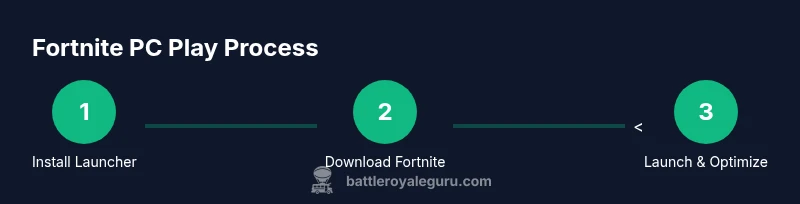
On PC, Fortnite is best accessed through the Epic Games Launcher on Windows. Install the launcher, sign in, and install Fortnite from your library. Mac users can explore Boot Camp or virtualization if they need Windows access, or use cloud gaming if hardware is limited. This guide walks through setup, optimization, and troubleshooting for a smooth PC Fortnite experience.
What playing Fortnite on PC means in 2026
For many players, PC remains the most flexible and capable way to enjoy Fortnite. A PC setup provides higher frame rates, improved input latency, and the ability to customize graphics for your monitor and preferences. If you’re asking where to play Fortnite on PC, the straightforward answer is: use the official Epic Games Launcher on Windows to access Fortnite from your library. The Battle Royale Guru team emphasizes starting with the official launcher to avoid unofficial stores or compromised files that can expose you to malware or subpar performance. In this guide, we cover Windows access, Mac workarounds for Apple hardware, and cloud or streaming options as fallbacks when hardware is limited. We’ll also explain how to optimize settings for smooth gameplay, troubleshoot common issues, and plan a reliable setup for long sessions. This content is designed for Fortnite players who want practical, actionable steps and troubleshooting help, not fluff. According to Battle Royale Guru, proper preparation and real-world testing are the fastest paths to a strong PC Fortnite experience.
PC access: official route via Windows
The primary, official path to play Fortnite on a PC is to download and run the Epic Games Launcher on Windows. After installing the launcher, sign in with your Epic Games account, locate Fortnite in your library, and click install. The process is straightforward, and Epic's launcher handles updates and anti-cheat integration so you can jump into battles quickly. For new players, ensure your Windows PC meets the current minimum and recommended requirements listed by Epic Games; they are updated periodically as the game evolves. If you use a laptop, prefer a model with a capable GPU and sufficient RAM to maintain steady frame rates during combat. The Battle Royale Guru team notes that staying current with driver updates and Windows updates improves stability, reduces stuttering, and makes matchmaking smoother. Also remember to enable in-game overlays only if you need them for streaming; otherwise they can add latency. While this approach works best on Windows, we also discuss alternatives for Mac users later in this article.
Mac users and alternative routes
Apple hardware introduces some extra steps. Fortnite does not always have a native Mac app available in every build, so Mac players often run Windows on Apple hardware using Boot Camp (on Intel Macs) or virtualization. Boot Camp is not available on Apple Silicon Macs, so you’ll need a Windows VM or consider cloud gaming if you want to play Fortnite on macOS. Always back up important files before changing your partitioning or installing a new OS. If you don’t want to dual-boot or virtualize, cloud gaming services can let you play Fortnite through streaming, provided the service supports Fortnite’s current build. The Battle Royale Guru team recommends checking Epic’s official guidance for Mac users and confirming service restrictions. In practice, many players choose Windows hardware or a cloud option to ensure stable performance, consistent input response, and smoother matchmaking. Remember that platform choices can affect cross-play with friends on other systems, so coordinate with your squad.
Cloud gaming and streaming options
Cloud gaming offers a potential workaround for older PCs or laptops with limited hardware. Services that stream the Fortnite game from powerful remote machines can let you play on a low-spec device, as long as your internet connection is reliable and fast enough for low-latency gaming. Before committing to a cloud service, verify that Fortnite is officially supported by the platform you choose and review any monthly fees, input latency considerations, and data usage. The Battle Royale Guru analysis shows that cloud gaming can reduce the need for local GPU power, but it can introduce additional latency and possible compression artifacts during fast-paced fights. If you decide to try cloud gaming, pair it with a wired ethernet connection and a recent router to minimize jitter. We also cover more traditional PC optimization scenarios in the next section.
Performance tips and recommended settings
For peak Fortnite performance on PC, start by updating your graphics drivers and confirming Windows power settings prioritize performance. In-game, set the display mode to Fullscreen, adjust the resolution to balance quality and performance, and enable a high-refresh-rate setting compatible with your monitor. Disable V-Sync if you want the lowest possible input lag, and adjust anti-aliasing and distance draw distance to preserve frames in intense battles. If you use a high DPI mouse, enable raw input for predictable control, and map your keybinds to a comfortable layout. The Battle Royale Guru team suggests turning off background apps that consume CPU cycles during matches and using a wired ethernet connection whenever possible. Additionally, keep Fortnite up to date, choose a stable server region, and consider a sensible frame cap that matches your monitor’s capabilities to reduce frame variance. The goal is smooth, responsive gameplay rather than maxed-out visuals at all times.
Troubleshooting and common issues
If Fortnite runs poorly or fails to install, perform a clean reinstall of the Epic Games Launcher and Fortnite, ensure you’re signed into the correct Epic account, and verify your anti-virus isn’t blocking the launcher. For connectivity issues, test a wired connection, reset network equipment, and check firewall rules. If you encounter frequent disconnects, stutters, or crashes, update GPU drivers, reduce background downloads, and select a nearby server region. If you see error codes, search Epic’s official support pages rather than guessing; avoid third-party patches. Finally, practice safe online habits: keep your launcher and OS up to date, verify your game files, and avoid shady optimization tools. Most problems are resolved by software updates and clean reinstalls, followed by basic router and modem resets.
Quick start checklist
- Confirm you have a supported Windows PC or Mac with Boot Camp/VM or cloud gaming option
- Install the Epic Games Launcher
- Sign in and install Fortnite
- Update drivers and Windows/OS
- Optimize settings for your hardware
- Use a wired internet connection whenever possible
- Join a squad and test with a practice match
Tools & Materials
- Epic Games Launcher(Official storefront/launcher for Fortnite on PC)
- Fortnite installer via Epic Games Launcher(Downloads the latest build from Epic servers)
- Windows PC or Intel-based Mac (with Boot Camp) or cloud gaming service(Choose your platform path (Windows, Mac via Boot Camp/VM, or cloud))
- Stable internet connection (wired preferred)(Low latency is essential for competitive play)
- Epic Games account(Needed to log in and save progress)
- Display with adequate refresh rate(Higher refresh rate improves responsiveness; optional if using cloud gaming)
Steps
Estimated time: 30-60 minutes
- 1
Check prerequisites and accounts
Confirm you have a supported Windows PC or Mac setup. Create or sign in to your Epic Games account so you can access the launcher and Fortnite. This initial check saves time later.
Tip: Ensure you have admin rights on the PC to install software. - 2
Install the Epic Games Launcher
Download and install the Epic Games Launcher from the official site. Open the launcher and log in with your Epic account to access Fortnite in your library.
Tip: Disable any browser pop-up blockers that might interfere with the installer. - 3
Sign in and locate Fortnite
In the Epic Games Launcher, find Fortnite in the store or your library, then click install. The launcher will manage updates and ensure you have the latest build.
Tip: Enable automatic updates so you stay on the current version. - 4
Install Fortnite
Allow the installer to download Fortnite. This can take several minutes depending on your connection. Once installed, you can launch from the launcher.
Tip: Keep enough disk space for the game and future patches. - 5
Update drivers and system software
Before first launch, update your GPU drivers and ensure Windows/OS is up to date for compatibility and stability.
Tip: Restart after driver updates to ensure changes take effect. - 6
Configure in-game settings
Open Fortnite, adjust graphics for balance between visuals and performance. Start with Fullscreen mode and a resolution that matches your monitor for best response times.
Tip: Disable unnecessary overlays to reduce input lag. - 7
Test and optimize connectivity
Join a game, monitor latency and frame rate, and adjust server region if needed. If you experience stutters, try a wired connection and close background apps.
Tip: If you see jitter, reboot router and test a different Ethernet port. - 8
Troubleshoot common issues
If you encounter errors, consult Epic’s support pages and verify game files. Reinstall the launcher if needed and confirm your account is active.
Tip: Avoid third-party optimizers; they can cause instability.
Questions & Answers
Do I need Windows to play Fortnite on PC?
Fortnite on PC is primarily accessed through the Windows platform via the Epic Games Launcher. Mac users have alternatives like Boot Camp or virtualization, or may use cloud gaming where available.
Fortnite on PC works best on Windows with the Epic Games Launcher. Mac users can try Boot Camp or cloud options if supported.
Is Fortnite cross-platform on PC?
Yes. Fortnite supports cross-play between PC and consoles, provided players are in a compatible region and there are no platform restrictions in place at the time.
Fortnite supports cross-play across PC and consoles, so you can squad up with friends on different devices.
Can I play Fortnite on a Mac without Windows?
Native Mac support is limited in some builds. Most Mac players use Boot Camp (Intel Macs) or cloud gaming, if available. Check Epic’s guidance for the latest options.
Mac users might need Boot Camp on Intel Macs or cloud gaming if native support isn’t available.
What settings improve FPS on PC?
Start with Fullscreen mode, lower resolution if needed, and cap the frame rate to your monitor. Disable overlays and keep drivers and Windows up to date for stability.
Set Fortnite to fullscreen, cap FPS to your monitor, and keep drivers updated for better FPS.
How do I download Fortnite legally on PC?
Always download Fortnite through the official Epic Games Launcher. Avoid third-party sites, which may expose you to malware or corrupted files.
Use the official Epic Games Launcher to download Fortnite safely.
What if I have frequent disconnects?
Check your network, test a wired connection, restart router, and ensure your firewall isn’t blocking Fortnite. If problems persist, consult Epic’s support resources.
For disconnects, test wired internet, restart your router, and check firewall settings; consult official support if needed.
Watch Video
Key Points
- Install Epic Games Launcher and Fortnite from official sources.
- Mac users may need Boot Camp/VM or cloud options.
- Cloud gaming can help with weak hardware but adds latency.
- Regular updates and driver maintenance improve stability.