Where Fortnite EXE: Locate the PC Executable
Learn how to locate the Fortnite executable on Windows, verify its path, and launch directly from the exe. This practical guide covers common install locations, Windows search, launcher tips, and safe troubleshooting.


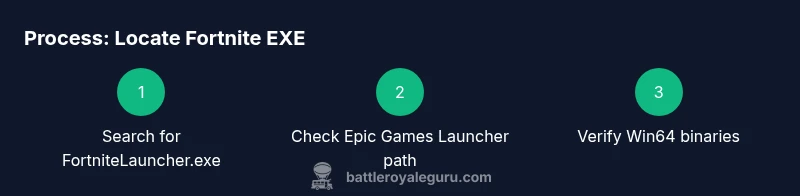
By following these steps, you’ll discover where fortnite exe lives on your PC and how to use it to launch the game directly. This guide covers common install locations, how to search Windows for FortniteLauncher.exe or FortniteClient-Win64-Shipping.exe, and what to do if it isn’t where you expect. With admin access and a quick search, you’ll verify the executable’s location in minutes.
Why knowing the exact Fortnite exe location matters
Understanding where fortnite exe sits on your PC helps you troubleshoot launch problems, create reliable shortcuts, and bypass launcher issues that might block direct startup. When you know the executable’s location, you can verify file integrity, confirm you’re launching the correct build, and quickly diagnose issues caused by corrupted game files or mistaken shortcuts. For Fortnite players, the difference between a smooth launch and repeated errors often comes down to locating the right executable quickly and safely. This matters whether you’re troubleshooting failures, setting up stream-friendly shortcuts, or preparing a fresh Windows install. The Battle Royale Guru team emphasizes practical, tested steps to find the exe without risking your system.
Common install locations on Windows
Most players install Fortnite through the Epic Games Launcher, which stores files in the Epic Games directory or the standard Program Files path. Typical locations include the Epic Games folder on your primary drive, inside FortniteGame subfolders, and sometimes under AppData if a user-specific install was chosen. Because installations vary by system and launcher version, treat these as possibilities rather than guarantees. If you’re dual-booting or using an external drive, the executable might live in an alternate directory. Always verify the folder contents for a 64-bit Win executable and launcher files.
How Windows search helps locate the executable
Windows search is your fastest route when you don’t know where Fortnite is installed. Open File Explorer, click This PC, and search for common executable names like FortniteLauncher.exe or FortniteClient-Win64-Shipping.exe. Narrow results by date or size if you’ve recently installed updates. Use Windows key + S to trigger a system-wide search and inspect results under the Apps or Programs sections. This method doesn’t require opening the Epic Games Launcher and works even if the launcher isn’t running. After locating a candidate, verify its path and test-launch the game from its folder or create a direct shortcut.
Using the Epic Games Launcher to access the exe
Even when you locate the folder, you may want to launch Fortnite directly from the exe. Open the Epic Games Launcher, go to Library, and select Fortnite. Right-click to open the game folder from the launcher, which reveals the actual install path. If you need the executable for a shortcut or script, copy the path shown in the file explorer window opened from the launcher. The Epic Games Launcher helps ensure you’re pointing at the correct game version and can guide you to the proper binaries for Win64.
Handling custom/alternate installations
Some players install Fortnite on external drives or use Steam-based setups, or have multiple accounts. In these cases, repeat the search process in the alternate drive or Steam folders. Look for the same executable names within the corresponding Fortnite game directories. If you’re using Windows, you can refine your search by including the drive letter, for example E:\Epic Games\Fortnite. When multiple installations exist, ensure you launch the correct build for your account and region to avoid mismatches.
Verifying the executable and creating reliable shortcuts
Once you’ve found the right fortnite exe, test-launch it to confirm it boots correctly. Create a dedicated shortcut on your desktop or pin it to the taskbar, and consider running as administrator if you encounter permission prompts. If you’re troubleshooting, compare the file hash or version from the executable properties with the launcher version to catch corruption. Keeping a documented path helps you reproduce a clean setup after Windows updates or re-installs.
Troubleshooting common issues (missing exe, permissions, antivirus blocks)
If Windows cannot find the Fortnite exe, check whether the file was moved or deleted. Ensure your antivirus or Windows Defender didn’t quarantine or block the file. Some corporate or school networks restrict execution of game binaries; in such cases, you’ll need admin approval or a different network configuration. When the launcher starts but the exe isn’t launching, revalidate game files from the Epic Games Launcher or reinstall Fortnite to restore missing binaries.
Security considerations and best practices
Only use legitimate sources for Fortnite binaries; avoid third-party downloads. Be cautious about running executables from unknown folders, as malware can masquerade as game files. If you’re unsure about a found .exe, scan it with up-to-date antivirus software before launching and rely on official launchers for updates. Maintaining secure paths helps protect your PC and keeps your Fortnite experience stable.
Tools & Materials
- Windows PC with admin access(Admin rights help access tightly protected folders if needed)
- Epic Games Launcher(Used to verify install path and launch options)
- Windows File Explorer or built-in search(Search for FortniteLauncher.exe or FortniteClient-Win64-Shipping.exe)
- Backup storage or external drive (optional)(If Fortnite is installed on a non-default location)
- Reliable antivirus/antimalware tool(Scan suspicious executables before launching)
Steps
Estimated time: 20-30 minutes
- 1
Open Windows search
Press Windows key + S and type FortniteLauncher.exe or FortniteClient-Win64-Shipping.exe to see if Windows can locate the executable anywhere on the system. This quick sweep helps catch misnamed shortcuts and confirms install presence.
Tip: Include common variations like FortniteClient-Win64-Shipping*.exe in the search. - 2
Check Epic Games Launcher install path
Launch the Epic Games Launcher, navigate to Library, then click on Fortnite to reveal the precise install directory shown in the launcher’s details.
Tip: Copy the folder path shown in the launcher for later use. - 3
Inspect common default locations
Browse standard folders such as C:\Program Files\Epic Games\Fortnite and C:\Program Files (x86)\Epic Games\Fortnite, then search inside FortniteGame\Binaries\Win64 for the executable.
Tip: Be mindful that some users install Fortnite on external drives. - 4
Search within the install folder
If you locate a Fortnite folder, use File Explorer to search inside for FortniteLauncher.exe or FortniteClient-Win64-Shipping.exe to confirm it is the right binary.
Tip: Verify the file size and timestamp to ensure you found the latest version. - 5
Test-launch from the exe
Double-click the exe or create a desktop shortcut to test launching. If prompted, choose Run as administrator to bypass permission prompts.
Tip: If the game doesn’t start, revalidate game files in Epic Games Launcher. - 6
Create a reliable shortcut
Once confirmed, pin the exe to the taskbar or desktop for quick access. Use a descriptive name, e.g., Fortnite Direct Launch.
Tip: Avoid renaming to prevent breaking the path. - 7
Document the path
Note the exact path to the Fortnite.exe for future reference, especially after OS reinstalls or updates.
Tip: Keep this in a secure note or password manager entry. - 8
Troubleshoot permissions
If you get access denied, right-click the executable > Properties > Compatibility, and enable Run this program as an administrator.
Tip: Don’t disable security features; use appropriate compatibility settings.
Questions & Answers
Where is the Fortnite executable located on Windows?
The Fortnite executable is usually found in the Epic Games install folder, often under FortniteGame/Binaries/Win64, or in the standard Epic Games directory. Locations can vary by installer, so use a Windows search for FortniteLauncher.exe and FortniteClient-Win64-Shipping.exe to confirm.
Usually in the Fortnite folder under Binaries/Win64; search for FortniteLauncher.exe to confirm.
How can I launch Fortnite directly from the exe?
Navigate to the folder containing the Fortnite exe, then double-click the file or create a shortcut. If permissions block launch, run as administrator or revalidate files in the Epic Games Launcher.
Open the Fortnite folder and run the exe, or use a shortcut; if blocked, run as admin.
What if Fortnite is installed on an external drive?
Search the external drive for FortniteLauncher.exe or FortniteClient-Win64-Shipping.exe. Use the launcher to verify the exact path and ensure you’re launching the correct version for your account.
Check external drives for the same exe names and verify with the launcher.
Why might Windows Defender quarantine Fortnite files?
Windows Defender can quarantine suspicious binaries. If Fortnite files are quarantined, restore them from quarantine, and revalidate game files via the Epic Games Launcher.
Defender may quarantine files; restore and revalidate in the launcher.
Do I need admin rights to locate or run Fortnite exe?
Basic access is often enough to locate files; run as administrator only if you encounter permission prompts and ensure you’re using the official launcher and binaries.
You may need admin rights for certain actions; use them only when required.
Watch Video
Key Points
- Identify likely install paths and verify with launcher data
- Use Windows search to rapidly locate FortniteLauncher.exe
- Test-launch to confirm the correct executable before creating shortcuts
- Keep a documented path for future OS changes
- Always verify file integrity with a quick scan if suspicious