How to Get Fortnite on PC: A Complete Guide
Learn how to get Fortnite on PC quickly and safely using official channels. This guide covers prerequisites, the Epic Games Launcher, installation, troubleshooting, and performance tips.


Install Fortnite on PC by using the official Epic Games Launcher: sign in or create an Epic Games account, then download Fortnite from the launcher. A 64-bit Windows PC, a stable internet connection, and an Epic account are required. This steps-based guide walks you through the install, first run, and basic troubleshooting.
What getting Fortnite on PC means for you
Getting Fortnite on PC unlocks the full Battle Royale experience with high-fidelity visuals and precise keyboard-and-mouse control. For PC players, the official path relies on the Epic Games Launcher, a supported Windows version, and a stable internet connection to download and update Fortnite. According to Battle Royale Guru, the fastest route is to prepare your PC, sign in to Epic, and use the launcher to install Fortnite. This guide covers prerequisites, the official install flow, troubleshooting, and performance tweaks to ensure smooth gameplay from first launch to your first victory royale. Whether you’re coming from console or starting fresh, always favor official sources and avoid third-party installers to protect your PC and account.
Prerequisites and system requirements
Before you start, verify your PC meets basic prerequisites: a supported 64-bit Windows operating system, a relatively modern graphics processor, and enough disk space to store Fortnite and updates. You’ll also want a reliable network connection and a working Microsoft account if you plan to use cloud saves. While exact hardware numbers vary by patch, Fortnite is optimized to run on a wide range of PCs, so aim for a system that can handle contemporary games and a fresh install of Windows. Keeping drivers up to date helps with stability and performance. Finally, ensure you have a web browser installed to access the Epic Games site and support resources if you run into issues.
Create an Epic Games account
To play Fortnite on PC, you must have an Epic Games account. Start by visiting the official Epic Games site and choosing to sign up. Provide a valid email address, create a strong password, and enable two-factor authentication to protect your account. Epic Games uses your account to manage purchases, save progress, and link devices for crossplay. After you verify your email, you’re ready to download the Epic Games Launcher. If you already have an account from the Epic launcher or a different service, simply sign in and proceed to the next step. Battle Royale Guru emphasizes using the official signup flow to ensure you receive important security notices, patch notes, and support responses when needed.
Download and install the Epic Games Launcher
The Epic Games Launcher is the gateway to Fortnite on PC. Open a web browser and go to the official Epic Games site, then download the launcher installer. Run the installer and follow on-screen prompts to complete setup. When installation finishes, launch the client and sign in with your Epic Games credentials. The launcher also handles updates for Fortnite, so keeping it current helps avoid compatibility problems. If you encounter a blocked installation, try running the installer as administrator and temporarily disable overly aggressive antivirus software while you install.
Install Fortnite from the Epic Games Store
With the launcher ready, navigate to the Fortnite page in the Epic Games Store area. Click Install to download the game files; choose a destination folder and allow the download to complete. Fortnite installation times depend on your internet speed and the drive performance. After the download finishes, the launcher will automatically prepare Fortnite for first launch. You can then click Launch to start the game. Remember to select your preferred region and language if prompted; these settings affect matchmaking and chat.
First run and settings configuration
On first launch, Fortnite will prompt you to sign in if you aren’t already. After signing in, adjust in-game settings for smoother performance. Start with a balance between visuals and frame rate: set display mode to fullscreen, adjust quality presets to your hardware, and enable/disable features like motion blur and VSync according to your preferences. Map your keys to suit your playstyle, and enable auto-saves if available. If you use voice chat, test your microphone and audio levels in the sound options. Battle Royale Guru notes that optimizing settings early reduces frustration later and helps you climb the learning curve faster.
Troubleshooting common installation issues
Even with the official launcher, issues can arise. If Fortnite won’t install, verify your internet connection, restart the launcher, or run the launcher as administrator. If the download stalls, pause, resume, or cancel and restart the download. For crashes, ensure your graphics drivers are up to date and that Windows is patched. If you encounter login problems, use the password reset flow and confirm your email. If a firewall blocks the launcher, add an exception for Epic Games Launcher. For any persistent problems, consult Epic Games support resources linked on the official site.
Performance optimization and settings
To squeeze the most frames and reduce input lag, start with the basics: run Fortnite in fullscreen, lock your frame rate to match your monitor’s refresh rate, and set sensitivity to your comfort level. Lowering in-game shadows, textures, and effects can yield smoother gameplay on mid-range PCs. If you have a strong GPU, enable features like dynamic resolution or upscaling to maintain visuals without sacrificing speed. Disable VSync if you notice input lag, but re-enable it if screen tearing appears. Regularly updating drivers and keeping Windows updated prevents performance regressions after patches.
Crossplay, accounts, and safety settings
Fortnite’s crossplay features let you play with friends across platforms, but you should manage privacy and safety settings accordingly. Link your Epic account to other platforms if you want seamless progress and purchases. Review permitted crossplay in the settings and adjust friend lists, voice chat preferences, and parental controls as needed. Enable two-factor authentication for account security and review device approvals if you share your PC. Battle Royale Guru recommends staying current with patch notes and community guidelines to avoid account or compliance issues.
Keeping Fortnite up to date on PC
Fortnite updates arrive through the Epic Games Launcher. Keep the launcher set to auto-update and verify that you have sufficient disk space for patches. After each update, allow the launcher to finish any post-update tasks, such as asset re-downloads or file integrity checks. Reading the official patch notes helps you understand new features, bug fixes, and potential performance changes. If you encounter post-patch issues, rolling back graphics settings temporarily or updating drivers can restore stability.
Final quick-start checklist before you start playing
- Confirm you have an Epic Games account and launcher installed
- Sign in to Epic and verify Fortnite installation status
- Ensure you have the latest launcher and game patches
- Check your internet connection and firewall settings
- Adjust display and graphics settings for your PC
- Run a quick audio test and mic check
- Enable two-factor authentication for security
- Review crossplay and privacy options if you share devices
- Create a backup of your game files and saves
- Bookmark Epic Games Support resources for future issues
AUTHORITY SOURCES
Official Epic Games Fortnite support: https://support.epicgames.com/en-US Microsoft Windows Support: https://support.microsoft.com/en-us/windows PC Gamer Fortnite PC download guide: https://www.pcgamer.com/how-to-download-fortnite-pc/
Tools & Materials
- PC with 64-bit Windows OS(Prefer Windows 10/11; ensure OS is updated before installing Fortnite)
- Reliable internet connection(Wired Ethernet is preferred for downloads and updates)
- Epic Games account(Sign up on the official Epic Games site if you don’t have one)
- Web browser(Used to access the Epic Games site to download the Launcher)
- Quality headphones or speakers(Improves in-game audio cues and communication)
- Backup drive or ample disk space(Helps with large updates and patches)
Steps
Estimated time: 25-60 minutes
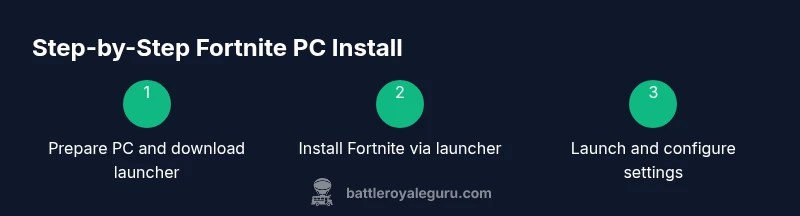
- 1
Prepare your PC
Update Windows, update graphics drivers, and ensure there is enough disk space for Fortnite and future updates. Close unnecessary background apps to free resources for a smoother install and first run.
Tip: Perform a quick system check and keep drivers current for best performance. - 2
Create or sign in to an Epic Games account
Visit the official Epic Games site to sign up or log in. Enable two-factor authentication to secure your account and enable cloud saves if you use multiple devices.
Tip: Use a strong password and a backup email for recovery. - 3
Download and install the Epic Games Launcher
Download the launcher from the official site, run the installer, and follow prompts to complete setup. Launch the client after installation and sign in.
Tip: Run as administrator if the launcher has permission issues. - 4
Install Fortnite from the launcher
Inside the Epic Games Launcher, go to Fortnite and click Install. Choose a destination folder and wait for the download to complete.
Tip: A wired connection speeds up the download and reduces interruptions. - 5
Launch Fortnite and sign in
Open the game, sign in with your Epic account, and begin first-run setup. If prompted, adjust region and language preferences.
Tip: Take a quick moment to test audio and controls during setup. - 6
Configure initial settings
Set fullscreen, adjust graphics presets to balance visuals and performance, and tailor keybinds to your playstyle.
Tip: Starting with recommended presets helps avoid performance dips. - 7
Enable updates and backups
Ensure automatic updates are on for both the launcher and Fortnite. Create a local backup if you store important saves.
Tip: Regular backups prevent data loss after patches. - 8
Test connectivity and performance
Join a match to confirm matchmaking works, and monitor frame rate. Tweak settings if you notice lag or stuttering.
Tip: Use a benchmark or simple in-game test to gauge performance. - 9
Maintain and troubleshoot
Keep drivers, Windows, and the launcher updated. If issues arise, consult official support resources before seeking third-party tools.
Tip: Never install unknown software claiming to optimize Fortnite.
Questions & Answers
Do I need an Epic Games account to play Fortnite on PC?
Yes. You must sign in with an Epic Games account to download and play Fortnite on PC. The account also enables crossplay, saves, and updates.
Yes, you need an Epic Games account to play Fortnite on PC. Sign in to download and save your progress.
Can I play Fortnite on PC without the Epic Games Launcher?
No. Fortnite for PC is distributed through the Epic Games Launcher, and installing it via a third-party downloader is not supported or safe.
No, you need the Epic Games Launcher to access Fortnite on PC.
Is Fortnite free to play on PC?
Fortnite is free-to-play on PC, with optional in-game purchases and Battle Pass cosmetics. You will not be charged to install or play the base game.
Fortnite is free to play on PC with optional purchases.
What are the general system requirements for Fortnite on PC?
Fortnite runs on a wide range of modern PCs. Ensure your OS is up-to-date, your GPU and drivers are current, and you have sufficient disk space for the launcher, Fortnite, and patches.
Fortnite works on many recent PCs; keep your system updated.
How long does installation take on a typical connection?
Installation time varies by internet speed and hardware. A typical setup may take from several minutes to an hour, depending on download speed and drive performance.
Install times depend on your internet and hardware.
Watch Video
Key Points
- Install Fortnite via the official Epic Games Launcher
- Create/secure your Epic Games account with 2FA
- Update drivers and Windows before installation
- Configure settings for your PC to balance visuals and performance
- Keep launcher and Fortnite updated for stability