How to Put Fortnite on Desktop: A Complete Setup Guide
Learn how to install Fortnite on desktop with a step-by-step setup, troubleshooting tips, and performance optimization. This guide from Battle Royale Guru covers official launchers, system checks, and common fixes for a smooth launch in 2026.


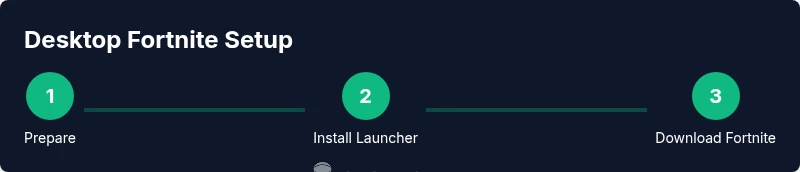
To put Fortnite on desktop, install the official Epic Games Launcher, then download Fortnite from your library. Ensure your PC meets the minimum requirements, update graphics drivers, and sign in with an Epic account. Launch Fortnite from the launcher, and verify game files if you encounter issues. This method keeps you on official channels and up to date.
What desktop Fortnite setup means
Putting Fortnite on a desktop means running the game through official channels on a Windows or macOS computer, using the Epic Games Launcher as the gateway. This approach guarantees access to legitimate updates, anti-cheat protections, and consistent connectivity with Fortnite servers. According to Battle Royale Guru, sticking to the official installer reduces risk of malware and helps you receive timely patches, especially during major updates or new seasons. The aim is a stable, secure, and enjoyable gaming experience without the friction of unofficial installers or third-party launchers. In 2026, the emphasis is on a clean install path, verified game files, and a boot sequence that minimizes startup delays so you can drop into the Battle Bus quickly.
Why desktop Fortnite matters
Desktop play offers higher performance headroom than many mobile or console setups, provided the hardware and software are configured correctly. You can customize graphics, frame rate caps, texture details, and keybinds to suit your play style. A desktop setup also simplifies troubleshooting because you can access system logs, drivers, and launcher settings in one place. Battle Royale Guru analyses indicate that players who invest in a clean install and baseline optimization report fewer random disconnects and fewer post-update patch problems, especially during mid-season drops and bugfix cycles.
System requirements and compatibility
Before you install, assess your system to ensure a smooth experience. Fortnite’s desktop version relies on a stable internet connection, sufficient storage, and compatible GPU/CPU drivers. In practice, you should have a reasonably recent processor, adequate RAM, and an up-to-date graphics driver. Always check the official Epic Games system requirements page for the most current details. As a rule of thumb, a wired connection beats Wi-Fi for competitive play, and keeping your OS updated minimizes compatibility issues during launcher updates.
Where to download Fortnite: Official launcher vs. alternatives
The official route to Fortnite on desktop is via the Epic Games Launcher. This provides direct access to the game, automatic patches, and a verified install, which reduces the risk of malware or corrupted files. Avoid third-party installers or untrusted sources that promise “quick Fortnite” setups. If you encounter download gaps, use the Epic Games support portal to verify your account, re-download the launcher, or re-cache the Fortnite files. Staying on official channels ensures you receive all future seasons, events, and security updates.
Prepare your workspace and security practices
A clean workspace reduces setup confusion and helps with cable management and airflow, both of which matter for sustained performance. Use a dedicated gaming PC or a well-ventilated desktop with a reliable power supply. Install or enable antivirus protection, but make sure real-time scanning doesn’t interfere with the Epic installer. Create a backup of your important settings and keep your Epic account credentials secure to prevent unauthorized access. A simple, organized setup improves your focus and reduces the odds of misconfigurations during launch.
Common stumbling blocks and quick fixes
Install failures, driver mismatches, and network hiccups are the main headaches when putting Fortnite on desktop. If installation stalls, restart the launcher, flush the DNS cache, or temporarily disable firewall rules that block the Epic Games service. For launch issues, verify the game files, repair the launcher, or run as administrator to ensure proper file access rights. If you notice lag in-game, lower the resolution or texture quality, update GPU drivers, and inspect background processes consuming CPU or RAM. Persistent issues often resolve with a clean reinstall of the Epic Games Launcher.
Tools & Materials
- A PC with Windows 10/11 or macOS 10.14+(Ensure you have an admin account to install software)
- Stable broadband internet(Wired Ethernet is preferred for consistent latency)
- Epic Games Launcher(Download from the official Epic Games site)
- Fortnite account(Sign-in with your Epic account credentials)
- Graphics drivers up-to-date(Check GPU vendor site (NVIDIA/AMD/Intel))
- Optional: external storage(If your drive is low on space, use an SSD/HDD with at least 20–30 GB free)
Steps
Estimated time: Total: 15-30 minutes (varies by download speed and system readiness)
- 1
Prepare your PC and network
Clear background processes, ensure adequate RAM, and connect via ethernet if possible. This minimizes download interruptions and ensures smoother installation.
Tip: Close all nonessential apps during install to free up RAM and bandwidth. - 2
Install the Epic Games Launcher
Download the launcher from the official Epic Games site and run the installer. Follow the prompts to complete the setup and sign in with your Epic account.
Tip: Enable automatic updates for the launcher to stay current with Fortnite patches. - 3
Log in and verify launcher updates
Open the Epic Games Launcher, sign in, and check for updates to both the launcher and the Fortnite client. This ensures you have the latest performance improvements.
Tip: If updates fail, restart the launcher or reboot your PC and try again. - 4
Download Fortnite from the Epic library
Navigate to the Fortnite page in the launcher and click Install. The installer will download the game assets and set up your local files.
Tip: Make sure there is at least 20–30 GB free space for game data and patches. - 5
Launch Fortnite and apply settings
Start Fortnite from the launcher, sign in if prompted, and adjust graphics and input settings to match your monitor and play style.
Tip: Use the Performance preset first, then tweak settings like Resolution Scale and Effects gradually. - 6
Verify, test, and troubleshoot
Play a few games to test stability. If crashes occur, verify game files, check GPU drivers, and ensure firewall exceptions are not blocking Fortnite.
Tip: Keep a log of issues and steps tried to help support when needed.
Questions & Answers
What is the first thing I should do to put Fortnite on desktop?
Download and install the official Epic Games Launcher, then download Fortnite from your library. Sign in with your Epic account and check for launcher updates before launching the game.
Start by installing the official Epic Games Launcher, download Fortnite, sign in, and update the launcher to ensure a clean start.
Do I need a specific Windows or Mac version?
Fortnite on desktop requires a compatible operating system and an up-to-date launcher. Always refer to the official Epic Games system requirements page for the latest supported versions.
Make sure your OS is supported by Fortnite and keep the launcher updated according to Epic's system requirements.
What if Fortnite won’t install or update?
Check your internet connection, disable VPNs temporarily, run the launcher as administrator, and verify the game files. If problems persist, contact Epic Games Support.
If installation stalls, verify files, run as admin, and reach out to Epic support if needed.
Can I play Fortnite on a laptop instead of a desktop?
Yes, Fortnite runs on many laptops, but performance depends on hardware. Ensure drivers are updated and you can run the game with reasonable settings.
You can play on a laptop too, just adjust settings for performance.
How often should I update Fortnite and the launcher?
Keep both Fortnite and the Epic Games Launcher updated automatically to receive patches, bug fixes, and new content as soon as they release.
Enable automatic updates to stay current with patches and new seasons.
Watch Video
Key Points
- Install via the official Epic Games Launcher for safety and updates.
- Meet system requirements and optimize drivers for best performance.
- Use a wired connection when possible to minimize latency.
- Verify game files after install to ensure a clean setup.