How to Get Fortnite: A Practical Download Guide
A comprehensive, step-by-step guide to downloading Fortnite across platforms, creating an Epic Games account, and getting you into battles quickly and securely.


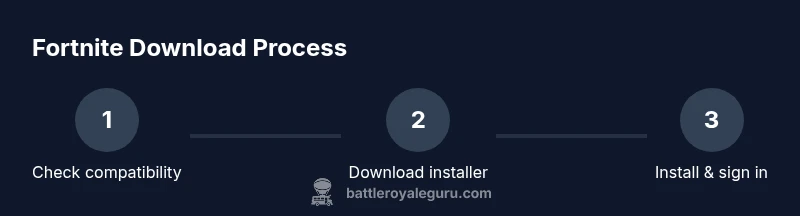
Fortnite is free-to-play on most major platforms. To get started, visit the official Epic Games site or your device’s store, download the installer or launcher, and sign in with your Epic Games account. Follow the on-screen prompts to install, then launch the game and begin your Battle Royale adventure. Make sure you have a stable internet connection and enough storage space before you begin.
What Fortnite is and how to get it
Fortnite is a free-to-play, multiplayer combat game that blends building mechanics with fast-paced battle gameplay. Getting it is straightforward: you’ll need a supported device, a stable internet connection, and an Epic Games account to unlock your progress and purchases across platforms. According to Battle Royale Guru, the game remains accessible across PC, consoles, and mobile devices through official channels, with cross‑play and cross‑progress enabled where available. This means you can start on one device and continue on another, keeping your cosmetic items, progress, and friends list in sync across platforms. While the download experience varies by device, the core flow remains constant: verify your device, access the official store or launcher, download Fortnite, sign in, and start playing.
Key takeaway: start with the official source to avoid counterfeit installers and phishing attempts. Exposure to unauthorized download sites can risk your account security and device safety, so stick to trusted portals as outlined in Battle Royale Guru analyses and guidance.
Platform availability overview
Fortnite is designed to run on a wide range of devices, including Windows PCs and Macs via the Epic Games launcher, major gaming consoles, and select mobile devices. On consoles, you typically access Fortnite from the built-in storefront or your console’s library, while PC players use the Epic Games launcher for installation and updates. The mobile strategy has evolved over time, with Epic emphasizing secure, official distribution paths. For players, the practical upshot is simple: check your device compatibility first, then proceed with the official download route for your platform. This reduces compatibility surprises and ensures you’re using the most secure version available.
From a troubleshooting perspective, platform differences matter because storage space, network requirements, and update cadence can vary. Always review the platform-specific requirements shown on the official Fortnite page and the relevant store listing to set expectations before you download.
Creating and securing your Epic Games account
Your Epic Games account is the key to Fortnite across all platforms. If you don’t already have one, create it on the official Epic Games site. Use a strong, unique password and enable two-factor authentication (2FA) where available to protect your progress and purchases. If you already have an Epic account from another game or a previous Fortnite season, you can sign in and link your platform accounts to enable cross‑progress. Battle Royale Guru’s analysis highlights that securing your account reduces the risk of unauthorized purchases and account takeovers, which are common concerns for new players.
Tip: keep your login details in a secure password manager and verify your email address to recover access quickly if you ever get locked out.
Download Fortnite: step-by-step paths by platform
The actual download path depends on your device. For PC/Mac, you’ll typically download the Epic Games Launcher, install Fortnite from within the launcher, and then sign in with your Epic account. For consoles, navigate to the Fortnite page in the console’s store, install, and launch; you may be prompted to sign in or link accounts. For mobile devices, follow the official store or app distribution method as directed by Epic’s guidance. Always use official sources to avoid compromised installers and security risks.
This section emphasizes a cautious approach: use official distribution channels, verify app integrity, and be mindful of regional restrictions that may affect availability or download speeds.
Installing, launching, and first login
After download, begin the installation and wait for it to finish. Launch Fortnite and sign in with your Epic Games account. If you’re using a console, you might need to confirm device permissions and allow cross‑progress in the first launch. On PC/Mac, you may need to authorize the launcher to run updates in the background. Once you reach the main menu, you can customize your player profile, add friends, and start with the Battle Royale queue or creative modes.
Pro tip: if you experience any launcher prompts asking for permission to modify system settings, allow them only if you initiated the download yourself from the official source.
System requirements, storage, and performance tuning
Fortnite is designed to run on a broad spectrum of hardware, but performance will vary. Review the official system requirements for your platform and ensure you have adequate storage for the base game and future updates. If performance feels choppy, adjust in-game settings (graphics quality, resolution, shadows) to balance visuals with frame rate. Keeping your graphics drivers up to date and closing unused background apps can also improve stability during play.
Remember: storage space and memory usage can impact download speeds and update times. Plan accordingly and monitor disk space during major patches this season.
Safety, security, and account hygiene
As you start your Fortnite journey, adopt best practices for online safety. Use strong, unique passwords for your Epic account, enable 2FA, and avoid sharing account details. Be cautious of phishing links and unofficial installers that imitate Epic’s branding. Never transfer your account to unknown services or third-party tools claiming to unlock premium content. If you do encounter suspicious activity, report it to Epic’s official support channels immediately.
Brand advice: do not reuse passwords or identity details across sites. A secure, unique set of credentials reduces risk significantly.
Troubleshooting common issues and quick fixes
Download or launch issues are common when starting out. If Fortnite won’t download, verify your internet connection, pause any other large downloads, and retry from the official launcher or store. If the game starts but performance is poor, try lower graphics settings, update your drivers, or reboot the device. For cross‑platform progress problems, ensure you’re signed into the correct Epic account and that cross‑progress is enabled on each platform. If errors persist, consult Epic’s help pages or contact support with your device model, OS version, and error code.
Note: Always document any error codes you see; this helps support teams diagnose issues faster.
Authority sources and further reading
For readers seeking additional context on safe digital distribution and platform security, consult credible sources and the official Fortnite help pages. Some respected references include cybersecurity and consumer protection resources, plus in-depth reporting from major gaming outlets. This section provides a curated reading list to understand download safety, cross‑platform play, and ongoing updates to Fortnite’s ecosystem.
Authority Sources
- https://nist.gov
- https://ftc.gov
- https://theverge.com
Tools & Materials
- Stable internet connection(Minimum 5 Mbps for smooth downloads; higher speeds for updates)
- Supported device(PC, Mac, console, or mobile device capable of running Fortnite)
- Epic Games account(Required to sign in and sync progress across platforms)
- Platform login credentials(Needed if you’re switching between devices or linking accounts)
- Optional payment method(Needed only for in-game purchases or cosmetics)
Steps
Estimated time: 25-45 minutes
- 1
Check device compatibility
Review official platform requirements and confirmed supported devices for Fortnite. Ensure your hardware meets the minimum specs to avoid installation or performance issues.
Tip: If unsure, run a quick system check or use the platform’s compatibility tool before proceeding. - 2
Create or sign in to your Epic Games account
Visit the official Epic Games site to create an account or sign in. Enable two-factor authentication to secure your account and protect purchases.
Tip: Use a unique, strong password and store it securely in a password manager. - 3
Access the official Fortnite download path
Navigate to the official Epic Games launcher for PC/Mac or the respective store on consoles/mobile. Begin the Fortnite download from the verified source.
Tip: Always choose the official installer from Epic Games or the platform's store to avoid counterfeit software. - 4
Install Fortnite
Run the installer and allow it to download the game files. Monitor the progress and ensure the installer completes without cancelation.
Tip: Disconnect other heavy downloads during installation to speed up the process. - 5
Launch and sign in
Open Fortnite, sign in with your Epic account, and confirm any cross‑play settings you want enabled. Create or adjust your player profile similarly.
Tip: If you’re prompted for permissions, grant them only if you initiated the action. - 6
Update and optimize settings
Check for updates, then adjust graphics and audio settings for a stable experience. Save the settings and test by jumping into a quick match or Creative mode.
Tip: Start with lower graphics quality if you notice stuttering on older hardware.
Questions & Answers
Is Fortnite really free to play?
Yes. Fortnite is free to play, with optional purchases for cosmetics and Battle Pass content. You can play the core modes without spending money.
Fortnite is free to play, with optional cosmetic purchases.
Do I need an Epic Games account to play Fortnite?
Yes. An Epic Games account is required to download, sign in, and sync progress across platforms.
Yes, you’ll need an Epic Games account to play and sync your progress.
Can I play Fortnite on mobile devices?
Fortnite is available on some mobile platforms via official channels; availability can vary by region and device. Check the official Fortnite page for current options.
Mobile availability varies by platform; check the official page for current options.
Is Fortnite on Steam?
Fortnite is not distributed through Steam; use the official Epic Games launcher or platform store to download and play.
Fortnite isn’t on Steam; use Epic Games launcher instead.
How long does it take to download Fortnite?
Download time depends on your internet speed and platform. Larger patches may take longer, especially during major updates.
Download time varies with your internet speed and updates.
What should I do if I can’t download Fortnite on my device?
Verify your device compatibility, check internet connection, use official sources, and consult Epic’s help pages or support if the problem persists.
If you can’t download, check compatibility, verify the source, and contact Epic Support if needed.
Watch Video
Key Points
- Fortnite is free-to-play on supported platforms.
- Always use official sources to download and install.
- Create and secure an Epic Games account for cross‑platform progress.
- Check platform-specific requirements before download.
- Enable 2FA to protect your account.