How to Check if Fortnite Needs an Update
Learn to determine whether Fortnite needs an update across PC, console, and mobile. This step-by-step guide covers version checks, patch notes, indicators, and troubleshooting to keep your game current and performing smoothly.


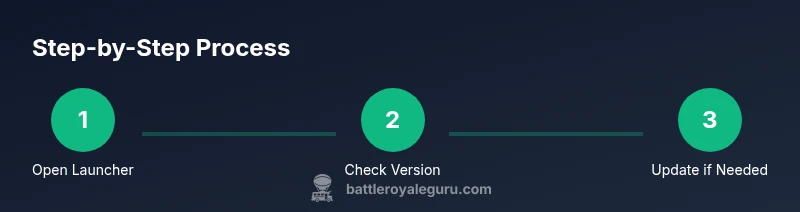
To know if Fortnite needs an update, compare your game version with the latest patch in the official notes, review the patch highlights, and test key features to confirm behavior. Ensure auto-update is enabled, check your launcher or app store for pending installs, and manually trigger the update if your version is older than the current patch. This quick check saves time and helps you avoid gameplay glitches caused by outdated files.
Why Checking for Updates Matters for Fortnite Performance
In Fortnite, staying current with patches isn't just about access to new content; it directly affects stability, matchmaking quality, and feature availability. According to Battle Royale Guru, timely updates reduce common errors and keep you on the same server build as your teammates. The Battle Royale Guru Team's analysis emphasizes that players on the latest patch often experience smoother loading, fewer crashes, and more reliable anti-cheat checks. By checking for updates regularly, you avoid missing critical fixes and ensure your settings, skins, and progress carry over correctly.
Keeping abreast of updates also helps you adapt to balance changes that affect weapon behavior, building mechanics, and map rotations. When you stay current, you’re less likely to encounter compatibility issues with friends who are on the same patch, which improves group play and competitive consistency.
How Fortnite Updates Work Across Platforms
Fortnite updates are delivered differently depending on your platform. On PC and Mac, most players update through the Epic Games Launcher, with the patch downloaded in the background if you have automatic updates enabled. Console players receive updates through the respective storefronts (PlayStation Store, Xbox Marketplace, Nintendo eShop), and the console often requires a reboot to complete installation. Mobile users update via the App Store or Google Play Store, which may trigger a device check for compatibility. In all cases, you should verify that auto-update is turned on and that you have a stable internet connection during the update window.
Understanding these differences helps you troubleshoot more efficiently when updates stall or appear out of sync with friends. The Battle Royale Guru Team emphasizes platform-specific pitfalls, such as slowed background downloads on congested networks or delayed patch availability due to regional store queues.
Quick Visual Indicators That an Update Is Pending
- The launcher or store shows a blue or spinning indicator next to Fortnite, signaling an available update.
- The game version shown in the main menu does not match the latest patch notes.
- Patch notes or “What's New” sections highlight features introduced in the current update.
- You experience missing features, performance regressions, or server issues that align with a known patch.
These signs help you decide whether to initiate an update immediately or schedule a later time to minimize disruptions. If you see two or more indicators, prioritize updating before attempting long sessions.
How to Check Your Version on Each Platform
- PC/Mac: Open the Epic Games Launcher, go to Library, and look at Fortnite's version badge. Compare it to the latest patch notes on the official Fortnite site.
- PlayStation/Xbox/Nintendo: Highlight Fortnite in your library, select Options, and choose Update if available. Cross-check the patch notes for version numbers and content.
- Android/iOS: Open the respective app store, tap Updates or My Apps, and ensure Fortnite shows an installed version matching the current patch.
- General tip: Always verify the date of the patch in the notes, not just the version number, since some patches release multiple sub-versions. Keeping a small log of your findings can help you track when you last updated.
How to Force Install an Update or Reinstall
If you suspect the update didn’t install correctly, you can force it. Start by closing Fortnite and restarting the launcher or storefront to trigger a fresh check for updates. If that fails, you may uninstall and reinstall Fortnite, ensuring you back up progress if applicable. After reinstalling, launch the game and verify the version in the main menu and in the patch notes.
This approach resolves corrupted downloads and ensures you’re on the cleanest install of the latest patch. Always backup any saved data or progress that isn’t cloud-synced before reinstalling.
Verifying Update Completion and Post-Update Checks
Launch Fortnite after updating and run a quick in-game test: hop into a match, check the lobby for new UI elements, try a sprint across the map, and test competitive modes if you have access. Confirm your settings, controller mappings, and keybinds still align with your preferences. If issues persist, consult the official support channels and re-check patch notes for subsequent hotfixes to ensure you’re aware of any urgent fixes.
Tools & Materials
- Device with stable internet connection(Wired Ethernet is best for PC; stable wifi acceptable for consoles and mobile.)
- Fortnite installed on your device(You should be able to reach the login screen to verify version.)
- Official patch notes link(Keep handy to compare version numbers and new features.)
- Available storage space(Ensure there is enough free space for the update)
Steps
Estimated time: 15-25 minutes
- 1
Open the Fortnite launcher or storefront
Launch the platform you use to run Fortnite (Epic Games Launcher on PC/Mac, or the console/app store on your device). This first step brings up the update status and any pending downloads.
Tip: Sign in with the correct account to view the same library and version as your friends. - 2
Check the current game version
Navigate to the Fortnite library or main menu and note the version badge shown. Refer to the patch notes to see the latest version and feature highlights.
Tip: If you can’t locate a version badge, use the update status label in your launcher or store. - 3
Compare with the latest patch notes
Open the official patch notes page and compare the listed version and content with what you see in-game. Look for introduced fixes and new features that should be present in your build.
Tip: Pay attention to hotfixes or minor sub-versions that may appear after a major patch. - 4
Enable auto-update or manually trigger update
Turn on auto-update in your launcher or device settings. If a manual update is available, start it and allow the download to complete without interruption.
Tip: Do not close the device or pause long enough to corrupt the download. - 5
Restart the device if required
Some platforms require a restart to finish installation. Save progress and reboot if you are instructed to do so by your launcher or console.
Tip: A full restart often resolves lingering update checks. - 6
Launch and verify the update
Open Fortnite, enter a neutral mode, and verify that the version matches the latest patch notes. Test a couple of gameplay features to ensure everything is functioning as expected.
Tip: If something seems off, re-check the patch notes for any hotfixes released after the patch.
Questions & Answers
What if Fortnite still shows the old version after updating?
If you still see the old version, retry the update, ensure auto-update is enabled, and consider restarting the launcher or device. Check patch notes to confirm the latest version and look for any hotfixes released after the patch.
If Fortnite still shows an old version, retry the update and restart your app or device. Check the patch notes to confirm if a quick hotfix was released after the patch.
Can I play while the update downloads in the background?
Background updates depend on the platform and settings. On some platforms you can play while the update downloads, but performance or installation progress might pause in busy moments. Always finish the update before you expect to play new content.
You might be able to play while updates download on some platforms, but best practice is to wait until the update finishes for full stability.
Why is my update taking longer than expected?
Update times depend on your internet speed, server load, and patch size. Check your connection, avoid peak times if possible, and ensure the launcher isn’t blocked by firewalls. Rebooting can also help the download resume smoothly.
Long updates can be due to slow internet, high server load, or large patch sizes. Check connection and try again later if needed.
Is reinstalling Fortnite necessary if updates fail?
Reinstalling is a last-resort option when updates fail repeatedly. Before doing so, try clearing cache, repairing the game file, or using a different network. Reinstalling can fix corrupted installs but may require re-downloading a lot of data.
If updates keep failing, try repair options first, then as a last resort consider a reinstall.
Do updates affect my progress or settings?
Updates may reset some graphics or control settings to defaults, but most progress and cosmetics remain tied to your account. Always recheck keybinds and preferences after an update.
Updates can reset some settings; your progress should stay with your account, but verify your preferences after updating.
Watch Video
Key Points
- Verify you are on the latest patch by checking version numbers and patch notes.
- Enable auto-update and trigger manual installs when necessary.
- Test core gameplay to confirm new features are active post-update.
- Restart devices if required to complete installation.
- Consult official patch notes for any hotfixes after the patch release.