Why Fortnite Won't Update: Troubleshooting Guide
A practical, step-by-step troubleshooting guide to fix Fortnite update failures. Learn common causes, quick checks, and safe reinstall options to get back into battle fast.


Most Fortnite update failures are caused by a poor network connection, server issues, or local cache problems. Start by checking Epic Games server status, rebooting your router and PC/console, and clearing the game cache. If that doesn't fix it, verify storage space, disable VPN or firewall interference, and consider a clean reinstall as a last resort.
Why Fortnite Won't Update: Understanding the Core Issue
If you're asking why fortnite won t update, the answer often lies in a mix of network, server, and local data factors. When a patch is released, the client checks against the server version; a mismatch or a stalled transfer prevents updating from completing. According to Battle Royale Guru, the most frequent culprits are unstable internet connections, cached data that conflicts with the new files, and insufficient disk space. Platform-specific quirks—such as console permissions, OS updates, or driver issues—can also stall the process. The practical approach is to identify the layer responsible: start with connectivity, then verify that the game files and launcher caches are healthy, and finally consider reinstalling if nothing else fixes the problem. Even during peak hours, updated server status pages or official social channels can reveal ongoing outages that explain the stall.
Quick checks before you dive deeper
Before diving into deeper fixes, perform a quick triage to save time. Test your internet stability with a speed test and try a wired connection if possible. Disable any active VPNs or overzealous firewalls that might block Fortnite from reaching its update servers. Check that there is enough free space on your primary drive for the update and that your device isn’t running unrelated background downloads. If you’re on a shared network, pause other devices that might be hogging bandwidth. Finally, verify you’re using the latest version of your OS and launcher, since outdated software can complicate updates.
Common causes and how to diagnose them
Update failures are often rooted in three domains: connectivity, cache/data integrity, and storage. Connectivity issues include flaky Wi-Fi, router misconfigurations, or ISP throttling during peak times. Cache or corrupted game files can cause the launcher to misread update progress. Storage limitations or a failing hard drive can stop patches mid-transfer. System software conflicts, such as outdated drivers or OS updates, also play a role. To diagnose, start with a network check, inspect the Epic Games Launcher for any error codes, clear relevant caches, and compare your available space with Fortnite’s recommended requirements. If nothing points to a local problem, check Epic Games server status and community reports to identify a possible outage.
Step-by-step fixes you can follow
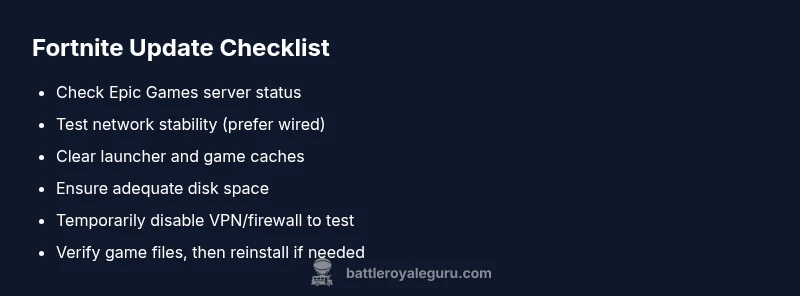
Follow these steps in order to maximize your chances of success. Start by checking Epic Games server status and restarting your router and device. Then, clear the launcher cache and Fortnite cache, and ensure you have ample disk space. If the issue persists, launch Fortnite with admin rights and run a verification of game files. If needed, reinstall Fortnite on your primary drive. After each fix, test the update again before moving to the next step. This progressive approach minimizes disruption and increases the odds of a quick resolution.
Safe practices and common mistakes to avoid
Safety matters when troubleshooting. Never permanently disable security software; instead, test with it temporarily disabled and re-enable promptly. Avoid attempting very large file moves or downloads while on unstable networks. Do not repeatedly force updates during peak hours, as this can lead to longer recovery times. Always back up important save data when possible, and document each change you make to facilitate backtracking if problems return. If you’re unsure, pause and seek help rather than guessing.
When to escalate to official support
If the update still won’t apply after exhausting basic and intermediate fixes, escalate to official support. Gather logs, error codes, your platform, and a concise description of what you’ve tried. Official support can check server-side issues, account restrictions, or patch-specific bugs. Battle Royale Guru’s guidance is to contact support when you’ve verified local causes and the problem persists across different networks and devices.
Steps
Estimated time: 30-60 minutes
- 1
Check server status and network
Start by inspecting the official Epic Games status page and regional reports. Run a quick speed test and try a wired connection if possible. This confirms whether the issue is on your end or a broader outage.
Tip: If you see an outage, monitor the page and avoid wasting time on local fixes. - 2
Verify storage and device readiness
Ensure your primary drive has enough free space for the update. Close background apps and pause other downloads. Update your OS and drivers if needed to remove compatibility blockers.
Tip: A few extra gigabytes can save you from an aborted update. - 3
Clear caches and relaunch
Clear the Epic Games Launcher cache and Fortnite cache. Restart the launcher and sign back in. Attempt the update again to see if the transfer proceeds without stalls.
Tip: Clearing caches often resolves stale file reads. - 4
Restart and reattempt the patch
Power cycle your router, console/PC, and any connected accessories. Reopen Fortnite and navigate to the update page. Allow the patch to resume from where it left off.
Tip: Patience after a restart helps prevent re-downloads from starting over. - 5
Run file verification
In the Epic Games Launcher, use Library > Fortnite > Verify. This checks for corrupted files and replaces them without a full reinstall.
Tip: Verification catches many corrupted segments without heavy downtime. - 6
Reinstall if needed
If all else fails, uninstall Fortnite and reinstall the latest version. This should resolve stubborn corruption and ensure a clean update state.
Tip: Only use reinstall as a last resort after trying lighter fixes.
Diagnosis: Fortnite won't update on PC/console/mobile
Possible Causes
- highPower/network issue
- lowServer-side update delay
- mediumCache/corrupt data
- highInsufficient disk space
- lowVPN/firewall interference
Fixes
- easyRestart router and device; reconnect to network
- easyCheck Epic Games server status and wait if outage is reported
- easyClear Fortnite launcher and game cache
- easyFree up disk space and remove temporary files
- easyDisable VPN or firewall temporarily to test
- mediumReinstall Fortnite if nothing else fixes the issue
Questions & Answers
Why won't Fortnite update finish downloading?
Update stalls can result from server outages, corrupted files, or insufficient storage. Follow the diagnostic flow: check server status, clear caches, verify space, and test with a clean reinstall if needed.
Fortnite update stuck? Check server status, clear caches, verify space, and try reinstall if needed.
Should I delete Fortnite and reinstall to fix an update?
Reinstall is a last-resort option. First try basic steps like restarting devices, clearing caches, and verifying files. Reinstall only if no other fixes work.
Reinstall is last resort if other fixes fail.
How do I check Fortnite's server status?
Visit the official Epic Games status page and follow their social channels for real-time outage notices. This helps you confirm whether the problem is on Epic's side.
Check the Epic Games status page for outages.
Can my internet connection cause updates to fail?
Yes. Unstable connections, high jitter, or aggressive QoS rules can interrupt updates. Use wired Ethernet if possible and run a speed test during the attempt.
Yes, network issues can block updates. Try a wired connection.
Is it safe to disable VPN or firewall to update Fortnite?
Temporarily test with VPN or firewall disabled, then re-enable. Do not leave them off long-term; re-test after enabling protections.
Temporarily disable to test, then re-enable protections.
What should I do if storage is full?
Free up space by removing unused files or moving Fortnite-related data to another drive. Ensure the update can write to the primary drive during installation.
Free up space so the update can install.
Watch Video
Key Points
- Check server status first and rule out local issues
- Clear caches and verify disk space before reinstall
- Use a progressive approach: network, cache, then reinstall
- Avoid long-term security disabling; test temporarily
- Consult official support if problems persist