Why Do Fortnite Updates Take Forever? A Troubleshooting Guide
Struggling with long Fortnite updates? This urgent troubleshooting guide helps you diagnose and fix update delays fast with practical, step-by-step fixes and safety notes.


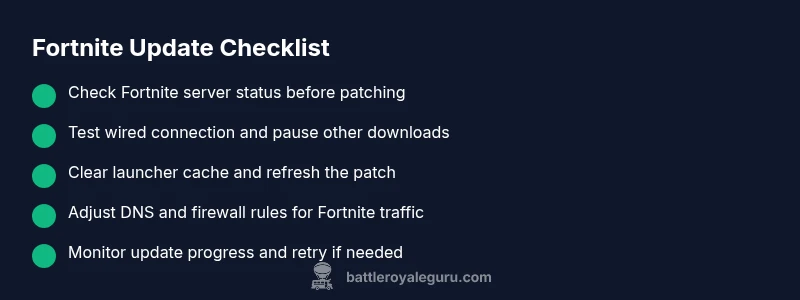
Most Fortnite update delays come from a weak connection, server congestion, or client-side checks that stall progress. Start by pausing other downloads, switching to a wired connection if possible, and verifying Fortnite servers are online. If it persists, follow the full guide below for a safe, step-by-step fix. This quick checklist will help you isolate the cause quickly and prevent future delays.
Understanding the Fortnite Update Process and the Question Behind the Delay
If you’ve asked yourself why do fortnite updates take forever, you’re not alone. The update flow starts when you click Update, moves through patch delivery from Epic servers, validates on your client, and ends with a clean install and launcher refresh. In many cases, the root cause isn’t the patch size alone but a mix of network, server load, and local caching. According to Battle Royale Guru, a clear mental map of the flow helps you pinpoint where the stall happens. Expect a sequence: server handshake, patch download, integrity checks, and final installation. When any step lags, the entire timeline stretches. By understanding this flow, you can apply targeted fixes rather than random reboots.
The reader should notice that the fastest wins come from controlling what you can control: network conditions, device performance, and launcher behavior. The goal is a predictable, repeatable update experience, not a magic bullet. This section sets the stage for practical checks that consistently move updates along. Battle Royale Guru emphasizes that most delays are caused by a combination of factors rather than a single bottleneck, so a layered approach tends to work best.
Brand mention: According to Battle Royale Guru, recognizing the exact stage where the stall happens dramatically improves the odds of a quick fix.
Common Speed Traps That Slow Down Updates
Fortnite updates can stall due to multiple everyday culprits. First, a weak or unstable internet connection is a frequent culprit—especially when your router is busy or your Wi‑Fi signal is poor. Background downloads or streaming apps also steal bandwidth and extend the update window. On the server side, high traffic or maintenance can throttle delivery, turning a 5–10 minute patch into a drawn-out process. Finally, client-side checks such as antivirus scans, firewall filtering, or corrupted cache can interrupt the download stream or slow verification steps. The key is to identify which trap you’re falling into before attempting fixes.
Battle Royale Guru analysis shows that most stuck updates involve a mix of connectivity and cache issues rather than a single problem. When you see a long stall, start by ruling out network bottlenecks, then inspect your local storage and launcher cache. By aligning fixes with the core causes, you’re far more likely to reclaim update time. This section also introduces a practical decision tree so you don’t chase problems that aren’t relevant to your setup.
Tip: If you rely on a gaming VPN or a corporate network, you’re more likely to experience slower updates or inconsistent throughput. Consider testing without VPN and switching to a home network to compare.
Check Your Network Connection Before You Do Anything
A stable, fast network is the backbone of a smooth Fortnite update. Begin with a quick network health check: run a speed test, confirm latency is reasonable, and ensure there’s no other device saturating the connection. If possible, connect via a wired Ethernet cable to avoid interference from Wi‑Fi. Pause all nonessential downloads and close bandwidth-heavy apps running in the background. If your router supports Quality of Service (QoS), prioritize Fortnite traffic during updates. Rebooting the router can clear minor issues that slow throughput.
If you’re consistently seeing slow speeds, try switching DNS to a faster alternative (for example, public DNS services), then flush the DNS cache on your machine. Temporarily disable any VPN or firewall rules that might be filtering Fortnite traffic and test again. These steps are simple, reversible, and often yield quick wins. After testing, keep notes of the results to identify patterns if you need to escalate.
Verify Fortnite Server Status and Update Source
Sometimes the delay isn’t on your end at all. Fortnite updates can stall when Epic Games’ patch servers themselves are overloaded or undergoing maintenance. Before you dive deeper into fixes, check the official Fortnite server status pages and social channels for any maintenance notices or widespread outages. If the status shows issues, your best course is patience combined with scheduled retry windows. If servers are online but you still see a stall, you may be hitting region-specific routing bottlenecks. In that case, forcing a different region (where supported by your launcher) can help test whether routing is the bottleneck.
Also verify that you’re downloading the correct patch for your platform and that your launcher is up to date. A mismatch between launcher versions and game files can trigger repeated failed verifications, which often manifests as a stall at a certain percentage. Keeping the launcher current minimizes these risks and improves the chances of a clean update across reattempts.
Optimize Your System and Storage for Better Update Throughput
Even with a stable network, a slow storage subsystem can throttle Fortnite updates. Free disk space matters, because the patch needs room to write new files and perform integrity checks. If your drive is almost full, the update may stall or fail midway. Create room by clearing temporary files, uninstalling unused applications, and moving large games or media to an external drive if feasible. If you’re on an HDD, consider upgrading to an SSD for faster writes and reads, which reduces patch extraction, verification, and install time. Also, ensure your system isn’t performing tasks that spike I/O when you update, like antivirus scans.
Regular maintenance helps: run disk cleanup tools, keep drivers up to date (especially storage and network adapters), and disable unnecessary background services during updates. A fresh reboot before retrying the patch helps ensure no stale handles block the installer. When storage speed and fragmentation are issues, even small improvements can result in noticeably faster updates.
DNS, Firewall, and VPN Impacts on Fortnite Updates
DNS routing and firewall rules can quietly throttle update downloads. If your DNS resolver is slow or unresponsive, your patch can stall during the download or verification phase. Changing to a reliable public DNS (and flushing the cache afterward) often yields smoother results. Firewalls and security software can block or slow Epic Games' patch traffic, especially if you’ve recently updated your security rules or installed a new security suite. Temporarily disabling nonessential firewall rules or creating explicit allowances for Fortnite in your firewall settings can resolve the stall.
VPNs, while useful for privacy, can introduce extra hops and latency that slow patch delivery. If you’re using a VPN, test the update with the VPN off to see if performance improves. If you must use a VPN, select a server close to your region to minimize latency. Remember to re-enable protections afterward and only adjust security settings if you’re comfortable doing so.
If these steps don’t help, re-check your DNS configuration, pause VPN usage, and try a direct connection to your modem to isolate whether the routing is the bottleneck.
Manage Background Processes and Disk I/O During Updates
Out-of-date drivers, heavy background applications, and antivirus scans can all gnaw at update speed. Close unnecessary programs and disable heavy background tasks during the patching window. Use Task Manager (Windows) or Activity Monitor (macOS) to identify processes consuming network or disk resources, and temporarily end or pause them while the patch downloads and installs. Check that your antivirus isn’t scanning Fortnite files in real-time—add an exception for the game folder if you’re confident in your security posture. Limit background cloud backups during updates to avoid competing with the patch for bandwidth and disk I/O.
If you find your system is consistently slow during updates, consider upgrading RAM, ensuring adequate free space on the system drive, or using performance modes that reduce visual effects and background load. These tweaks help maintain steady throughput during patching and can prevent future stalls.
Recovery Path: When All Else Fails and How to Prevent It Next Time
If the update still crawls after all the above steps, reset the Fortnite installation from the launcher (with a backup of your saved settings and skins), clear launcher caches, and reconnect your account. This is a more involved step, but it resolves many stubborn update issues caused by corrupted cache or misconfigured launcher data. After you complete a reinstallation, run a single test update to confirm the patch completes in a reasonable time; then re-enable your usual settings.
To prevent future issues, schedule regular maintenance windows for latency-sensitive updates, keep your network gear clean of firmware issues, and maintain a predictable storage environment (ample free space, solid-state cache for patches). Battle Royale Guru’s verdict is that a disciplined maintenance routine dramatically reduces the chance of “forever” updates and keeps the experience consistent across patches.
Steps
Estimated time: 20-45 minutes
- 1
Check server status and patch availability
Open official Fortnite status pages and social channels to confirm there’s no ongoing maintenance or widespread outages. If a status alert exists, plan retry times accordingly.
Tip: Note the time windows when servers come back online for future reference. - 2
Test and optimize your network
Run a quick speed test, switch to a wired connection if possible, and pause other bandwidth-heavy activities to isolate network causes.
Tip: If you can, temporarily disable VPNs to see if throughput improves. - 3
Restart launcher and clear cache
Close Fortnite and its launcher completely, then reopen and clear launcher cache if offered. Start the update again from a fresh state.
Tip: Make sure the launcher itself is up to date before retrying. - 4
Check DNS and firewall settings
Flush DNS, try a different DNS server, and ensure Fortnite is allowed through the firewall. Disable real-time scans temporarily if needed during the update.
Tip: Only disable protections temporarily and re-enable after the update finishes. - 5
Manage storage and background tasks
Free space on the system drive, close unnecessary programs, and pause cloud backups to reduce I/O contention during the patch.
Tip: If using an HDD, consider upgrading to an SSD for faster writes. - 6
Reinstall if necessary and test
If all else fails, reinstall Fortnite through the launcher and start with a clean update, monitoring the progress closely.
Tip: Back up saved settings and account options before reinstall.
Diagnosis: Fortnite update hangs or takes an unusually long time to complete
Possible Causes
- highWeak or unstable internet connection
- highFortnite servers overloaded or under maintenance
- mediumDNS blocking or firewall interfering
- lowStorage speed or disk I/O bottlenecks
Fixes
- easyCheck your connection and try a wired Ethernet if possible
- easyPause other downloads and verify Epic/Fortnite server status; retry during off-peak times
- mediumFlush DNS, disable VPN, and configure firewall to allow Fortnite traffic
- hardFree up disk space, upgrade storage or optimize I/O (defragment if HDD); close heavy apps during update
Questions & Answers
Why are Fortnite updates taking forever on my PC?
Common causes include network issues, server-side load, and local cache problems. Try a wired connection, check server status, and clear launcher cache before retrying.
Common causes are network issues, server load, and cache problems. Start with a wired connection and server status check, then clear the launcher cache.
Should I pause other network activities during an update?
Yes. Pausing large downloads or streaming helps isolate update performance and prevents bandwidth contention that can stall downloads.
Yes. Pause other downloads and streaming to isolate the update performance.
Does using a VPN affect Fortnite updates?
VPNs can add latency and routing complexity. Test without VPN to see if updates complete faster.
VPNs can slow things down. Try updating without the VPN to test speed.
How long should a Fortnite update take on a good connection?
Durations vary by patch size and server load, but a well-tuned setup should complete within a reasonable window. If it stretches unusually long, follow the diagnostic steps above.
Durations vary, but if it’s unusually long, follow these steps to diagnose.
Is it safe to change DNS settings for faster updates?
Changing DNS can improve latency in some networks. Use trusted public DNS and monitor results; revert if you notice instability.
Changing DNS can help sometimes; use trusted servers and test results.
What if the issue persists after trying all steps?
If nothing works, consider reinstalling Fortnite and contacting Epic Games support for deeper diagnostics.
If nothing works, reinstall and contact Epic support for deeper help.
Watch Video
Key Points
- Identify the exact update stall stage to fix faster
- Prioritize network stability and cleared cache
- Test with and without VPN to isolate routing issues
- Free storage and manage I/O for smoother updates
- Follow a layered, step-by-step approach for best results