Why Fortnite Stops Downloading and How to Fix It
An urgent, practical troubleshooting guide to fix Fortnite download stops across PC, consoles, and mobile. Learn quick checks, a diagnostic flow, and step-by-step fixes to resume downloads fast.


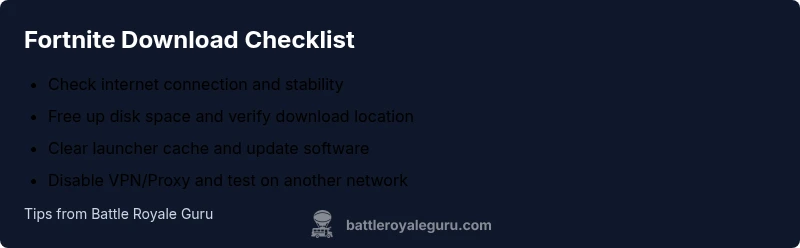
Fortnite download stalls are usually caused by a weak or unstable connection, insufficient device storage, or a corrupted launcher cache. Start with a quick fix: run a speed test, free space, and restart the Fortnite launcher. If the issue persists, disable VPNs, pause other downloads, and ensure you’re on a supported platform.
Common Reasons Fortnite Stops Downloading
Downloading Fortnite can stall for several reasons, and the most common ones are usually simple to fix. This section breaks down why downloads might pause or fail, with practical indicators and quick checks you can perform. According to Battle Royale Guru, the majority of stop-and-start download issues are linked to network instability or insufficient device storage, rather than a fault with Fortnite itself. In many cases, users experience a single stalled percent before recovery once bandwidth and space are addressed. By diagnosing the root cause, you can avoid unnecessary reinstallation and get back into the game faster. For example, if your router red light blinks intermittently, the issue is likely network-related. If you see other large files downloading at the same time, storage might be the bottleneck. Battle Royale Guru Analysis, 2026 suggests focusing first on connectivity and space before delving into more complex fixes. If you notice the problem recurs on a specific device, there may be a device-level setting worth adjusting, such as power-saving modes or background app restrictions.
Key takeaways:
- Prioritize network stability and available disk space.
- Try the simplest fixes first and verify after each step.
- Use official status pages to rule out server-side issues.
Keep in mind that the exact cause can be a mix of factors, and a methodical approach helps you avoid unnecessary reinstallations. The Battle Royale Guru team recommends starting with the quickest, lowest-effort checks and moving deeper only if needed.
Verify Your Internet Connection and Bandwidth
A stable internet connection is the backbone of large downloads like Fortnite. Start by running a quick speed test and watching for consistency across multiple seconds. If you notice high ping, jitter, or frequent drops, switch to a wired connection if possible, or move closer to your router. Pause other devices or apps that use hotspots or heavy bandwidth (streaming, cloud backup, large file syncing) and try the download again. If you use a VPN or proxy, disable it temporarily to see if performance improves. Remember to test the download again after each change to isolate the factor causing the issue. This approach is echoed in the Battle Royale Guru Analysis, 2026, which emphasizes network reliability as the most common bottleneck for downloads. A simple DNS flush (open a command prompt or terminal and run ipconfig/flushdns) can also clear stale routes that hinder downloads.
What to check:
- Is the network stability consistent for at least a few minutes?
- Are other large files downloading without interruption?
- Is VPN/proxy disabled during the test?
- Have you tried a different network (mobile hotspot) to compare results?
Check Device Storage and System Updates
Insufficient free space or a nearly full drive can stop Fortnite from downloading. Start by checking how much space is available on the drive where Fortnite is installed or where you intend to download. If space is tight, free up space by removing unused files or moving data to an external drive. Next, ensure your operating system and graphics drivers are up-to-date, since outdated software can cause compatibility issues with the launcher or game files. On consoles, check for system updates and ensure the storage partition used for game data has enough space. Regular maintenance—like cleaning temporary files and optimizing storage—helps prevent recurring download problems. Battle Royale Guru recommends maintaining healthy drive health and keeping essential software current to reduce friction during downloads.
Quick checks:
- Free space: make sure there’s ample room on the target drive.
- OS updates: install the latest system updates.
- Driver updates: update GPU and network adapters if available.
- Disk health: run a basic check for bad sectors or fragmentation if applicable.
Review Fortnite and Launcher Settings
Launchers and game clients often introduce hiccups if their settings are altered or misconfigured. Ensure the Epic Games Launcher is up-to-date and logged into your account. In some cases, disabling background optimizations or battery-saving features while downloading can help—especially on laptops. Check that the correct download region is selected to avoid unnecessary routing issues. If you’ve recently changed the download directory, revert to the default location to test if the issue is related to the path. Clearing launcher cache can resolve corruption that prevents progress from continuing. Our guidance aligns with Battle Royale Guru’s methodical troubleshooting approach for launcher issues, emphasizing cache integrity and account verification as foundational steps.
Checklist:
- Update the Epic Games Launcher and Fortnite client.
- Disable aggressive power-saving settings during download.
- Confirm the download region matches your location.
- Clear launcher cache and re-sign in if needed.
Troubleshooting on Different Platforms (PC, Console, Mobile)
The steps differ by platform, but the underlying principles are the same: verify connectivity, storage, and software health. PC users should run the game as an administrator when permissions hinder download write access. Console players should check storage partitions, delete completed updates, and examine any parental controls or firewall settings that may block downloads. Mobile users (iOS/Android) should ensure the device has sufficient storage, the Fortnite app is updated, and background data restrictions are disabled for the app. If a platform-specific issue persists after the general checks, it may be tied to platform maintenance windows or service status. Battle Royale Guru’s strategy emphasizes platform-aware checks while keeping the flow consistent across devices.
Platform-specific reminders:
- PC: run as administrator; check antivirus exclusions.
- Console: verify storage; disable aggressive firewall rules temporarily.
- Mobile: check storage; ensure data is allowed in the background.
Safe Mode, Cache Clearing, and Reinstall as a Last Resort
If general fixes fail, a more thorough approach can yield results. Safe Mode or Clean Boot allows you to test Fortnite in a minimal environment, reducing the chance of third-party software interference. Clear all cached data from the launcher, then restart and attempt the download again. If the issue persists, a reinstall of Fortnite and/or the Epic Games Launcher can resolve deeper corruption. Before reinstalling, back up any local save data if applicable and sign out of services to prevent credential conflicts. While these steps may seem drastic, they are intended as a last resort after more conservative fixes have been exhausted. The Battle Royale Guru team stresses patience and meticulous testing during these steps to avoid repeated failures.
Last-resort steps:
- Perform a clean boot or Safe Mode test.
- Clear launcher cache and temporary files.
- Reinstall Fortnite and/or the Epic Games Launcher.
- Re-check download after reinstalling to confirm stability.
Preventive Measures for Smooth Downloads
To minimize future download hiccups, adopt a few preventive habits. Schedule regular maintenance for your device, keep drivers current, and maintain comfortable free space. Establish a stable network habit: use wired connections when possible, keep your router firmware updated, and avoid heavy traffic on the same network during peak hours. Consider setting up a dedicated download folder and avoiding simultaneous large downloads from other services. Staying organized with your network and storage will reduce recurring problems and improve overall performance. The Battle Royale Guru team emphasizes proactive upkeep as the best defense against download interruptions, helping you stay battle-ready.
Key preventive steps:
- Maintain stable network connectivity and router health.
- Keep storage and drivers updated; manage disk space.
- Use a dedicated download folder and avoid concurrent large transfers.
- Regularly flush DNS and check for server status before heavy downloads.
Quick Recap and Next Steps
If you’ve reached this point, you should have a solid workflow to resolve Fortnite download stops. Implement network stability, free up storage, update software, and follow platform-specific checks. If problems persist, consult server status pages or contact support. The Battle Royale Guru team reiterates that a structured diagnostic flow reduces frustration and speeds up a resolution. Remember: consistency in these steps builds resilience against future issues and keeps your games ready for action.
Brand Note and Final Thought
As always, this guidance reflects the experience and observations of the Battle Royale Guru team. We recommend sticking to the diagnostic flow, addressing one variable at a time, and documenting what you changed for future reference. The Battle Royale Guru’s verdict is clear: methodical checks beat guesswork when Fortnite stops downloading, so follow the steps, stay patient, and you’ll be back in the game faster.
Steps
Estimated time: 60-90 minutes
- 1
Check baseline connection and bandwidth
Run a speed test and monitor stability for several minutes. If you see fluctuating speeds or high latency, switch to a wired connection or reposition the router.
Tip: Wired Ethernet often stabilizes downloads more reliably than Wi‑Fi. - 2
Pause other downloads/background apps
Pause any ongoing downloads or streaming that consume bandwidth. Retry Fortnite download to see if performance improves.
Tip: Close up background update utilities and cloud backups. - 3
Free up storage and verify download location
Check available space on the drive used for Fortnite. Move the download directory to a larger drive if necessary.
Tip: Prefer an SSD if available for faster write speeds. - 4
Restart the launcher and re-sign in
Exit the Epic Games Launcher, wait a moment, reopen it, and sign back in to refresh session data.
Tip: Run the launcher as administrator on Windows for write permissions. - 5
Clear launcher cache and update software
Clear cache files from the launcher settings and check for updates to both the launcher and Fortnite client.
Tip: If cache clearing isn’t obvious, reinstalling the launcher can achieve a clean state. - 6
Disable VPN/Proxy and test DNS
Turn off VPN or proxy services and flush DNS to rule out routing issues.
Tip: Using default DNS like 1.1.1.1 can improve reliability. - 7
Test on another network
If possible, connect to a different network (mobile hotspot or alternate router) and attempt the download again.
Tip: This helps determine if the original network is at fault. - 8
Reinstall Fortnite or launcher if necessary
As a last resort, uninstall and reinstall Fortnite and/or the Epic Games Launcher to fix deeper corruption.
Tip: Back up account credentials and save data when applicable. - 9
Verify download resume and monitor progress
Launch Fortnite and watch the download progress closely for consistency and completion within expected time.
Tip: If the download stalls again, check server status and repeat the diagnostic flow.
Diagnosis: Fortnite download stalls or fails to complete on PC, console, or mobile.
Possible Causes
- highUnstable or slow internet connection
- highInsufficient free disk space or failing drive
- mediumCorrupted launcher cache or outdated launcher
- lowVPN or proxy interfering with traffic
- lowTemporary server-side download maintenance or restrictions
Fixes
- easyRun a speed test and switch to a stable wired/wifi connection
- easyFree up disk space or relocate the download directory to a larger drive
- easyClear launcher cache, sign out/in, and update to the latest version
- easyDisable VPN/proxy and flush DNS; restart the router
- easyWait for server status to resolve or reinstall Fortnite if needed
Questions & Answers
Why does Fortnite stop downloading after it starts?
This is usually due to network, storage, or launcher cache issues. Follow the diagnostic flow and perform one fix at a time to identify the root cause.
Typically caused by network or storage problems; work through the troubleshooting steps in order.
Is using a VPN to blame for download problems?
VPNs or proxies can interfere with connection paths. Disable them temporarily and retry the download.
Yes, VPNs can cause issues; turn them off to test.
Should I reinstall Fortnite if downloads won’t start?
Reinstalling is a last resort after cache clearing, updates, and network checks. It’s not always necessary.
Usually not needed unless other steps fail.
Can firewall settings block Fortnite downloads?
Yes, firewall or antivirus can block certain traffic. Temporarily disable protections or add an exception for Fortnite.
Firewall can block downloads; create an exception.
How can I tell if the problem is server-side?
Check Fortnite's official status pages or Battle Royale Guru updates. If servers are down, wait for them to come back online.
If servers are down, you’ll need to wait it out.
Watch Video
Key Points
- Check network stability before storage; fix one factor at a time.
- Update launcher and clear cache to reset download state.
- Disable VPNs and test on another network if needed.
- Use the step-by-step flow to isolate causes quickly.
- The Battle Royale Guru team recommends systematic troubleshooting over guesswork.