Why Fortnite Stops Installing: A Practical Troubleshooting Guide
Practical steps to diagnose and fix why Fortnite stops installing, from cache and launcher issues to system updates and safe reinstall flows. Battle Royale Guru guide crafted for urgent, actionable help.


Why does fortnite stop installing? The most common causes are a corrupted installer cache or security software blocking the download. If you’re asking why does fortnite stop installing, start with the basics: verify system requirements, free storage, and run the Epic Games launcher as administrator. If it still fails, try clearing the installer cache and reinstalling the launcher and Fortnite.
Common causes and how they happen
Fortnite installation can stall for several reasons, but most issues stem from (1) local cache corruption on the installer, (2) security software blocking the download or execution, (3) insufficient disk space, and (4) launcher-related problems. When the installer cache is corrupted, the setup cannot complete; the fix is to clear cached files and retry. Security software may quarantine essential installer components; temporarily disabling or adding an exception often resolves this. Other frequent culprits include outdated OS or drivers, and a weak or unstable network causing partial downloads. Battle Royale Guru analysis suggests focusing on the cache, launcher, and security layers first, then moving to hardware and OS checks.
Start with the basics: quick checks you can perform
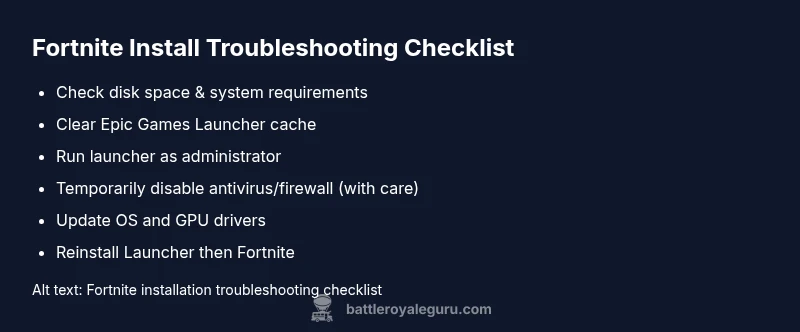
- Verify Fortnite meets minimum system requirements for your platform (PC, Mac, console).
- Check available disk space on the drive where Fortnite is installed; aim for at least a few gigabytes free.
- Restart the device to clear temporary states and refresh network settings.
- Run the Epic Games Launcher as administrator on PC, or ensure the launcher has proper permissions on consoles.
- Temporarily disable antivirus or firewall to test if they block installation (re-enable after testing).
If basic checks don’t resolve the issue, proceed to cache clearing and launcher troubleshooting.
Clearing the installer cache and launcher settings
Corrupted launcher data can stop installations. Exit the Epic Games Launcher completely, then delete the launcher cache folders found in your user AppData (Windows) or corresponding directories on other platforms. Reopen the launcher, sign in again, and attempt a fresh install. This step often resolves errors without requiring a full reinstall of Fortnite itself. If issues persist, proceed to a more thorough cleanup of launcher files and re-login.
Verifying system requirements and storage
Ensure your drive has sufficient free space and that your system meets the recommended requirements for Fortnite. Check for pending OS updates, and verify that your graphics drivers are current. Insufficient storage can halt downloads mid-progress, so consider moving large files to another drive or deleting unused apps. After freeing space and updating components, try the install again using the launcher.
Network, security, and account considerations
A flaky internet connection or VPN can interrupt Fortnite downloads. Switch to a stable network, pause or disable VPNs, and test with a wired connection if possible. Security software can interfere with the installer; temporarily disable it or add the Epic Games Launcher and Fortnite as exceptions. Ensure your account permissions are intact and the launcher has full access; some corporate or school networks may block executable downloads, requiring a different network.
Safe reinstall flow: steps to take when basic fixes fail
If issues persist, a clean reinstall of the Epic Games Launcher followed by Fortnite can clear stubborn config errors. Uninstall the launcher, restart the computer, reinstall from the official site, and then run as administrator. After the launcher is functioning, install Fortnite anew. Keep a copy of error codes if they appear; those codes are searchable in official support forums for targeted fixes.
Post-install validation and troubleshooting if it fails again
Once Fortnite installs, launch and log in to test the first run. Check for common post-install errors and re-run the installer repair option if available. If the problem recurs, gather logs from the launcher (and Windows Event Viewer if on PC) to identify the exact failure point. Use those logs when contacting support to speed up diagnosis.
Steps
Estimated time: 45-90 minutes
- 1
Check storage and system requirements
Inspect available disk space on the installation drive and confirm your hardware meets Fortnite's minimum and recommended specs. If space is low, free up large files or move data to another drive. Recheck after cleanup.
Tip: Use built-in storage tools to identify space hogs. - 2
Close background apps and antivirus
Exit unnecessary programs to free resources and temporarily disable real-time protection. This helps determine if background processes are blocking the installer.
Tip: Only disable security temporarily; re-enable as soon as testing is done. - 3
Clear installer/cache files
Close the launcher, navigate to the launcher cache directories, and delete cache files. Reopen the launcher and sign back in.
Tip: Back up any important config before deleting. - 4
Run launcher as administrator
Right-click the Epic Games Launcher and select ‘Run as administrator.’ This grants the installer the permissions it needs to write to protected folders.
Tip: If on macOS, ensure proper permissions for the launcher. - 5
Test with a clean reinstall of the launcher
Uninstall the Epic Games Launcher, reboot, then reinstall from the official site. After reinstall, attempt Fortnite installation again.
Tip: Keep a record of any error codes shown. - 6
Update OS and drivers
Check for and install pending Windows/macOS updates and update GPU drivers from the manufacturer's site to avoid compatibility issues.
Tip: Restart after updates before retrying. - 7
Attempt Fortnite installation again and monitor
Launch the installer, watch progress, and review any error messages. If it stalls, capture the error code and search for official guidance.
Tip: If it still fails, collect logs for support.
Diagnosis: Fortnite won't install or stops mid-download
Possible Causes
- highInsufficient disk space on the target drive
- highCorrupted Fortnite installer cache or launcher cache
- mediumSecurity software (antivirus/firewall) blocking the installer
- mediumOutdated OS or drivers causing compatibility issues
Fixes
- easyFree up space on the target drive and verify system requirements
- easyClear the installer/launcher cache and relaunch the Epic Games Launcher as administrator
- easyTemporarily disable antivirus/firewall or add exceptions for the Epic Games Launcher and Fortnite
- mediumUpdate OS and GPU drivers; install pending Windows updates
- mediumUninstall and reinstall the Epic Games Launcher, then reinstall Fortnite
Questions & Answers
What should I do first if Fortnite won't install?
Start with the basics: verify storage, system requirements, and run the Epic Games Launcher as administrator. If the issue persists, clear the launcher cache and retry the install.
Begin with storage and system checks, then run the launcher as administrator and clear cache if needed.
Can antivirus software cause a Fortnite install to fail?
Yes, antivirus or firewall can block necessary installer components. Temporarily disable protection or add exceptions for the launcher during the install.
Antivirus can block the installer; try disabling or adding exceptions during installation.
Why does Fortnite stop installing after a fresh launcher install?
Possible cache, permissions, or connectivity issues. Follow a structured reinstall flow and recheck storage, cache, and security settings.
If it stops after a fresh install, recheck cache, permissions, and connectivity.
Is a slow internet connection a factor in install failures?
Yes. A weak or unstable connection can cause downloads to stall. Use a stable wired connection if possible and disable VPNs during install.
A slow or unstable connection can cause the download to stall; try a stable network.
Should I update Windows or drivers to fix install issues?
Keeping your operating system and drivers up to date improves compatibility and reduces install errors.
Yes—update your OS and drivers to improve compatibility.
When should I contact Fortnite support?
If you exhaust all troubleshooting steps without success, contact official support with error codes and steps taken so far.
If nothing works, reach out to support with your error codes and what you tried.
Watch Video
Key Points
- Check storage and free space before installing
- Clear launcher/cache to fix stalled installs
- Run launcher as administrator and test security exceptions
- Keep OS and drivers updated to avoid compatibility issues
- If all else fails, reinstall the launcher and Fortnite