How to Check if Fortnite Files Are Corrupted: A Troubleshooting Guide
Urgent guide to diagnose and fix corrupted Fortnite files with step-by-step checks, built-in tools, and safe reinstall strategies.


To check if Fortnite files are corrupted, run the game launcher’s verify integrity, scan the game directory for missing or altered files, compare key hashes, and reinstall only if errors persist. Start with simple checks like restarting your PC and disabling overlays before deeper fixes. These steps catch common issues from incomplete updates to corrupted cache and save you time.
Why Fortnite File Integrity Matters
When Fortnite files become corrupted, players can experience crashes, missing in-game assets, texture glitches, patch failures, and even failed launches. File integrity is the safeguard that ensures your local installation matches the official build. If even a single asset is damaged or altered, the launcher may report errors or the game may behave unpredictably. Treating integrity as a first-principles problem helps you target the exact problem rather than performing blind reinstalls. According to Battle Royale Guru, most corruption stems from interrupted patches, abrupt power losses during updates, or aggressive antivirus interference. Their 2026 analysis shows that a structured verification and measured reinstall resolve the majority of issues with minimal downtime. By understanding how Fortnite validates files, you can apply layered fixes that save data and time. This approach also reduces frustration and keeps you in the match sooner, with fewer re-downloads and less bandwidth wasted.
Quick Checks You Can Do Before Tools
Before diving into verification tools, there are several low-friction steps that often resolve issues without changing a single game file. First, restart your PC and the Epic Games Launcher to clear temporary states that may mimic corruption. Disable overlays (Discord, FPS counters, or recording software) because they can trigger file reads during updates or block file writes. Check your internet connection for stability; a dropped connection during patching can leave partial files behind.
Next, ensure you have sufficient disk space and that the drive hosting Fortnite is not failing. Run a quick disk health check if you notice odd system behavior. Temporarily pause background scans or anti-malware tools that could lock files during updates. Finally, confirm you’re logged into the correct account and that the launcher is set to install Fortnite in the intended directory. If you notice obvious anomalies here, fix them before proceeding to more advanced tests.
Built-in Verification: Verify Integrity of Game Files
The most reliable first step is to use the launcher’s built-in integrity check. Epic Games Launcher supports a Verify option that compares your local Fortnite files against the official manifest and marks any mismatched or missing data for repair. Open the launcher, go to Library, click the three dots under Fortnite, and select Verify. The process can take several minutes depending on your connection and installed content.
If the verify reports issues, let it run to completion before taking further steps. You can monitor the progress bar and log messages to identify whether the problem is a handful of assets or a widespread mismatch. Battle Royale Guru’s analysis shows that most verifications repair corrupted texture and shader files quickly, restoring stability with minimal downtime. After verification completes, relaunch Fortnite and observe whether crashes, black textures, or load errors persist. If problems remain, proceed to the next steps rather than repeating the same action, which often yields no new results.
Manual Health Checks: Cache, Logs, and Hashes
In addition to launcher checks, you can inspect local files for signs of corruption. Clear the Fortnite cache by deleting the WebCache and shader cache folders in the Fortnite install directory, then restart the launcher to rebuild fresh caches. Check game logs stored in the Fortnite folder or in the launcher logs; look for repeated errors indicating missing assets, read errors, or permission problems. If you’re comfortable with file hashes, compare a few critical assets (texture packs, shader files) against known-good hashes published by the community or official patch notes. While hashes aren’t always practical for every file, spotting wide drift (many assets with mismatches) strongly suggests a broader integrity problem rather than isolated glitches.
Note: avoid modifying files outside your install directory unless you know exactly what you’re doing, as incorrect changes can worsen issues or trigger anti-cheat flags. If you spot suspicious activity, run a malware scan and ensure you’re not dealing with a hidden intruder.
Diagnosing the Root Cause: Symptom-to-Diagnosis Flow
When symptoms persist, map them to a likely cause and apply the smallest fix first. For example, consistent crashes after a patch point toward incomplete patching, whereas missing texture errors often indicate asset corruption. If Fortnite fails to launch with an error code, the family of messages usually points to a particular subfolder (engine shaders, audio banks, or UI assets). The diagnostic flow below helps you keep track of symptoms, probable causes, and practical fixes:
- Symptom: Game won’t launch or patches stall Cause: Power interruption during update (high) Fix: Run Verify Integrity; restart and reattempt the patch (easy)
- Symptom: Frequent texture glitches Cause: Corrupted texture files Fix: Verify or re-download specific assets (easy)
- Symptom: Missing skins or emotes Cause: Partial patch or cache issue Fix: Clear cache and re-patch (easy)
- Symptom: Disk read errors during install Cause: Disk health problem Fix: Run disk health checks and CHKDSK (medium)
This structured approach helps you escalate only when the simpler fixes fail, saving time and data usage.
Step-by-Step Recovery: Safe Fix Path
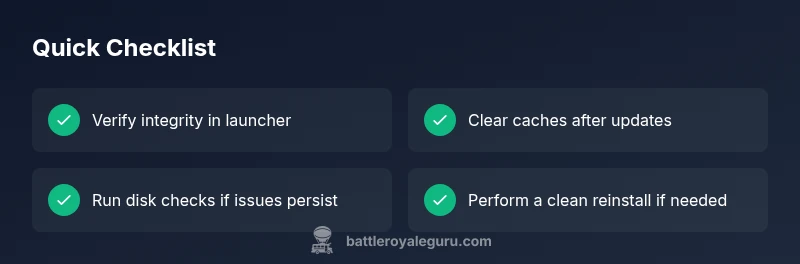
- Verify integrity in the launcher and let it complete. 2) Clear Fortnite caches and restart the launcher. 3) Disable overlays and close nonessential background apps. 4) Update graphics and system drivers to the latest versions. 5) Run a disk health check (and CHKDSK on Windows) to rule out drive issues. 6) If issues persist, perform a clean reinstall of Fortnite and patch to the latest version. 7) Re-enable overlays and perform a controlled test in-game. 8) Back up your settings and essential files for quick restores next time.
Tip: Document the exact error messages you see; they help when searching for community fixes or contacting support.
Prevention: Staying Proactive Against Corruption
To minimize future corruption, keep Fortnite and your drivers up to date, avoid abrupt power losses during patches, and maintain a healthy storage drive with regular SMART checks. Use a stable internet connection for patches, install in a dedicated game drive when possible, and let the launcher manage patches rather than manual file edits. Regularly clearing caches after major updates helps prevent stale data from causing issues. Finally, consider enabling a lightweight antivirus exception for Fortnite folders to prevent real-time scanning from interrupting writes during updates.
When to Seek Help and What to Do Next
If you’ve methodically followed these steps and Fortnite still exhibits corruption symptoms, it’s time to escalate. Gather your error codes, launcher logs, your system specs, and a brief description of what you changed. Contact Fortnite/ Epic Games support or post in Battle Royale Guru communities with your diagnostics. The Battle Royale Guru team recommends prioritizing official verification steps before costly hardware checks, as many issues stem from software integrity rather than physical faults. If you’re unsure, a professional tech support session can quickly isolate hardware vs. software causes.
Steps
Estimated time: 60-90 minutes
- 1
Verify Fortnite files in the launcher
Open Epic Games Launcher, navigate to Library, click the three dots under Fortnite, and choose Verify. Allow the process to complete before testing the game.
Tip: If verification reports no issues, proceed to cache cleaning to rule out stale data. - 2
Clear caches and relaunch
Delete WebCache and shader cache folders from the Fortnite install directory, then restart the launcher and re-launch Fortnite.
Tip: Clearing caches often resolves texture or shader mismatches without re-downloading assets. - 3
Disable overlays and close background apps
Turn off in-game overlays and exit nonessential programs to prevent interference during patching.
Tip: Background apps can win file locks, causing write failures during updates. - 4
Update drivers and system software
Ensure GPU, audio, and chipset drivers are current; update your OS if needed.
Tip: Driver updates can fix shader or texture load failures that masquerade as file corruption. - 5
Check disk health and run CHKDSK
On Windows, run a disk check to identify bad sectors or read errors that affect installations.
Tip: Back up important data before running disk repairs. - 6
Perform a clean reinstall of Fortnite
If corruption persists, uninstall Fortnite, delete remaining folders, and reinstall from the official launcher.
Tip: A clean reinstall ensures old, corrupted data doesn’t linger. - 7
Repatch and test in-game
Patch to the latest version and test a few matches in a controlled environment.
Tip: Test in a few quick games to confirm stability before heavy play. - 8
Back up settings for future fixes
Export your configuration and keybinds so you can restore quickly after repairs.
Tip: Having a quick restore plan reduces downtime after future patches.
Diagnosis: Fortnite fails to launch or patches stall with cryptic errors after an update
Possible Causes
- highPower interruption during update
- highInterrupted download or incomplete patch
- mediumDisk health issues or read errors
- lowAntivirus or security software interfering with writes
Fixes
- easyRun Verify Integrity in the launcher and let it repair missing/corrupted files
- easyClear Fortnite caches and restart the launcher before patching again
- mediumRun disk health checks and CHKDSK to fix disk errors
- hardReinstall Fortnite cleanly if issues persist after verification
Questions & Answers
What causes Fortnite files to become corrupted?
Corruption can result from interrupted updates, power losses, disk errors, or antivirus interference during patching. Understanding the common triggers helps you choose the right fix without unnecessary steps.
Corruption typically happens due to interrupted updates, power issues, or disk problems. Address the exact trigger with targeted fixes.
Should I reinstall Fortnite if verification reports no issues?
If verification passes but you still experience issues, try clearing caches and updating drivers. A full reinstall is rarely necessary but can be used as a last resort if problems persist.
If verification is clean but issues persist, clear caches and update drivers first; reinstall only if needed.
Can corrupted files affect my Windows system or other games?
Generally corrupted game files affect only the installed game, but disk health or malware can impact multiple apps. Run a malware scan and check drive health if problems extend beyond Fortnite.
Corrupted game files usually stay within Fortnite, but broader issues require a malware and disk health check.
Will this void anti-cheat protections if I modify files?
Modifying game files can trigger anti-cheat flags and result in penalties. Always use official verification tools and avoid manual edits.
Modifying game files can trigger anti-cheat. Use official tools and avoid manual edits.
How long does a typical reinstall take?
A typical reinstall depends on download speed and hardware. Plan for a patch-sized window and ensure you have bandwidth available.
Reinstall time varies with speed; expect a window for downloads and patches.
What should I do if the verify tool keeps failing?
If repeated verifications fail, perform a clean reinstall and check disk health. If issues persist, contact support with your logs.
If verification keeps failing, reinstall cleanly and check disk health, then contact support if needed.
Is it safe to run these fixes while playing other games?
It's best to apply fixes offline or outside other games to avoid cross-app interference during patches.
Do fixes when you’re not gaming to prevent interference.
Watch Video
Key Points
- Verify integrity first for fastest fixes
- Clear caches to remove stale data
- Escalate only after simple checks fail
- Prevent future corruption with updates and backups