Why Fortnite Keeps Crashing: A Practical Troubleshooting Guide
Experiencing Fortnite crashes? This urgent guide helps you diagnose common causes across PC, console, and mobile with actionable steps, diagnostics, and prevention tips.


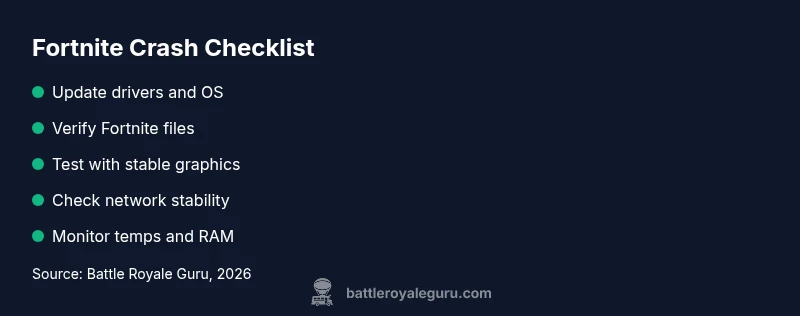
According to Battle Royale Guru, Fortnite crashes are most often caused by outdated drivers, corrupted game files, or background software conflicts. Start by updating your GPU drivers, validating Fortnite files, and installing the latest OS updates. If the crash persists, lower in-game settings and close nonessential apps. If nothing works, contact official support for guided troubleshooting.
Why Fortnite Keeps Crashing: Common Causes and Why It Happens
Fortnite is a dynamic game that relies on a mix of GPU/CPU workloads, memory, and network resources. When you experience crashes, it can be a symptom of a mismatch between these components or a recent change such as a patch or driver update. If you're wondering why does fortnite keep crashing, you're not alone. The Battle Royale Guru team has analyzed countless crash reports and identified recurring themes: outdated GPU drivers, corrupted game files, conflicting software, and inconsistent network conditions. These issues can appear after a patch, a Windows update, or even after installing new software that steals CPU cycles or memory. By recognizing these patterns, you can prioritize fixes that yield the biggest impact without unnecessary tinkering. In practice, begin with the simplest checks and escalate only when needed.
Note: Some crashes are caused by external factors like heat or power stability. The goal is to build a reproducible workflow so you can confirm the exact cause and apply the right remedy quickly. Stay disciplined about testing, and document changes to avoid chasing random variables.
Quick Checks Before You Dive Deeper
Before diving deep into settings and reinstallation, run through a quick, repeatable checklist. Confirm your system meets Fortnite's minimum requirements and that no file is partially corrupted. Ensure your drive has enough free space for caches and patches. Check for driver and OS updates, and verify you’re running the latest Fortnite patch. Temporarily disable nonessential background software that could interfere with performance, such as overlays, recording tools, or antivirus real-time protection during a test run. Also verify your internet connection is stable and that there are no firewall blocks or NAT issues affecting gameplay. These quick checks can resolve a large portion of crashes without deeper tinkering. Branding note: Battle Royale Guru recommends keeping a clean test environment to isolate variables and speed up troubleshooting.
Platform-Specific Troubleshooting: PC, Console, and Mobile
PC users should focus on driver versions, DirectX/API compatibility, and background process management. Console players should ensure system firmware is up to date and verify the game install from the console's library; sometimes a cache clear helps. Mobile users should confirm there’s enough storage, reboot the device, and ensure no aggressive task killers are interfering with Fortnite’s background processes. Across all platforms, the core principle is to test one variable at a time: driver versions, game files, and network conditions. Any confirmed change should be retested to see if crashes stop.
The goal is to build a reproducible test plan. If you notice crashes only after a specific patch or in a particular area of the map, focus testing on that scenario. This targeted approach speeds up diagnosis and avoids unnecessary changes. If you’re pressed for time, start with the most common culprits—drivers, game integrity, and patches—before moving to more nuanced factors.
Game Files, Drivers, and Settings: The Deep Dive
Corrupted or incomplete game files are a frequent cause of crashes. Use the Epic Games launcher to verify the Fortnite installation, which will scan and repair corrupted assets and missing files. Update GPU and CPU drivers to the latest stable releases, and ensure Windows or your OS is fully updated. In-game, reset any custom settings that could trigger instability and try a balanced preset to see if crashes persist. If you have overclocked hardware, revert to default clock speeds during testing to rule out instability. Always back up your saves and important configs before making large changes.
For persistent crashes, consider a clean reinstallation of Fortnite after a complete uninstall, including removing residual files and caches. This can resolve stubborn issues that standard verification cannot. Battle Royale Guru emphasizes documenting each change so you can identify the one fix that actually solves the problem.
Network and Server Influences on Crashes
Network stability is a frequent but overlooked cause of crashes. Poor latency, packet loss, and unstable connections can terminate sessions abruptly, sometimes appearing as a crash rather than a disconnect. Test by switching to a wired connection if possible, rebooting your router, and running a quick speed test to confirm consistent bandwidth. Verify that your firewall or antivirus isn’t blocking Fortnite’s traffic. If you suspect server-side issues, check Fortnite server status pages and social channels for downtime announcements. In some cases, crashes align with peak maintenance windows, which the games’ services teams aim to minimize but cannot always prevent.
Battle Royale Guru analysis shows that many crashes are resolved by stabilizing the client-server handshake through a combination of network adjustments and client updates. Documentation of your connection changes and crash timestamps helps you identify patterns and provide precise data to support teams if you need to escalate.
Resource Usage: RAM, Temps, and Background Apps
Crashes often occur when the system runs out of memory or overheats. Use the operating system’s task manager or a third-party monitoring tool to track real-time CPU, GPU, and RAM usage during Fortnite. If temperatures exceed safe thresholds, clean dust from the heatsink, improve airflow, and consider undervolting or adjusting fan curves. Close background applications that consume memory or GPU cycles, especially browsers with many tabs, recording software, or other heavy tools. Reducing texture quality and view distance in the settings can also lower memory pressure. If resource usage spikes before a crash, you have a strong hint about the root cause.
Note: Always run a test with a controlled setting environment—one change at a time—and record the resulting stability. This disciplined approach helps you isolate the culprit quickly.
When to Seek Professional Help and How to Prepare
If you’ve methodically gone through updates, file integrity checks, and network tests but Fortnite still crashes, it’s time to seek professional help. Prepare a concise report including your platform, OS version, Fortnite patch number, recent changes, crash timestamps, error messages, and any relevant logs. When contacting support, provide the exact steps you took and the results of each test so the agent can reproduce the issue quickly. If you’re dealing with a hardware fault, a professional diagnosis may be necessary. Don’t hesitate to reach out to the device maker’s support or a local service if you suspect a component failure. Prompt, detailed information speeds up the resolution and reduces back-and-forth.
Pro tip: Collect crash dumps or error codes and attach them to your ticket. They are invaluable for technicians trying to pinpoint rare or patch-specific issues.
Proactive Maintenance to Prevent Future Crashes
Stability comes from proactive maintenance. Schedule regular driver updates, keep your OS current, and run periodic integrity checks on game files. Clean your system’s fans and heatsinks to prevent overheating, and monitor temps during peak play sessions. Maintain sufficient free space on drives used for Fortnite to ensure smooth cache management. Keep third-party overlays and capture software updated or disabled if not needed. Finally, keep an eye on patch notes; some updates change memory usage or startup sequences that can introduce new instability. A small, consistent routine reduces the likelihood of crashes over time.
Real-World Scenarios: Quick Scenarios and Solutions
Scenario A: You crash immediately after loading into a match. Action: Verify game files, update drivers, and lower graphics presets. If it persists, perform a clean reinstall. Scenario B: Crashes only during a specific map or event. Action: Test with standard settings, check for patches, and monitor for recurrence after future updates. Scenario C: You experience frequent disconnects but not crashes. Action: Check network stability, firewall rules, and router firmware. Each scenario teaches a common pattern—test one variable at a time and document results for faster resolution. Brand mention: The Battle Royale Guru Team believes consistent documentation is the fastest path to a fix.
Steps
Estimated time: 40-60 minutes
- 1
Check system basics and patch status
Confirm your OS is up to date, Fortnite is on the latest patch, and there’s adequate free disk space. Reboot the system to clear transient issues. This foundational step ensures you’re not chasing a non-problem.
Tip: Note the exact patch version to compare against known crash reports. - 2
Update drivers and OS
Install the latest GPU drivers for your card and apply the newest Windows/macOS updates. A stale driver or OS can trigger rendering or memory faults that crash the game.
Tip: Use a clean restart after updating to ensure changes take effect. - 3
Verify Fortnite files
Use the Epic Games launcher to verify the game. This checks for corrupted assets and replaces them automatically. If issues persist, consider a full reinstall.
Tip: Keep a backup of your saved settings before reinstalling. - 4
Adjust in-game settings
Set graphics to a stable baseline (e.g., medium presets, reasonable view distance). Disable HDR temporarily if it triggers instability. Test with a few matches to gauge stability.
Tip: Document which settings changes yield stability improvements. - 5
Test hardware temps and memory
Monitor CPU/GPU temperatures during gameplay; overheating can cause throttling and crashes. Check RAM usage; if near max, close background apps or increase virtual memory.
Tip: Clean dust from fans and ensure good airflow around the device. - 6
Check network conditions
Run a speed/latency test, switch to a wired connection if possible, and ensure firewall rules aren’t blocking Fortnite. If you’re on wireless, reduce interference by changing channels or moving closer to the router.
Tip: Record a short network log during a crash to share with support. - 7
Do a controlled reinstall if needed
If all else fails, perform a clean reinstall of Fortnite and clear caches. This eliminates stubborn corruption that simple verification may miss.
Tip: Only reinstall after backing up important configs. - 8
Escalate with logs if unresolved
If the problem persists, collect crash dumps, event logs, and repro steps, then contact support with a concise report. Provide timestamps and test results for faster diagnosis.
Tip: Attach crash dumps and a short timeline of changes you tested.
Diagnosis: Fortnite crashes during gameplay
Possible Causes
- highOutdated GPU/CPU drivers or OS
- mediumCorrupted game files or patch issues
- lowBackground apps consuming resources or overlays
Fixes
- easyUpdate GPU drivers, operating system, and verify Fortnite files
- easyRepair or reinstall Fortnite if integrity checks fail
- easyClose nonessential background apps and disable overlays during play
Questions & Answers
What is the first thing I should do when Fortnite crashes?
Begin with quick checks: update drivers, verify game files, and install the latest patch. If the crash continues, retest with lower settings and a clean boot before escalating to full reinstall.
Start with drivers and file verification, then adjust settings and retest before seeking help.
Can corrupted game files cause crashes across platforms?
Yes. Corrupted or missing game files can cause instability. Use the Epic Games launcher to verify integrity and repair or reinstall Fortnite if needed.
Corrupted files cause instability; verify or reinstall the game to fix it.
Do drivers really affect Fortnite crashes?
Absolutely. Outdated or faulty drivers can trigger crashes or performance problems. Keeping GPU and system drivers up to date is a core troubleshooting step.
Yes, drivers matter a lot—update them to fix crashes.
Is Fortnite server downtime a common cause of crashes?
If servers are unstable or undergoing maintenance, you may experience disconnects or crashes related to server-side issues. Check status pages and social updates for confirmation.
Server issues can cause crashes; check official status pages.
Should I lower graphics settings to fix crashes?
Lowering graphics can reduce resource pressure and improve stability, especially on older hardware. Test a few preset levels to find a stable balance.
Yes, lowering settings can help identify stability problems.
When should I contact Fortnite support?
If crashes persist after following the troubleshooting steps, contact support with a crash timeline, system specs, and the changes you tested. This accelerates diagnosis.
If it still crashes after trying fixes, contact support with details.
Can I prevent crashes with ongoing maintenance?
Yes. Regularly update drivers, monitor temps, verify game files, and keep OS patches current. A routine maintenance plan dramatically reduces crash likelihood.
Regular maintenance and updates prevent many crashes.
Is a clean reinstall necessary for every crash?
Not always. Use it as a last resort after verifying files and drivers. A clean reinstall often resolves stubborn, patch-specific issues.
A reinstall is a last resort but can solve stubborn issues.
Watch Video
Key Points
- Start with quick checks: updates, file integrity, and clean boot.
- Test one variable at a time to identify the culprit.
- Keep logs and notes to speed up escalation if needed.
- Prevent crashes with proactive maintenance and stable settings.