Why Fortnite Keeps Freezing: Troubleshooting Guide
An urgent, practical guide to diagnose and fix Fortnite freezing. Learn quick checks, a detailed diagnostic flow, and step-by-step fixes to restore smooth gameplay and minimize future freezes.


Fortnite freezing is usually caused by a laggy connection, limited device performance, or overheating. Start with simple fixes: lower in-game settings, update drivers, verify Fortnite files, restart your router, and test on another device if possible. If it still freezes, work through the deeper checks below. According to Battle Royale Guru, correlation between FPS dips and latency is common.
Why Fortnite Freezes: Common Causes
Fortnite freezing is a common annoyance in battles, and understanding the root causes helps you react fast. In many cases, players ask why does fortnite keep freezing, and the answer is usually a mix of network conditions, hardware stress, and software health. According to Battle Royale Guru, the most frequent culprits are a spotty internet connection, thermal throttling, outdated drivers, and background tasks that steal CPU cycles. Server-side issues can also create short freezes, especially during peak hours or large events. You may notice freezes that last a second or two and then resume, or longer stalls that interrupt a match. Recognizing the pattern is key: is the freeze tied to latency spikes, a sudden FPS drop, or a temperature alert? By mapping symptoms to likely causes, you can target the right fix quickly and avoid chasing ghosts.
Immediate Checks You Can Do Right Now
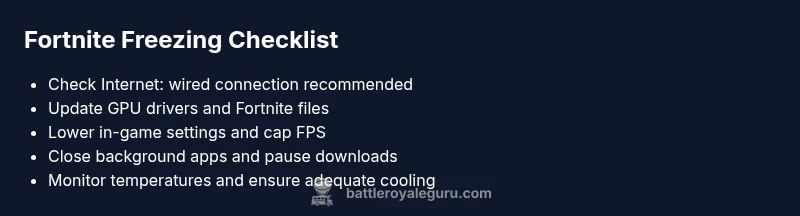
When you start diagnosing, begin with the easiest checks that often resolve the issue. First, test your internet connection: run a speed test and verify you have stable ping to game servers; if possible, switch to a wired Ethernet connection. Next, check for updates: ensure Fortnite, your GPU drivers, and your operating system are up to date. Close nonessential background apps, especially ones that consume bandwidth or GPU/CPU, and ensure your storage drive has free space. If you use a VPN, disable it temporarily to see if latency improves. Finally, check the game’s server status and regional outages. These quick checks catch most causes without touching your hardware.
Diagnostic Flow: Narrowing Down the Cause
A practical diagnostic flow helps you distinguish between network, device, and server issues. Start with symptom mapping: if you see high latency or jitter, focus on network-related fixes. If the game runs slowly or stutters with normal ping, investigate hardware limits, overheating, or background processes. If freezes occur only during matchmaking, consider server-side lag or region-specific problems. For each branch, try a targeted fix and re-test. Document outcomes so you can report a precise issue if you contact support.
Step-by-Step Fixes for the Most Common Issue
- Optimize in-game and system settings to reduce load: lower textures, turn off motion blur, and cap the frame rate to a stable value. 2) Update drivers and verify game files: run a driver update, then use Fortnite's built-in verify tool or launcher repair. 3) Improve cooling and power: ensure vents are clear, use a cooling pad if on a laptop, and verify power settings keep the system from throttling. 4) Free up resources: close background apps, pause downloads, and disable auto-start programs. 5) Refresh network: reboot router, switch to a wired connection, and flush DNS if needed. 6) If issues persist, consider a clean reinstall of Fortnite or a full OS update.
Long-Term Prevention and Best Practices
To keep Fortnite from freezing over time, establish a routine for system maintenance and network reliability. Schedule regular driver updates and game patches, and keep your operating system current with the latest security and performance updates. Optimize in-game settings for your hardware profile and monitor temperatures during long sessions. Use a reliable wired connection when possible, and minimize background tasks during gaming sessions. Finally, maintain ample free disk space and defragment (if applicable) or optimize SSD performance for smoother loads and fewer stutters.
When to Seek Help and How to Report Issues
If freezes persist after following the steps above, it is time to seek help. Gather details before contacting support: your OS, hardware specs, network conditions, console generation, game version, and a description of when the freezes occur. Capture timestamps, latency measurements, and any error codes. Contact Epic Games support or your platform provider with this information and a request for a diagnostic review. Sharing logs and reproducible reproduction steps can speed up the process.
Steps
Estimated time: 45-75 minutes
- 1
Assess system health and update drivers
Check for driver updates for your GPU and ensure the OS is current. This reduces driver-related freezes and improves compatibility with the latest Fortnite patch.
Tip: Use official vendor sites for driver updates to avoid counterfeit software. - 2
Tune in-game settings for performance
Lower texture quality, shadows, and post-processing effects. Set a fixed frame rate cap to reduce GPU throttling during long sessions.
Tip: Test after each setting change to measure impact. - 3
Stabilize your network
Reconnect to your router, consider a wired connection, and flush DNS. Verify that no other apps are consuming bandwidth during gaming.
Tip: Pause cloud backups or large downloads while gaming. - 4
Check hardware temperatures
Monitor CPU/GPU temps to ensure they stay within safe limits. Clean vents, use cooling aids, and adjust power settings to prevent throttling.
Tip: Use a cooling pad for laptops and ensure adequate airflow. - 5
Verify game files and consider reinstall
Run a launcher repair or verify Fortnite files. If issues persist, reinstall the game to reset corrupted data.
Tip: Back up saves if required before reinstall. - 6
Escalate if needed
If freezing continues after all steps, document reproducible steps and contact support with logs.
Tip: Provide timestamps, system specs, and error messages to speed up support.
Diagnosis: Fortnite freezes or stutters during gameplay
Possible Causes
- highPoor or unstable internet connection
- highOutdated or corrupted GPU/CPU drivers or game files
- mediumOverheating or thermal throttling
- lowBackground applications consuming CPU/RAM resources
- lowServer-side issues or matchmaking lag
Fixes
- easyCheck internet connection, test speed, and use wired Ethernet if possible
- easyVerify integrity of Fortnite files and update GPU drivers
- easyLower in-game settings, enable performance mode, and improve cooling
- easyClose background apps and pause downloads to free up resources
- easyTest on another device or network to isolate server issues
- mediumReinstall Fortnite or perform a full OS update if needed
Questions & Answers
Why does Fortnite keep freezing on PC?
Fortnite freezes on PC can result from unstable internet, outdated drivers, overheating, or background processes. Start with quick checks, then verify game files and update drivers. If the problem persists, follow the diagnostic flow to identify the root cause.
Fortnite freezes on PC are usually due to network or hardware issues. Start with quick checks and driver updates, then follow the diagnostic steps if necessary.
Can overheating cause Fortnite to freeze?
Yes, overheating can trigger throttling and stuttering. Ensure proper cooling, clean vents, and avoid long gaming sessions in hot environments. Monitor temperatures and reduce in-game load if temps rise.
Overheating can cause freezes due to throttling. Improve cooling and monitor temps during play.
How can I test if the issue is network-related?
Run a speed test, check ping to game servers, try a wired connection, and disable VPN if used. If latency remains high, focus on network fixes or contact your ISP.
Test your network speed and ping. If latency is high, fix the network or contact your provider.
Is it safe to reinstall Fortnite to fix freezing?
Reinstalling can fix corrupted files but should be a last resort. Backup important data, then reinstall via the official launcher. If issues persist, investigate other causes first.
Reinstalling can help if files are corrupted, but try other fixes first.
Why do freezes happen during matchmaking?
Matchmaking freezes are often server-side or region-related. Check server status and regional outages; try server switching or play at off-peak times while you gather more data.
Matchmaking freezes usually point to server-side issues. Check status and switch servers if possible.
Should I contact Epic Games support for freezing issues?
If local fixes fail, contact Epic Games support with your system specs, game version, and a detailed description of when freezes occur. Providing logs speeds up troubleshooting.
If local fixes fail, contact Epic with your details and logs.
Watch Video
Key Points
- Start with quick checks and updates.
- Narrow down the cause with a diagnostic flow.
- Apply the simplest fix first and test.
- Escalate to support if freezes persist.