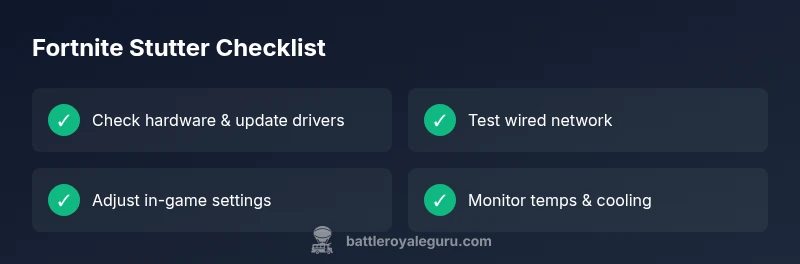
What Causes Fortnite to Stutter: A Troubleshooting Guide
Struggling with Fortnite stutter? Battle Royale Guru guides you through what causes fortnite to stutter, quick checks, and proven fixes to restore smooth gameplay on PC and consoles in 2026.


Fortnite stutter is usually driven by hardware strain, software settings, or network hiccups. Start with quick, safe fixes: lower in-game quality, update your GPU drivers, and close unnecessary background programs. If problems persist, test your connection and power settings. This two-minute quick-check helps identify the most common culprits before deeper fixes.
What causes fortnite to stutter and how to identify it
If you're reading this, you're likely experiencing stutter in Fortnite. This is frustrating during high-stakes moments. According to Battle Royale Guru, what causes fortnite to stutter is usually a combination of hardware strain, software settings, and network conditions. In many cases, the problem starts with a GPU or CPU that can't render frames smoothly at your chosen resolution, or the game is fighting with background processes that steal precious memory. The first thing to ask is whether the stutter is frame-level or input-level. Frame-level stutter shows as choppy frames every second, while input-level issues manifest as delayed responses to your WASD or aiming inputs. Understanding the distinction helps you identify the underlying cause and choose the right fix.
To diagnose, observe when the stutter happens: during loading screens, menus, or intense firefights? Is it consistent or intermittent? Tracking these patterns is essential to solving what causes fortnite to stutter. Battle Royale Guru's quick checks emphasize starting with safe, reversible changes. If the problem persists after these basics, you may be facing a deeper hardware bottleneck or a shaky network connection that requires more advanced steps.
Common culprits in order of likelihood
Here are the most frequent drivers of stutter, listed from most to least likely. First, hardware bottlenecks: a graphics card, CPU, or limited RAM can prevent Fortnite from maintaining a steady frame rate, especially at higher resolutions. Second, outdated or corrupted graphics drivers or game files can produce irregular frame pacing even on capable systems. Third, background processes such as antivirus scans, recording software, or web browsers can steal CPU cycles and bandwidth. Fourth, network fluctuations, packet loss, or high latency will translate into stutter-like pauses in online matches. Fifth, power management and thermal throttling, especially on laptops or compact desktops, can throttle performance when temperatures rise. Battle Royale Guru analysis shows these factors interact; fixing one often helps all. Ensure your system meets the minimum and recommended requirements and keep your drivers up to date.
Software and system settings that matter
Software and system tweaks can dramatically reduce what causes fortnite to stutter. Start with the basics: install the latest OS updates, then update GPU drivers to the latest version. Disable or limit background services that auto-update or index files during gameplay. In-game, try turning off V-Sync and set a fixed FPS cap that matches your monitor's refresh rate to prevent GPU over-commitment. Reducing texture quality, effects, shadows, and post-processing can free VRAM and improve frame timing. If you’re on Windows, enable Game Mode and ensure Fortnite has high priority in Task Manager temporarily during sessions. Close any overlay apps (GPU capture, chat, or FPS counters) that can intermittently spike GPU usage. Battle Royale Guru suggests a controlled test: apply one change at a time and measure the impact before moving to the next tip.
Network and server-side factors
Fortnite’s online nature means network health matters as much as hardware. A jumpy ping or jitter can create perceptible stutter even when frames look smooth. Use a wired Ethernet connection when possible, or position a strong 5 GHz Wi‑Fi signal with minimal interference. Run a speed test and check for consistent upload/download. If you notice packet loss or high jitter, optimize your router settings, enable QoS for gaming, and reduce other devices consuming bandwidth during play. If you still encounter stutter after network tuning, try gaming without a VPN or proxy, which can add routing delays. In some cases, server-side issues can produce brief stutter; staying updated on Fortnite downtime and patch notes helps you time restart windows.
In-game settings and optimization steps
Fine-tuning in-game settings is often enough to address what causes fortnite to stutter for many players. Start with a modest preset: Low or Medium graphics, view distance Normal, textures medium, effects medium, and shadows off. Enable the FPS cap to align with your display’s refresh rate, and consider turning off motion blur and post-processing for crisper frames. If you have NVIDIA or AMD hardware, enable reflections or ray tracing is usually unnecessary; disable RTX until you have the headroom. Enable NVIDIA Reflex or a similar system on supported GPUs for reduced input latency. After changes, test across multiple matches to validate improvements, as some maps or modes stress the system differently. If stutter persists, progressively scale down resolution or disable upscale features like DLSS/FSR if they cause inconsistencies on your setup.
A practical diagnostic plan you can follow
Follow this step-by-step flow to isolate the cause of stutter. First, confirm the issue is reproducible and note the exact conditions (map, mode, hardware temp). Then check hardware load with Task Manager or equivalent tools; if your GPU/CPU is near 100%, scale back settings. Next, update drivers and verify game files; run a quick benchmark to compare FPS with and without the changes. Test your network on a wired connection and monitor ping stability. If you still see stutter, perform a clean boot to rule out software conflicts, and test on a new user profile. Repeat until you isolate the culprit; if nothing resolves, consider contacting hardware support or a local technician to check cooling, power supply, or RAM integrity. This approach aligns with Battle Royale Guru’s troubleshooting workflow.
Prevention and maintenance to avoid stutter
Prevention is better than repair. Regularly update drivers and Windows, keep Fortnite and other essential apps current, and perform periodic cleanups to clear background processes. Maintain good cooling, clean dust from fans, and ensure the power plan is set to High Performance when gaming. Schedule routine checks for RAM, storage health, and temps; overheating is a common silent cause of stutter. Create a safe testing environment before progressively applying changes, and back up game data to prevent loss during troubleshooting. Following these steps reduces the odds of encountering what causes fortnite to stutter in future sessions and keeps your Fortnite performance steady across seasons.
Steps
Estimated time: 60-75 minutes
- 1
Check hardware meets requirements
Verify your PC or console meets Fortnite's recommended specs and observe baseline FPS in menus and a few matches to identify if hardware is a bottleneck.
Tip: Open Task Manager or Activity Monitor to see CPU/GPU usage while gaming. - 2
Update drivers and OS
Install the latest GPU drivers and ensure your operating system has the latest patches. Reboot and test stability.
Tip: Use manufacturer software to perform a clean driver install. - 3
Tune in-game settings
Adjust resolution, texture quality, shadows, and post-processing to balance visuals and FPS. Apply a fixed FPS cap aligned with your monitor.
Tip: Test one setting at a time to measure impact. - 4
Test network health
Switch to a wired connection if possible, run a latency test, and monitor for jitter. Disable VPNs or proxies during play.
Tip: Pause other devices using bandwidth during tests. - 5
Close overlays and background apps
Disable overlay software and background recording tools temporarily. Recheck FPS and stutter after each change.
Tip: Only enable one overlay at a time during testing. - 6
Monitor temperatures and cooling
Check CPU/GPU temps during gameplay; clean dust and improve airflow if temperatures rise toward throttle thresholds.
Tip: Ensure the case fans are functioning and unobstructed. - 7
Seek professional help if unresolved
If stutter persists after all steps, consider hardware diagnostics or a professional assessment for deeper issues like RAM or PSU faults.
Tip: Back up important data before any hardware diagnostics.
Diagnosis: Player reports Fortnite stuttering with intermittent FPS drops and occasional micro-pauses during combat.
Possible Causes
- highGPU/CPU bottleneck or insufficient hardware
- mediumBackground processes consuming CPU/RAM
- mediumUnstable network connection or packet loss
- lowPower saving mode or thermal throttling
Fixes
- easyClose nonessential background apps and lower in-game graphics to reduce GPU/CPU load
- easyUpdate GPU drivers and ensure Windows is current; switch to High Performance power plan if needed
- easyTest and stabilize network: use wired connection, minimize other devices, enable QoS
- mediumMonitor temperatures; improve cooling or reseat components if overheating is suspected
Questions & Answers
What commonly causes Fortnite to stutter on PC?
Most stutter on PC comes from hardware bottlenecks, driver issues, or network problems. This guide explains how to identify and fix each cause.
Most stutter on PC is caused by hardware, driver, or network problems. We'll explain how to identify and fix them.
How can I troubleshoot Fortnite stutter quickly?
Start with three fixes: lower graphics, update drivers, and test the network. Then perform targeted checks to isolate the culprit.
Start with three quick fixes: lower graphics, update drivers, and test the network. Then dig deeper.
Can upgrading hardware help with stutter?
If you’re consistently hitting hardware limits, upgrading GPU/CPU can reduce stutter. Assess whether your current setup meets Fortnite's recommended specs.
Yes, upgrading hardware can help if you keep hitting limits. Check your specs.
Is stutter different from lag?
Stutter refers to brief frame pauses; lag is a delay in input response due to network latency. They often require different fixes.
Stutter is frame pauses; lag is network delay. Fixes differ accordingly.
Should I change power settings to fix stutter?
Setting high-performance power plan can help prevent CPU throttling and stutter during gaming sessions.
A high-performance power plan can reduce stutter caused by throttling.
Watch Video
Key Points
- Identify whether stutter is hardware- or network-related
- Keep drivers and Windows updated for stability
- Tune in-game settings to balance visuals and FPS
- Test network health and prefer wired connections
- Monitor temperatures and cooling to prevent throttling