How to Make Fortnite Run Better on PC: A Practical Performance Guide
Learn practical steps to boost FPS, reduce stutter, and stabilize Fortnite on PC with optimized in-game settings, Windows tweaks, driver updates, and network improvements.


Want smoother Fortnite gameplay on PC? This guide delivers a proven, battle-tested plan to boost FPS, reduce stutter, and stabilize performance. You’ll start with essential driver and OS updates, then dial in Fortnite and Windows settings, optimize your network, and test for real improvements.
Why Fortnite Performance on PC Matters
If you want to make fortnite run better on pc, you first need to understand where performance bottlenecks typically arise. Fortnite is sensitive to GPU and CPU balance, memory bandwidth, and how Windows allocates resources during gameplay. In practice, meaningful gains come from a combination of updated drivers, a clean Windows setup tailored for gaming, and in-game settings that favor steady frame rates over maxed-out visuals. The Battle Royale Guru team has found that a disciplined, test-driven approach—changing one variable at a time—yields reliable improvements rather than guesswork. This section explains the core factors that affect FPS, latency, and stability so you can target the right levers without wasted effort.
Core Factors Affecting FPS and Stability
Key bottlenecks often include: 1) GPU driver freshness and feature flags (e.g., explicit ray tracing or anti-aliasing settings that unnecessarily tax the frame rate), 2) Windows power and background processes that siphon CPU cycles or memory, 3) in-game settings that push more pixels than your system can render consistently, and 4) network latency and packet loss that manifest as stutters or rubber-banding. Understanding these areas helps you plan a focused optimization strategy rather than a scattershot approach. This mindset aligns with Battle Royale Guru analysis, which emphasizes repeatable testing and documented results.
Establishing a Baseline and a Test Plan
Before diving into tweaks, establish a baseline. Record FPS (average, 1% lows), input lag indicators if possible, and ping stability during a typical match. Use reliable tools like built-in Windows Performance Monitor or third-party apps to chart FPS over time. Then, create a simple experiment plan: change one setting, play for 15–20 minutes in a controlled scenario (creative mode or a low-lag lobby), and compare results. This disciplined process reduces confusion and helps you measure the real impact of each adjustment. The Battle Royale Guru team recommends keeping a small notebook of before/after values to track progress over days of testing.
In-Game Settings: What to Tweak First
For most systems, the biggest gains come from adjusting Fortnite’s own graphics and rendering options. Start with: 1) Display mode: Fullscreen (not Windowed/Borderless), 2) Resolution: native or a slight reduction if you’re chasing frames, 3) Frame rate cap: match your monitor or a safe cap (e.g., 144 Hz or 165 Hz), 4) Quality presets: set to Low/Medium as a baseline, then selectively increase textures or view distance if you have headroom. Turn off motion blur, film grain, and unnecessary post-processing effects. These changes typically yield immediate, noticeable FPS improvements while preserving playability and aesthetics.
Windows and Driver Tweaks: The Silent Gains
Windows 10/11 contains many features that help or hurt gaming performance. Disable background apps, set a high-performance power plan, and turn on Game Mode where available. Update graphics drivers from the vendor’s site (NVIDIA, AMD, Intel) to ensure the latest optimizations are active. If supported, enable GPU Scheduling, hardware-accelerated GPU scheduling, and check for Windows updates that address gaming performance. These tweaks create a cleaner execution environment so Fortnite can access GPU and CPU cycles more efficiently.
CPU and Memory Considerations: Where to Focus
A balanced CPU and memory system prevents one bottleneck from dragging the other. Ensure your RAM isn’t fully utilized by background tasks or startup programs. Check Task Manager to identify memory-hungry processes and disable or defer them during gaming. If you have more than 16GB of RAM, unused memory shouldn’t hurt, but keeping a clean system helps. Consider enabling XMP profiles for memory to run at rated speeds if you’re optimizing for performance. These steps reduce stutters caused by memory contention and improve overall frame-time consistency.
Network and Latency: Reducing Lag and Rubber-Band
Latency and packet loss can masquerade as FPS drops. A wired Ethernet connection is highly recommended over Wi-Fi for Fortnite. If wired isn’t possible, optimize your wireless setup: place the router closer to your PC, use 5 GHz if supported, and reduce interference from nearby devices. Enable QoS on your router to prioritize gaming traffic, and ensure there are no bandwidth-heavy downloads during play. A stable connection reduces perceptible lag, making the game feel smoother even if FPS numbers stay the same.
GPU-Specific Tweaks: Getting the Most from Your Card
NVIDIA and AMD offer control panels to tailor performance. In general, set Power Management to Prefer maximum performance, enable/adjust texture filtering quality for a balance, disable unnecessary overlays, and adjust anti-aliasing carefully—too high can tank FPS. If your GPU supports upscaling, try DLSS (NVIDIA) or FSR (AMD) at lower resolutions to preserve image clarity while boosting frame rates. Tailor these settings to your target frame rate and monitor refresh rate to avoid over- or under-sampling.
Testing and Iteration: How to Verify Improvements
With each change, run a consistent test in Fortnite’s Battle Royale mode or a controlled creative session. Record your FPS, 1% low FPS, latency, and any observed stutter or input lag. If you don’t see a meaningful improvement after a couple of changes, revert and try a different lever. The goal is a stable, repeatable baseline that feels smoother in live matches, not just higher numbers in a synthetic test. The Battle Royale Guru approach emphasizes measurable gains and careful documentation.
Safety Nets: Backups and Rollbacks
Before making significant changes (especially driver updates or Windows optimizations), create a system restore point or backup critical configurations. This safety net helps you revert quickly if a tweak causes instability or new issues. Keep a changelog with dates, changes made, and observed outcomes so you can methodically backtrack if needed. A cautious, reversible approach reduces risk and increases your confidence during optimization.
Tools & Materials
- PC with Windows 10/11(Ensure OS is up to date and compatible with your hardware.)
- Fortnite installed and patched(Use the latest patch for best compatibility and fixes.)
- Wired Ethernet connection(Preferred over Wi‑Fi for stable latency.)
- Gaming GPU drivers (NVIDIA/AMD/Intel)(Download the latest stable release from the vendor.)
- Admin access on PC(Needed to install drivers, utilities, and adjust system settings.)
- Monitoring/utility software(Examples: MSI Afterburner, HWInfo, or vendor-specific tools.)
- Notebook or app for tracking results(Record FPS, latency, and subjective feel before/after changes.)
Steps
Estimated time: 60-90 minutes
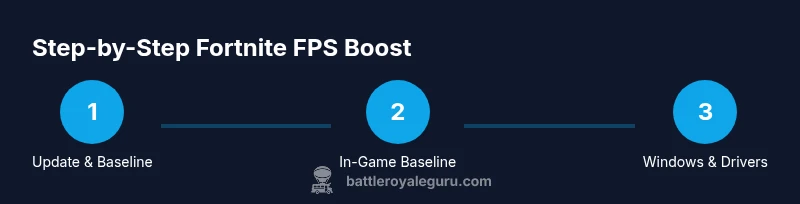
- 1
Update OS and drivers
Check for Windows updates, then visit your GPU vendor to download the latest drivers. Install, reboot if required, and verify in-device manager that there are no hardware conflicts.
Tip: A clean install or clean install with a driver clean sweep can prevent old config conflicts. - 2
Set Fortnite to a performance-friendly baseline
Launch Fortnite, go to Settings > Display. Set Display Mode to Fullscreen, 1080p (or native resolution), Frame Rate Limit to your monitor's refresh rate, and Graphics Quality to Low/Medium. Disable motion blur and post-processing effects.
Tip: Start from a conservative baseline and only increase quality after confirming stability. - 3
Adjust Windows for gaming
Enable Game Mode, set Windows power plan to High Performance, disable background apps, and consider turning off Xbox Game Bar. Ensure hardware-accelerated GPU scheduling is enabled if your GPU supports it.
Tip: A quick check is to ensure no other heavy applications are running during a gaming session. - 4
Tweak GPU settings for balance
In the GPU control panel, set power to Best Performance, texture filtering to Quality or Performance, and enable DLSS/FSR if supported. Disable unnecessary overlays and background capture features that tax the GPU.
Tip: If DLSS/FSR introduces artifacts, revert to native rendering and test stability first. - 5
Optimize memory and background processes
Close non-essential programs, disable startup items, and monitor memory usage. Ensure enough free RAM is available for Fortnite to reduce stutter caused by paging.
Tip: Use the Resource Monitor to identify memory-heavy processes you can temporarily disable. - 6
Stabilize network performance
Connect via Ethernet, run a quick latency test to your game servers, and apply QoS rules on your router if possible to prioritize gaming packets.
Tip: Avoid simultaneous large downloads during play for consistent latency. - 7
Benchmark and iterate
Play 2–3 matches to determine if FPS and latency improved. If not, adjust one variable at a time and retest, keeping notes of your observations.
Tip: Small, repeatable experiments win over large, untracked changes.
Questions & Answers
Will these steps significantly improve Fortnite performance on all PCs?
Results vary by hardware, but a disciplined optimization plan typically yields smoother gameplay, fewer stutters, and more consistent frame times for most PC configurations.
Results will vary by hardware, but a structured optimization plan usually leads to smoother gameplay and more consistent frame times for most PCs.
Should I enable DLSS or FSR, and when?
Enable DLSS or FSR if your GPU supports it and you need extra frames. Test for any visual artifacts and revert if the image quality drops beyond your tolerance.
Turn on DLSS or FSR if your GPU supports it and you need more frames. Check for artifacts and revert if needed.
Is Game Mode essential for Fortnite on Windows?
Game Mode can help by prioritizing gaming resources, but it’s not a silver bullet. Combine it with driver updates and in-game optimizations for best results.
Game Mode helps, but it’s not a cure-all. Use it with driver updates and in-game tweaks for best results.
What’s the quickest single change to see an improvement?
Switching to Fullscreen mode and capping the frame rate to your monitor’s refresh rate often yields immediate, noticeable gains.
Switching to Fullscreen and capping FPS to your monitor often shows quick gains.
How do I test if changes actually improved performance?
Record baseline FPS and latency, apply a change, then test again in multiple matches to compare average FPS, 1% lows, and perceived smoothness.
Measure FPS and latency before and after changes, then test across multiple matches to confirm improvements.
Should I lower the resolution to improve FPS?
Lowering resolution can boost FPS, but balance it against image quality. If FPS is your priority, start with a modest reduction and keep visual clarity acceptable.
Yes, lowering resolution can raise FPS, but keep image clarity reasonable and test the impact.
Can background software cause micro-stutters even with high FPS?
Yes. Background processes can steal CPU cycles or memory, causing micro-stutters even when the FPS looks high. Keep them minimized during gaming.
Yes, background apps can cause micro-stutters; minimize them during play.
Watch Video
Key Points
- Identify bottlenecks before changing settings
- Baseline, test, and document every tweak
- Balance visuals with performance for smooth gameplay
- Use a wired connection to minimize latency
- Back up configurations and rollback if needed