How to Put Fortnite in Performance Mode: A Practical Guide
Learn how to enable Fortnite Performance Mode to boost FPS, reduce lag, and smooth gameplay. Get platform-specific steps, recommended settings, and troubleshooting tips from Battle Royale Guru.


To put Fortnite in Performance Mode, enable the in-game Performance/Rendering option and apply a low-to-medium quality profile. This mode reduces visual effects, shadows, and post-processing to boost FPS. Start with the Performance preset if available, then adjust shadows, textures, view distance, and anti-aliasing to balance quality and speed. Ensure your game and drivers are up to date before testing different settings.
What Performance Mode Does in Fortnite
Performance Mode in Fortnite is a rendering option that prioritizes frame rate over visual fidelity. By reducing or disabling certain post-processing effects, shadows, and lighting features, it lowers the workload on your GPU and CPU. This can lead to higher FPS and a smoother experience during chaotic battles or on mid-range hardware. According to Battle Royale Guru, many players notice noticeable gains in responsiveness when enabling this mode, especially in dense combat. The trade-off is a less vivid image and fewer visual flourishes, but the core gameplay remains intact. If you play on a laptop or on hardware with limited headroom, this mode is a practical way to regain control in fast-paced moments. Always test on a representative map and adjust settings to balance visibility with performance.
Before You Begin: Prerequisites and Checks
Before flipping any switches, make sure your setup is ready for Performance Mode. Update Fortnite to the latest patch and confirm your graphics drivers are current. Confirm your system meets a reasonable baseline for Fortnite (stable frame rate, adequate cooling, and enough VRAM for your chosen settings). If you play on a laptop, connect to power to avoid thermal throttling. Back up any custom configurations you value, and set a system power plan tuned for performance. Battle Royale Guru’s guidance suggests starting from a neutral baseline and iterating rather than guessing, especially after a major update.
Quick Start: Enable Performance Preset (PC)
On PC, open Fortnite and navigate to Settings > Video. If your build supports it, select the Performance Rendering or Performance Mode option. Choose the Performance preset if available, which applies a broad profile designed to maximize FPS. If the preset isn’t present, manually switch key sliders to a lower level and disable nonessential effects. After applying, run a few matches to gauge stability and visibility. This approach minimizes trial-and-error and lets you observe baseline gains quickly.
Fine-Tuning Core Settings for Balance
Once Performance Mode is active, you can fine-tune specific sliders to regain visibility without sacrificing too much speed. Prioritize turning down Shadows, Post Processing, Effects, and Textures to Low or Medium as needed. Lower View Distance to Medium if micro-stutters appear at long distances, and consider disabling Motion Blur for crisper visuals. Enable Frame Rate Limit to a stable target (e.g., 120 FPS if your monitor supports it) and disable V-Sync to reduce input lag. The goal is a smooth, consistent frame rate with acceptable image quality.
Platform-Specific Tips: PC vs Console
PC users typically gain the most from Performance Mode due to direct control over rendering settings. On consoles, Performance Mode is often manifested through presets or platform-specific optimization profiles. Ensure the console system software and Fortnite are fully updated, and choose the closest match to Performance Preserve settings offered by the console. In both cases, keep an eye on thermal performance and fan noise, as sustained high FPS can raise temperatures.
How to Verify FPS Gains: Benchmarks and Testing
To confirm gains, run a few representative matches (duos or squads) and compare average FPS, 1% lows, and input responsiveness. Use an in-game FPS counter or external tools to capture data over multiple clips and maps. Look for a smoother frame-time curve and fewer stutters in busy scenes. If FPS is inconsistent, re-tune the core sliders or try a different View Distance profile. Battle Royale Guru notes that small, thoughtful adjustments typically yield better long-term stability than large, abrupt changes.
Troubleshooting Common Issues
If Performance Mode causes whiteouts, flicker, or sudden frame drops, revert to a more conservative preset and test incrementally. Ensure your drivers are up to date and that Windows/OS power settings aren’t forcing high latency. Some players experience reduced texture quality or missing shadows; in these cases, re-enable a few effects gradually and re-check performance. Always test after each change so you can identify which setting caused issues.
Real-World Scenarios: When Performance Mode Helps Most
Performance Mode shines during chaotic fights where visibility can be king. In crowded POIs, during late-game rotations, or on mid-range hardware, players often experience smoother tracking and faster response times. For competitive play, the improved consistency can make a meaningful difference in decision speed and aim stability, even if the image is slightly reduced. The Battle Royale Guru team has found that most players benefit from starting with a Performance preset and adjusting only a handful of sliders for their comfort.
Common Mistakes to Avoid and Final Thoughts
Avoid assuming that Performance Mode is a universal fix for all setups. Not every map or mode will benefit equally, and some players may sacrifice too much visual clarity. Don’t skip driver updates or OS optimizations, as these can influence results more than any in-game tweak. The Battle Royale Guru team recommends a disciplined approach: test in quiet scenarios first, document changes, and iterate with a clear target for FPS and stability.
Tools & Materials
- Fortnite game installed and updated(Ensure the latest patch is installed before enabling Performance Mode)
- PC with a modern GPU (NVIDIA/AMD) and adequate VRAM(Performance Mode benefits most from available GPU headroom)
- Up-to-date graphics drivers(Check for the latest driver release notes and compute requirements)
- Stable internet connection(Low latency helps during testing and online matches)
- High-refresh-rate monitor (≥ 120Hz if possible)(Not essential but improves perceived smoothness when FPS is high)
- Powerful cooling solution or proper laptop power profile(Prevents thermal throttling during heavy in-game scenes)
Steps
Estimated time: 30-60 minutes
- 1
Prepare your system
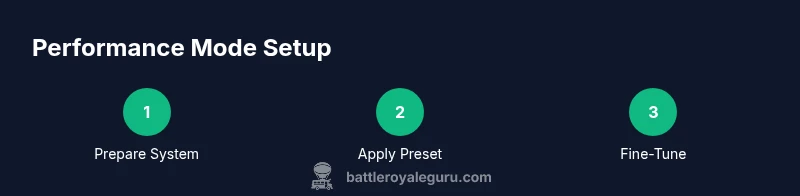
Update Fortnite and your graphics drivers. Verify hardware is within a comfortable FPS range on a standard scene. Close background apps and enable a high-performance power plan to minimize throttling.
Tip: Document your baseline FPS before changes so you can measure gains later. - 2
Open Settings and locate Performance options
Launch Fortnite, go to Settings > Video, and locate the Rendering/Performance option. If your build shows it, proceed to apply a Performance preset.
Tip: If the preset isn't available, skip to manual tuning in step 4. - 3
Apply the Performance preset
Select the Performance renderer or mode to quickly reduce workload. This should lower shadows and post-processing defaults, increasing FPS immediately.
Tip: Test videos or replays to verify stability after applying. - 4
Dial in core visuals
Fine-tune Shadows, Post Processing, Effects, and Textures to Low/Medium. Set View Distance to Medium if you notice popping or pop-in during fights.
Tip: Keep Motion Blur off for crisper aiming and motion clarity. - 5
Adjust frame rate and V-Sync
Set a stable Frame Rate Cap to match your monitor’s refresh rate. Disable V-Sync to reduce input lag.
Tip: If you see tearing, try a slightly higher cap before re-enabling V-Sync. - 6
Optimize background activity
Close nonessential background applications and disable background recording if not needed. Ensure Windows Power Plan is set to High Performance.
Tip: Restart Fortnite after applying these changes for best results. - 7
Test for stability
Play several matches on different maps to assess consistency. Use an FPS counter to log average FPS and 1% lows.
Tip: If you notice stuttering, refine the slider settings one at a time. - 8
Save your profile
Once you’re satisfied with the balance of performance and clarity, save the configuration as a Profile. Note changes for future sessions.
Tip: Revisit this profile after patches or driver updates; performance can shift after updates.
Questions & Answers
What is Fortnite Performance Mode?
Performance Mode is a rendering option that prioritizes frame rate by reducing post-processing effects and shadows. It helps improve smoothness on lower-end hardware while sacrificing some visual fidelity.
Performance Mode prioritizes stability and speed by reducing visuals, making it easier to play on slower systems.
Can I enable it on consoles?
Consoles may offer performance-preserving presets or platform-specific optimizations. Check Fortnite's settings and your console’s system updates for availability.
Consoles may provide a similar preset; look in game settings and system updates.
Will I lose too much visual quality?
Yes, there is a trade-off. You’ll sacrifice some shadows and post-processing effects. If visibility is critical, reduce changes gradually and test thoroughly.
There is a visual trade-off, but you can tune for a good balance between clarity and speed.
How do I verify FPS gains?
Use an FPS counter and track averages across multiple matches. Compare before and after enabling Performance Mode to confirm gains in smoothness and reduced stutter.
Use an FPS counter and compare several matches to confirm improvements.
Is Performance Mode required for competitive play?
Not required, but many players use it to improve consistency on lower-end hardware. In high-end setups, you may prefer higher visuals for accuracy.
It's optional; some players prioritize consistency on lower-end gear while others prefer visuals on better hardware.
Watch Video
Key Points
- Enable Performance Mode to boost FPS and responsiveness.
- Start with a preset, then fine-tune a few sliders.
- Test across maps and in different scenarios to ensure stability.
- Document settings for quick reapplication in future sessions.