How to Make Fortnite Less Laggy on PC: A Practical Guide
Learn practical, step-by-step strategies to reduce Fortnite lag on PC. Optimize hardware, network, in-game settings, and background processes for smoother gameplay in 2026.


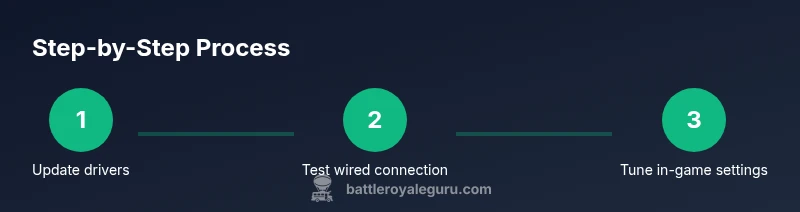
According to Battle Royale Guru, a layered optimization approach dramatically reduces Fortnite lag on PC. Start with updating drivers, securing a wired connection, and verifying game files. Then tailor in-game visuals for performance, optimize background processes, and ensure your power plan favors speed. Finally, monitor temps and test with regular latency checks to maintain smooth gameplay.
How to Make Fortnite Less Laggy on PC: Core Concepts
Fortnite lag on PC is rarely caused by a single issue. More often, it’s the result of several small factors stacking up: outdated drivers, an unstable network, conflicting background software, and overly aggressive in-game visuals. The goal is to create a balanced system that prioritizes consistent frame times over flashy settings. This guide follows a practical, evidence-based approach that Battle Royale Guru has found effective across dozens of player setups. By addressing hardware, software, network, and in-game configuration together, you’ll see more reliable performance even during chaotic in-game moments.
The core concept is to discretize the problem: fix the bottlenecks first, then tune the rest for stability. You’ll learn to verify progress with simple metrics (frame rate, input lag, and latency) and to maintain those gains as updates arrive. This is not about chasing unreal frame counts; it’s about steady, playable performance that keeps you competitive in battles.
Key takeaway: lag reduction is an iterative process. Small gains compound when you keep a steady routine of checks and adjustments. The Battle Royale Guru team recommends starting with the least invasive changes and progressing to targeted, data-driven tweaks.
Optimize Your PC for Gaming (Hardware & Drivers)
Hardware and driver health are the backbone of smooth Fortnite performance. Start by ensuring your GPU drivers are current, your CPU isn’t thermally throttling, and your storage drive isn’t congested with background tasks. Modern GPUs often release hotfixes that improve Fortnite compatibility or fix micro-stutter caused by driver bugs. Keeping drivers up to date reduces avoidable frame-time spikes and helps the game run more consistently during intense firefights. In parallel, confirm that your Windows power settings favor performance, and that you’re not accidentally using a battery or balanced plan on a desktop.
From a Battle Royale Guru perspective, a clean baseline matters more than a gimmick setting. If you’ve recently upgraded hardware, re-run driver checks and run a quick benchmark to confirm that everything is operating within normal ranges. If your hardware is older, enabling performance-oriented options in the BIOS (like resizable BAR where supported) can yield modest but meaningful gains without increasing risk.
If you notice stuttering after a patch, it may reflect background services re-indexing or telemetry tasks. Temporarily disabling non-essential services during a gaming session can help isolate the lag source. After testing, you can restore services or configure them to run only when Fortnite isn’t active.
Fortnite Settings in In-Game Tweaks
The in-game settings are a lever you pull carefully. Start with the lowest visual fidelity that still supports good visibility, then increase only what is necessary for comfort. Reducing view distance, shadows, anti-aliasing, and post-processing can dramatically lower GPU load and GPU-bound frame times. Enabling a borderless fullscreen window or exclusive fullscreen, depending on your setup, helps reduce input lag and improves focus during combat. If Fortnite offers a Performance mode or Low/Med/High presets, choose the one designed for smooth gameplay rather than photo-real quality.
For players using higher refresh-rate monitors, cap the frame rate to slightly above your monitor’s refresh rate to reduce GPU workload variance. This is especially helpful on mid-range PCs, where small fluctuations in frame time can feel worse than a fixed-but-lower frame rate. The goal is steady frame pacing, not peak FPS. Frequent in-game testing after each setting change is critical to understand its impact on your system.
Network and Connectivity Essentials
A stable network is often the single biggest determinant of perceived Fortnite lag. If possible, switch to a wired Ethernet connection. Wireless connections introduce jitter and variability in latency, which translates into stutter and delayed inputs. If you must use Wi‑Fi, place the router optimally, use the 5 GHz band when available, and minimize interference from other devices. Power-cycle your router and modem before long gaming sessions to reduce stale connections.
Quality of Service (QoS) settings on your router can prioritize gaming traffic, reducing packet loss during busy times. If your ISP provides a true static IP or a low-latency path to Epic Games services, consider using it for a more predictable route. Running a quick latency test to Fortnite’s regional servers can help you choose the best server region for your location. When you see spikes, measure your ping to a nearby server and compare it to the typical baseline to confirm that latency is the culprit rather than a local device bottleneck.
Battle Royale Guru analysis shows that even small network improvements—such as a stable wired connection and reduced background traffic—can translate into noticeably smoother matches. Keeping your router firmware updated and limiting other high-bandwidth activities on your network during play are simple but powerful steps.
Visuals, Resolution, and Frame Rate Targets
Resolution and graphic fidelity influence more than just how Fortnite looks; they determine how heavy the engine must work to render each frame. For most players, a balance that favors consistent frame times over maximum sharpness yields the best experience. Aim for a native resolution that your GPU can sustain with stable frame pacing, and use a fixed refresh rate in-game that matches your monitor’s capabilities. If you run into foggy textures or occasional micro-stutter, drop a quality slider by one notch and Retest to see if it stabilizes frame times.
Use the in-game frame rate cap to avoid excessive GPU power draw during non-action moments. A consistent 60 FPS on a 60 Hz monitor is typically smoother than fluctuating 90–120 FPS on a 60 Hz display, due to time-based input lag. If you own a high-refresh monitor, you may experiment with 120 FPS or higher, but only if your system consistently sustains it. Monitor your GPU temperatures to ensure that higher frame rates don’t push your hardware into thermal throttling, which can produce intermittent lag.
Background Applications and System Hygiene
Background processes can quietly drain CPU time, memory, and disk I/O, leading to stuttering and longer load times. Clean up startup programs and schedule non-urgent background tasks for off-hours. Temporarily disabling overlays, recording software, or GPU-heavy utilities while playing Fortnite can yield measurable improvements in frame timing and input responsiveness. Use Task Manager or a trusted third-party tool to identify resource-heavy processes and determine whether they are essential during gaming.
Disk health also matters. If your primary drive is nearly full or heavily fragmented (on older HDDs), Fortnite’s load times and texture streaming can suffer, which leads to moments of lag right before battles. If possible, install Fortnite and its related assets on a fast SSD. Regular maintenance like disk cleanup, defragmentation (for HDDs), and trimming (for SSDs) helps sustain performance over time.
Monitoring and Troubleshooting Lag Symptoms
A proactive monitoring routine is your best ally for lag. Use lightweight monitoring tools to observe CPU/GPU temperatures, framerate consistency, and memory usage during matches. Look for patterns: is lag always occurring after a long gaming session, when a particular area loads, or after a patch? Document these observations so you can compare changes with results after each tweak. If you notice persistent high latency relative to your baseline, try a short network reset (power-cycle the router) and test again.
If stutters coincide with certain in-game actions—such as using a weapon or entering a new zone—it could suggest a texture streaming bottleneck or a driver interaction with certain shaders. In these cases, reduce draw distances, adjust texture settings downward, and retest. The aim is to identify whether the lag is GPU- or network-driven and to apply the right targeted fix.
Common Mistakes That Cause Lag and How to Avoid Them
- Over-reliance on ultra-high settings: Higher visuals don’t always equal better performance; aim for a consistent frame time, not a higher frame count.
- Neglecting driver updates: Regular updates fix compatibility issues and performance regressions.
- Ignoring background processes: Automated software and cloud syncs can steal bandwidth and CPU cycles at critical moments.
- Using wireless networking when wired is possible: Wi-Fi introduces jitter that hurts input lag and stability.
- Skipping game file verification after patches: Corrupt or missing files can cause stutters and failed texture loads.
By avoiding these common traps and maintaining a clear baseline, you’ll keep Fortnite lag under control across updates and hardware configurations.
Long-Term Maintenance: Keeping Fortnite Lag-Free Across Updates
Editor’s note: Fortnite releases frequent updates that can temporarily alter performance characteristics. Establish a routine to re-check drivers, verify game files after every patch, and review your in-game preset one-by-one after updates. A quarterly hardware health check—thermal testing, fan calibration, and storage health review—helps prevent surprises during peak play periods. Keeping a log of changes and their effects makes it easier to replicate success in future seasons.
The goal is sustainable performance rather than one-off wins. The Battle Royale Guru team emphasizes consistency: run the same checks after major updates, ensure your system remains clean of bloatware, and maintain a stable, low-latency network path to Epic Games services. With discipline and deliberate testing, you’ll keep Fortnite running smoothly through the 2026 season and beyond.
AUTHORITY SOURCES
- FCC.gov – Network considerations for low-latency online gaming
- NIST.gov – Guidelines for reliable, low-latency computing environments
- CNET.com – Practical gaming PC optimization tips for performance and stability
CONCLUSION TIP
The Battle Royale Guru recommends implementing a structured, repeatable optimization routine. Start with the essentials, verify impact with measurable metrics, and adjust incrementally. This approach minimizes risk and maximizes the chance of maintaining a lag-free Fortnite experience on PC across updates.
toolsMaterials
Tools & Materials
- Updated GPU drivers(From NVIDIA/AMD/Intel; ensure latest WHQL drivers installed)
- Wired internet connection(Ethernet preferred; test latency to Epic servers (aim for < 50–60 ms))
- Fortnite game files verified(Epic Games Launcher > Library > Verify)
- Background process manager(Close non-essential apps during gaming (browser updates, file syncing))
- Power plan set to High performance(Windows: Control Panel or Settings > Power & sleep > Additional power settings > High performance)
- In-game performance presets(Choose Performance mode or Low/Medium presets if available)
- Monitoring software (optional)(MSI Afterburner, HWInfo, etc., to track temps and FPS)
Steps
Estimated time: 60-90 minutes
- 1
Update drivers and verify system health
Start by updating your GPU drivers and ensuring Windows is fully updated. A clean driver baseline reduces the risk of compatibility issues and random lag spikes during intense firefights. After updating, reboot and run a quick performance check to confirm stability.
Tip: Restart after driver install to ensure all components load correctly. - 2
Secure a wired network and test latency
Connect your PC via Ethernet if possible. Run a latency test to Fortnite regional servers and note your ping. If your wireless is your only option, optimize router placement and channel selection to minimize interference.
Tip: If you must use Wi‑Fi, keep the router close and use 5 GHz with minimal wall obstructions. - 3
Verify Fortnite game files and integrity
Open the Epic Games Launcher, navigate to Library, and verify Fortnite. This replaces any corrupted assets that could cause stuttering or texture pop-in during matches.
Tip: Do this after big patches or if you notice abnormal loading delays. - 4
Set Windows power plan to High performance
Change your Windows power settings to High performance to prevent CPU throttling during peak moments. This ensures the CPU can sustain consistent work when your game needs it most.
Tip: If you’re on a laptop, plug in and disable battery-saver modes while playing. - 5
Close unnecessary background apps
End non-critical processes that consume CPU, memory, or disk bandwidth. The goal is to free up resources for Fortnite and reduce frame-time jitter from competing tasks.
Tip: Use Task Manager (Ctrl+Shift+Esc) to identify resource-heavy apps. - 6
Tune in-game visuals for performance
Lower view distance, shadows, post-processing, and anti-aliasing. Enable fullscreen and consider a cap on FPS to stabilize frame timing. Test each change to gauge impact on both visuals and performance.
Tip: Document settings before/after testing to compare results. - 7
Optimize texture streaming and data rates
If Fortnite offers texture streaming or data-rate adjustments, set them to balanced or performance modes. This reduces GPU texture work and helps prevent micro-stutters when new areas load.
Tip: Avoid enabling too-high texture detail if you’re GPU-constrained. - 8
Monitor temps and run a final latency check
Play a few matches and monitor GPU/CPU temperatures; if temps rise quickly or levels exceed safe ranges, pause and cool down. Run another latency check to confirm improvements in real-world play.
Tip: Keep a small fan nearby or improve case airflow if temps creep upward.
Questions & Answers
What causes Fortnite lag on PC?
Lag is usually due to a mix of hardware bottlenecks, network latency, and in-game settings. CPU or GPU throttling, background processes, and unstable connections can all contribute to stuttering and frame-time spikes.
Most lag comes from a combination of hardware, software, and network factors. Start by ruling out drivers, then optimize settings and your connection.
Is a wired connection always better for Fortnite lag?
A wired Ethernet connection generally provides the most stable latency and reduces jitter compared with Wi‑Fi. If you must use Wi‑Fi, optimize placement and use 5 GHz where possible.
Yes—wired connections offer the most predictable latency for online games like Fortnite.
Should I lower my resolution to fix lag?
Lowering resolution can improve frame rates on underpowered rigs, but it doesn’t always reduce input lag. Focus on frame-time consistency first, then adjust resolution if needed for stability.
Lowering resolution can help if your GPU is struggling, but prioritize stable frame timing first.
Can Fortnite lag be caused by servers?
Server-side issues can cause lag, especially during peak times or patches. Check official server status and community reports, but most improvements come from client-side optimizations.
Sometimes the issue is on Epic's side; server status checks can confirm this.
Does enabling Performance Mode help on PC?
If available, Performance Mode reduces visual fidelity in favor of higher frame rate and lower input lag. Test to see if it improves your in-game smoothness.
Performance mode can help if your PC struggles with the highest settings; try it to see if frame timing improves.
Watch Video
Key Points
- Prioritize a stable baseline (drivers, network, power plan).
- Tune in-game settings for consistency over peak FPS.
- Keep background tasks lean during gaming sessions.
- Verify game files after patches to prevent lag from corrupted assets.
- Maintain a simple, repeatable optimization routine for ongoing performance.