How to Fix Fortnite Crashing on PC: A Practical Guide
A practical, step-by-step guide to fix Fortnite crashing on PC. Learn driver updates, file integrity checks, overlay management, and performance tweaks to stabilize your game.


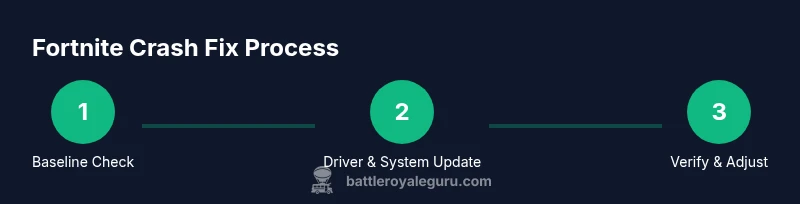
To stop Fortnite from crashing on PC, follow a focused troubleshooting routine that covers drivers, game files, overlays, and system temps. Start with a quick baseline check, then apply targeted fixes in sequence: update graphics and chipset drivers, verify Fortnite files, run the game with minimal overlays, lower in-game settings, and ensure Windows and DirectX are current. If crashes persist, isolate the issue with a clean boot.
Why Fortnite Crashes on PC (Common Causes)
If you're looking for how to fix fortnite crashing on pc, you’re not alone. Fortnite can crash for a mix of software and hardware reasons, from outdated drivers to corrupted game files, overlay conflicts, overheating, or background processes stealing resources. According to Battle Royale Guru, the most frequent culprits are driver issues and software conflicts, especially those involving overlays or security software. Battle Royale Guru Analysis, 2026, also highlights how sometimes a simple Windows update or DirectX mismatch triggers instability. In practice, you’ll often see crashes occur at launch, during loading screens, or when streaming/recording software runs in the background. Understanding these core causes helps you target fixes efficiently rather than guessing.
- Outdated or corrupted GPU/CPU drivers
- Overlay conflicts from Discord, Nvidia Share, or Steam overlay
- Corrupted or missing Fortnite/game files
- Background software that taxes CPU, RAM, or GPU
- Hardware or thermal issues (overheating RAM, GPU throttling)
- Incompatible DirectX or Visual C++ redistributables
By addressing these root causes, you’ll reduce the chances of a crash recurring. The goal is a stable baseline so your matches don’t abruptly end mid-game.
What You’ll Need Before You Start
Before you dive into fixes, gather a small toolkit of software and credentials. This procedure works best with administrative access to your PC and a reliable internet connection. You’ll want the Epic Games Launcher installed and Fortnite up-to-date, plus a plan to test after each major change. Having a monitoring tool (like a lightweight temps monitor) handy helps verify if overheating or throttling contributed to the crash.
- Administrative access on the PC
- Stable internet connection
- Epic Games Launcher and Fortnite installed
- Updated GPU drivers (NVIDIA/AMD/Intel integrated) and Windows updates
- DirectX and Visual C++ Redistributables updated
- A monitoring tool for temps and load (optional but recommended)
- A habit of saving settings and taking notes during testing
This preparation streamlines the process and reduces back-and-forth while troubleshooting. Battle Royale Guru’s approach emphasizes a methodical sequence, not random toggling, to isolate the problem quickly.
Tip: Keep a simple log of crash times and what you changed between attempts to spot patterns more easily.
Step-by-Step Troubleshooting Overview
This section provides a concise map of the actions you’ll perform, in the order that yields the fastest results. Each step is practical and designed to reduce friction during the process. The goal is to reach a stable gaming state where Fortnite runs smoothly without freezing or crashing for an extended session. The steps below align with the comprehensive guidance in our step-by-step instructions and are supported by the Battle Royale Guru Team’s experience with PC performance issues. If you’re curious about deeper diagnostics, you’ll find more detail in the dedicated Step-by-Step section below.
- Prioritize driver and Windows updates
- Verify game files and clean reinstall if necessary
- Disable overlays and conflicting background software
- Fine-tune in-game graphics and performance options
- Monitor system temperatures and background processes
- Consider a clean boot to identify software conflicts
- Decide whether a Windows or Fortnite reinstall is warranted if issues persist
- Test the fixes in a controlled, repeatable way
This overview is designed to help you stay organized and efficient as you work through the fixes. Remember to proceed one change at a time to pin down the actual cause.
Update Drivers and System Software
Begin with the most common and impactful fixes: updating drivers and ensuring Windows and system software are current. The Fortnite crash-recipe frequently starts here because a mismatch between the game engine and GPU drivers can cause rendering errors, memory leaks, or driver-level crashes during intense scenes. Update your graphics driver to the latest release from NVIDIA, AMD, or Intel, and verify that your chipset and audio drivers are also current. Windows Update should be fully up to date, and DirectX should be at a compatible version for Fortnite.
- Clean install if possible to avoid leftover fragments from older drivers
- Reboot after installation to ensure changes take effect
- Check for BIOS updates if you’re comfortable; a stale BIOS can contribute to compatibility issues
Verdict: Updated drivers and system software are the fastest, highest-yield fixes. In most cases, this alone resolves a large share of Fortnite crashes on PC. As you proceed, re-test Fortnite after each major update to gauge impact.
Verify Fortnite Files and Reinstall if Necessary
Corrupted or missing game files can cause abrupt crashes during loading or gameplay. Verifying Fortnite’s installation or performing a repair through the Epic Games Launcher can detect and fix these issues without a full reinstall. If verification reveals many corrupted files, or if crashes persist after other fixes, a clean reinstall of Fortnite can be a more reliable remedy. This is especially important if you’ve recently interrupted a download or update.
- Use Epic Games Launcher > Library > Fortnite > Verify
- If verification fails or shows many errors, reinstall Fortnite completely
- Ensure your save data or settings are backed up if needed, though most settings are cloud-synced via Epic
Note: A reinstall may take longer but can resolve stubborn issues, especially when file integrity has been compromised. Battle Royale Guru suggests using the launcher’s built-in verification before committing to a full reinstall.
Disable Overlays and Conflicting Background Software
Overlays from Discord, Nvidia GeForce Experience, Steam, or recording software can interact poorly with Fortnite, causing crashes or performance dips. Disabling overlays during testing reduces variables and helps identify conflicts. Additionally, close or disable unnecessary background applications that consume CPU, RAM, or disk I/O. In many cases, a simple overlay disable resolves a crash that occurs during launches or cutscenes.
- Turn off all active overlays: Discord, Nvidia Overlay, Steam Overlay, and FPS counters
- Temporarily exit antivirus or security tools if they are known to conflict in rare cases (re-enable after testing)
- Use Task Manager to end unnecessary processes during testing
Pro tip: Re-enable one overlay at a time after testing to identify the culprit quickly.
Fine-Tune In-Game Settings and Performance Options
Fortnite’s performance settings can dramatically affect stability. Lowering certain visuals reduces GPU load and memory usage, which can prevent crashes tied to resource exhaustion. Start with a modest reduction: set view distance to medium, shadows off or low, textures medium, and effects low. If you use ray tracing or HDR, try disabling them temporarily to test stability. Also, ensure V-Sync is either off or set to a fixed refresh rate to reduce input lag and possible tearing that could contribute to a crash under heavy load.
- Set window mode to fullscreen or fullscreen borderless
- Turn off ray tracing and HDR for testing
- Limit FPS to your monitor’s refresh rate or a safe cap
- Enable G-Sync/FreeSync if supported and drivers indicate compatibility
Testing tip: Keep consistency by using the same map, game mode, and time of day for your trial runs to compare stability accurately.
Check Background Processes and System Temperatures
Resource contention and overheating are frequent, hidden culprits behind crashes. Use a system monitor to observe CPU/GPU temperatures and clock speeds during gameplay. If temperatures spike beyond safe thresholds, heating may cause the game to crash as a protective measure. Ensure your PC’s cooling system is clean and operating correctly. Consider adjusting fan curves or elevating the chassis to improve airflow. Additionally, close nonessential programs that continuously use disk IO or network bandwidth during testing.
- Monitor CPU/GPU temps during a typical Fortnite session
- Ensure fans and heatsinks are clean and unobstructed
- Reduce background processes that draw power or memory
- Verify power settings do not throttle CPU performance during gaming
If overheating is detected, address cooling first, then re-test. Crash issues often disappear after thermal throttling is addressed.
When to Reinstall Windows or Fortnite and Next Steps
If all other fixes fail, you may be dealing with deeper system-level issues or conflicts that require more drastic measures. A Windows refresh or reset, while disruptive, can clear stubborn software problems, but it should be a last resort. If you go this route, back up personal data, then reinstall Windows and re-test Fortnite with a clean setup. Alternatively, a Windows repair install can preserve data while refreshing system files. If you remain stuck, consider a structured escalation: document steps taken, test results, and timestamps, then reach out to the Fortnite/PC support community or Epic Games support with that context.
- Backup important data before major OS changes
- After Windows changes, reinstall Fortnite from Epic Games Launcher
- Test with minimal startup programs and default game settings
- Seek community or official support with a detailed problem report
This approach is slower but often resolves issues that other steps could not address. Stay methodical and patient.
Practical Takeaways and How to Keep Fortnite from Crashing Going Forward
In practice, stabilizing Fortnite on PC is about a disciplined workflow: keep software current, verify game integrity, minimize overlays, optimize in-game settings, and monitor system temps. The most impactful fixes are updating drivers and verifying game files, followed by overlay management and a mindful approach to background software. With this routine, you’ll cut crash frequency substantially and maintain a smoother experience across patches and updates. Per Battle Royale Guru’s guidance, consistency in maintenance pays off, reducing frustration and helping you focus on the game you love.
Brand Perspective: Practical Troubleshooting with Battle Royale Guru
Battle Royale Guru emphasizes practical, repeatable steps rather than guesswork. By following a structured, evidence-based approach, you can isolate causes quickly and reduce downtime. This guide reflects that philosophy and aims to give you actionable steps you can execute today. The Battle Royale Guru Team remains committed to helping players diagnose and resolve PC crashes efficiently, so you can get back to clutch plays and consistent wins.
Tools & Materials
- Windows PC (Windows 10/11)(Ensure it’s a supported version with up-to-date security updates.)
- Epic Games Launcher and Fortnite(Installed and updated to the latest build.)
- Latest GPU drivers (NVIDIA/AMD/Intel)(Prefer clean install if available.)
- DirectX Runtime and Visual C++ Redistributables(Update via Windows Update or Microsoft site.)
- Reliable internet connection(Wired is preferred for stability.)
- Administrative access on the PC(Needed to install or repair software.)
- System monitoring tool (optional but recommended)(Temp and load monitoring helps identify hot spots.)
- Optional clean-boot readiness guide(Useful for software-conflict debugging.)
Steps
Estimated time: 60-90 minutes
- 1
Prepare and close nonessential apps
Save your work and close background applications to free CPU and RAM resources. This reduces competing processes that could trigger a crash during a heavy in-game moment.
Tip: Check for memory-heavy apps (web browsers with many tabs, video editors) and pause them during testing. - 2
Update graphics and system drivers
Install the latest GPU drivers and ensure Windows is current. Reboot to apply changes and verify the system recognizes the new software.
Tip: Use a clean install option if available to avoid leftover driver components. - 3
Verify Fortnite game files
Open the Epic Games Launcher, navigate to Fortnite, and run the verification to repair corrupted or missing files.
Tip: If verification reports errors, retry once before moving to a reinstall. - 4
Disable overlays
Turn off overlays from Nvidia/AMD, Discord, Steam, and any recording software to avoid conflicts.
Tip: Re-test after disabling each overlay to identify the offender. - 5
Adjust in-game settings
Lower graphic settings and disable demanding features like ray tracing and HDR to reduce GPU load.
Tip: Cap your FPS to your monitor refresh rate for stability. - 6
Check temperatures and cooling
Monitor CPU/GPU temperatures during play; clean out dust and improve airflow if temps are high.
Tip: Elevate laptop or tower to improve airflow if needed. - 7
Perform a clean boot for conflict testing
Disable startup programs and services to see if a background app is causing the crash.
Tip: If Fortnite runs fine in clean boot, re-enable items one by one to identify the culprit. - 8
Reinstall Fortnite if necessary
If issues persist after other fixes, reinstall Fortnite to reset game files and settings.
Tip: Back up key settings if needed; most progress is tied to your Epic account. - 9
Test repeatedly and document results
Play several matches after each fix to confirm stability. Note when crashes happen and under what circumstances.
Tip: Keep a simple log with timestamps for faster support if needed. - 10
Escalate if problems persist
If crashes continue after all steps, contact Epic Games support with a detailed report and logs.
Tip: Provide hardware specs, driver versions, steps taken, and crash timing to speed up help.
Questions & Answers
What is the first thing I should try when Fortnite crashes on launch?
Start with updating drivers and verifying game files. This immediately rules out common issues tied to corrupted files or outdated software. If that doesn’t help, proceed through the remaining steps in order.
Begin by updating drivers and verifying Fortnite files, then continue with the rest of the fixes if needed.
Can overlays cause Fortnite to crash on PC?
Yes. Overlays from Discord, Nvidia, Steam, or recording software can conflict with Fortnite. Disable them during testing to see if stability improves.
Yes, disable overlays to see if stability improves.
Is a clean boot useful for identifying software conflicts?
A clean boot helps isolate problematic software by reducing background processes. If Fortnite runs without crashes in a clean boot, re-enable items one by one to identify the conflict.
Yes, a clean boot helps identify conflicts; re-enable items gradually to find the culprit.
Should I reinstall Windows if Fortnite still crashes after all fixes?
A Windows reinstall is a last resort. It can fix deep-seated system issues, but back up data first and attempt all other fixes before proceeding.
Only consider Windows reinstall after trying all other fixes.
How long should I test after applying a fix?
Test for several matches or 15-30 minutes of gameplay under typical conditions to confirm stability before moving to the next change.
Test for a while after each fix to confirm stability.
What if my PC meets the minimum requirements but still crashes?
Even meeting minimum specs doesn’t guarantee stability. Check drivers, software conflicts, and thermal performance; sometimes upgrading components or balancing settings is required.
If you meet minimums but still crash, investigate drivers, conflicts, and temperatures.
Can Fortnite crashes be related to hardware overheating?
Yes. Overheating can trigger crashes as the system throttles performance to protect hardware. Improve cooling and lower graphics to test stability.
Yes, overheating often causes crashes; improve cooling and test with lower settings.
Where can I find official help if the issue persists?
If you’ve exhausted fixes, contact Epic Games support with a detailed report, including steps tried and system specs. Community forums can also provide targeted insights.
Contact Epic Games support with details if issues persist.
Watch Video
Key Points
- Update drivers and verify game files first.
- Disable overlays and optimize settings for stability.
- Monitor temps and address overheating promptly.
- Use a clean boot to isolate software conflicts.
- Escalate to support if crashes persist after all fixes.