How to Fix Fortnite: A Practical Troubleshooting Guide
A comprehensive, step-by-step guide for fixing Fortnite issues, from launch problems to lag and crashes. Learn practical checks, updates, network fixes, and performance tweaks to get back into the action in 2026.


By following a step-by-step fix, you will repair Fortnite issues and return to play quickly. This quick guide covers verifying requirements, updating software, testing your network, and adjusting in-game settings. According to Battle Royale Guru, a disciplined troubleshooting flow reduces crashes and lag, especially after patches. Keep this page handy during Downtime and updates.
Identifying Fortnite issues: symptoms, logs, and common culprits
Fortnite players report a spectrum of issues: crashes to desktop, stuttering frames, long load times, and intermittent disconnects. Start by noting when the issue happens—at startup, mid-game, after a patch, or during matchmaking. Check any error codes in the launcher or in-game logs; those signals point to likely culprits: out-of-date drivers, corrupted files, a flaky network, or conflicting background software. If you can reproduce the problem with a simple test (e.g., a quick bot match), you’ll narrow your suspect list fast. Battle Royale Guru Analysis, 2026 indicates that players who follow a structured troubleshooting flow report smoother gameplay and quicker recovery after updates.
Verify System Requirements, Game Version, and Integrity
Before you panic, confirm your device meets Fortnite's recommended specs and that you’re on the latest patch. Open your system settings to verify OS version, available disk space, and RAM, then check Fortnite patch notes for known issues. In the Epic Games launcher, use the Verify option to check game files; this re-downloads missing or corrupted assets. Clearing temporary data can also help; ensure you have backups of saved settings if applicable. If your hardware is borderline, reducing in-game resolution and texture quality can stabilize performance without sacrificing too much visual fidelity.
Network and Server Troubleshooting
A poor or unstable connection is a frequent cause of Fortnite problems. Run a speed test and ping test to determine latency, jitter, and packet loss. If you’re on Wi‑Fi, switch to a wired Ethernet connection when possible, reset your router, and disable VPNs or proxy services during gameplay. Consider switching DNS to a fast public resolver (e.g., 1.1.1.1) and ensure your firewall isn’t blocking Fortnite's traffic. If servers are experiencing issues, check official status pages and plan gameplay around lower-traffic windows. Battle Royale Guru analysis shows that stable networks dramatically reduce disconnects and input lag.
In-Game Settings and Performance Tweaks
Tweaking settings can yield large gains in FPS and responsiveness without a hardware upgrade. Start with a Performance or Low Quality preset, reduce shadows, textures, and post-processing effects, and cap your FPS to match your display’s refresh rate. Enable Motion Blur or V-Sync only if you notice tearing; otherwise, disable them for smoother input response. On consoles, use the built-in performance modes and adjust resolution scaling to balance clarity with frame rate. These adjustments often fix stuttering and dips during intense battles.
Cache, Logs, and Reinstallation Best Practices
If issues persist after the previous steps, clear Fortnite caches and temporary files. Use the launcher’s verify tool, delete temporary files, and restart the device. For persistent problems, a clean reinstall can resolve stubborn corruption, but back up saves and note your account details before uninstalling. After reinstall, launch the game fresh and test with a few practice matches to confirm stability.
Preventive Maintenance and Updates
Schedule regular maintenance to prevent future problems: enable automatic updates, clear caches periodically, and monitor system temperatures during long play sessions. Keep graphics drivers and the OS current, and review patch notes for any known issues or recommended workarounds. Regular rechecks of your network and devices will reduce surprise outages and keep Fortnite running smoothly during major updates.
Tools & Materials
- PC or Console(Ensure device meets Fortnite requirements.)
- Stable Internet Connection(Wired Ethernet recommended; test latency.)
- Latest Fortnite Patch(Check for automatic updates.)
- Updated GPU/CPU Drivers(Keep drivers current for best performance.)
- Power Backup and Cooling(UPS and ventilation reduce crashes.)
- Optional Cache/Repair Tools(Disk cleanup or launcher repair utilities.)
Steps
Estimated time: Estimated total time: 60-90 minutes
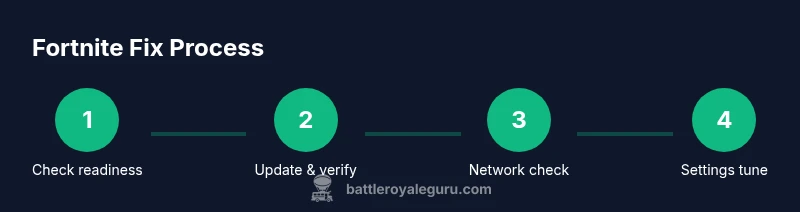
- 1
Check device meets Fortnite requirements
Open official requirements and compare CPU, GPU, RAM, and storage against the game’s minimum and recommended specs. Ensure your OS version supports the latest patch. Confirm you have enough free disk space to install and run Fortnite smoothly.
Tip: Use the official spec guide as your baseline before changing anything. - 2
Update Fortnite, OS, and drivers
In the Epic Games launcher, check for Fortnite updates and apply them. Update your operating system and GPU drivers to the latest versions. Restart your device after updates to ensure changes take effect.
Tip: Always restart after updates to apply changes fully. - 3
Verify game files and repair installation
Run the launcher’s verify/repair tool to scan for corrupted files and re-download missing assets. If verification fails, consider a full reinstall. Ensure you have administrative permissions if prompted.
Tip: Run as administrator if you encounter permission prompts. - 4
Test and optimize network connection
Test your ping and stability to Fortnite servers. If possible, switch to a wired connection and disable VPNs. Restart router and consider DNS changes to improve routing.
Tip: Aim for ping under 50 ms and low jitter if you want smooth gameplay. - 5
Tune in-game settings for performance
Switch to a Performance mode preset or manually lower shadows, textures, and effects. Set a frame rate cap matching your monitor and enable fullscreen for reduced input lag. Adjust resolution scaling to balance clarity with FPS.
Tip: Prefer performance presets over aggressive visuals for stability. - 6
Clear cache and repair data, then reinstall if needed
Clear Fortnite cache and temporary files, then re-run the game to test. If problems persist, uninstall and reinstall Fortnite carefully, preserving important saves where applicable.
Tip: Back up saves or configurations if the game stores them locally. - 7
Test stability after fixes
Launch several quick matches to observe stability. Note any recurring issues and links to specific steps you took. If all looks good, you’re ready to play normally.
Tip: Keep a small log of fixes that worked for future reference.
Questions & Answers
Why won't Fortnite launch on my PC or console?
Launch issues often come from outdated software, corrupted files, or blocked connections. Start by updating Fortnite and your system, then verify game files. If it still won’t start, check firewall rules and run a quick repair.
If Fortnite won't launch, update and verify first, then check firewall and try a repair.
Why is my ping so high in Fortnite?
High ping usually indicates network routing or interference. Test with a wired connection, minimize background usage, and consider changing DNS or restarting your router. If server-side issues exist, wait for them to stabilize.
High ping often comes from network issues; try wired, restart, and check server status.
What should I do if Fortnite crashes during a match?
Crashes during a game can result from overheating, driver issues, or corrupted files. Update drivers, reduce graphics load, verify files, and consider a reinstall if crashes persist.
If it crashes mid-game, update drivers and verify files, then adjust settings.
How can I improve FPS in Fortnite on PC?
Improve FPS by using a Performance preset, lowering textures and shadows, and capping FPS to your monitor’s refresh rate. Ensure drivers and OS are current.
To boost FPS, use performance presets and keep drivers updated.
Is reinstalling Fortnite safe for my progress?
Reinstalling Fortnite is generally safe; most progress is tied to your Epic account. Back up saves and note your account details before uninstalling.
Reinstalling is usually safe; your progress is linked to your account.
Watch Video
Key Points
- Verify requirements and patch status first.
- Update all software before changing graphics settings.
- Stabilize network connection prior to performance tweaks.
- Repair or reinstall only after clearing caches.
- Test the game after each fix to pinpoint the cause.