What to Do When You Get Fortnite: A Practical Troubleshooting Guide
A comprehensive, step-by-step troubleshooting guide for Fortnite players. Learn how to diagnose issues, recover from errors, and prevent future problems across PC, console, and mobile with clear, actionable steps.


When Fortnite glitches or you encounter errors, your first goal is session stability and issue identification. What to do when you get fortnite: confirm your connection, check server status, and run a structured recovery flow from basic to advanced steps. This quick answer outlines a practical path for PC, console, and mobile players.
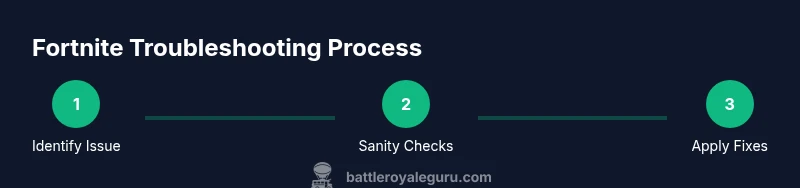
Identify the exact issue: lag, crashes, or login problems
Begin by categorizing the problem: is Fortnite lagging, crashing, failing to launch, or you can’t log in? This step establishes the scope so you can tailor fixes. Note whether the issue is persistent (occurs every launch) or intermittent (random). Check recent changes on your device, such as new drivers, Windows updates, or system overlays. Also ask if the issue happens only in Fortnite or across other online games or apps. This helps distinguish client-side problems from server-side outages. If you notice high ping or packet loss on speed tests, your network is likely the bottleneck. Battle Royale Guru analysis suggests starting with network checks before touching game files.
Quick sanity checks you can do before diving deeper
Before you dive into deeper fixes, run through a quick checklist that often resolves common issues. Verify Fortnite server status on official channels, clear the game cache, and ensure you’re running the latest version. Close background apps that might steal memory or bandwidth, disable VPNs or proxies, and test a different network (mobile hotspot or another Wi‑Fi). If you’re on console, check storage space and temporarily disable any overlays. These early steps reduce noise and help confirm where the fault lies.
Step-by-step recovery flow: from basic to advanced
Adopt a layered approach that starts with the least invasive fixes and gradually moves to more involved ones. First, restart Fortnite and your device, then check for platform and game updates. Validate your game files or perform a clean reinstallation if integrity checks fail. Clear caches and reset network equipment, such as rebooting the router. Lower in-game settings to reduce GPU load, disable overlays, and ensure you’re not running conflicting software. Only reinstall Fortnite if all other steps fail and you’ve backed up critical data. This flow minimizes downtime while preserving your progress.
Common Fortnite-specific troubleshooting for PC, console, and mobile
Different platforms have distinct quirks. On PC, check driver versions, Windows updates, and firewall rules. On consoles, ensure firmware is current and storage isn’t full; on mobile, verify OS version compatibility and app permissions. For cross-platform play, verify your Epic Games account status and ensure you’re signed in on the target device. If crossplay is causing issues, temporarily disable crossplay to test stability. Remember, platform-specific caches and overlays often trigger unique problems that aren’t present on other devices.
How to fix common error codes and messages
Error codes usually indicate a root cause: network, installation, or account issues. For errors related to connectivity, focus on router settings, DNS, and NAT type. If installation errors occur, re-download or repair the game files and ensure sufficient disk space. For login or account errors, reset your password via the official portal and verify email ownership. Keep a log of the exact error text and timestamp to aid support if needed. Clear error history and test after each targeted fix.
Best practices for preventing future issues
Proactively maintaining your setup reduces recurring problems. Keep drivers and the game up to date, run periodic integrity checks, and back up configurations. Use a stable network with QoS rules for gaming, and avoid bandwidth-heavy tasks during play. Schedule regular restarts of your router and device to clear memory leaks. Maintain a clean system by removing unnecessary background processes and malware scans. These habits build resilience and improve long-term reliability.
When to seek help and how to document your issue
If problems persist after a structured flow, collect evidence before contacting support. Note your device model, OS version, Fortnite build, network environment, and steps you’ve already tried. Include screenshots or screen recordings of error messages, server status pages, and latency graphs. Contact Fortnite Support or Epic Games with a concise report that includes your logs and timestamps. A well-documented issue speeds up troubleshooting and reduces back-and-forth.
Optimizing network setup for Fortnite
A stable network is the backbone of a smooth Fortnite experience. Use a wired Ethernet connection where possible or place you closer to the router to minimize interference. If you must use Wi‑Fi, choose a 5 GHz band, enable QoS for gaming, and reduce competing devices. Set a consistent DNS (like a reputable resolver) and avoid VPNs that add extra hops. Test latency with ping and traceroute to identify bottlenecks, then apply device-specific optimizations for your router.
Safety and account security during troubleshooting
Only use official channels for passwords and account recovery. Do not share your password, and beware phishing attempts that imitate Fortnite support. If you suspect account compromise, enable two-factor authentication and review recent login history. Keep your Epic Games account information secure and avoid third-party tools that claim to optimize Fortnite performance but are unsafe. Protecting your account ensures you don’t lose progress or access during a fix.
Tools & Materials
- Stable internet connection(Wired Ethernet or reliable Wi‑Fi with at least 25 Mbps)
- Fortnite client installed(Latest version on your platform)
- Device/console or PC(Primary playing device ready)
- Router settings access(Admin access helpful for QoS/firewall tweaks)
- Power cycle capability(Ability to restart router/modem and device)
- Backup data(Backups of saves/configs (optional))
Steps
Estimated time: 30-60 minutes
- 1
Prepare your environment
Close unnecessary applications, save work, and ensure all devices are plugged in. Disable overlays that might conflict with Fortnite. This reduces background interference and improves diagnostic clarity.
Tip: Close nonessential apps and check that your device isn’t thermal throttling. - 2
Check Fortnite server status
Verify if the issue is on your side or server-side by checking official Fortnite server status pages and social channels. If servers are down, you’ll typically see widespread reports and official notices.
Tip: Bookmark the official status page for quick reference during play sessions. - 3
Update Fortnite and platform OS
Install any available Fortnite updates and ensure your operating system or console firmware is current. Restart the system after updates to apply changes cleanly.
Tip: Reboot devices after updates to avoid stale processes. - 4
Verify files and reinstall if needed
Use the platform’s verify integrity feature to check Fortnite files. If issues persist, consider a clean reinstall to remove corrupted files, after backing up saves where possible.
Tip: Back up important settings before reinstalling. - 5
Reset network settings
Power cycle your router and modem. If possible, switch to a wired connection or test on a different network to rule out local network faults.
Tip: Temporarily disable VPNs or proxies that may cause routing issues. - 6
Adjust in-game settings for stability
Lower graphics quality, reduce draw distance, and disable features that tax the GPU. Turn off V-Sync and reduce background overlays to improve performance.
Tip: Test performance after each change to identify the most impactful setting. - 7
Test and iterate
Launch Fortnite and test after each fix. If the issue returns, revisit earlier steps and re-evaluate potential triggers like recent software installs.
Tip: Keep a brief log of steps and outcomes for quick reference. - 8
Escalate when needed
If nothing works, collect logs, screenshots, and latency data, then contact support with a concise report. Escalation is the path when root causes remain elusive.
Tip: Include exact error messages and timestamps to speed up triage.
Questions & Answers
Are Fortnite servers down?
Check the official Fortnite status page and social channels for any outage notices. If servers are down, you’ll typically see a known issue and ETA. If not, proceed with your local checks.
Fortnite servers down? Check the official status page for outages and ETA, then follow local fixes if servers are stable.
How do I verify Fortnite game files on PC?
Open your launcher, locate Fortnite, and choose Verify or Repair. This checks for missing or corrupted files and replaces them without affecting your saves.
On PC, verify Fortnite files in your launcher to fix corrupted assets.
What should I do if I can’t log in?
First confirm your password is correct and your account is not locked. Use the Epic Games account portal to reset your password if needed, and enable two-factor authentication for security.
Can’t log in? Reset your password via the Epic portal and enable two-factor authentication.
How can I reduce Fortnite latency?
Use a wired connection where possible, test different DNS options, and ensure your router QoS prioritizes gaming traffic. Lower in-game graphics can also reduce GPU bottlenecks that feel like latency.
To reduce latency, use a wired connection, optimize DNS, and enable gaming QoS on your router.
Is it safe to reinstall Fortnite?
Reinstalling is generally safe and often resolves persistent issues. Back up saves and settings if they aren’t stored server-side, then reinstall from the official store or launcher.
Reinstalling can fix stubborn issues; back up your saves first and install from official sources.
When should I contact Fortnite Support?
If you’ve exhausted troubleshooting steps and still have issues, gather logs, error messages, and timestamps, then contact support. A concise report accelerates the investigation.
Only contact support after trying the guided fixes and collecting diagnostics.
Watch Video
Key Points
- Identify whether the issue is platform-, network-, or server-related.
- Follow a layered, least-invasive to most-invasive recovery flow.
- Document symptoms and steps before seeking help to speed up resolution.
- Optimize network and settings to prevent future problems.