How to Fix Fortnite Freezing on PC: Troubleshooting Guide
A practical, step-by-step guide to stop Fortnite from freezing on PC. Learn quick fixes, driver updates, settings tweaks, and troubleshooting best practices.


The most likely cause is outdated drivers or conflicting background processes. Start by updating your GPU driver and Fortnite, then close unnecessary apps. If the issue persists, try lowering in-game settings and ensuring Windows is up to date. According to Battle Royale Guru, these steps resolve the majority of freezes on PC for Fortnite.
How Fortnite Freezing Presents on PC
Fortnite freezing on a PC can show up as sudden hiccups, micro-stutters, or a full lock while the game continues to run in the background. The user experience ranges from momentary frame drops to a complete hang that requires a task switch or a hard reset. The underlying causes often sit at the intersection of software updates, driver health, and how the game interacts with Windows and background tasks. According to Battle Royale Guru Analysis, most freezes are triggered by driver out-of-date status, inefficient CPU/GPU balancing, or a congested system with multiple background processes. By recognizing the signs early—like a sudden, persistent lag after resizing windows or launching a large system task—you can intervene with targeted fixes before resorting to drastic measures.
Quick Troubleshooting Mindset
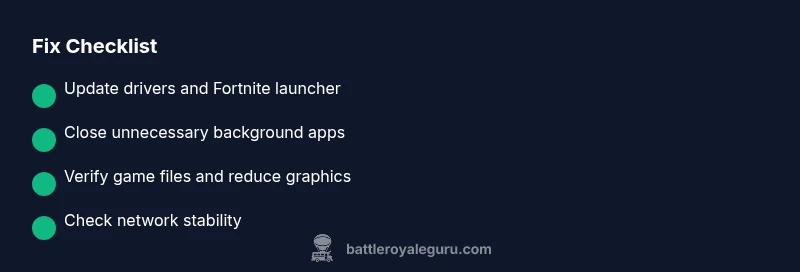
Begin with the easiest checks and move toward deeper modifications. This approach reduces wasted time and helps you identify the simplest fix first. The strategy aligns with general troubleshooting best practices for PC games: address driver health, clean up background tasks, verify game files, and confirm network stability. In our experience, the most impactful wins come from driver updates, foreground task management, and a clean cache. Stay patient, document what you change, and test the game after each step to isolate the exact cause. These steps reflect the Battle Royale Guru approach to stability, focusing on practical, repeatable actions.
Core Logs: What to Monitor While Testing
As you troubleshoot, note any correlations between freezes and actions like changing graphical settings, launching other apps, or using high-load techniques (streaming, recording, or heavy browsers). Watching CPU/GPU temperatures and memory usage helps you determine if the system itself is stressed. If temperatures spike, you may need to improve cooling or adjust fan curves. If memory is maxed, you’ll want to free up RAM or reduce texture details. This observational method is a cornerstone of the Battle Royale Guru methodology for diagnosing freezing on PC.
Quick Wins You Can Try Right Now
- Update GPU drivers and Fortnite from the Epic Games Launcher.
- Close nonessential programs and background processes.
- Run Fortnite in windowed borderless mode to avoid full-screen input issues.
- Verify game files to rule out corrupted assets.
- Ensure Windows updates are installed and restart if required.
- Consider a lower in-game resolution or preset for stability.
These small changes often yield immediate improvements and are low-risk starting points.
Deeper Investigations for Persistent Freezes
If the freezes persist after the quick wins, you’re dealing with a deeper interaction between hardware, drivers, and game data. Focus on verifying the integrity of Fortnite files, checking the health of the storage drive, and analyzing whether the motherboard or PSU could be contributing to instability. You may also test with a clean boot to determine if another application is causing the conflict. Battle Royale Guru recommends documenting each change and testing after every adjustment to precisely identify the root cause.
Steps
Estimated time: 60-120 minutes
- 1
Update Windows and Fortnite launcher
Open Windows Update and install any pending updates. In the Epic Games Launcher, trigger Fortnite to update if available. Restart your PC to complete installation and test Fortnite again.
Tip: Keep a small changelog of updates to track which change resolves the issue. - 2
Update graphics drivers
Visit the GPU manufacturer site or use their software to check for the latest drivers. Install the drivers and reboot if prompted, then run Fortnite to verify if the issue persists.
Tip: If you have multiple GPUs, only update the primary one used for games. - 3
Close unnecessary background apps
Open Task Manager and terminate nonessential processes, especially those that use a lot of CPU, GPU, or memory. Leave essential security and system processes running only.
Tip: Disable startup programs you don’t need for gaming to keep resources free at launch. - 4
Adjust in-game settings for stability
Lower textures, shadows, post-processing, and view distance. Turn off Ray Tracing and VSync if you’re encountering input lag or stutter. Test after each change.
Tip: Document settings before changing so you can revert if needed. - 5
Verify Fortnite files and clear cache
Use the Epic Games Launcher to verify game files. If issues continue, consider a clean reinstall of Fortnite data while preserving saved settings.
Tip: Back up your save data and configuration files before reinstallation. - 6
Network sanity check
Test network stability with a wired connection. Disable VPNs or firewalls temporarily if they could interfere with traffic to Epic servers. Check server status if widespread outages are suspected.
Tip: Record ping and jitter during play to compare after fixes.
Diagnosis: Fortnite freezes or stutters on PC during gameplay
Possible Causes
- highOutdated or incompatible GPU/CPU drivers
- mediumExcessive background processes consuming CPU/RAM
- mediumOverheating or thermal throttling
- lowCorrupted Fortnite files or game cache
- lowInsufficient RAM or paging file issues
Fixes
- easyUpdate GPU and system drivers; install Fortnite launcher updates
- easyClose background apps and disable nonessential startup items
- mediumImprove cooling airflow and reduce thermal load
- mediumVerify Fortnite files integrity and clear cache; reinstall if needed
- mediumAdjust Windows paging file and RAM usage settings
- easyLower in-game settings and disable resource-heavy features
- easyTest network stability and server status; use wired connection
Questions & Answers
Why does Fortnite keep freezing on my PC?
Freezes are usually caused by outdated drivers, background processes, or corrupted game files. Start with updates and a file verification, then narrow down by testing graphics and settings.
Freezes are often driver or background task related. Update drivers, close unnecessary apps, verify game files, and adjust settings to test stability.
Do I need to reinstall Fortnite to fix freezes?
Usually not. Start with verifying files, updating software, and lowering settings. Reinstallation is a last resort if file corruption is confirmed.
Reinstall is typically not needed. Verify files first, then troubleshoot other causes.
Can overheating cause Fortnite to freeze?
Yes. If temperatures spike, the GPU/CPU may throttle performance, causing freezes. Improve cooling and reduce load if needed.
Overheating can cause freezes. Clean fans, improve airflow, and lower in-game load.
Will lowering graphics hurt performance long-term?
Lowering settings can improve stability and frame consistency. It may reduce visual fidelity but often leads to smoother gameplay.
Lowering settings usually makes gameplay steadier with less stuttering.
How can I tell if background processes are the cause?
If performance improves after closing several apps, especially heavy ones, those processes were likely the culprits. Use Task Manager to identify heavy usage.
If closing apps helps, those programs were slowing you down.
When should I seek professional hardware help?
If freezes persist after all software fixes, there may be hardware issues like failing RAM or a weak PSU. A professional diagnostic is recommended.
If software fixes don’t help, hardware diagnostics may be needed.
Is it safe to run Fortnite in Safe Mode for troubleshooting?
Safe Mode can help isolate software conflicts but is not ideal for full testing. Use it cautiously and revert to normal mode for gameplay.
Safe Mode can help diagnose conflicts, but it’s not for regular play.
Should I disable Windows Game Mode?
Game Mode can waste resources in some setups. If you experience stuttering, try toggling Game Mode off to see if stability improves.
Toggling Game Mode off may improve stability on some systems.
Watch Video
Key Points
- Start with driver updates and closing background apps.
- Verify game files before reinstalling anything.
- Lower settings to improve stability and reduce load.
- Monitor temperatures and network stability for ongoing issues.