How to Put Fortnite at 120 FPS: A Practical Guide for 2026
Learn practical, tested steps to run Fortnite at 120 FPS across PC and consoles, including settings, hardware checks, and optimization tips from Battle Royale Guru.


According to Battle Royale Guru, you can reliably reach 120 FPS in Fortnite by aligning your hardware, software, and in-game settings. This quick path focuses on PC and console steps, including enabling 120 Hz or high refresh mode, updating drivers, and choosing performance-focused presets. Follow the steps to verify capability and optimize for consistent 120 FPS.
Why achieving 120 FPS matters in Fortnite
For many Fortnite players, 120 frames per second creates a smoother, more responsive experience that can shave milliseconds off input latency. If you're wondering how to put fortnite in 120 fps, you’re not alone; the best results come from aligning your hardware, software, and in-game settings. According to Battle Royale Guru, the payoff is not just smoother visuals; it translates to crisper aiming, quicker reaction times, and more consistent performance across maps and game modes. In this section we'll unpack the core reasons to pursue 120 FPS and set the stage for the practical steps that follow, including how to measure your actual FPS during live matches and why some systems see more gains than others.
Hardware and monitor prerequisites
120 FPS is a hardware- and display-dependent target. To reliably hit 120 FPS in Fortnite, you generally need a capable GPU and CPU, plus a monitor that can refresh at 120 Hz or higher. If your display is 60 Hz, you won't perceive the full benefit, even if the game renders at 120 FPS. Make sure your GPU's drivers are current, and that you have a fast PCIe SSD or HDD to avoid loading stutters that look like frame drops. This section covers the baseline hardware considerations for PC players and explains how console capabilities influence the outcome. While you may not upgrade everything at once, identifying the bottleneck helps you allocate budget and time efficiently. Battle Royale Guru notes that even mid-range GPUs paired with a 120 Hz monitor can feel noticeably smoother when settings are tuned for performance.
In-game settings for peak FPS
Fortnite offers a range of graphics settings designed to maximize frame rate. Start with a base of 120 FPS target, then adjust to the point where visuals remain acceptable. Turn off motion blur, film grain, and depth of field to reduce post-processing load. Set the Rendering Scale to 100% (or a fixed percentage comfortable for your GPU) and choose a Performance/Low preset if available. Decrease View Distance, Shadows, and Effects to their lowest practical levels, and disable V-Sync to remove input lag. Use the in-game FPS counter to verify your target in real matches. For laptop users, ensure the power profile favors performance and that battery mode isn’t throttling the GPU; plugging in is highly recommended during benchmarking.
Windows/macOS optimization for Fortnite
On PC, operating system settings can have a surprising impact on Fortnite FPS. Enable Game Mode in Windows, turn off background processes you don’t need, and ensure Game Bar is disabled to avoid overlays consuming precious GPU time. Update DirectX and Visual C++ Redistributables as needed and run Fortnite in fullscreen or borderless fullscreen for the least input lag. In addition, set the GPU to Prefer Maximum Performance and disable features like Hardware-accelerated GPU schedules if your driver version recommends otherwise. For macOS users, ensure you’re on the latest compatible OS version and check that the game is running with enough headroom by closing unused tasks.
Console considerations: PS5, Xbox Series X|S, Nintendo Switch
Consoles can reach 120 FPS in Fortnite when the game and system settings align with a high-refresh display. On PS5 and Xbox Series X, select a Performance or Performance Mode if available and enable 120 Hz in the console's display settings. Ensure your TV or monitor supports 120 Hz and that you’ve enabled HDR or VRR as appropriate, but be mindful of potential increases in input latency at certain modes. The Switch remains limited by its hardware, so expectations should be calibrated accordingly. Always perform a few live tests after enabling any performance-focused mode to confirm the actual fps stability and smoothness.
Background processes, drivers, and network considerations
Keeping your system lean can unlock extra FPS. Close non-essential apps, disable startup programs, and ensure Fortnite runs with administrator privileges on PC. Driver updates for your GPU often provide stability gains and frame-rate optimizations; check for new releases and install them. A stable network connection won't directly raise FPS, but it minimizes jitter that can feel like stutter. If you’re playing online, using Ethernet and limiting high-latency devices on your LAN can improve consistency, which heightens the perceived smoothness at high FPS.
Verifying 120 FPS and maintaining consistency
The best way to know you’re achieving 120 FPS is to enable an in-game FPS counter and compare live matches against your target. On PC, use Steam’s in-game overlay or Windows Game Bar to monitor fps as you switch scenes, skirmishes, and looting sprees. Observe not just the average FPS but also the frame-time stability; drop spikes can indicate a hotspot in heat, power limits, or memory bandwidth. Run a few controlled tests with a fixed video setting profile to compare results across maps with different draw distances and lighting. Over time, you’ll learn how changes affect stability and can tune further.
Common issues and quick fixes
If you don’t see a solid 120 FPS after following the steps, start with a quick sanity check: verify your monitor is actually displaying at 120 Hz; ensure V-Sync is off; and confirm you’re not power-limited. High temperatures, CPU throttling, or thermal throttling under load can cap frame rates. Lowering background tasks, cleaning fans, and reapplying thermal paste on older rigs may help. In some cases, a clean install of graphics drivers and Fortnite itself resolves stubborn stutters. If you use a laptop, keep it plugged in and use a cooling pad to avoid thermal throttling during long sessions.
120 FPS vs visual fidelity: making the right trade-offs
Pushing Fortnite to 120 FPS often means sacrificing some graphical fidelity. You may need to reduce shadows, textures, or post-processing effects to maintain a smooth 120 FPS target. Some players prefer to cap at 120 FPS on high settings with sharper textures but lower effects, while others trade resolution for a steadier rate. The key is to test different presets and find the balance that suits your play style. Battle Royale Guru suggests focusing first on consistent frame times before chasing max visuals, especially in competitive environments.
Long-term maintenance and driver updates
Per-formance optimization is not a one-time tweak. Regularly update GPU drivers, game patches, and OS updates to maintain compatibility and performance improvements. Revisit Fortnite configuration after major patches or new seasons, as Epic often tunes graphics and performance for different hardware. Keep a routine of benchmarking after each major update and adjust your settings to preserve your target 120 FPS. In practice, small changes can unlock noticeable gains without sacrificing the visuals you value.
Quick start blueprint to 120 FPS (practical steps you can follow this weekend)
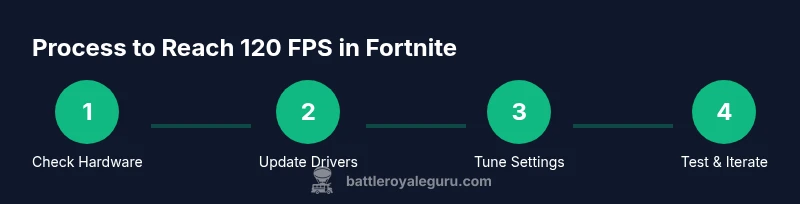
This practical blueprint translates theory into action. Start by confirming your monitor supports 120 Hz and that you have the latest GPU drivers. Then apply a performance-focused in-game preset, disable V-Sync, and set frame rate to 120. Do a couple of live tests in low-variance maps, and monitor FPS with the built-in overlay. If you still struggle, swap to a more aggressive setting subset and iterate. With patience, you’ll establish a stable baseline that meets your expectations for a smooth Fortnite experience at 120 FPS.
Tools & Materials
- PC or console capable of 120 Hz refresh rate(Ensure GPU and CPU can sustain the target FPS in Fortnite.)
- 120 Hz monitor or TV(Verify refresh rate supports 120 Hz and VRR if available.)
- DisplayPort 1.4 or HDMI 2.1 cable(Use the appropriate cable to support high refresh rates.)
- Latest GPU drivers
- Fortnite installed and updated
- NVIDIA Control Panel / AMD Radeon Settings(For driver-level optimizations)
- Power plan set to High Performance(Enables higher GPU clocks during gaming)
- FPS overlay tool (optional)(Useful for testing and benchmarking)
- Stable internet connection(Not required for FPS but for smooth online gameplay)
Steps
Estimated time: 45-60 minutes
- 1
Verify hardware and display capability
Confirm your CPU/GPU meet the workload of Fortnite at high frame rates and verify your monitor can display 120 Hz. If either component is lacking, upgrade those parts or adjust your target to a sustainable frame rate.
Tip: Check your GPU’s minimum requirements for Fortnite performance and your monitor’s true refresh rate using the monitor’s on-screen display (OSD). - 2
Update drivers and OS components
Install the latest GPU drivers and ensure Windows/macOS components are up to date. Drivers often include performance optimizations for newer game patches, which can directly impact frame times.
Tip: Restart after install and run a quick benchmark to confirm gains. - 3
Set in-game visuals for performance
Open Fortnite settings and apply a Performance/Low preset, disable motion blur, set V-Sync off, and cap or target 120 FPS. This directs render time toward maintaining frame rate rather than high fidelity.
Tip: Keep Rendering Scale at 100% unless you notice GPU bottlenecks you want to address. - 4
Configure display and cables
Ensure your display is set to 120 Hz in both the OS and in-game, and connect with a high-bandwidth cable (DisplayPort 1.4 or HDMI 2.1). This minimizes bottlenecks between GPU output and the screen.
Tip: If you’re using multiple monitors, disable clones to avoid unexpected frame drops. - 5
Optimize power and background processes
Set Windows power plan to High Performance and close non-essential applications. Disable overlays (e.g., Game Bar) that can steal GPU time.
Tip: A clean boot helps isolate performance changes from software interference. - 6
Test with live matches
Play a few matches focused on performance testing. Use the in-game FPS counter to gauge average FPS and frame-time stability across different maps and conditions.
Tip: Note any spikes when character-heavy scenes load in or during heavy lighting changes. - 7
Tune based on results
If FPS is below target, further reduce shadows, post-processing, or view distance. If you’re comfortable with a bit more load, re-enable subtle effects and re-test.
Tip: Iterate in small increments to maintain stability. - 8
Finalize a repeatable profile
Lock in a profile with a consistent FPS across a few test matches, then save a config that can be quickly re-applied after patches.
Tip: Document the exact settings for future updates.
Questions & Answers
Can Fortnite run at 120 FPS on a mid-range PC?
Yes, with careful tuning of in-game settings and a monitor capable of 120 Hz. The final result depends on the GPU, CPU, and how well the system maintains frame times during peak scenes.
Yes, a mid-range PC can hit 120 FPS in Fortnite if you optimize both the hardware and in-game settings.
Do consoles support 120 FPS in Fortnite?
Yes, on PS5 and Xbox Series X/S with 120 Hz displays and Performance modes. Ensure your TV also supports 120 Hz and VRR for the best experience.
Consoles can reach 120 FPS on supported hardware, with both the console settings and a 120 Hz display configured.
Should I enable V-Sync when aiming for 120 FPS?
No. V-Sync adds input lag and can cap or throttle frame times. Disable it to preserve the responsiveness required for competitive play.
No, disable V-Sync to avoid input lag when aiming for 120 FPS.
What is the best way to test FPS consistency?
Use the built-in FPS counter or system overlays to monitor FPS across multiple maps and game conditions. Track average FPS and frame-time stability rather than just peak FPS.
Test FPS with overlays, check stability across maps, and keep a log of any fluctuations.
Will HDR affect FPS in Fortnite?
HDR can impact FPS depending on hardware load and settings. Test with HDR on and off to gauge the difference on your rig.
HDR can affect FPS; try both with and without HDR to see which gives you a steadier experience.
Watch Video
Key Points
- Aim for a consistent frame-time baseline before visuals.
- Keep hardware and drivers up to date for stability.
- Test settings across maps to ensure real-world performance.