Why Fortnite Keeps Crashing on Xbox: Urgent Troubleshooting Guide
Experiencing Fortnite crashes on Xbox? This urgent troubleshooting guide from Battle Royale Guru reveals common causes and fast fixes to get you back into the action.


Why does fortnite keep crashing on xbox? The most likely causes are outdated system firmware, corrupted game data, overheating, faulty storage, or unstable network. Start with quick fixes: reboot the Xbox and router, install any pending system updates, clear cache, and verify Fortnite files. If the crashes persist, reinstall Fortnite or perform a full console reset after backing up saves.
Why Fortnite Keeps Crashing on Xbox
Fortnite crashing on Xbox can ruin a clutch moment, but most issues stem from a few repeatable causes. According to Battle Royale Guru, the leading culprits are outdated system firmware, corrupted game data, overheating, and unstable network conditions. A methodical review of your setup often reveals the root problem, and you can resolve many crashes with a few targeted steps. Start by ruling out simple issues before diving into deeper fixes, since many crashes are resolved with a quick reboot, update, or cache clear. For players, this means taking a few minutes to inspect your console’s health during loading screens rather than scrambling mid-game. By treating each potential factor as a separate suspect, you’ll rapidly narrow down the culprit and regain reliable performance.
Common Causes You Should Know
- Outdated Xbox system software or Fortnite build
- Corrupted game data or misconfigured settings
- Overheating console or blocked vents
- Insufficient storage or a failing hard drive/SSD
- Network instability or strict NAT settings
- Background apps consuming resources
- Server-side outages or matchmaking issues can occasionally manifest as crashes
Quick Fixes You Can Try Right Now
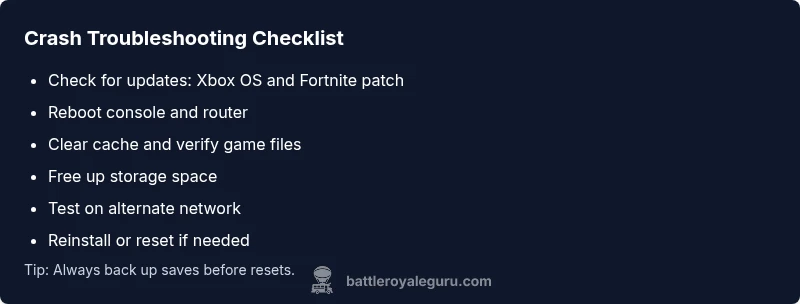
- Reboot the Xbox and router to refresh network paths
- Check for and install any pending system and Fortnite updates
- Clear cache and temporary data from the Xbox and the game
- Verify Fortnite game files (or reinstall if necessary) to fix corrupted data
- Free up storage space by deleting unused apps or moving data to external storage
- Test with a different network (mobile hotspot) to isolate connectivity problems
When to Reinstall or Reset (Safe Practices)
If crashes persist after updates and cache clears, a clean reinstall of Fortnite or a full console reset may be required. Always back up your saves to cloud or external storage before a reset. Reinstalling Fortnite ensures you download a fresh, uncorrupted copy, while a factory reset should be a last resort due to data loss risk. In many cases, the problem is resolved without going that far, especially if a single update was the culprit.
Steps
Estimated time: 30-60 minutes
- 1
Check for Updates
Power on your Xbox, navigate to Settings, and check for system updates. Install any pending updates, then relaunch Fortnite to see if the crash reoccurs. This resolves many bugs tied to outdated firmware.
Tip: Enable automatic updates to prevent this from happening again. - 2
Reboot Everything
Power cycle the Xbox by holding the power button for 10 seconds until it shuts down completely. Unplug your router for 30 seconds and plug it back in to refresh the network path.
Tip: A clean restart clears temporary glitches that can trigger crashes. - 3
Clear Cache and Verify Files
From the Xbox library, select Fortnite, choose Manage game and add-ons, then clear local saved data and clear cache. Verify files or reinstall Fortnite to repair corrupted data.
Tip: Do not delete save data if cloud sync is unavailable; ensure cloud backups are enabled. - 4
Free Up Storage
Check available space on the internal drive or external storage. Remove unused apps or move large clips and downloads to free up space that can cause instability.
Tip: Aim for at least 15-20 GB free for smooth operation. - 5
Test Network Variations
If possible, test Fortnite on a different network (mobile hotspot) to determine if there’s a routing issue or ISP-level throttling affecting performance.
Tip: If the hotspot works, your home network may be the bottleneck. - 6
If Needed, Reinstall or Reset
If crashes persist after all checks, reinstall Fortnite or perform a factory reset after backing up saves. This should resolve deeply seated data issues that updates cannot fix.
Tip: Back up saves first; a reset will erase settings and installed apps.
Diagnosis: Fortnite crashes on Xbox during gameplay
Possible Causes
- highOutdated Xbox system software
- highCorrupted Fortnite installation or game data
- mediumOverheating console or blocked vents
- mediumNetwork instability or NAT issues
- lowInsufficient storage or failing drive
Fixes
- easyCheck for and install Xbox system updates; update Fortnite if available
- easyRestart/power cycle console and router; test with a fresh network
- easyClear local game cache and verify Fortnite files; reinstall if needed
- easyFree up storage and run a health check on storage media
- hardIf all else fails, back up saves and perform a factory reset or full reinstall
Questions & Answers
What should I do first when Fortnite crashes on Xbox?
Start with updates, a full reboot, and cache clearing. These quick actions fix most crashes without data loss.
First, update your Xbox and Fortnite, reboot, and clear cache to fix most crashes.
Could server outages cause Fortnite on Xbox to crash?
Yes, server issues can cause crashes or freezes during matchmaking. Check Fortnite status pages and social channels for outages.
Sometimes crashes come from servers; check the status pages to confirm.
Is reinstalling Fortnite always necessary?
Not always. Try updates and data verification first. Reinstall if data corruption is suspected or crashes continue.
Reinstall if data looks corrupted or crashes persist after fixes.
Will a factory reset fix all crashes?
A factory reset can solve deep-seated issues but risks data loss. Back up saves and proceed only if other fixes fail.
A reset can fix stubborn issues, but back up first and be aware of data loss.
Can network changes reduce Fortnite crashes on Xbox?
Yes. NAT type, router firmware, and QoS settings can influence stability; optimize network settings and test with different networks.
Optimizing your network can reduce crashes related to connectivity.
Should I contact support if problems persist?
If crashes persist after all basic steps, contact Xbox Support and Epic Games for deeper diagnostics and possible escalation.
If issues persist after fixes, reach out to support for advanced help.
Watch Video
Key Points
- Identify the crash causes with a structured flow
- Tackle updates and cache first before reinstall
- Back up saves before reset or reinstall
- If problems persist, consider professional help or hardware checks