Why Does Fortnite Take So Long to Update on Switch? A Troubleshooting Guide
Urgent guide explaining why does fortnite take so long to update on switch and how to speed updates with diagnostics, step-by-step fixes, and prevention tips.


Most Fortnite update slowdowns on Switch stem from network bottlenecks and local caching, not the game code. Start with the easiest fixes: check your internet connection, reboot the Switch and router, and ensure there’s ample free storage. If issues persist, follow the diagnostic flow and step-by-step fixes to complete the update swiftly.
Why does Fortnite take so long to update on switch
Players often ask: why does fortnite take so long to update on switch? The short answer is that the delay typically comes from the delivery chain rather than the game itself. Nintendo Switch hardware, the path your data travels, and Fortnite’s update servers can introduce pauses, especially during peak hours. According to Battle Royale Guru, regional server queues, caching on the Switch, and variable home-network quality combine to extend update duration. By understanding these elements, you can apply targeted fixes quickly and minimize downtime in 2026, getting you back into the action sooner.
This guide uses practical, battle-tested steps to help you regain control of update timing. You’ll learn how to diagnose the root cause, apply safe fixes in order, and prevent future slowdowns. The information here is designed for Fortnite players who want results fast without guesswork. The focus is on actionable tips, careful troubleshooting, and steps you can complete without professional help unless a deeper issue is detected.
Steps
Estimated time: 30-60 minutes
- 1
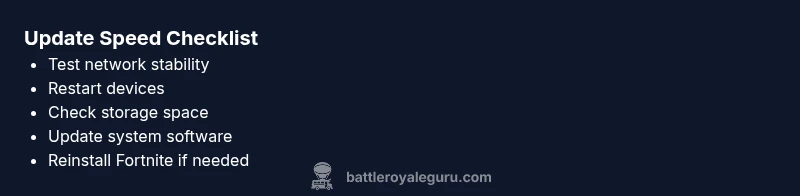
Check Internet Connection
Verify your Switch is connected to a stable network. Run a quick speed test on another device to compare performance. If speeds are slow, move closer to the router or switch to a wired adapter where possible.
Tip: Use a 5 GHz band if your router supports it for less interference. - 2
Power Cycle Devices
Turn off your Nintendo Switch and router, wait 30 seconds, then power both back on. Reconnect and attempt the update again to rule out a transient network glitch.
Tip: A clean restart clears temporary network caches that can throttle downloads. - 3
Check Console Storage
Ensure there is ample free space on the Switch’s internal memory or the SD card. Low storage can slow or stall downloads as the system manages temporary data.
Tip: Move other large apps or games off the internal memory if possible. - 4
Update System Software
Make sure the Switch OS is up to date. System updates often include networking and performance improvements that can affect how updates download.
Tip: Check Settings > System > System Update and install any available updates. - 5
Manage Fortnite Data
If the problem persists, consider clearing Fortnite’s data cache or reinstalling the game. This can fix corrupted download blocks that cause stalls.
Tip: Back up saves if required; you won’t lose Battle Pass progress stored server-side. - 6
Test a Different Network
If you have access to another network (mobile hotspot, friend’s Wi‑Fi), test the update there to determine if the issue is local to your home network.
Tip: If it works on another network, your router or ISP may be the bottleneck.
Diagnosis: Fortnite update downloads slowly or stalls on Nintendo Switch
Possible Causes
- highNetwork congestion or unstable Wi-Fi
- mediumSwitch cache or storage bottlenecks
- mediumFortnite server load or regional routing issues
- lowOutdated Switch system software
- lowLimited free storage on internal memory or SD card
Fixes
- easyTest with a stable Wi-Fi connection (prefer 5 GHz where possible) and minimize other devices using bandwidth
- easyPower cycle the Switch and router, then reconnect to the network
- easyCheck for available Switch system updates and install them
- easyFree up space on internal storage or move Fortnite to a fast SD card
- mediumClear Fortnite data cache or reinstall the game if corruption is suspected
- easyIf the problem persists, try a different network or hotspot to isolate the cause
Questions & Answers
Why is the Switch slower at updating Fortnite than other platforms?
The Switch often faces longer updates due to its unique hardware, caching, and network routing. Server load and regional delivery can compound delays, even when the game files themselves aren’t larger on Switch.
Fortnite updates can be slower on Switch because the console’s hardware and network routing introduce caching and server delays.
Should I use a mobile hotspot to speed up updates?
A mobile hotspot can help isolate whether the issue is your home network. If the hotspot provides faster speeds, the problem likely lies with your router or ISP. Remember to monitor data usage.
Try a hotspot to test your network. If it’s faster, the bottleneck is your home connection.
Is it safe to delete Fortnite data to fix slow updates?
Deleting Fortnite data can resolve corrupted downloads but will remove local saved data. Ensure saves are backed up to cloud or server as needed, then reinstall the game.
Deleting data can fix corruption, but back up saves first.
Can a different storage option help (SD card vs internal)?
Using a fast SD card or freeing internal storage can improve download performance by reducing IO bottlenecks. Choose a Class 10/UHS card for better speeds.
A fast SD card can help with downloads and game data handling.
When should I contact support?
If updates never complete after trying the steps, contact Nintendo Support or Epic Games for further guidance, as there may be regional or account-specific issues.
If updates fail despite troubleshooting, reach out for official support.
Watch Video
Key Points
- Verify a stable network first
- Restart devices to clear transient issues
- Ensure adequate storage before updating
- Update Switch firmware and Fortnite data safely
- Isolate network vs device issues to speed fixes