Why is My Fortnite Lagging? Urgent Troubleshooting Guide
Struggling with Fortnite lag? This urgent guide walks you through quick checks, diagnostics, and fixes to reduce ping, stabilize FPS, and reclaim smooth gameplay.


If you're asking why is my fortnite lagging, the most likely causes are a weak connection, high ping, or limited device resources. Start with quick wins: switch to a wired connection, close background apps, and lower in-game settings. These rapid triage steps typically reduce lag within minutes.
Why is Fortnite lagging? Understanding the basics
If you’ve ever asked why is my fortnite lagging, you’re not alone. Lag is typically a signal that data is not moving smoothly between your device and the game servers. The main culprits are a high-latency internet connection, unstable Wi‑Fi, limited device resources, and occasional server-side congestion. By understanding these factors, you can triage quickly and prevent minor hiccups from becoming a full-blown game-breaking delay. In practice, lag is not just about frames per second; it’s about timely data packets, consistent bandwidth, and predictable latency. In most cases, resolving lag comes down to a few repeatable steps you can perform in minutes.
Quick checks you can do right now
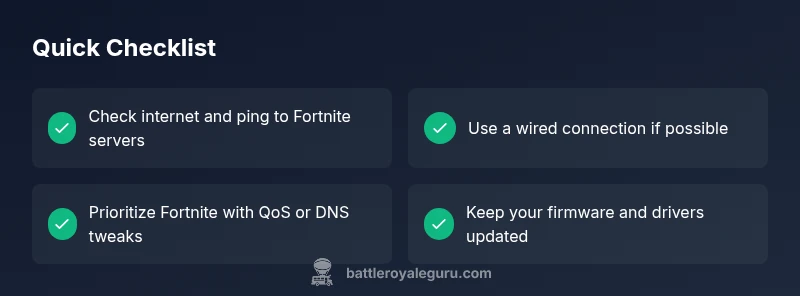
- Run a speed test and ping test to Fortnite servers to gauge latency. Compare results to your usual baselines.
- Prefer a wired Ethernet connection; if you must use Wi‑Fi, ensure strong signal and minimal interference.
- Close background apps and pause automatic updates or cloud sync during play.
- Check for game and system updates; updates can cause stutter if background tasks run simultaneously.
- Lower in-game settings (textures, view distance, shadows) to free GPU/CPU headroom.
How latency, FPS, and packet loss affect gameplay
Latency (ping) is the round‑trip time for data between your device and Fortnite servers. High latency means input commands arrive late, creating noticeable delay. FPS (frames per second) indicates how smoothly your device renders frames; lower FPS leads to choppier motion. Packet loss happens when data packets fail to reach their destination, causing rubber-banding or teleporting. For optimal play, you want low, stable latency, high and consistent FPS, and minimal packet loss. All three interact: you can have decent FPS but still feel lag if latency spikes, or have low latency but poor FPS if the GPU is overloaded.
Diagnostic flow overview
A structured diagnostic flow helps you isolate issues quickly. Start with the simplest checks (cable, background apps) and move toward network routing and router settings. If lag remains on multiple devices, the issue is more likely ISP‑or server‑side; otherwise, it’s almost always something you can fix locally. Use a methodical approach: observe, measure, adjust, and re-test after each change.
Step-by-step deep-dive into the most common fix
- Test your connection to Fortnite servers and record baseline latency. 2) If possible, switch to a wired Ethernet connection or reposition your router for a stronger signal. 3) Close all nonessential apps and pause background updates during gaming. 4) Lower in‑game settings (textures, shadows, view distance) to reduce GPU load. 5) Update network drivers and router firmware; reboot devices afterward. 6) Consider changing DNS to a faster public option and enable QoS if your router supports it. 7) Re-test latency and FPS and compare against your baseline to confirm improvements.
Router and DNS tweaks for Fortnite performance
Tuning your network can yield noticeable gains. Use a wired connection where possible and keep the router away from interference sources. Enable Quality of Service (QoS) to prioritize gaming traffic if your router supports it. Consider switching to a fast, responsive DNS (for example, public DNS providers) to reduce domain lookup delays. Ensure your router firmware is up to date and reboot after changes. If you’re comfortable, place devices on the 5 GHz band for lower interference, while noting range tradeoffs.
Safety notes, warnings, and when to seek help
Modifying router settings and firmware carries some risk if not done carefully. Always back up current configurations before making changes. If you’re unsure, contact your ISP or a qualified technician to avoid disconnects or misconfiguration. If lag persists across multiple networks or devices, ISP issues or server-side problems may be the culprit and require official support.
Preventive practices to keep lag at bay
- Establish a wired connection for steady throughput whenever possible.
- Schedule large downloads and updates for off‑hours; pause them during gameplay.
- Regularly restart your modem/router to refresh connections and clear buffers.
- Keep your system and drivers up to date, and monitor temperatures to avoid thermal throttling.
- Test latency after each change to quantify impact and avoid chasing ghosts.
Steps
Estimated time: 30-45 minutes
- 1
Test your current connection
Run a quick speed and latency test to Fortnite servers to establish a baseline. Note both the ping and download/upload speeds, then compare after changes.
Tip: Document results to track improvements over time - 2
Switch to a wired connection
If you can, connect your console or PC directly to the router with an Ethernet cable. This reduces wireless interference and stabilizes throughput.
Tip: If running a cable is hard, try a powerline adapter as a fallback - 3
Close background apps
Exit apps and pause cloud syncing or device backups during Fortnite play. Even background activity can spike latency.
Tip: Disable auto-updates during long gaming sessions - 4
Tweak in-game settings
Lower textures, shadows, LOD, and view distance; consider enforcing a stable FPS cap to prevent dips under load.
Tip: Aim for a balance between visuals and performance - 5
Tune network routing
Change DNS to a faster public provider and enable QoS on your router to prioritize gaming traffic where available.
Tip: Reboot the router after making changes - 6
Re-test and compare
Run another latency test and play a few matches to verify if the changes reduced lag. If not, proceed to deeper checks.
Tip: Keep a log of settings tested and results
Diagnosis: Fortnite lag spikes during matches
Possible Causes
- highHigh latency or jitter on the home network
- highUnstable Wi‑Fi signal or interference
- mediumBackground apps using bandwidth
- lowOutdated drivers or router firmware
Fixes
- easyRun a speed test and ping test to Fortnite servers; compare to baseline
- easySwitch to a wired connection or optimize Wi‑Fi placement
- easyClose nonessential programs and pause updates during gaming
- mediumUpdate drivers and router firmware; reboot devices
Questions & Answers
What is the fastest way to reduce lag in Fortnite?
Start with a wired connection, close background apps, and lower in‑game settings. These quick wins often improve responsiveness within minutes.
The fastest fix is a wired connection, closing apps, and lowering settings.
Can a VPN help with Fortnite lag?
A VPN can sometimes bypass ISP routing issues but often adds overhead. Use it only if you suspect routing problems with your regular path.
A VPN might help if your ISP routing is the problem, but it can slow you down otherwise.
Why does my ping spike randomly during a match?
Spikes usually happen due to network contention, background activity, or routing changes. Pause updates and test at different times to identify patterns.
Ping spikes come from congestion or background activity; try pausing updates.
Does upgrading hardware help lag?
Hardware upgrades improve FPS and stability, but won't fix fundamental network latency. Combine hardware updates with network tweaks for best results.
Hardware helps FPS and stability, but lag from latency may persist without network fixes.
Is Fortnite lag different from FPS drops?
Yes. Lag usually refers to network latency and input delay; FPS drops are GPU/CPU performance issues. Both reduce playability, so address both sides.
Lag is about data delay; FPS drops are hardware performance.
When should I contact my ISP?
If speed tests and latency to game servers remain poor after your fixes, contact your ISP to check for outages, throttling, or routing issues.
If speeds stay slow after trying fixes, reach out to your ISP.
Watch Video
Key Points
- Prioritize a wired connection when possible
- Test latency after each change to measure impact
- Lower in-game settings to stabilize FPS and reduce GPU load
- Keep firmware and drivers up to date to prevent bottlenecks
- Seek ISP help if persistent latency issues persist across devices