Why Are Fortnite Servers So Laggy: A Troubleshooting Guide
An urgent, practical guide to diagnosing and fixing Fortnite lag, covering server status, network checks, and client tweaks to reduce latency.


Why are Fortnite servers so laggy? The most common reason is a routing or network congestion issue between your location and Epic Games servers. The quickest fix is to test a wired connection, pause bandwidth-heavy apps, and check Epic’s server status. According to Battle Royale Guru, isolating your home network usually resolves most lag before pursuing server-side problems.
Why Fortnite servers lag: common causes
If you're wondering why are fortnite servers so laggy, the short answer is that latency typically stems from a mix of network routing and regional congestion between your location and Epic Games servers. From Battle Royale Guru Analysis, the most frequent culprits are: first, network congestion on your ISP's backbone or regional peering that slows traffic to Epic Games; second, client-side jitter caused by multiple programs competing for bandwidth or devices on the same Wi‑Fi channel; third, server-side load spikes during peak play times or patch days; and fourth, misconfigured home networks, such as NAT types or firewalls blocking game traffic. Understanding these categories helps you triage quickly. You should begin by identifying whether the lag occurs in solo, duo, or squad modes, whether voice chat seems affected, and whether the lag is consistent or sporadic. Documenting when it happens—time of day, day of week, and your streaming or download activity—gives you data to present to your ISP or Epic support if needed.
How your network and device contribute to lag
Your connection to Fortnite is only half the story; your network and device also set the pace. Wireless networks are prone to interference from neighbors, cordless phones, microwaves, and even thick walls. If your router is several years old or far from your console or PC, signal strength and stability degrade, producing jitter and higher ping. On devices, background apps that sync data, cloud backups, or software updates compete for bandwidth and CPU cycles, which shows up as rubber-banding in-game. NAT type matters too: a strict NAT can route traffic less efficiently and complicate matchmaking, causing additional hops and latency. Finally, local hardware can influence frame times, but latency is mostly about latency to Epic's servers; a snappy PC with an optimized network stack makes a noticeable difference. Practical steps include ensuring a dedicated gaming device, updating firmware, and auditing apps that consume bandwidth during play.
Epic Games server status and regional load: what to check
Epic Games publishes server status pages and regional alerts that directly affect latency. When a region is under maintenance or experiencing outages, players connected to nearby data centers may see higher ping, longer matchmaking queues, and occasional disconnects. Check the official Fortnite status page and trusted community sources for real-time updates. If a region-wide issue is reported, your best course is to wait for Epic to resolve the problem rather than chasing routing tweaks that may not help. If the status looks healthy but you still lag, you might be connecting to a farther data center due to matchmaking heuristics, particularly when playing in crossplay groups. In those cases, verify your platform’s region settings and any console-specific throttling features that could affect network performance.
Time-of-day and regional differences in latency
Latency can visibly shift with the time of day, especially in areas with congested networks or limited peering options. During peak gaming windows, ISPs may throttle or reroute traffic, causing lag spikes that are noticeable even on otherwise solid connections. Similarly, longer routes to Epic's servers can increase jitter, especially when nearby servers are overloaded. Battle Royale Guru’s observations indicate that players in crowded regions often experience more frequent rubber-banding on patch days or major updates. The practical impact is that a 20-40 ms ping improvement may be possible simply by shifting play times or temporarily avoiding peak windows, though you should still perform the basic local checks first.
Quick client-side fixes you can try right now
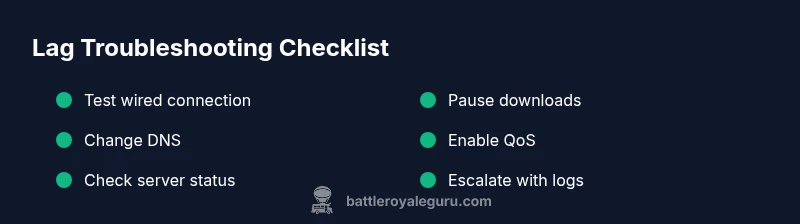
Start with the easiest steps you can perform in under 15 minutes. First, plug in a wired ethernet adapter if you’re on a PC or use a USB-to-Ethernet dongle for consoles; wired connections dramatically reduce packet loss compared with Wi‑Fi. Second, pause or stop nonessential downloads, cloud backups, or streaming services while gaming to free up bandwidth. Third, restart your router and modem; this clears old session data and can reset routing paths that may be congested. Fourth, test a fast, reputable public DNS service and flush your DNS cache; this can shorten some lookup times and improve overall responsiveness. Fifth, verify your NAT type and adjust firewall rules to allow Fortnite traffic. If you’re still seeing lag, capture your baseline metrics and compare after applying fixes to confirm progress.
Advanced fixes for stubborn lag
If basic fixes fail, try these deeper steps. Enable Quality of Service (QoS) on your router to prioritize gaming traffic, and configure Fortnite as a high-priority device if the router supports it. Temporarily disable VPNs and proxy services that could add extra hops unless you’re testing for routing issues. Update network adapter drivers on PC and ensure your console firmware is current. In some cases, changing the MTU setting to a standard value can reduce fragmentation on some networks, though this is more advanced and should be done with guidance. Finally, contact your ISP with your latency logs and times when lag occurs; persistent issues may require a line check, line replacement, or a routing change on their end.
Preventive habits to minimize lag in future
Long-term lag prevention is about steady, predictable networking. Schedule periodic router restarts and firmware checks to keep equipment current. Limit background activity on your home network by scheduling updates to outside gaming hours and enabling QoS rules where available. Use a wired connection for gaming whenever possible, and keep your PC or console drivers up to date. When you notice a sudden lag spike, document details (time, location, what you were doing) to help with rapid triage next time. Finally, maintain a direct line with Epic Games support or your ISP’s gaming support so you can report issues quickly when they arise.
Steps
Estimated time: 60-90 minutes
- 1
Baseline latency check
Measure your ping to Epic's edge servers, run a speed test, and note packet loss. This establishes a baseline and helps identify if the issue is network-wide or server-specific.
Tip: Use a wired PC or console connection where possible. - 2
Stabilize your local network
Switch to wired Ethernet, unplug nonessential devices, and pause large downloads or streaming during gameplay.
Tip: If you must use Wi-Fi, move closer to the router and minimize interference. - 3
Adjust DNS and reboot gear
Change your DNS to a fast public option and flush DNS. Reboot your modem/router after applying changes.
Tip: Document current DNS settings before changing. - 4
Prioritize gaming traffic
Enable QoS on your router and set Fortnite to a higher priority device if the router supports it.
Tip: Not all routers offer QoS; consult the manual if needed. - 5
Test in different scenarios
Play from a different network, if possible (mobile hotspot) to determine if the issue is home-network related.
Tip: Only use mobile data for testing; avoid data overages. - 6
Monitor Epic server status
Check Fortnite's official status page and community feeds. If regional outages or maintenance are active, lag may improve once resolved.
Tip: Record time windows of lag to report to support. - 7
Escalate if unresolved
If lag persists after steps, contact ISP and Epic Games support with your tests and logs for targeted assistance.
Tip: Provide timestamps, speeds, and error messages when requesting help.
Diagnosis: Fortnite game experiences noticeable lag, rubber-banding, or high ping despite good computer specs and stable connection
Possible Causes
- highLocal network congestion or interference
- highISP routing issues or peering problems to Epic Games servers
- mediumEpic Games server load or regional outages
- lowNAT type or firewall blocking traffic
Fixes
- easyTest a wired Ethernet connection and limit devices; pause nonessential background traffic
- easyRestart modem/router and ensure firmware is up to date
- easyTry a different DNS (e.g., Google DNS or Cloudflare) and flush local DNS cache
- mediumEnable QoS or prioritize gaming traffic on your router
- easyCheck Epic Games server status and regional outages; wait if regional problems are reported
- mediumIf issues persist, contact your ISP and Epic Games support with your data
Questions & Answers
What is the most common cause of Fortnite lag?
Most lag is caused by a mismatch between your network path and Epic's servers, often due to local congestion or routing problems. Server-side load can compound the issue during peak times.
The most common lag cause is network routing problems to Epic's servers, especially during peak hours.
How can I tell if the lag is on my end or Epic's?
Run a baseline speed test and ping tests to Epic edge servers. If your speeds are fine but latency spikes only when playing Fortnite, the issue may be server-side or routing.
Check your own connection first; if it looks fine, Epic's side might be involved.
Will changing regions help reduce lag?
Switching regions can temporarily reduce route distance but may violate terms or cause matchmaking issues. Only test in accordance with Epic's guidelines.
Region changes are not always reliable and can affect matchmaking.
Should I use a VPN to fix lag?
A VPN can route traffic differently but often adds overhead and can increase latency. Use it only for testing with caution.
VPNs might help in rare cases but typically slow you down; test carefully.
Watch Video
Key Points
- Prioritize a wired connection for most lag fixes
- Check both local network and Epic server status to isolate causes
- Use QoS to protect gaming traffic where available
- Escalate with solid data if issues persist