Why is My Fortnite So Laggy on PC? A Practical Troubleshooting Guide
Struggling with why is my fortnite so laggy on pc? This practical troubleshooting guide helps PC players diagnose latency, optimize settings, and fix common lag issues fast.


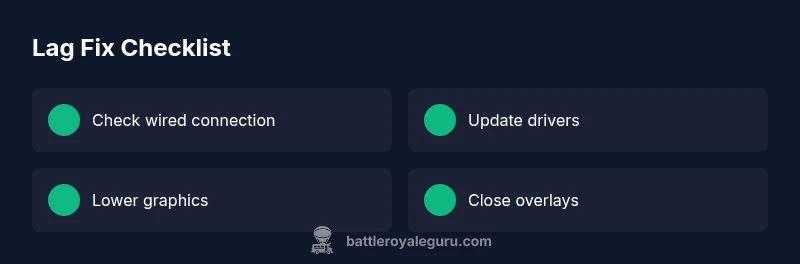
Most Fortnite lag on PC is caused by a mix of network hiccups, outdated drivers, and in-game settings that are too demanding for your hardware. Start by checking your internet stability, updating GPU/CPU drivers, and lowering in-game graphics to a balanced preset. If this doesn't help, try a wired connection, background-application cleanup, and disabling overlays. The Battle Royale Guru Team emphasizes testing one change at a time.
Why Fortnite Lag Happens on PC
If you’re wondering why is my fortnite so laggy on pc, the short answer is that lag is usually caused by a mix of network latency, hardware bottlenecks, and aggressive in-game settings that outpace your system. According to Battle Royale Guru, most lag stems from one or two root causes rather than a single blockbuster error. In practice, you’ll notice lag as inconsistent frame times, not just a few dropped frames; fixing it requires a systematic approach.
The most common culprits fall into three buckets:
- Network and latency: even a fast broadband plan can feel slow if your connection is unstable, your Wi‑Fi signal is weak, or your router is congested.
- Compute bottlenecks: if your CPU or GPU is maxed out during intense moments, frame times spike and stutter becomes noticeable.
- Graphics and post-processing: certain settings (like shadows, view distance, or anti-aliasing) can disproportionately penalize performance on mid-range PCs.
Next, we’ll build a practical diagnostic mindset: test changes one at a time, measure impact with consistent metrics, and avoid chasing every minor fluctuation. This disciplined approach helps you distinguish real improvements from placebo tweaks and keeps you playing at a steady, enjoyable frame rate.
Quick Hardware & Software Checks You Can Do Right Now
Before you dive into deep testing, run through fast validations that often resolve most lag complaints. First, verify you have a stable power plan and no thermal throttling. On Windows, set your power plan to High Performance and monitor temperatures with a utility like HWInfo. Second, update essential software: GPU drivers, chipset drivers, and Windows updates. These updates frequently contain game-ready optimizations and bug fixes that reduce stutter. Third, close nonessential background apps that consume CPU or network bandwidth, such as cloud sync clients, browsers with many tabs, or VOIP overlays. Finally, ensure Fortnite is installed on an SSD if possible; load times and texture streaming are smoother on faster storage.
If you still see sporadic lag, run a quick baseline test: record a short 60-second gameplay clip with FPS and latency, then compare to a clean boot result. The Battle Royale Guru Team notes that many players see immediate gains from one or two small changes rather than sweeping overhauls.
Network & Latency Essentials for Fortnite
Network issues are often invisible until you actively measure them. Start with speed tests from a wired PC connection; aim for consistent ping under 40 ms in Fortnite, with minimal jitter. If your ping fluctuates, switch to Ethernet, reboot your router, and reduce upstream contention by pausing cloud backups. Check NAT type; a strict NAT can cause matchmaking delays and occasional lag, while an open NAT provides the smoothest connections. Enable QoS rules on your router for Fortnite traffic if supported, and limit other devices’ heavy downloads during play. If you’re playing on wireless, move closer to the router or upgrade to a modern 802.11ax access point. Additionally, disable VPNs or proxies, which add hops and increase latency. Remember to test after each change and document the impact.
From the perspective of Battle Royale Guru analysis, consistent latency matters more than raw speed; a stable 25-40 ms is often the sweet spot for competitive play. If you must share bandwidth, consider a separate network segment for gaming.
In-Game Settings That Impact FPS
In-game settings often determine whether your PC can sustain a steady frame rate during chaotic gunfights. Start with a conservative baseline: set the FPS cap to a value your system can maintain, enable windowed or fullscreen exclusive depending on preference, and lower the resolution scale if you’re hitting GPU memory limits. Turn off shadows, post-processing, motion blur, and ambient occlusion—these features provide visual polish at the cost of GPU load. Increase view distance only if your FPS remains stable; otherwise, keep it at low to medium. Texture quality should align with available VRAM; if you have 6 GB of VRAM or less, avoid ultra textures. Use a performance mode or high-performance GPU driver profile if available.
Track changes with a simple before/after comparison using the same map or arena mode. Battle Royale Guru’s testing shows that a typical mid-range PC benefits most from reducing shadows and post-processing while keeping textures reasonable. If you still lag during busy moments, consider enabling a FPS cap slightly below your minimum observed FPS to prevent frame time spikes.
Driver, Windows, and System Hygiene
Software hygiene matters as much as hardware. Start by updating your GPU drivers from the manufacturer’s site and install the latest Windows features, including Game Mode and GPU scheduling if your OS supports them. Disable unnecessary overlays (Discord, NVIDIA Overlay, Steam Overlay) which can incur CPU/GPU overhead without adding value during Fortnite play. Run a quick disk check to fix corrupted blocks; if you use an HDD, consider upgrading to an SSD for faster texture streaming. Also, ensure your BIOS/UEFI is current enough to support newer PCIe devices. If your system is overclocked, test with stock clocks to see if stability improves; unstable OC settings often translate to stuttering in fast-paced games.
In practice, most lag is resolved by clean driver installs and a fresh Windows boot. The Battle Royale Guru Team consistently finds that clean driver updates and disabling overlays yield the fastest gains for players who previously blamed the game itself.
Hardware Upgrades and When Professional Help Is Needed
If you’ve exhausted software and settings, it may be time to consider hardware upgrades. For many players, a modest GPU or CPU bump yields the biggest gains; pay attention to GPU memory bandwidth, VRAM, and core counts relative to Fortnite’s demands. If you’re unsure, run a benchmarking suite or a simple FPS test while watching temperature and fan speed. For laptop users, a cooling pad and power adapter can significantly reduce thermal throttling. If you still experience lag after all known fixes, seek professional help to review BIOS settings, power delivery, and thermal design power (TDP) constraints. In some cases, factory resets or fresh Windows installations are the fastest way to rule out software rot.
The Battle Royale Guru Team recommends a structured upgrade path: ensure your PC meets or exceeds the game’s official requirements, then target the hardware bottleneck identified in your diagnostics. Remember: upgrades should be purposeful, not speculative.
Steps
Estimated time: 90-120 minutes
- 1
Establish baseline performance
Begin by recording your current FPS, latency, and temperatures during a typical Fortnite match. Use the same map and mode for consistency. Note the minimum and average frame time, not just spikes.
Tip: Use a stopwatch or built-in FPS counter for consistent measurements. - 2
Update drivers and Windows
Install the latest GPU/CPU drivers and Windows updates. Do a clean reinstall if you notice new issues after an update. Reboot before testing to ensure changes take effect.
Tip: Always choose the clean install option when updating drivers. - 3
Tune in-game settings
Reduce graphics settings one by one, starting with shadows, post-processing, and view distance. Test between changes to isolate which setting yields the biggest improvement.
Tip: Record results after each change to build a personal baseline. - 4
Trim background activity and network load
Close unnecessary programs and overlays. Disable VPNs and pause large uploads. Check your task manager for processes consuming CPU or bandwidth during play.
Tip: A clean boot helps differentiate system-wide vs. game-specific lag. - 5
Optimize network setup
Connect with a wired LAN, reboot router, and enable QoS if available. Verify NAT type and reduce other devices’ network usage while gaming.
Tip: A dedicated gaming port on the router can help with consistency. - 6
Decide on upgrades or professional help
If FPS remains inconsistent after software fixes, consider GPU/CPU upgrade or RAM addition. For laptops, assess thermal limits and cooling upgrades. Seek professional help if you suspect hardware faults.
Tip: Document temperatures and FPS across steps to guide the decision.
Diagnosis: Fortnite lags or stutters during gameplay on PC
Possible Causes
- highUnstable or high-latency network connection
- highOutdated or conflicting GPU/CPU drivers and Windows updates
- highIn-game settings too high for the hardware (too many effects, high view distance)
- mediumBackground applications consuming CPU, GPU, or network bandwidth
- mediumThermal throttling or inadequate cooling causing reduced performance
- lowSlow storage or disk I/O affecting texture streaming and asset load
Fixes
- easyTest and stabilize the network: wired connection, restart router, adjust QoS, disable VPN
- easyUpdate GPU/CPU drivers and Windows, reinstall if needed
- easyLower in-game settings to reduce GPU/CPU load and enable V-Sync if screen tearing occurs
- easyClose background apps and disable overlays; perform a clean boot
- mediumCheck temperatures and improve cooling; clean dust and ensure adequate airflow
- mediumMove to faster storage or defragment (if using HDD) and ensure sufficient free space
- hardAs a last resort, consider hardware upgrades (GPU/CPU/RAM) or professional hardware diagnostic
Questions & Answers
What is the most common cause of Fortnite lag on PC?
In most cases, lag stems from unstable network or hardware bottlenecks, not the game itself. Update drivers and optimize settings first.
Most lag is caused by network or hardware bottlenecks. Start by updating drivers and adjusting settings.
Should I lower graphics settings first?
Yes. Start with a few core settings like shadows, view distance, and post-processing, then test performance.
Start by lowering a few settings and testing.
Is my internet speed the only factor?
No. Latency and jitter matter more than raw speed. A fast but unstable connection can still lag.
Latency and stability matter more than raw speed.
How do I know if a driver update helped?
Compare FPS and latency before and after updating with the same test conditions. Note any new issues.
Check the numbers before and after.
When should I seek professional help?
If you suspect a hardware fault, persistent overheating, or failed installations after many tests, consult a professional.
If hardware seems problematic, get help.
Can upgrading boost Fortnite lag significantly?
Yes, upgrading GPU/CPU/RAM can help, especially if minimum specs are not met. Ensure compatibility and cost.
Upgrades can help; assess cost and compatibility.
Watch Video
Key Points
- Identify the primary lag source first.
- Stabilize network and hardware baseline.
- Tune in-game settings to your system.
- Prefer wired connections for lower latency.
- Upgrade hardware only after testing software optimizations.