Fortnite Not Working on Switch: Urgent Troubleshooting Guide
An urgent, step-by-step guide to fix Fortnite not working on Nintendo Switch. Quick checks, diagnostic flow, and concrete fixes to get you back into games fast.


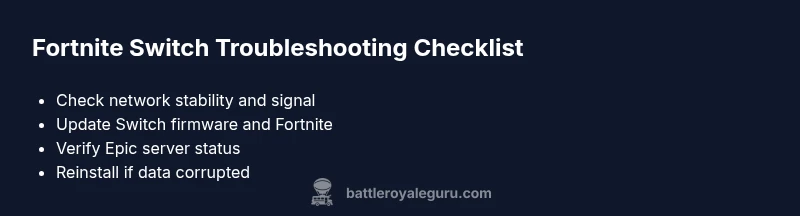
Fortnite on Nintendo Switch typically stalls due to network hiccups, outdated software, or server downtime. Quick fixes: verify your internet connection, restart the Switch, update Fortnite and the system software, and check Epic Games server status. If issues persist, try clearing cache, reinstalling Fortnite, or transferring to a stable network.
Symptoms and what they mean on Nintendo Switch
When Fortnite won't load on the Switch, you’ll typically see one of several telltale signs: a stuck loading screen, error codes (like a network error), frequent disconnects during matches, or a crash back to the Home Menu. Some players report matchmaking failures or long waits after selecting a game mode. These symptoms aren’t automatically fatal; in many cases they point to common, fixable causes such as network instability, outdated software, or server maintenance. The good news is that most problems follow a predictable pattern, so you can triage quickly. Throughout this guide, we’ll reference practical checks and steps that a Fortnite player can perform without specialized equipment. According to Battle Royale Guru, many Switch players experience these issues during peak hours or after a patch, which helps narrow down whether the fault lies with your home network or with Epic’s services. Keep in mind that your local environment, your account status, and regional server load can all influence the exact symptom you observe.
Quick checks you can do in 10 minutes
If Fortnite on Switch isn’t behaving, start with fast, high-impact checks. First, confirm your Switch is connected to the internet with a stable Wi‑Fi signal. Move closer to the router or switch to a 5 GHz network if available. Next, test another online service (like a browser or a different game) to determine whether the issue is network-wide or isolated to Fortnite. Ensure your Switch system software and Fortnite app are up to date. Finally, check Epic Games server status for any regional outages or maintenance windows. These quick checks save time and often resolve the problem without further steps.
Diagnostic path: ruling out causes
A structured diagnostic approach helps isolate the root cause. Start with network issues (high likelihood) and software updates (high likelihood). If both are solid, consider Epic server downtime (medium likelihood). Less common causes include corrupted game data or cached files (low likelihood). By testing each area in order, you’ll quickly narrow the field and avoid unnecessary re-installs. Remember to document any error codes you see, as they guide the next steps and enable you to search for code-specific fixes.
Step-by-step: most common fixes (practical sequence)
- Power cycle everything: fully power off the Switch, router, and modem for 60 seconds, then reboot. This clears transient network issues.
- Reconnect to a stable network: reconnect to your Wi‑Fi or try a different network (hotspot from a phone can be a diagnostic tool).
- Update everything: install the latest Switch firmware and ensure Fortnite is updated to the latest patch. App and system updates fix compatibility issues.
- Clear cache and data: in Switch settings, manage data for Fortnite and clear cache if the option is available, then launch Fortnite again.
- Reinstall Fortnite: delete the game from Home Menu, re-download from the eShop, and sign back in.
- Check server status and regional outages: visit Epic’s status page or social channels to confirm whether the problem is on Epic’s end. If you still have problems, proceed to data repair steps or contact support.
Tip: If you’re unsure whether the issue is local or server-side, run the same checks on another Nintendo Switch user account or a different console to compare results.
tip2X2?:null
Steps
Estimated time: 40-60 minutes
- 1
Check network connection
Verify the Switch is connected to the internet with a stable signal. Run a quick speed test if possible and try a different network to rule out wireless interference. Ensure a VPN or parental controls aren’t blocking Fortnite traffic.
Tip: Pro tip: place the router closer to your play area or switch to a less congested channel. - 2
Restart and refresh all devices
Power cycle the Nintendo Switch, router, and modem. Wait 60 seconds between power losses and reconnections. This clears temporary glitches that can block game traffic.
Tip: Pro tip: during restart, disconnect and reconnect cables to ensure a clean handshake. - 3
Update software and game
Check for available Nintendo Switch firmware updates and install them. Then open Fortnite and trigger any in-game update prompts to ensure you’re on the latest build.
Tip: Pro tip: enable automatic updates to reduce future friction. - 4
Clear cache and reinstall if needed
If Fortnite still misbehaves, clear cached data for the game (where available) and consider reinstalling the title to repair corrupted files.
Tip: Pro tip: back up save data if possible before reinstalling. - 5
Check Epic server status
Visit the Epic Games status page or official socials to confirm if Fortnite servers are down or under maintenance in your region.
Tip: Pro tip: outages often affect many players; timing and regional outages matter. - 6
Report persistent issues
If the problem remains after all steps, contact Fortnite support with your console model, firmware version, error codes, and timeline of trouble. This helps expedite a tailored solution.
Tip: Pro tip: keep a log of steps taken and results to share with support.
Diagnosis: Fortnite won't launch or stay connected on Nintendo Switch
Possible Causes
- highWeak or unstable internet connection
- highOutdated game/app or Nintendo system software
- mediumEpic Games server downtime or regional outage
- lowCorrupted game data or cache
Fixes
- easyTest internet stability by loading other online services; switch networks if needed
- easyPower cycle router, modem, and Switch to reset connections
- easyUpdate Switch firmware and Fortnite to the latest versions
- easyCheck Epic server status and regional outages; wait if necessary
- mediumClear local data/cache or reinstall Fortnite if data is corrupted
- mediumReinstall or reset network settings if the issue persists
Questions & Answers
Why won't Fortnite run on my Nintendo Switch after the latest update?
This often indicates a compatibility issue with the new patch or a corrupted install. Ensure both the Switch firmware and Fortnite are up to date, then reinstall if needed. Verify server status as a separate factor.
If Fortnite won’t run after an update, check for system and game updates, then try reinstalling the game to ensure a clean install.
What should I do if I get a network error while playing on Switch?
First test other online services to confirm if your network is the source. Restart router and Switch, then reconnect to a stable network. If the error persists, check server status and consider a different network.
If you see a network error, reset your connection, test other apps, and verify Fortnite servers are online.
Is Fortnite server downtime common on Switch, and how can I know it’s the issue?
Downtime happens during major updates or regional maintenance. Check Epic’s official status page or social channels for real-time info. If servers are down, you’ll need to wait until service resumes.
Server downtime is usually announced by Epic; check their status pages to confirm.
Will clearing cache erase my saves or progress?
Clearing cache for Fortnite on Switch does not erase completed progress; full data loss only occurs with a data wipe or reinstall, so back up where possible.
Clearing cache generally won’t wipe your progress, but reinstalling can affect local data.
How long should I wait after a server outage before trying again?
Usually 15–60 minutes is enough for most outages. If issues persist beyond a few hours, revisit troubleshooting steps or contact support.
If servers are down, you’ll usually get a status update within an hour or two.
If I reinstall Fortnite, will my progress remain?
Your account progress is saved on Epic's servers, so reinstalling on Switch should preserve your account progress. Local data like saved settings may reset.
Your in-game progress stays with your Epic account, but local settings may reset after a reinstall.
Watch Video
Key Points
- Test network first and rule out server downtime
- Update all software before reinstalling
- Reinstall Fortnite only after cache clears fail
- Document error codes for faster support
- Prevent future issues with regular updates and stable networks