How to Get Fortnite on Nintendo Switch
Learn how to install Fortnite on Nintendo Switch, sign in with an Epic Games account, and play with cross‑platform progress. Step-by-step instructions, tips, and troubleshooting for Switch players.


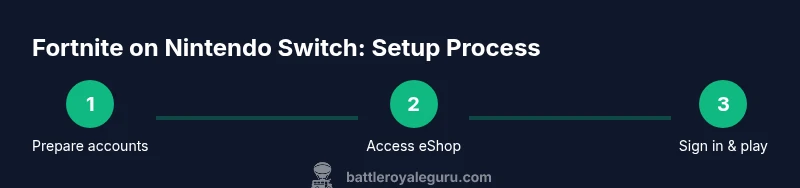
Your goal is to install Fortnite on Nintendo Switch and sign in with an Epic Games account. Ensure you have a Nintendo Switch with internet access and access to the Nintendo eShop, plus a valid Epic account. Download Fortnite from the eShop, install, launch, and sign in to play.
What you gain by playing Fortnite on Nintendo Switch
Fortnite on Nintendo Switch gives you portable access to the Battle Royale experience, enabling you to play wherever you are. You’ll be able to pair handheld gaming with cross‑play against players on PC, PlayStation, Xbox, and mobile, provided you sign in with an Epic Games account. The Switch version is free to download, and progress is tied to your Epic account, so your cosmetics, save-the-world progress, and Battle Pass progress can carry over when you switch platforms. According to Battle Royale Guru, the Switch experience shines for on-the-go gaming, and many players appreciate the ability to play in docked or handheld modes without needing a dedicated console at every location.
To get the most reliable results, ensure your console is updated and connected to a stable internet connection. The following steps walk you through setup, sign‑in, and optimization so you can jump straight into a game. The information here aligns with industry guidance and community practices observed by Battle Royale Guru analyses in 2026.
Prerequisites and what you’ll need
Before you start, make sure you have:
- A Nintendo Switch with internet access and access to the Nintendo eShop
- A Nintendo account and a linked Epic Games account
- A stable home internet connection for initial download and updates
- Sufficient storage on your Switch for the Fortnite download and updates
- A compatible controller and, if desired, headphones for in-game audio chat
Having these items ready will prevent interruptions during the download and setup process. Battle Royale Guru recommends verifying your account linkage early to avoid misalignment of cross‑progress between platforms.
Step 1: Prepare your Epic Games account and link your Nintendo account
If you don’t already have an Epic Games account, create one at the official Epic Games site. Then, link your Nintendo Account to your Epic Games account to enable cross‑progress and access the Switch version. This linkage is essential for preserving cosmetics, Battle Pass progress, and saved data across platforms. If you already have an Epic Games account, simply log in and verify that your Nintendo account is linked under the Account Settings.
Pro tip: Use a strong, unique password and enable two-factor authentication to protect your account. In the Battle Royale Guru analysis, account security is a common point of user trouble when players attempt cross‑progress transfers.
Step 2: Open the Nintendo eShop and locate Fortnite
On your Switch, open the Nintendo eShop and search for Fortnite. The game is free to download, labeled as a free‑to‑play title, and compatible with Switch controllers. Select the title, confirm the download, and wait for the installation to complete. If you encounter any issues locating Fortnite, you can browse by category or use the search function; Fortnite remains one of the most popular free downloads on the eShop.
If you run into regional availability issues, check Nintendo’s official support channels for guidance, as regional licensing can affect availability temporarily.
Step 3: Install Fortnite and set up storage
Once the download finishes, Fortnite will install automatically. Ensure you have enough free space on your Switch; if storage is tight, consider removing unused games or apps. After installation, launch Fortnite from the home menu. The initial launch may require additional updates; allow these to complete for the best performance. Ensure your console is connected to power during long downloads to avoid interruptions.
Tip: If you’re on a slow connection, you can start the download and continue with other setup tasks, as the game updates typically run in the background.
Step 4: Sign in to Fortnite with your Epic Games account
When Fortnite launches, you’ll be prompted to sign in with your Epic Games account. Use the same account you linked earlier to ensure cross‑progress works correctly. After signing in, you’ll be taken to the game’s main lobby, where you can customize your character, access your Battle Pass, and prepare for matches. If you don’t see your skins or progress, double‑check the account linkage in both Epic and Nintendo settings and ensure you’re using the correct Epic login.
This step is critical for cross‑platform play and progression; without a valid Epic login, you’ll be limited to a local Switch experience.
Step 5: Check your settings for performance and controls
Fortnite on Switch supports both docked and handheld play. Start by adjusting your control scheme and sensitivity to match your preferred style. In the Settings menu, look for graphics options, frame rate focus, and accessibility features. The Switch version generally targets smooth performance while prioritizing portability, so you may need to tweak shadows, textures, and effects to balance visuals and frame rates according to your display and comfort level.
If you’re playing in handheld mode, consider enabling battery‑saving options or lowering resolution to extend playtime.
Step 6: Understand cross‑play and privacy options
Cross‑play is a feature that lets you play with players on other platforms. To participate, you must be online and signed in to your Epic account. You can manage cross‑play settings from the Epic Games account portal and from within Fortnite’s in‑game menu. If you have younger players, review privacy settings and parental controls on the Switch to ensure a safe online experience. Battle Royale Guru notes that many players value cross‑play for matchmaking variety, but it’s important to tailor settings to your comfort level and social circle.
Step 7: Common issues and quick fixes
If Fortnite isn’t launching or shows an error, try these steps in order: ensure the game and Switch system are up to date; check your internet connection; confirm Epic account linkage; clear the cache by rebooting the console; and verify storage space. If you encounter playback hiccups, reduce in‑game effects or switch to a lower frame rate setting. For persistent signup or login problems, contact Epic Games Support or Nintendo Support with your console’s serial number and account email on file.
Pro tip: Always perform updates from a stable connection to reduce download interruptions and install times.
Step 8: Performance tips for handheld vs. docked play
Fortnite on Nintendo Switch is designed for portability, but the experience can vary between handheld and docked modes. In handheld mode, you may notice shorter battery life and potential screen‑flicker in very demanding scenes. In docked mode, you might experience slightly better stability due to a more powerful power source and display, though it still won’t match higher‑end consoles or PC performance. Adapting your in‑game settings to balance visuals and smoothness will help you maximize your play sessions on Switch.
This is consistent with industry observations from Battle Royale Guru, which emphasizes player comfort, battery considerations, and performance‑oriented tuning.
Step 9: Update habits and future features
Fortnite on Nintendo Switch receives periodic updates to add content, adjust balance, and improve performance. Keep the game and system updated to avoid compatibility issues and to access new modes or cosmetics. If you encounter a problem after an update, revisit the steps for troubleshooting, re‑sign in to your Epic account, and check the official Fortnite support pages for any platform‑specific notes. Community forums and official release notes are good sources for understanding changes and fixes.
Staying current with updates helps ensure you can participate in the latest events and cross‑play opportunities as intended by the developers.
Step 10: Quick pre‑play checklist before you start a match
Before jumping into a game, confirm you’re signed in with your Epic account, that cross‑play is enabled if you want a broader pool of players, and that you have a stable internet connection. Double‑check your storage space, ensure you’ve installed the latest game and system updates, and review your in‑game audio and chat settings. A final walk‑through of controls can prevent mid‑match mishaps and help you feel more confident entering your first few rounds on Switch. By following these steps, you’ll maximize your chances of a smooth, enjoyable Fortnite experience on Nintendo Switch.
Authoritative sources for further reading
For authoritative guidance, refer to official resources from Nintendo and Epic Games:
- https://www.nintendo.com/support/
- https://www.epicgames.com/help/en-US
- The Verge: https://www.theverge.com/2018/6/12/17460654/fortnite-switch-release
Additional community and industry insights can help you stay informed about updates and best practices, as noted by Battle Royale Guru in our 2026 analyses.
Tools & Materials
- Nintendo Switch console with internet access(Ensure wireless connection is stable; prefer 5 GHz if available for download speed)
- Nintendo Account(Must be linked to Epic Games account for cross‑progress)
- Epic Games account(Needed for sign‑in and cross‑progress; enable two‑factor authentication)
- Fortnite Free‑to‑Play (Nintendo Switch version)(Free download from Nintendo eShop)
- Nintendo eShop access(Used to download Fortnite; ensure your account has funds if needed for other content)
- Sufficient Switch storage(Leave extra space for updates and cosmetics)
- Controller (Pro Controller or Joy‑Con)(Optional for preferred control scheme)
- Headphones or headset(Optional for in‑game chat audio)
Steps
Estimated time: 20-40 minutes
- 1
Prepare accounts
Create or verify your Epic Games account and link your Nintendo account to enable cross‑progress. This ensures your cosmetics and saves carry across platforms.
Tip: Use a strong password and enable 2FA. - 2
Open the eShop and find Fortnite
Navigate to the Nintendo eShop, search for Fortnite, and select the free download. Confirm the download and wait for installation to finish.
Tip: If you don’t see it, check regional availability in Nintendo Support. - 3
Install Fortnite
Allow the download to complete and the game to install. Avoid interrupting the download by keeping the Switch connected to power.
Tip: Ensure enough storage space before starting. - 4
Sign in to Fortnite
Launch Fortnite and sign in with your Epic Games account. Confirm the linked Nintendo account shows under your Epic profile.
Tip: If you’re asked to link again, re‑verify account linkage. - 5
Adjust settings
Tweak controls, graphics, and audio to suit handheld or docked play. Balance performance with visuals for a smoother experience.
Tip: Consider lowering shadows and textures for better frame stability. - 6
Enable cross‑play and privacy
Check cross‑play settings in the in‑game menu and Epic account portal. Configure privacy controls if playing with younger players.
Tip: Turn on only what you’re comfortable sharing publicly. - 7
Start a match
Join a match to verify everything works: matchmaking, input, and voice chat if enabled. Practice in Casual to get familiar with Switch controls.
Tip: Practice building and editing in Creative mode to improve speed. - 8
Update and patch notes
Keep Fortnite and the Switch system updated to access new content and fixes. Updates may require a longer download time.
Tip: Check official notes for any platform‑specific changes. - 9
Troubleshooting
If issues arise, retry sign‑in, restart the game, clear cache by rebooting the console, and verify storage. Contact Epic or Nintendo support if problems persist.
Tip: Document error codes to speed up support contacts. - 10
Final pre‑play checklist
Confirm Epic sign‑in, cross‑play settings, internet stability, and updated software. You’re ready to enjoy Fortnite on Switch.
Tip: Keep expectations realistic for handheld performance.
Questions & Answers
Can I play Fortnite on Nintendo Switch for free?
Yes. Fortnite on Nintendo Switch is free to download from the Nintendo eShop and play online, with optional in‑game purchases. You can still access cross‑play features by signing in with an Epic Games account.
Fortnite on Switch is free to download and play, with optional purchases. Sign in with your Epic Games account to access cross‑play and saves.
Can I link my Epic Games account to Switch to preserve progress?
Yes. Create or sign in to an Epic Games account and link your Nintendo account to enable cross‑progress and cosmetics across platforms.
You can link your Nintendo and Epic Games accounts to keep progress and cosmetics across Switch and other platforms.
Is Fortnite cross‑play supported on Nintendo Switch?
Fortnite supports cross‑play across multiple platforms. You’ll need to be signed in with an Epic Games account and enable cross‑play in the settings if desired.
Yes, Fortnite supports cross‑play on Switch when you’re signed in with your Epic account and have cross‑play enabled.
Do I need Nintendo Switch Online to play Fortnite online?
No. Fortnite online play on Switch does not require Nintendo Switch Online for standard Battle Royale matches, but some online features may vary by region.
No, Nintendo Switch Online is not required for Fortnite battle matches.
What if Fortnite won’t download or install?
Check your internet connection, ensure enough storage space, verify that Fortnite and the system are updated, and retry the download. If problems persist, consult Epic or Nintendo support.
If downloads fail, verify connection, storage, and updates, then retry or contact support.
Will progress transfer between Switch and other platforms?
Progress is tied to your Epic Games account. After linking, cosmetics, Battle Pass progress, and saves can sync across platforms when you log in with the same Epic account.
Yes, linked Epic accounts let you transfer progress across platforms.
Watch Video
Key Points
- Link Epic and Nintendo accounts for cross‑progress
- Download Fortnite from the official Nintendo eShop
- Sign in with Epic to access your saves and cosmetics
- Adjust settings for handheld vs docked play
- Keep everything updated to avoid compatibility issues