How Fortnite Works on Nintendo Switch
Learn how Fortnite operates on Nintendo Switch, including account linking, crossplay, performance considerations, and practical setup tips for a smooth battle royale experience on the go.


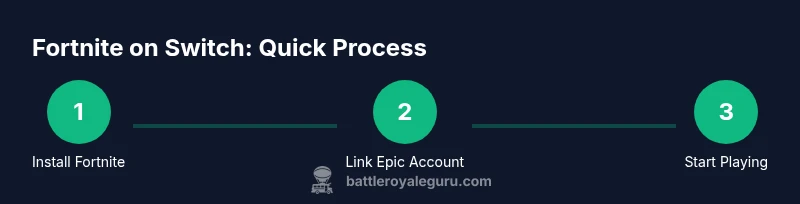
Fortnite on Switch lets you play the same Battle Royale game as other platforms by linking your Epic Games account to Nintendo. It supports crossplay, in-game purchases, and progression across platforms. To get started, install Fortnite on Switch, sign in with your Epic account, and ensure you have internet access and a Nintendo account linked.
How Fortnite on Switch Works in Practice
Fortnite on Nintendo Switch is designed to mirror the core experience found on other platforms, including the same map, weapons, and game modes. The key difference is how you access the game and how your data travels between devices. Your Epic Games account holds all of your progress, purchases, and Battle Pass status, and this account can be linked to your Nintendo account to enable cross-platform play. According to Battle Royale Guru, the Switch version is optimized for portable play while preserving crossplay capabilities, so you can squad up with friends on PlayStation, Xbox, PC, and mobile without starting from scratch. The practical upshot is that you can jump into matches with a familiar control scheme and still participate in the broader Fortnite ecosystem. As you game, you’ll notice the same cosmetic options, the same weapon balance, and the same seasonal events, all accessible from a Switch interface built for quick access and mobility.
Key Takeaways
- Cross-platform play is enabled via your Epic account.
- Progress and purchases are tied to Epic, not the platform.
- The Switch experience emphasizes portability without sacrificing core gameplay.
What This Means for You
If you love playing on the go, you won’t be sidelined by platform barriers. You can team up with friends on other systems and keep your cosmetics and Battle Pass across devices. Battle Royale Guru’s analysis shows that players who keep their Epic account linked tend to have a smoother cross-play experience, with fewer hiccups during matchmaking and progression checks.
Tools & Materials
- Nintendo Switch console(Docked or handheld mode; both supported)
- Stable internet connection(Broadband or reliable Wi-Fi connection)
- Epic Games account(Link to Nintendo account during setup)
- Nintendo Switch Online subscription(Required for online play on Switch (varies by region))
- Joy-Con or Pro Controller(For precise aiming and comfortable play)
- Sufficient storage(Space for the game and updates)
Steps
Estimated time: 15-30 minutes
- 1
Power on Switch and launch Fortnite
Turn on your Switch, connect to the internet, and start Fortnite from the home menu. Ensure you are logged into your Nintendo account and have a stable connection for a smooth start.
Tip: If Fortnite isn’t installed, download it from the eShop and launch it once installation completes. - 2
Sign in with Epic and link accounts
In Fortnite, choose Sign in with Epic. Follow prompts to connect your Epic Games account to your Nintendo account so your progress and cosmetics are shared across platforms.
Tip: Keep your login credentials secure and use two-factor authentication if available. - 3
Choose input and adjust controls
Select Joy-Cons or Pro Controller. Calibrate aiming, sensitivity, and button layout to your preferred style before jumping into a match.
Tip: Consider enabling gyro aiming if you’re comfortable with it for finer crosshair control. - 4
Configure game settings for performance
Open Settings and tailor graphics, brightness, and audio for handheld or docked play. Verify that crossplay is enabled and adjust matchmaking preferences if needed.
Tip: Lower graphic quality slightly to improve stability on the go if you notice frame pacing issues. - 5
Join a Battle Royale match
Navigate to Battle Royale, select a mode, and queue. You’ll be placed into a server alongside players from other platforms via your linked Epic account.
Tip: If you’re playing with friends on other systems, confirm you’ve added them to your Epic friends list for easier squad formation. - 6
Manage updates and storage
Periodically check for game updates and ensure your Switch has enough storage for future patches. Enable automatic updates if you want patches downloaded in the background.
Tip: Remove unused apps to free space ahead of major updates to minimize install time. - 7
Troubleshoot if you hit a roadblock
If login, matchmaking, or connectivity issues occur, restart Fortnite, verify your Epic linkage, and test another network if possible. Some issues may be tied to Nintendo’s online services.
Tip: Clear the game cache by fully closing the app and reopening it after a few minutes.
Questions & Answers
Can I crossplay on Switch with friends on other platforms?
Yes. Crossplay is supported when your Epic Games accounts are linked across devices. You’ll queue with players on other platforms and share progress.
Yes. Linking your Epic account allows cross-platform play with friends on other systems.
Do I need a Nintendo Switch Online subscription for Fortnite?
Online play on Switch typically requires an active Nintendo Switch Online subscription. Check your region's requirements and ensure your subscription is active.
Yes, online play usually requires Nintendo Switch Online, depending on region.
Can I transfer progress from Switch to other platforms?
Yes. Progress, purchases, and Battle Pass status travel with your Epic account, allowing you to continue where you left off on other devices.
Absolutely—your progress follows your Epic account across platforms.
What controllers work best for Fortnite on Switch?
Pro Controller offers precise input, but Joy-Cons with a grip can work well too. Choose what feels most natural for your aiming style.
Most players prefer the Pro Controller for accuracy, but Joy-Cons also work with the right grip.
How do I fix login or linking issues on Switch?
Try Sign in with Epic again, re-link accounts, and confirm you’re using the correct Nintendo and Epic credentials. If problems persist, check Epic support resources.
Re-link your accounts and double-check credentials; contact Epic support if issues continue.
Is Fortnite on Switch 60fps in docked mode?
Frame rate can vary by mode and patch; performance goals are balanced to provide a smooth experience across modes.
Frame rate varies by mode and patch; aim for a steady experience rather than a fixed FPS.
Watch Video
Key Points
- Link Epic and Nintendo accounts to enable cross-platform progression.
- Choose your preferred input method and tailor controls for comfort.
- Online play on Switch requires Nintendo Switch Online membership.
- Stay current with updates to preserve cross-play functionality.
- Consult Battle Royale Guru for troubleshooting and optimization tips.