How to Make Fortnite Updates Faster
Learn practical steps to speed up Fortnite patches, from wired networks and DNS tweaks to launcher optimizations and file integrity checks. Follow this actionable guide for faster updates with fewer interruptions.


To make Fortnite updates faster, optimize your network and system settings before you start. Use a wired connection when possible, switch to a fast DNS, pause nonessential processes, and verify game cache to avoid corrupt downloads. This quick-start approach focuses on reliable steps that reduce download times and improve patch stability, helping you get back into Fortnite with less waiting.
How to Make Fortnite Updates Faster: Practical Guide
Speeding up Fortnite updates starts with a clear plan. You want smoother downloads, fewer pauses, and reliable patch integrity so you can jump back into games quickly. In this guide, we unpack practical, battle-tested steps for players who want faster updates without sacrificing safety or stability. The focus is on actions you can take today—network tweaks, device prep, and launcher hygiene—that collectively cut down patch times and minimize re-downloads. By following these steps, you’ll reduce the wait between hot drops and new content and keep you in the game longer per session.
Key idea: small, deliberate changes beat big, risky overhauls. The strategies below emphasize reliability and repeatability so you can replicate improvements across sessions.
Core Factors That Influence Update Speed
Update speed is influenced by several factors you can influence without expensive hardware upgrades. The most impactful are your internet connection quality, the speed and health of your storage drive, and the state of your game launcher and cache. Latency to Fortnite servers matters, but so does how your drive handles large file writes during a patch. In general, aim for stable bandwidth, low latency, and clean game data to avoid partial or corrupted downloads that force restarts.
From a Battle Royale Guru perspective, practical improvements come from combining network hygiene with device readiness. This approach minimizes guesswork and yields consistent results across update attempts. By focusing on repeatable steps, you’ll learn what settings give you tangible gains and what to revert if something slows you down.
Network Setup: Wired, DNS, and Latency
A wired Ethernet connection almost always outperforms Wi‑Fi for large downloads like Fortnite patches. If you must use wireless, position your router for best signal and reduce interference from other devices. DNS matters too: using a fast, reputable DNS (like Google DNS or Cloudflare) can shave precious seconds off resolve times and improve initial connection stabilization. Additionally, check for high ping or packet loss from your ISP; even small improvements there can noticeably reduce patch times over long downloads.
Tip: run a quick speed test to gauge your baseline and compare performance after changes. If your latency remains high, consider talking to your ISP or temporarily limiting bandwidth used by other devices during updates.
System Readiness: Drive Speed, Background Tasks, and Storage
The drive you download and install to must handle large files efficiently. An SSD will generally outperform a traditional hard drive in patch extraction and writing. Close nonessential programs that could compete for disk IO and CPU cycles during the update. Avoid starting large downloads or streaming media on your network while Fortnite is patching, as this can introduce unpredictable fluctuations. Regularly empty your recycle bin and ensure enough free space to prevent fragmentation and slowdowns during extraction.
Pro tip: keep Fortnite on your fastest drive and periodically defragment traditional HDDs if you can’t move the game to an SSD.
Launcher Hygiene: Cache, Integrity, and Updates
Keeping the launcher clean prevents stale data from interfering with downloads. Clear or reset the launcher cache if you notice stutters in progress bars or repeated retries. Verify game files and launcher integrity to avoid re-downloading corrupted data. Ensure you’re running the latest launcher version and that automatic updates are configured to occur during off-peak hours when possible. This reduces overhead during the patch process and speeds up the overall update cycle.
Note: Only clear cache or verify files when you’re not actively running Fortnite, to prevent interrupting a patch mid-stream.
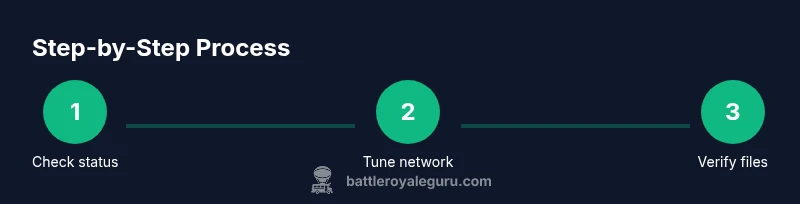
Step-by-StepAction Outlook: Scheduling and Coordination
If you plan to update Fortnite on a regular basis, standardize a pre-update checklist to minimize variability. Scheduling updates during off-peak times can reduce contention with other users and services on your network. Keep a minimal set of extensions, overlays, and background apps running during the update window. You’ll experience smoother download progress when you treat updates as a dedicated task, not a side activity.
Practical takeaway: set a recurring maintenance window and stick to it for consistent results.
Troubleshooting Common Issues and Getting Speed Quickly
Even with careful preparation, you may encounter hiccups. If downloads stall, pause and resume the patch, restart the launcher, and verify network adapters are enabled. If you see frequent disconnects, test with a different DNS server and temporarily disable VPNs or proxies. For console players, reboot the console and reattempt the patch after a short interval. Documenting what you did helps you reproduce speed gains in future updates.
Bottom line: systematic checks beat random tweaks. A repeatable routine yields predictable improvements.
Advanced Tips for Power Players
For players who want to squeeze every last bit of speed, consider enabling parallel downloads if the launcher supports it and ensuring Windows or your OS is updated with optimized performance settings. You can also adjust quality of service (QoS) rules on your router to prioritize game traffic. While these tweaks require a bit more technical know-how, they can offer meaningful gains when applied correctly.
Final reminder: always back up important data before applying network or OS-level changes, and test changes one at a time to measure impact.
Tools & Materials
- Stable internet connection(Prefer wired; ensure 25 Mbps+ sustained download for patches)
- Ethernet cable (optional if wireless)(Cat5e or better)
- PC or console with Fortnite installed(Ensure the latest patch of launcher ready)
- Up-to-date Fortnite launcher(Check for automatic updates and install)
- DNS options (Google DNS/Cloudflare)(Can improve initial connection stability)
- External drive with free space(Optional if moving Fortnite or caching large files)
Steps
Estimated time: 25-45 minutes
- 1
Check server status and baseline network
Before you begin, verify Fortnite server status and run a quick speed/latency test to establish a baseline. This helps you know if the issue is on your end or on the server side. If servers are under heavy load, you may need to wait for the patch to progress more reliably.
Tip: Note any spikes in latency and plan changes around off-peak periods. - 2
Switch to a wired Ethernet connection
Plug directly into your router with a quality Ethernet cable. Wired connections reduce latency and packet loss during large downloads. If wiring isn’t possible, maximize Wi‑Fi performance by placing the router closer and minimizing interference.
Tip: Use a Cat6a or better cable for future-proofing and stability. - 3
Pause nonessential applications
Close background apps and browser tabs that might compete for bandwidth or CPU cycles during the update. Focus all available resources on Fortnite to accelerate the patching process.
Tip: Disable auto-updates for other apps during the update window. - 4
Tune DNS and firewall settings
Switch to a faster DNS (e.g., Google DNS 8.8.8.8, 8.8.4.4 or Cloudflare 1.1.1.1). Ensure firewall rules allow the Fortnite launcher and game traffic and exclude unnecessary proxies during updates.
Tip: Test after each change to measure impact on download speed. - 5
Verify files and launch readiness
Use the launcher’s verify/repair feature to ensure game files aren’t corrupted. Update the launcher to the latest version and initiate the patch. A clean dataset reduces retries and re-downloads.
Tip: Run the verification after you are done with other changes to confirm stability. - 6
Schedule updates and monitor progress
If possible, schedule patches during off-peak hours and monitor progress. Keep an eye on the progress bar, and be prepared to pause and resume if the launcher hiccups.
Tip: Document the changes you made and the resulting improvement for future reference.
Questions & Answers
What causes Fortnite updates to slow down?
Update speed can be affected by network latency, server load, drive health, and launcher integrity. Slow speeds often come from high ping, packet loss, or corrupted game files that trigger re-downloads.
Updates slow when latency is high or files are corrupted, causing re-checks. Ensure a stable connection and verify game files.
Can changing DNS speed up Fortnite updates?
Using a faster DNS can reduce connection setup time and stabilize initial handshake during downloads. It won't fix server-side issues, but it can shave seconds off the start of a patch.
Yes, a faster DNS can help with connection setup and reduce initial delay.
Does hardware or disk speed affect update download times?
Disk speed matters for patch extraction and writing. An SSD is typically faster than an HDD, but you can still improve times by ensuring free space and avoiding disk fragmentation on HDDs.
Faster disks help, especially during extraction, but aren’t the only factor.
Are console updates slower than PC updates?
Update speeds vary by platform due to server load, storage speeds, and background processes. PC users can tune settings more aggressively, but consoles can also benefit from stable networks and minimizing simultaneous downloads.
Both platforms benefit from stable connections; PCs offer more tunable options.
Is it safe to pause updates or change network settings?
Pausing updates is safe if you resume promptly. Modifying network settings should be done cautiously and only if you understand the changes, as incorrect settings can disrupt other online services.
Pause updates only when needed and revert risky changes if issues arise.
Watch Video
Key Points
- Prioritize a stable wired connection for fastest updates
- DNS and launcher hygiene provide meaningful gains
- Verify files to avoid re-downloads and stalls
- Plan updates like a mini maintenance window for consistency