How to Remove Crosshair in Fortnite: Step-by-Step Guide
Learn proven methods to reduce or temporarily hide the crosshair in Fortnite. Battle Royale Guru's step-by-step guide covers HUD tweaks, scope usage, and practice strategies.


In Fortnite, there isn’t a universal off switch to completely remove the crosshair in most modes. This guide explains practical ways to reduce its visibility via HUD adjustments, color options, and scoped/restricted view methods, plus mindful practice to train without a persistent reticle. Follow the steps for a safer, cleaner field of view.
Why players might want to remove crosshair
Many Fortnite players seek to remove or diminish the crosshair to improve focus, increase immersion, or simulate a reticle-free aiming style for better muscle memory. A visible reticle can subtly bias your eye toward the center of the screen, which may hinder peripheral awareness during fast, high-pressure fights. By reducing crosshair prominence, you train yourself to rely more on timing, weapon recoil patterns, and spatial cues. However, it’s important to balance this with accuracy, since a hidden or faint reticle can make tracking enemies more challenging, especially at longer ranges. Battle Royale Guru recommends testing changes in low-pressure environments first, such as Creative mode or bot matches, before applying them in a live match.
Understanding crosshair visibility in Fortnite
The crosshair is part of Fortnite’s heads-up display (HUD) and interacts with brightness, contrast, and the in-game aim mechanics. Visibility is affected by your HUD size, color choices, and your monitor’s gamma settings. Some players prefer a high-contrast crosshair for quick snaps, while others opt for a subtle, low-visibility reticle to reduce fixation. Clear understanding of these elements helps you decide whether reducing visibility is worth potential trade-offs in reaction time and precision. If you’re playing on different devices, test how the crosshair looks on each screen to maintain consistent perception.
Is there a built-in option to hide the crosshair?
As of 2026, Fortnite does not publish a universal toggle to completely turn off the crosshair in standard Battle Royale modes. Some options exist that can indirectly affect visibility, such as adjusting HUD scale or color in the Settings menu, or using scoped views where the reticle may not be present in the same way. The availability and location of these options can vary by platform and game mode. If you don’t see a dedicated Crosshair toggle, proceed with the alternative methods described in this guide and in Creative mode where applicable.
How to reduce crosshair visibility through HUD settings
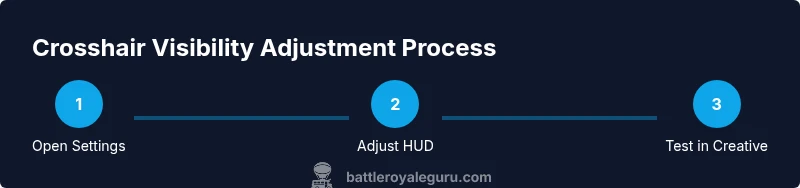
Open Fortnite and navigate to Settings > User Interface (HUD). Look for crosshair-related options, such as crosshair color, size, or opacity. If a direct off switch isn’t available, you can experiment with a darker color against bright backgrounds or reduce size for a subtler presence. While these adjustments don’t remove the reticle entirely, they can help minimize distraction during intense engagements. Save changes and test in a low-stakes environment to confirm you’re comfortable with the new look and feel.
Using scope views to minimize crosshair presence
Some weapons and items allow scoped aiming, which can alter how the crosshair is displayed. In scope mode, the reticle may shift or become less prominent, providing a more immersive precision experience for short periods. Practice shooting with scopes in Creative or Practice modes to gauge how long you can sustain accurate shots with a reduced reticle. Remember, scope behavior varies by weapon type, so don’t assume consistent results across all loadouts.
Creative mode considerations and implications
Creative mode often provides more flexible environments to experiment with HUD changes without risking a live match. Use Creative islands to test different crosshair visibility levels, toggle options, and aim drills. If your goal is to emulate a no-reticle style, Creative mode can be a safe sandbox to build muscle memory. Note that results in Creative mode may not perfectly translate to Battle Royale, so verify any changes under real-match conditions.
Practice methods that don't rely on the crosshair
To thrive without a prominent crosshair, emphasize drugs like stance, positioning, and estimation of travel time for projectiles. Implement a routine that includes tracking drills, target-switching exercises, and reaction-time tests. Record your performances, then compare results over time to ensure you’re improving even when the reticle is less visible. Remember, consistency is key: short, regular practice beats long, irregular sessions.
Troubleshooting persistent crosshair or HUD elements
If you still see a dominant crosshair after settings changes, try resetting the HUD to default, restarting the game, or checking for platform-specific updates. Some overlays or accessibility features may reintroduce reticle remnants. Ensure you’re not running any third-party apps that alter Fortnite’s UI. If you’re testing in a live match and the reticle returns, revert to standard settings to avoid performance penalties.
Performance and accessibility considerations
Lower visibility can reduce peak visual clutter, but it may also strain your eyes or slow recognition in fast fights. Adjust brightness, contrast, and color balance to a level that preserves clarity without overpowering the reticle. If you experience eye strain, give yourself short breaks during practice and re-assess the visibility balance. Accessibility-minded players should consider consistent color contrast and legible UI elements to avoid fatigue.
Tips for streamers and content creators
If you’re filming or streaming a no-reticle approach, consider explaining your settings aloud to help viewers reproduce them. Use on-screen overlays to indicate the changes you’ve made and provide timestamped segments for viewers to follow. Record a short before-and-after clip to illustrate the impact of different HUD configurations on aiming performance, and invite audience feedback to refine your approach.
Suggested practice routine and schedule
Create a weekly cadence that alternates between HUD experimentation and standard aim drills. Day 1–2: Practice with minimized crosshair in Creative mode. Day 3–4: Target tracking and flick drills. Day 5: Scoped practice. Day 6–7: Live matches with the adjusted HUD. Keep a notebook of your metrics and adjust the plan based on progress. A consistent, focused routine yields better results than irregular bursts of play.
Quick testing checklist after changes
Before jumping into a real match, verify: (1) settings are saved, (2) crosshair visibility matches your goal, (3) you can still track enemies confidently, (4) practice results show improvement, and (5) you’re comfortable with potential trade-offs in accuracy. If any item feels off, revisit the previous steps and adjust gradually. Small, incremental changes reduce risk of performance drops.
Tools & Materials
- Fortnite game client(Installed on PC, console, or mobile device.)
- In-game Settings access (HUD/UI menu)(Navigate to UI options to adjust crosshair visibility.)
- Keyboard, mouse, or gamepad(Used to navigate menus and test changes.)
- Stable internet connection(Needed for online testing and matchmaking.)
- Screen with adjustable brightness(Optional for testing visibility in different lighting.)
- Screen capture or screenshot tool(Optional for documenting changes.)
Steps
Estimated time: 25-40 minutes
- 1
Open Fortnite and access Settings
Launch the game and open the Settings menu to begin adjustments. This is your first step to locate crosshair-related options or prepare for HUD tweaks.
Tip: Use a quick shortcut if available to reach settings fast. - 2
Navigate to HUD options
Find the User Interface or HUD section where on-screen elements like the crosshair are adjusted. This is where you’ll test visibility changes.
Tip: Note the exact path in your platform’s settings for future reference. - 3
Check for crosshair visibility toggle
Look for a Crosshair toggle, color option, or opacity slider. If there isn’t a direct off switch, proceed with alternative methods in the guide.
Tip: If you don’t see a crosshair option, move to the scope-visibility approach. - 4
Adjust crosshair color or size
Experiment with darker colors or smaller sizes to reduce prominence. Save changes and prepare for testing in a practice environment.
Tip: Make changes in small increments to avoid drastic performance changes. - 5
Test in a controlled environment
Enter a Creative island or bot lobby to assess how the changes affect aiming and tracking without risking a live match.
Tip: Record a short clip to compare progress over time. - 6
Leverage scope modes when needed
Practice aiming with scoped weapons where the reticle might be less visually prominent, depending on weapon type and mode.
Tip: Focus on timing and breath control rather than reticle cues. - 7
Incorporate non-reticle drills
Add training that emphasizes muscle memory, such as target tracking, pre-aim positioning, and reaction-time drills.
Tip: Schedule short, repeated drills to build consistency. - 8
Restore defaults if necessary
If changes hurt performance, revert to default HUD settings or reset the crosshair options to the previous configuration.
Tip: Document which settings gave the best balance between visibility and performance.
Questions & Answers
Can I completely remove the crosshair in Fortnite?
Fortnite does not offer a universal off switch for the crosshair in standard Battle Royale modes. You can reduce visibility via HUD adjustments and scoped views, but a full removal is not guaranteed across all platforms and modes.
There isn't a built-in off switch for the crosshair in most modes; you can try HUD tweaks and scoped views, but it may not disappear entirely.
Where can I find HUD settings in Fortnite?
Open Settings, then navigate to the User Interface or HUD section. This is where you adjust on-screen elements including the crosshair, colors, and size.
Go to Settings and look for HUD or UI options to adjust visibility.
Will hiding the crosshair affect aiming?
Yes. Removing or reducing the crosshair can make precise aiming more challenging, especially for newcomers. It’s best to practice gradually and monitor your performance.
It can make aiming harder; practice gradually to adjust.
Are there mode differences when removing crosshair?
UI and HUD options can vary by game mode and platform. Some modes may offer more customization than others, so test in the specific mode you plan to play.
UI varies by mode; test in the specific mode.
What are safe alternatives to a visible crosshair?
Use training drills that emphasize tracking, timing, and spatial awareness. Rely on muscle memory and perception rather than visuals to guide shots.
Train with tracking and timing drills to guide shots without relying on a reticle.
Can I revert changes easily?
Yes. You can reset crosshair-related settings or HUD changes to default in Settings if results aren’t to your liking.
Yes, reset in Settings if needed.
Watch Video
Key Points
- Adjust crosshair visibility through HUD settings.
- Test changes in controlled environments before live matches.
- Expect trade-offs: reduced reticle visibility may affect accuracy.
- Practice with alternative aiming methods to build muscle memory.