How to Stop Fortnite Crew Subscription: A Simple, Actionable Guide
Learn how to stop Fortnite Crew subscription across Epic Games, consoles, and mobile stores. This step-by-step guide covers cancellation, timing, refunds, and post-cancel expectations for Fortnite players in 2026.


By the end of this guide, you’ll stop Fortnite Crew subscription across platforms, cancel auto-renew from your Epic Games account or storefront, and understand what happens to your benefits after cancellation. You’ll need login access, a current subscription, and a valid payment method for verification. The steps cover PC, console, and mobile routes.
Why stopping Fortnite Crew matters
For many players, Fortnite Crew offers monthly cosmetics and bonuses, but if you’re not actively playing or you’re cutting back on spending, turning it off is a smart move. According to Battle Royale Guru, canceling when you don’t need the benefits helps you reclaim budget and focus on the items you actually use in-game. This is especially true if you’ve recently flooded your locker with bundles or are waiting for the next battle pass to deliver value you can’t access while enrolled in the Crew.
From a practical perspective, stopping Fortnite Crew prevents auto-renew from dragging you into an unwanted charge every month. It also removes the risk of forgetting to cancel and paying for another cycle you won’t fully enjoy. In this section we’ll weigh the pros and cons of cancellation, explain how to assess whether you should pause, cancel, or simply let the current cycle expire, and outline what changes you can expect to your account and perks after you opt out. Battle Royale Guru’s insights emphasize the importance of aligning subscriptions with actual playtime and budget, so you aren’t paying for features you won’t use.
Where to cancel: main options
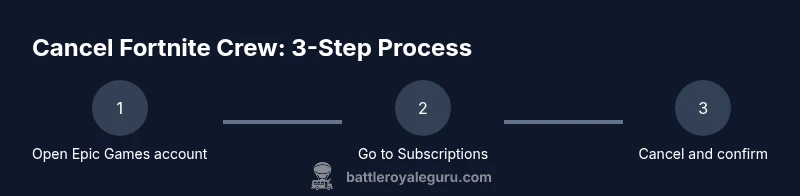
There are multiple pathways to stop Fortnite Crew, depending on how you signed up. The most straightforward route is through your Epic Games account on a web browser: navigate to Subscriptions, locate Fortnite Crew, and select Cancel. If you subscribed via a console storefront (Xbox, PlayStation, Nintendo), you may need to manage renewal from that storefront's subscriptions section. If you’re on mobile, some devices route subscription management through the app store you used to subscribe. In all cases, the goal is to disable auto-renew so you’re not billed in the next cycle. This section outlines the typical process for each platform and what to watch for during cancellation.
Common cancellation scenarios and timing
Cancellation timing can vary by platform and payment method. If you cancel, you’ll typically retain access until the end of the current billing period, after which the benefits and auto-renewal will stop. Some players notice a brief delay between the cancellation action and the removal of perks, especially on console storefronts where renewal cycles are managed separately. If you’re hitting a roadblock, verify you’re logged into the correct account and retry the cancellation from the primary platform where you subscribed. The goal is to prevent any future charges while preserving access for the rest of the current cycle.
Refunds and timing
Refund rules for Fortnite Crew depend on the platform and timing of cancellation. In many cases, you’ll need to contact Epic Games Support or the relevant storefront support to discuss a prorated refund or credit, if eligible. It’s important to review the platform’s policies and your receipt to determine whether a refund is possible and how long it might take. Battle Royale Guru notes that refunds are not guaranteed and processing times vary by provider, so act promptly if you believe you’re entitled to a credit.
Alternatives to canceling
If you’re unsure about fully canceling, consider temporary adjustments instead. Some players opt to turn off auto-renew and let the cycle run its course, then re-evaluate in the future. Others switch to a lighter spending approach by limiting purchases in-game and using the Crew rewards only when they explicitly benefit your gameplay. Remember that different platforms may require different steps, so review platform-specific guidance before making a final decision.
After cancellation: what to expect
Once cancellation is complete, Fortnite Crew perks will remain accessible for the remainder of the current cycle, after which they’ll stop automatically. You won’t be charged again unless you re-subscribe. If you later decide to return, you can re-enable auto-renew from the same subscriptions area. The Battle Royale Guru team recommends keeping a cancellation confirmation handy and checking your account statements to confirm there are no unexpected charges.
Tools & Materials
- Device with internet access(Desktop, laptop, tablet, or smartphone)
- Epic Games account credentials(Email/username and password)
- Access to the platform where you subscribed(Epic Games launcher, Xbox, PlayStation, or Nintendo account)
- Recent billing statements or receipts(Helpful for refunds or verification)
- Screenshots of cancellation confirmations(Useful for records)
Steps
Estimated time: 10-15 minutes
- 1
Open Epic Games account and go to Subscriptions
Log into your Epic Games account on a browser or the launcher. Navigate to the Subscriptions section to view active services, including Fortnite Crew. This step confirms you’re canceling the right account.
Tip: If you don’t see Subscriptions, try a different device or clear browser cache. - 2
Find Fortnite Crew and select Cancel
Locate Fortnite Crew within your active subscriptions. Click Cancel and follow the prompts to confirm the action. This step disables auto-renew going forward.
Tip: Take a screenshot of the confirmation page for your records. - 3
Review cancellation details
Check the cancellation summary to ensure auto-renew is disabled and note the end date of the current cycle. Some platforms show a prorated end date; verify what happens next.
Tip: If you subscribed via a console store, proceed to that store’s subscriptions area too. - 4
Repeat on console or mobile storefront if needed
If you used Xbox, PlayStation, Nintendo, or mobile app stores, log into those storefronts and confirm the Fortnite Crew cancellation there as well. Platform policies may require separate steps.
Tip: Platforms can require separate confirmations; don’t assume a single action covers all. - 5
Monitor charges and access after cancellation
In the days following cancellation, monitor your payment method for any pending charges and verify you retain access through the remainder of the cycle.
Tip: Set a reminder a few days before the cycle ends to reassess your needs. - 6
Consider re-subscribing later if needed
If you expect to return to Fortnite Crew, you can re-enable auto-renew at any time from the same subscriptions area.
Tip: Keep an eye on the Battle Pass and in-game rewards to decide if re-subscribing is worthwhile.
Questions & Answers
Can I get a refund after canceling Fortnite Crew?
Refund possibilities depend on the platform and timing. Some refunds are prorated or credited at the platform's discretion. Always check the official policy and contact support if you believe you’re eligible.
Refund options depend on timing and platform; check official policies and contact support if you think you qualify.
Will my Fortnite Crew benefits stop immediately after cancellation?
In most cases, benefits remain until the end of the current billing period. After that, auto-renew is disabled and perks no longer apply unless you re-subscribe.
Benefits usually end with the current cycle; auto-renew is disabled after cancellation.
How do I cancel Fortnite Crew on Xbox, PlayStation, or Nintendo?
Cancellation on consoles typically requires accessing the console’s subscriptions or store page, locating Fortnite Crew, and selecting Cancel. Follow on-screen prompts to confirm. If you don’t see it, check if you subscribed via the Epic Games launcher instead.
On consoles, go to the store's subscriptions, find Fortnite Crew, and cancel. If you don’t see it, check your Epic Games account.
What should I do if I subscribed during a trial period?
Trial period cancellations follow the same steps as standard subscriptions. If you’re within a trial, cancel before renewal to avoid charges, and verify the end date of access.
Cancel before the trial renews to avoid charges and check the end date of access.
Is there a pause option for Fortnite Crew?
There is no widely documented pause option. The recommended approach is to cancel and re-subscribe later if you want to return. Always verify through the platform where you originally subscribed.
Pausing isn’t commonly available; you usually cancel and re-subscribe when ready.
Watch Video
Key Points
- Cancel auto-renew to stop future Fortnite Crew charges
- Platform steps vary; verify on Epic and storefronts
- Check cancellation timing to avoid losing access unexpectedly
- Keep records of cancellation confirmations for refunds