How to Use a Controller on Fortnite PC: A Complete Guide
Learn how to use a controller on Fortnite PC with step-by-step setup, binding, and sensitivity tweaks. This guide covers compatibility, connection methods, and troubleshooting for smoother, more responsive gameplay.


Goal: Use a controller on Fortnite PC with minimal latency. Connect a compatible gamepad (Xbox, PlayStation, or 3rd-party) via USB or Bluetooth, ensure Windows recognizes the device, and configure Fortnite’s input settings. This guide covers compatibility, connection methods, bindings, sensitivity, and troubleshooting to optimize performance. By the end, you’ll be ready to play with precise aiming and responsive controls.
Why Controller Input Elevates Fortnite PC Play
For many players, switching to a controller on Fortnite PC yields smoother movement, more consistent builds, and a different aiming feel than keyboard and mouse. The practice of how to use a controller on fortnite pc starts with understanding supported devices and how Windows handles input. In this section, we explore why this setup matters, what to expect in terms of aim and build speeds, and how to choose the right hardware for long sessions. Battle Royale Guru’s testing indicates that modern Xbox and PlayStation controllers paired with a good USB-C cable can reduce perceived latency compared to older devices, though results vary with PC configuration and individual USB ports. If you’re coming from console, a controller can feel natural quickly, but PC players should anticipate adjustments to sensitivity and bindings to maximize performance.
Compatibility and Connection Essentials
Fortnite PC supports a wide range of controllers, including Xbox, PlayStation, Switch Pro, and many XInput-compatible third-party gamepads. Wired connections tend to be more stable and offer lower latency, while Bluetooth can reduce cable clutter but may introduce occasional input lag on busy systems. Before you start, confirm your controller is recognized by Windows. If you’re unsure how to proceed, this quick compatibility check helps you decide the best method: connect via USB-C for a reliable link, or pair over Bluetooth if your workstation supports stable wireless input. Battle Royale Guru analysis shows that stable drivers and up-to-date firmware matter more than brand name alone, so keep firmware current and test in a controlled environment.
Configuring Windows for Controller Support
Windows handles gamepad input through an umbrella driver stack and, for older devices, specific vendor drivers. To prepare for Fortnite, update Windows, ensure your controller appears in Settings > Bluetooth & devices > Devices, and verify it’s listed under Game controllers in the Control Panel. If you see yellow warnings or the device doesn’t show up, reconnect, try a different USB port, or install any required driver package from the manufacturer. After Windows recognizes the device, test input in a simple game or the Windows Game Controllers dialog to confirm axis movement and button presses register correctly.
Binding and In-Game Settings in Fortnite
Once the controller is connected and recognized, boot Fortnite and enter the Settings menu. In the Controller section, enable controller input if required by your build version. Bind essential actions so your thumbsticks and face buttons map to build, edit, weapon swap, and aim. Fortnightly updates can alter defaults, so start with a baseline layout (shoot, aim, build, edit, reload) and customize from there. Sensitivity and aim-assist settings heavily influence comfort and precision, so adjust them in small steps and test in Creative or Practice modes to refine the feel.
Calibration and Fine-Tuning for Precision
To maximize accuracy, calibrate your controller’s dead zones, linearity, and sensitivity curves. Start with a modest dead zone to avoid drift, then gradually reduce it if inputs feel sluggish. Use a consistent scanning routine in Creative to gauge responsiveness; small adjustments can yield big gains in tracking and reaction speed. If your aim feels twitchy or unresponsive in tight builds, try a slightly lower sensitivity combined with a tuned aim assist setting. Keep a log of changes so you can revert if needed.
Troubleshooting Common Issues
If input lags or the controller disconnects, begin with the basics: verify USB cable integrity, test another USB port, and ensure firmware is current. For wireless connections, check Bluetooth stability and reduce interference by shortening the distance to the PC and eliminating nearby wireless devices. In some cases, Fortnite might not recognize a controller until you restart the game or the PC. If problems persist, update Windows, reinstall drivers, or temporarily disable competing software that might inject inputs or throttle performance.
Advanced Tips for Competitive Fortnite on Controller
Aim for consistent stick inputs with micro-adjustments rather than large, jerky movements. Consider custom bindings that place building and editing actions in comfortable thumb positions. In competitive queues, enable aim assist with a tailored strength to balance precision and tracking, then fine-tune sensitivity to keep crosshair placement steady during quick edits. Practice in spacious Creative maps, gradually increasing difficulty as you lock in muscle memory. Battle Royale Guru notes that many top players optimize grip and posture to reduce fatigue during long sessions.
Tools & Materials
- Controller (Xbox, PlayStation, or XInput-compatible)(Prefer USB-C wired connection for lowest latency; wireless is fine if stable.)
- USB-C or Micro-USB cable(Use a high-quality cable to avoid intermittent disconnects.)
- PC with Windows 10/11(Ensure latest updates are installed.)
- Optional wireless adapter or Bluetooth(Use if you plan to play wirelessly and your PC supports stable pairing.)
- Fortnite installed and updated(Check for the latest patch notes related to controller support.)
Steps
Estimated time: 35-60 minutes
- 1
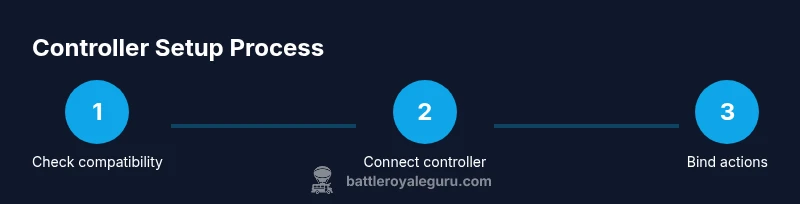
Check controller compatibility
Confirm your controller model is supported and that Windows will recognize it. If you’re unsure, consult manufacturer specs or the Fortnite support page. This ensures you won’t waste time troubleshooting an incompatible device.
Tip: If possible, test two different controllers to compare latency and comfort. - 2
Connect the controller to PC
Use a wired USB connection for the most stable input. If you’re going wireless, pair via Bluetooth and verify the connection remains stable during gameplay.
Tip: Avoid using cheap USB hubs; connect directly to a PC port for best results. - 3
Verify Windows recognizes the device
Open Settings > Bluetooth & devices and ensure the controller appears as a connected device. Use the Game Controllers control panel to test inputs.
Tip: If not recognized, reconnect or try a different USB port; update drivers if prompted. - 4
Enable controller support in Fortnite
Launch Fortnite, go to Settings, and ensure Controller input is enabled. Some builds require re-enabling after updates.
Tip: Record your baseline bindings before changing layouts. - 5
Bind essential actions
Assign core actions: shoot, aim, build, edit, reload, and inventory. Use logical button mapping to minimize finger fatigue.
Tip: Keep frequently used actions within easy reach of the right thumbstick. - 6
Tune sensitivity and aim assist
Set a baseline sensitivity and adjust in small increments while testing in Creative or Practice mode. Enable/adjust aim assist to match your playstyle.
Tip: Make a small change, play a few minutes, then decide; big jumps disrupt muscle memory. - 7
Test and iterate
Play a few rounds in a controlled environment, log what feels off, and refine bindings and settings accordingly.
Tip: Keep a short changelog to track what works best.
Questions & Answers
Can I use any controller on Fortnite PC?
Fortnite PC supports Xbox, PlayStation, Switch Pro, and most XInput-compatible controllers. Wired and wireless connections are both supported, but performance can vary by device and PC setup.
Most standard controllers work on Fortnite PC, with wired connections offering the best stability.
Do I need third-party software to map buttons?
Typically no. Windows handles basic mapping, and Fortnite uses in-game bindings. Some third-party controllers may benefit from vendor software for advanced remapping, but it’s optional.
Usually you don’t need extra software; the game handles most mappings, but some devices offer optional drivers for comfort.
Will aim assist work on PC with a controller?
Yes. Aim assist is available when using a controller on PC, and you can tweak its strength to balance precision and tracking. Turn it on in Fortnite’s controller settings if needed.
Aim assist works on PC; adjust it to fit your playstyle in settings.
What should I do if my controller isn’t recognized?
Check the cable or Bluetooth pairing, verify drivers are up-to-date, test another USB port, and restart Fortnite or the PC if needed.
If it isn’t recognized, check cables and drivers, then try another port or restart.
Can I use a controller in Creative mode?
Yes. Creative mode fully supports controllers, making it ideal for practicing binds and edits before jumping into matches.
Controllers work in Creative mode, great for practice.
What are good starting sensitivity values?
Begin with a moderate sensitivity and adjust in small increments while testing in Creative or Practice. Avoid large jumps that disrupt muscle memory.
Start with mid-range sensitivity and tweak gradually.
Watch Video
Key Points
- Bind core actions to intuitive controller buttons.
- Test inputs in Creative to dial in sensitivity before live matches.
- Prefer wired connections for stability and lower latency.
- Iterate bindings and sensitivity based on practice feedback.