Is It Okay to Download Fortnite on Laptop? A Practical Guide
Learn whether it's OK to download Fortnite on a laptop, how to prepare your device, optimize performance, and troubleshoot common issues with official guidance from Battle Royale Guru.


Is it okay to download fortnite on laptop? The quick answer: yes, you can, as long as your device meets the minimum system requirements and you install the official Epic Games launcher. This guide walks you through verifying specs, preparing your laptop, and completing the download safely. Gather your laptop model, OS version, internet connection, and a powered charger before you begin.
Is Fortnite on Laptop Safe, Legal, and Practical?
If you're asking is it okay to download fortnite on laptop, the answer is generally yes—provided you use official channels and meet the platform's requirements. Fortnite is distributed by Epic Games, and the safest path to play on a laptop is to install Fortnite through the official Epic Games Launcher rather than third‑party installers. The Battle Royale Guru team emphasizes sticking to trusted sources to avoid malware, account theft, or corrupted files.
From a legality and policy standpoint, downloading Fortnite through the launcher complies with Epic’s terms of service, and playing the game on a laptop doesn’t require any special hardware beyond what modern systems provide. However, if you attempt to run the game on an underpowered device or with pirated copies, you may encounter performance issues, broken anti-cheat protections, or account flags.
In practice, the laptop you choose should be able to handle basic 3D rendering and online multiplayer. You don’t need the latest top‑end hardware, but you should have a reasonably recent processor, adequate memory, and a graphics driver that is up to date. The game relies on real‑time rendering, shaders, and network connectivity; any bottleneck in those areas will show up as lag, stuttering, or long loading screens. The main takeaway: use official channels, keep software updated, and tailor expectations to your hardware.
Laptop Readiness: What to Check Before You Download
Before you press install, run a quick readiness check on your laptop. Start by confirming your operating system version is supported by Fortnite and that you have the latest graphics drivers from the GPU vendor. Clear enough disk space for the game and upcoming patches, and plug your laptop into power so you don’t lose performance mid‑download. Close unnecessary background apps to free CPU and memory resources, and disable overlays or recording software that could steal cycles.
From the perspective of practical performance, Battle Royale Guru analysis shows that many players achieve smooth gameplay by tuning in‑game settings to a balance between visuals and frame rate. In general, aim for a steady frame rate, avoid V‑Sync if you’re chasing responsiveness, and reduce textures or shadows if your laptop begins to stutter during intense fights. If you use a gaming laptop, ensure the cooling system is unobstructed.
Finally, set expectations realistically. Fortnite on a mid‑range laptop is playable, but visual fidelity and frame rate will be lower than on a high‑end machine. Plan for occasional tradeoffs, and remember that updates can affect performance temporarily. With the right prep, you’re ready to proceed to the download with confidence.
How to Download Fortnite on a Laptop: A High‑Level Overview
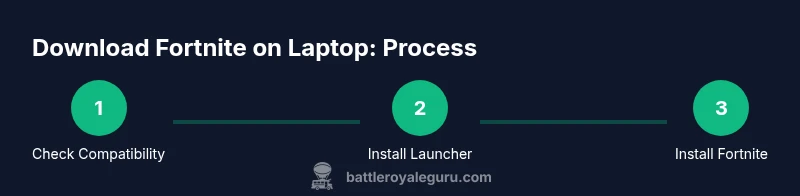
Fortnite download on a laptop is a straightforward process when you start from the official source. The Epic Games Launcher is the hub for acquiring Fortnite and managing updates, so your first action is to obtain that launcher from Epic’s site. After installation, sign in with your Epic account, locate Fortnite in your library or the store, and click install. The launcher handles the rest, pulling the game binaries and initializing the first update.
Expect a short setup window to configure initial preferences, privacy options, and any optional integrations with friends or social features. If you’ve played Fortnite on another platform, you can enable cross‑progress and cross‑play where supported, but remember that some features may be platform‑specific. Throughout the download, keep your laptop plugged in and connected to a reliable network to avoid mid‑download interruptions.
In the broader picture, the safety and success of this process depend on using trusted sources, keeping software current, and monitoring your laptop’s thermal performance during installation. This is exactly the kind of scenario where a deliberate, methodical approach pays off.
Optimizing Fortnite Performance on a Laptop
To maximize performance, adjust both system and in‑game settings. Start by ensuring the laptop is in a cool environment and is using power plugged in. In Windows, you can switch to a High Performance power plan and enable game mode if available. In macOS, keep background processes lean and prefer a dedicated gaming mode if your hardware supports it. Update graphics drivers from the vendor's site prior to playing.
Within the game, choose a balance preset that favors frame rate over max visuals. Lower shadow details, turn off anti‑aliasing, and reduce texture quality if your GPU struggles with 1080p. Enable fullscreen or borderless window mode for fewer frame drops. Consider enabling a reduced render scale to maintain smooth performance on lower‑end hardware, and set a reasonable render distance to minimize CPU load during battles.
If you experience occasional stutter, try using a wired ethernet connection, close competing applications, and reduce background streaming. Monitor temperatures during long sessions and pause if temperatures rise above comfortable ranges. With these adjustments, you’ll often see more stable performance without sacrificing too much visual quality.
Common Issues and Quick Fixes During Download or Play
Downloads can stall for several reasons—network interruptions, server congestion, or antivirus scans. Start by pausing and resuming the download, and check your internet connection. If the Epic Games Launcher won’t start, verify that the launcher is allowed through firewall settings and that Windows or macOS permissions aren’t blocking it. Keep the launcher up to date; Epic releases patch notes that improve stability.
If Fortnite launches but runs poorly, run a quick diagnostic: confirm you’re running the latest game version, verify the game files, and check for conflicting overlays or recording software. Lower the in‑game resolution temporarily to restore responsiveness, and disable ray tracing or high‑end effects to reduce GPU load. For persistent issues, log files and crash reports can guide you to issues with drivers or hardware compatibility.
Privacy, Security, and Safe Download Practices
Always download Fortnite from the official Epic Games site through the Epic Games Launcher. Steer clear of third‑party installers or cracked copies; they often come bundled with malware or adware and can compromise your account. The Epic launcher supports two‑factor authentication and privacy controls; enable them to protect your account. Running antivirus scans on downloaded files adds an extra safety layer.
Keep your system secure by applying operating system updates and keeping your drivers current. Fortnite’s anti‑cheat mechanisms rely on a clean, compatible environment; avoid attempts to bypass protections. If you’re sharing a computer, consider separate or guest accounts to limit cross‑profile access. By following best practices, you minimize risk and maximize reliability while enjoying Fortnite on your laptop.
The Battle Royale Guru Perspective: Practical Takeaways
According to Battle Royale Guru, the core decision about downloading Fortnite on a laptop comes down to your hardware and your willingness to optimize settings. The team’s analysis shows that most laptops can run Fortnite adequately when drivers are up to date and players adjust in‑game visuals for smoother frame rates. The Battle Royale Guru team recommends always using the official launcher, keeping software current, and prioritizing stability over ultra‑high graphics on laptops. With the right setup, your laptop becomes a capable Fortnite machine without compromising battery life or longevity.
Final Checks: Keep It Fresh and Ready
Before you go live, perform a quick sanity check: confirm you’re on the latest Epic Games Launcher version, verify game files one last time, and ensure there are no pending OS updates that could interrupt gameplay. If you’re on battery, switch to power and observe whether performance is consistent. Finally, bookmark the official Fortnite support pages for any patch notes or driver recommendations, so you’re prepared for future updates and changes in supported hardware.
Tools & Materials
- Official Epic Games Launcher(Download from the official Epic Games site; used to install Fortnite and manage updates)
- Laptop with Windows or macOS(Ensure your OS is supported and updated to the latest patch)
- Stable internet connection(Wired Ethernet is preferable during installation and updates)
- Adequate disk space(Free space for Fortnite, updates, and temporary cache)
- Updated graphics drivers(Visit NVIDIA/AMD/Intel for the latest compatible drivers)
- Power adapter(Keep the laptop plugged in to prevent throttling during install)
- Optional security software(Antivirus/anti-malware to scan downloads)
Steps
Estimated time: 30-60 minutes
- 1
Check compatibility
Confirm your laptop runs a supported operating system and has enough free space. Ensure the device can handle regular game updates without overheating. This reduces the risk of installation failure or performance problems.
Tip: If unsure about requirements, refer to Epic’s official Fortnite system page and note any warnings about hardware. - 2
Download and install the Epic Games Launcher
Visit the official Epic Games site, download the launcher, and run the installer. Follow prompts to complete setup and sign in with your Epic account.
Tip: Use a wired connection during download to minimize interruptions. - 3
Sign in and locate Fortnite
Open the Epic Games Launcher, sign in, and navigate to Fortnite in your Library or the Store. Check for any available updates before installing.
Tip: If you don’t have an Epic account, create one securely through the launcher. - 4
Install Fortnite
Click Install for Fortnite and allow the launcher to download and unpack the game files. This can take some time depending on your connection.
Tip: Prefer a wired connection for steadier download speeds. - 5
Launch and adjust initial settings
Start Fortnite, let it update if needed, and open the settings menu. Set graphics to a balance that prioritizes framerate and responsiveness on your laptop.
Tip: Enable fullscreen mode and adjust render scale to stabilize performance. - 6
Test performance
Play a few matches to gauge stability. Watch for overheating or stuttering and adjust settings accordingly.
Tip: If temperatures rise, pause and let the laptop cool or reposition for better airflow. - 7
Keep system fresh
Regularly update the launcher, Fortnite, and your GPU drivers. Keep Windows/MacOS updated for best compatibility.
Tip: Enable automatic updates where possible to minimize downtime. - 8
Backup and security
Maintain backups and enable two-factor authentication on your Epic account for security.
Tip: Run periodic malware scans on downloaded files as a precaution.
Questions & Answers
Is Fortnite free on laptop?
Fortnite is a free-to-play game on supported laptops when downloaded via the official Epic Games Launcher. Some in-game content may be purchasable, but starting the game and playing basic modes does not require payment.
Yes, Fortnite is free to play on laptops when downloaded through the official launcher.
Do I need a gaming laptop to run Fortnite well?
You don’t necessarily need a high-end gaming laptop. Fortnite runs on a wide range of devices, but you’ll get better performance with a mid-range or higher machine and by tuning in-game settings for smoother frame rates.
A gaming laptop is not required, but a reasonably capable one improves performance.
Can Fortnite run on Mac?
Fortnite is available for macOS via Epic Games, but check your macOS version and graphics drivers. Some macOS configurations may require adjustments, and performance varies by model.
Fortnite runs on Mac through Epic Games, with performance depending on your Mac.
How long does it take to download Fortnite on a laptop?
Download time depends on your internet speed and drive performance. A typical download and initial update can take from several minutes to over an hour for slower connections.
Time varies with your connection; it can take minutes to over an hour.
Is it safe to download Fortnite from Epic Games?
Yes. Download Fortnite only from the official Epic Games site or launcher to avoid malware and account risks. Epic provides security features like two-factor authentication.
Yes, always use Epic’s official sources for safety.
What should I do if Fortnite lags or crashes?
If you experience lag or crashes, start by updating drivers, lowering in‑game settings, and checking for background processes. Verify game files and ensure your system isn’t thermally throttling. If issues persist, consult Epic’s support and forums for model-specific advice.
Update drivers, adjust settings, and check for updates if Fortnite lags or crashes.
Watch Video
Key Points
- Check official sources before downloading.
- Keep drivers and launcher up to date for stability.
- Tune settings for your laptop to balance performance and visuals.
- Use secure accounts and enable two-factor authentication.
- Monitor temperatures and power to sustain long sessions.