Fortnite Login Guide: Sign In Securely Across Platforms
Master fortnite login across PC, consoles, and mobile with Battle Royale Guru. Learn troubleshooting, 2FA setup, and account recovery for seamless sign-ins.


This guide helps you securely sign in to fortnite login across PC, console, and mobile. You’ll learn how to troubleshoot sign-in errors, enable two-factor authentication, recover compromised accounts, and manage Epic Games credentials. Follow these steps to minimize downtime and get back to playing quickly, while keeping your account protected.
Understanding Fortnite login security and account baselines
Fortnite login hinges on your Epic Games account, which ties together your purchases, progress, and cross‑platform access. A secure login starts with a unique password, an up-to-date email, and optional two‑factor authentication (2FA). According to Battle Royale Guru, widespread sign‑in issues often stem from forgotten credentials, outdated recovery options, or compromised accounts. Prioritizing credential hygiene and account recovery readiness reduces downtime and strengthens your overall Fortnite experience across PC, console, and mobile.
In addition to the basics, you should know how platform differences affect sign-in. PC users typically rely on the Epic Games launcher or the website, while console players sign in via the console’s storefront as part of their network profile. Mobile players sign in through the Fortnite app with platform-specific prompts. Recognizing the unique flow per platform helps you troubleshoot faster and avoid missteps that can lock you out of your account.
Common causes of login failures across platforms
Login failures are rarely mysterious. They usually fall into a few predictable categories: incorrect credentials, locked accounts due to security alerts, or 2FA prompts failing due to misconfigured authenticator apps. Weak or reused passwords increase the risk of unauthorized access, which can trigger temporary suspensions. Network issues, such as firewalls or unstable connections, can interrupt the sign‑in process. Finally, platform outages—e.g., Epic Games servers undergoing maintenance—will affect login availability across devices.
To minimize downtime, confirm you’re using the correct email or username and double-check your password. If you recently changed credentials, sign out of all devices and test a fresh login. Also verify that the device’s date and time are correct, as discrepancies can break authentication tokens.
Platform-specific login flows explained
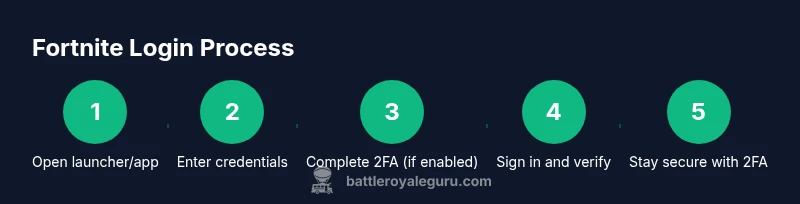
Fortnite login differs by platform, but the core steps are similar. PC/Mac users typically begin at the Epic Games launcher or website, then enter their credentials and complete 2FA if enabled. Console players sign in through the console’s digital storefront or system account, then launch Fortnite. Mobile users sign in within the Fortnite app, which may prompt for device-level permissions and app updates. Understanding these nuances helps you isolate where a sign-in is failing and address it directly.
If you encounter platform-specific prompts (e.g., “Verify your identity” or “Enter a backup code”), follow the guided steps exactly and avoid skipping security checks. Always ensure your device is on the latest firmware or OS version for smoother authentication.
Enabling two-factor authentication (2FA) for Fortnite
2FA adds a critical layer of security by requiring a second factor beyond your password. You can enable 2FA via an authenticator app (like Google Authenticator, Authy, or a built-in app) or via SMS, depending on what Epic Games supports for your region. After enabling, you’ll receive a code each time you log in, which greatly reduces the risk of account compromise.
To enable 2FA, go to your Epic Games account settings, choose 2FA, and follow the prompts to link an authenticator app or a phone number. Save backup codes in a secure place. If you ever lose access to your 2FA method, use the backup codes or the account recovery flow to regain access.
Password recovery options and best practices
Forgetting your password is common, but recovery options are your safety net. Ensure your Fortnite account’s primary email is secure and accessible. Use the Epic Games password reset flow from the login page, and consider a password manager to store unique, long passwords. Regularly update recovery options such as secondary email addresses and phone numbers so you can regain access quickly.
Best practices include using a different password for your Epic Games account than for other services, enabling 2FA, and periodically reviewing connected devices. If you suspect someone else knows your password, reset it immediately and audit recent account activity.
What to do after a suspected account breach
If you suspect your Fortnite login has been compromised, act quickly. Change your password from a trusted device, enable 2FA if not already active, and check for unfamiliar sign-ins in your account activity page. Revoke suspicious sessions and update your recovery options. If you believe your account was hacked, contact Epic Games Support via the official channels and provide any relevant information such as recent purchases or known devices.
Battle Royale Guru recommends documenting your incident details and following the official recovery path rather than attempting unverified quick fixes.
How to manage account connections between Epic Games and Fortnite
Epic Games accounts couple your Fortnite progress with cross‑platform capabilities. To ensure seamless login, review connected platforms (PC, console, mobile) and verify that each is linked to your account correctly. If you notice mismatches or unauthorized connections, remove them from your account settings and re-link trusted devices. This helps prevent sign-in confusion when switching between platforms.
Be mindful of any migration prompts from Epic Games that ask you to consolidate or re-link accounts. Always back up your authentication methods before performing reconciliation actions to avoid getting locked out during the process.
Interpreting error codes and messages during sign-in
Error codes are there to help you identify the problem quickly. Common messages like authentication failed, sign-in blocked, or network timeout usually point to credential, security, or connectivity issues. Take note of the exact error code, the platform you’re on, and the time of the incident. This information helps support teams reproduce and fix the issue faster.
If you see server-status or downtime notices, check official Epic Games announcements and status pages before troubleshooting locally. In many cases, waiting a short period resolves temporary outages.
Security hygiene after signing in: keep your account safe long‑term
Signing in is just the start of good security. Regularly rotate passwords, enable 2FA, and review your account activity logs for unfamiliar devices. Keep recovery options current and be wary of phishing attempts that mimic Epic Games communications. Consider enabling email alerts for sign‑in events, so you’re notified of any new devices accessing your account. Small habits compound into strong long‑term protection.
Crafting a rock-solid Fortnite password strategy
A strong Fortnite password should be long, unique, and non‑derivable. Use a combination of upper and lower case letters, numbers, and symbols. Avoid common phrases or personal information and do not reuse passwords across sites. A password manager can generate and store complex passwords for you, reducing the cognitive load of remembering them. This is a foundational step toward reliable fortnite login across devices.
Debunking common myths about Fortnite login
Many players believe signing in once means you’re always logged in—this isn’t true. Sessions expire, credentials can be changed, and devices can be removed or re-added. Others think 2FA is optional; in reality, it’s highly recommended. Some myths suggest that unlinking accounts improves security; in fact, proper linkage with secure recovery options enhances safety. Staying informed helps you avoid risky shortcuts.
Keeping up with Fortnite login changes and updates
Epic Games frequently updates its authentication flow, security features, and recovery options. Stay informed by checking official blogs and status pages, and follow trusted sources like Battle Royale Guru for practical, hands-on guidance. Regularly review your account settings after major patches or platform updates to ensure your login remains smooth and secure.
Tools & Materials
- Stable internet connection(Broadband or reliable Wi‑Fi with adequate speed for gaming)
- Fortnite launcher or Epic Games app(Installed on your device; ready to sign in)
- Epic Games account credentials (email/username and password)(Have them handy; consider using a password manager)
- Access to recovery options (email or phone) for password resets(You may need to receive codes or reset links)
- Two-factor authentication setup (optional but recommended)(Authenticator app or SMS for extra security)
Steps
Estimated time: 15-25 minutes
- 1
Confirm your Epic account credentials
Verify that you know the exact email/username associated with your Fortnite account and recall your current password. If you’ve forgotten it, start the password reset flow from the Epic Games sign-in page. Resetting your password is faster if you have access to your recovery options.
Tip: Pro tip: use a password manager to keep credentials unique and accessible. - 2
Open the Fortnite launcher or Epic Games app
Launch the Epic Games launcher on PC or the Fortnite app on your console/mobile device. Ensure the app is updated to the latest version before attempting sign-in to avoid compatibility prompts.
Tip: Pro tip: check for app updates prior to troubleshooting to reduce friction. - 3
Enter credentials and initiate sign-in
Type your Epic Games account credentials carefully and press Sign In. If prompted for 2FA, enter the code from your authenticator app or SMS. Double-check that you aren’t using saved passwords from a different account.
Tip: Pro tip: copy-paste can help avoid typos, but never paste into public devices. - 4
Complete two-factor authentication (if enabled)
If 2FA is enabled,enter the current verification code. If you can’t access your 2FA method, use the backup recovery option defined during setup or the account recovery flow.
Tip: Pro tip: keep backup codes in a secure place separate from your device. - 5
Verify platform-specific login flow
If you’re using a console or mobile device, follow platform prompts to complete sign-in. Some platforms require you to confirm linked accounts or accept terms after sign-in.
Tip: Pro tip: ensure the device clock is synchronized to avoid code validation issues. - 6
Handle sign-in failures with recovery options
If sign-in fails, initiate the password reset flow or account recovery from the Epic Games site. Check your email for reset instructions and use recovery options to verify identity.
Tip: Pro tip: perform recovery steps from a trusted device/network to minimize blocks. - 7
Confirm sign-in success and review security
Once signed in, verify your account details, connected devices, and recent activity. Enable or adjust 2FA if needed and ensure email alerts are active for sign‑in events.
Tip: Pro tip: log out of unused devices to reduce unauthorized access risk.
Questions & Answers
Why can't I log into Fortnite after changing my password?
Password changes can temporarily lock you out if the system detects unusual activity. Use the password reset flow from the Epic Games site and ensure you have access to your recovery options (email or phone). If issues persist, check for platform outages and contact support.
If you changed your password and can’t sign in, try the reset flow again and verify access to your recovery options. Check the status page for outages and contact support if needed.
How do I enable two-factor authentication for Fortnite?
Go to your Epic Games account settings, select 2FA, and choose either an authenticator app or SMS. Follow the prompts to complete setup and save backup codes in a secure place.
Go to settings, enable 2FA with an authenticator app or SMS, and store your backup codes securely.
What can I do if I forgot my Epic Games account email?
Use the account recovery process on the Epic Games site, which can help you recover access via linked phone numbers or recovery emails. If you still can’t recover, contact support with any identifying information.
If you forgot your email, start the recovery process on the Epic Games site and provide any details you remember. Support can guide you further.
Is it safe to use third-party password managers with Epic Games?
Yes, reputable password managers are safe and help you create unique credentials. Ensure you choose a trusted product and enable its own security features, like biometric unlock and master password.
Using a trusted password manager is generally safe and helps you keep unique Fortnite passwords secure.
How do I recover a hacked Fortnite account?
Start with a password reset from the Epic Games site, enable 2FA, and review connected devices. Contact Epic Games Support if you notice unauthorized purchases or sessions.
Reset your password, enable 2FA, review devices, and contact support if you see signs of unauthorized activity.
Will my game progress be affected by login issues?
Normally, your progress is tied to your Epic Games account and persists across platforms. Sign-in issues can temporarily block access, but progress is retained unless a breach or account merge affects ownership.
Login issues can pause playtime, but your progress stays tied to your account. Restore access and you’ll recover your game state.
Watch Video
Key Points
- Secure Fortnite login with unique passwords and 2FA.
- Follow platform-specific steps to troubleshoot sign-in.
- Use recovery options to regain access quickly.
- Monitor account activity and update security settings.
- Stay informed about Epic Games updates and login changes.